Aglyn Assist
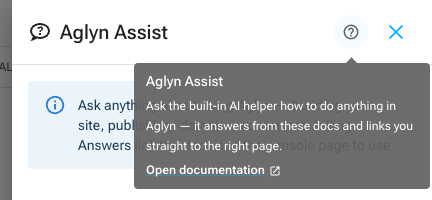
Aglyn Assist is the chat helper in the bottom-right corner of every console page. Ask it how to do something — publish a page, connect a domain, set up shipping, invite a teammate — and it answers from this documentation, linking the exact docs section and the console page where you do it.
What it can do
- Answer how-to questions about building sites, publishing, domains, commerce, bookings, workflows, datasets, team roles, and billing.
- Link you to the source — under each written answer is a Sources list naming the documentation sections it drew on, each one a link straight to that section. See Where an answer came from.
- Guide you on the page you're on (Starter and up) — the assistant knows which console page you're viewing and answers about that page, rather than giving you a general answer you then have to translate.
- Offer to take you to the right page (Starter and up) — when what you asked for starts somewhere else, it can show a card that opens that page for you. See Offers to open a page.
- Propose edits in the Besigner (with AI generation on your plan) — ask for a change to the page, component or layout you have open, and it shows exactly what would change before anything does. See Edits in the Besigner.
Aglyn Assist answers and directs. It never saves, publishes or changes a setting on its own. The one thing it can change is the canvas you have open in the Besigner — and only when you apply a change it proposed, as unsaved edits you can undo — so there's nothing it can do by accident; you stay in control of every change.
When it builds instead of answering
Everything above is the assistant explaining. With AI generation on your plan — the Aglyn AI add-on, or the AI credits a Free workspace gets — the same assistant also builds: whole pages, layouts, page templates, reusable components, forms, designed emails, campaigns, product copy, your search titles and descriptions, a change to your theme, and a small site from one brief. AI jobs in the panel is where you watch one work and open what it made. It opens on its own while a job is running or waiting for you, the AI chip in the top bar says what your jobs are doing, and the Assist button carries a badge while one runs. See Finding your AI jobs.
Everything it builds arrives as a draft. It never publishes, never changes a live page in place and never sends anything, so a generated page has no address on your live site until you publish it yourself.
What each door does, what it costs in credits and who can use it is in Aglyn AI.
Answers for beginners and developers
Every answer is written twice over, in one message.
The main answer is in plain words: what to click, in the order you'll click it, with nothing assumed about what you already know.
Underneath, when there's something technical worth adding — the URL of the page, the identifier in it, the field or API behind it — there's a collapsed Under the hood line. Open it if you want that detail; ignore it entirely if you don't. Nothing is hidden from you and nothing is explained at you.
Offers to open a page
Sometimes the thing you asked about starts on a different page. When the assistant knows which one, it shows a small card offering to take you there — with the values to use, when it has worked them out from your question.
The card only opens the page. It never fills in a form for you, never saves anything, and never makes a change on your behalf. You land on the normal page, fill it in yourself, and press the button yourself — with all the usual permission checks in place. If you'd rather stay where you are, choose No thanks and the card goes away.
This is deliberate. A card that only opens a page cannot change your site by misunderstanding you, because it has no way to. The only changes the assistant can make are the edits in the Besigner, and each of those waits for you to apply it.
Edits in the Besigner
With a page, a reusable component or a layout open in the Besigner, you can ask the assistant for a change: "make this hero darker", "add a testimonial band below", "point this button at the pricing page". When your plan includes AI generation — the Aglyn AI add-on, or the AI credits a Free workspace gets — it answers with a Proposed change card listing what would change: elements added, removed, moved or restyled, settings changed, interactions added, and a page's search title or description filled in. Anything it could not match to your canvas is listed under Left out.
-
Interactions on the selected element. Ask "when this is clicked, show the panel below" and the assistant proposes an interaction on the element: something a visitor does to it — a click, a hover, scrolling it into view — and the steps that follow, chosen from the presentational ones every plan runs (show, hide or toggle an element, add or remove a class, scroll to or play an element, open or close a drawer or menu, go to a page, show a message). It is added beside anything the element already does, never in place of it; edit or remove it under Interactions like any other. Ask "what does this do?" and it explains the interactions the element carries.
-
Nothing changes until you apply. Apply as draft puts the changes on the open canvas as unsaved edits, all in one step, so a single Undo takes the whole change back. Nothing is saved or published until you do that yourself. A proposed search title or description is filled into Page Properties, where Save SEO stores it.
-
The live version is never edited in place. When the version open is the one your live site shows, the card offers Make a new version instead — the same New version you would use yourself. Once the new version opens, the card offers Apply as draft there.
-
Select the element you mean. The assistant sees the element you have selected, everything inside it, what surrounds it and the page's sections — not your whole site — and it can only change elements it was shown. With nothing selected it sees only the top of the page and asks you to select one. If the canvas changes before you apply, the card says so and applies nothing.
-
Who can use it. Your role needs the Generate with AI permission (a site collaborator needs it on that site). Asking uses AI credits like any other assistant message; applying uses none. Each applied change is recorded in the site's activity log under your name.
Where an answer came from
Every answer the assistant writes is followed by a short Sources line — Source when there is only one — listing the documentation sections it drew on. Each entry names the page and the heading within it, and clicking one opens that exact section.
This is there so you never have to take an answer on trust. If the reply is not quite what you needed, the source is usually the fastest next step: the page will have the surrounding detail that a short answer had to leave out.
A link the assistant already put in the answer itself is not repeated in the list, so replies quoted straight from the documentation — which lead with the page name and link it — do not carry a duplicate.
Answers straight from the documentation
Most of what people ask the assistant — "how do I connect a domain", "where do I save a template" — is already written down on these pages. When your question clearly matches one of them, the assistant hands you that page's own words, with a link to the full page, instead of writing you a fresh answer.
You will recognize these replies: they open with the name of the page, quote it, and close by offering to go further if it missed what you meant.
There are two things worth knowing about them.
- They are never a summary. The text is copied from the documentation exactly as written, so it cannot drift from what the page actually says. If the assistant is not confident which page answers you, it writes you a real answer instead of quoting a page that only looks close.
- They do not count against your message limit, because they cost nothing to produce. Ask as many as you like.
If a quoted page did not cover what you meant, just ask again with more detail — the follow-up gets a written answer.
Message limits
- Free workspaces get a limited number of assistant messages each day, with answers and docs links, and 300 AI credits a month for the assistant and AI generation together. The credits belong to the person who owns the workspace, so several Free workspaces owned by one account share them; when they are used, AI pauses until next month or an upgrade, and nothing is ever billed. A new account waits a short while after signing up before it can generate, and free requests are capped per day.
- Paid plans include their own monthly AI credits for the assistant and AI generation together, rising with the plan, and sell credits past the band rather than stopping at it — so the assistant keeps working and the month's overage is billed, unless you switch that off or set a ceiling in Billing.
- Every paid plan, Starter included, also gets page-aware guidance and the offers to open a page described above.
When a free workspace reaches its daily limit, the assistant says so and the counter resets the next day (UTC).
Answers quoted straight from the documentation are free and are not counted, so a workspace at its daily limit can still ask how-to questions.
Feedback
Every answer offers a thumbs-up / thumbs-down. Ratings tell us which answers — and which docs — need work, so rating answers directly improves the product.
Privacy
Conversations with Aglyn Assist are stored with your workspace so we can improve answers and documentation. See the privacy policy for details on how this data is handled.