Publish your first page
This walks through the core loop: create → design → publish.
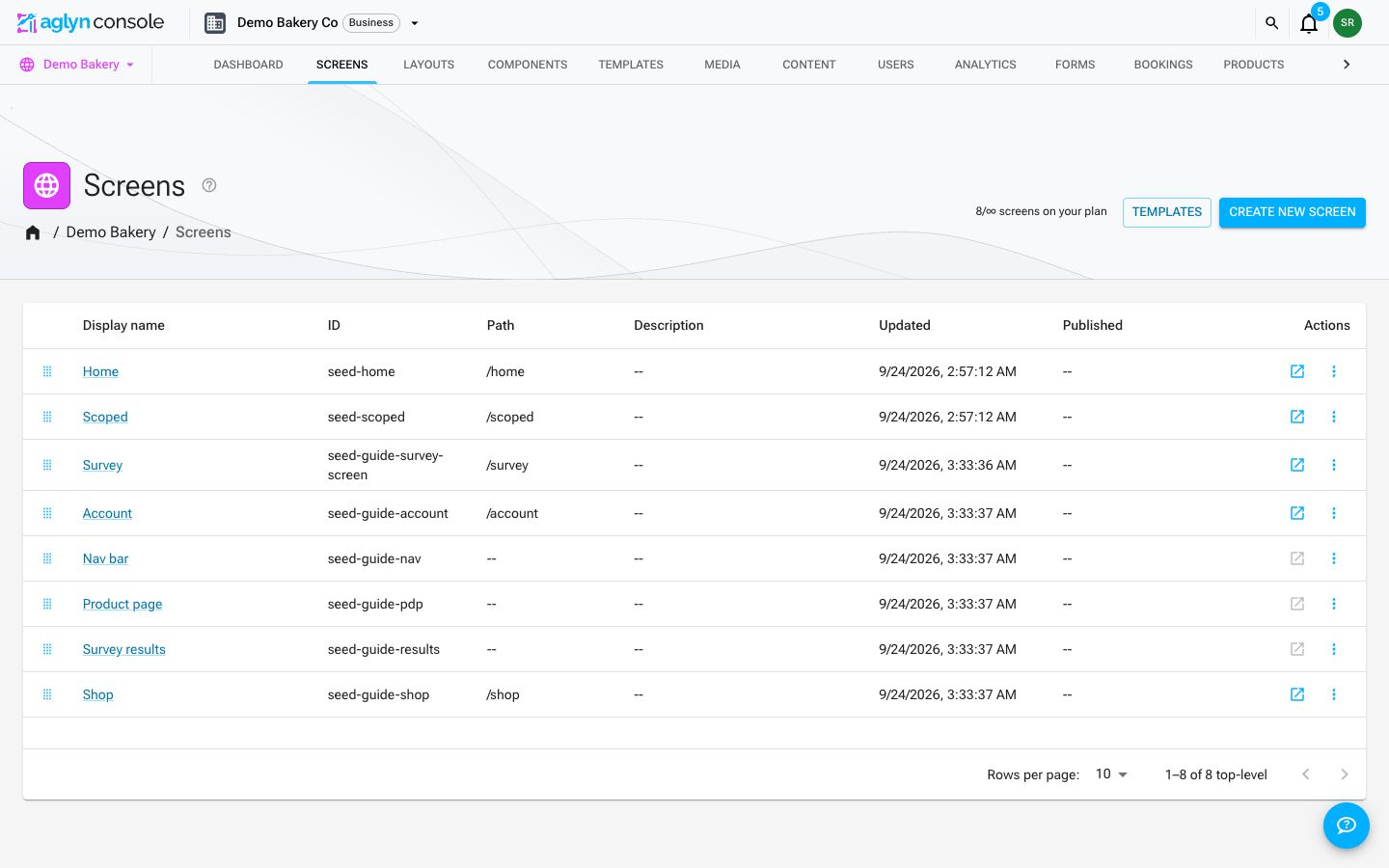
You don't have to leave the Besigner to go live: the Publish button in the top-right of the editor publishes the version you're editing (and flips to Unpublish once the page is live). Pages without a URL path yet are prompted to set one in Properties first.
1. Create a page
- Go to Pages and choose New page.
- Set a title and a URL slug (e.g.
about). Aglyn normalizes the slug and stores it on the page, ready for when you publish. - Optionally pick a parent page — children inherit a nested URL path
(
/services/pricing).
Creating a page doesn't put anything on your live site — its Date published stays empty and nothing resolves at its address until you publish it in step 3. Design it first, publish when it's ready.
2. Design it in the Besigner
- Open the page to launch the Besigner.
- Drag components from the drawer onto the canvas. Rearrange them in the hierarchy panel or directly on the canvas.
- Double-click text to edit it inline. Set component attributes in the inspector.
- Bind a shared layout if you want a common header/footer.
3. Preview and publish
- Use the artboard light/dark toggle to check both color schemes.
- Save the canvas. Saving writes your working version — it isn't publishing.
- Publish. The page's slug is registered in the routing map and the page goes live on your site's domain.
Every page is created with one working version, and Save updates that version on every plan — the core loop above needs nothing extra. Keeping more than one — named snapshots you can reopen, publish to roll back to, or schedule — requires Pro or above, and scheduling a version requires Business or above. On Free and Starter the editor answers "Versioning requires a Pro plan — see Billing to upgrade" instead of opening the name dialog. See Versions & scheduled publishing.
The Live button is environment-aware — in production it reflects your published saves so you can jump straight to the real page.
How fast changes go live
- Publishing a page refreshes it on the live site immediately — the very next visitor gets the new version, usually within seconds.
- Publishing a layout or a reusable component refreshes every page that uses it the same way. When that fan-out is very large, the publish confirms that the remaining pages "update on their own within an hour" — and they do.
- Site settings go live when you save them. Your theme, logo, favicon, app icon, social image, SEO and structured data, business details, languages, consent banner, announcement bar, popup and store settings have no publish step — saving one refreshes every page of the live site immediately, the same way a publish does. Installing, updating or resetting a marketplace theme does too, and so does saving a product, a review's moderation, a site variable or function, an overlay or an A/B test. If you close the tab straight after saving, the refresh still happens within a few minutes.
- Collections refresh their own pages. Changing a collection's template pages, its address or its categories refreshes its listing and every published entry page — including the old addresses after a rename.
- A deleted site stops serving at once. Its cached pages are dropped when you delete it, rather than lingering for up to an hour.
- Saving is not publishing. A save writes your working version; the live site serves the published one. The one subtle case: if you edit the version that is currently live and press Save, the live site catches up on its own within about a minute — and because pages regenerate behind the scenes, you may need to refresh twice to see it.
- Your site's
sitemap.xml,robots.txt, and RSS feeds refresh within about five minutes (a publish refreshes the sitemap immediately).
Next
Explore the feature areas in the sidebar, or see What's New for the latest capabilities.