Member accounts
Visitors can become members of your published site — sign up, sign in, see their orders, and unlock members-only pages. This walkthrough covers the visitor side (built-in auth pages and the account block) and the console side (the Users page and the member drawer).
Member signups and the account block work wherever commerce does; gating pages to members needs the content-gating feature (Business and above) — see Members-only areas.
Site members are your site's audience, separate from the console teammates you invite to collaborate. Members sign in on your published site only, with a per-site session — they never see the console.
1. Turn User Accounts on for the site
A new site starts with member accounts on. A site created before that
change starts with them off, and while they are off, /signin,
/signup and /recover do not exist on that site — they return a genuine
404, the same as any address you have not published.
The switch is at Sites → your site → Admin → Plugins, on the Site plugins card: flip User Accounts and press Save site plugins. It is a per-site switch, exactly like the other plugin toggles there, so one site in a workspace can have member accounts while another does not.
A sign-in page on a marketing domain is worse than a missing one: it looks
like the place to type a password, while the real sign-in usually lives
somewhere else entirely — a separate app domain, or your identity provider.
Aglyn's own site is the example. Serving /signin there would invite people
to enter console credentials on a page that is not the console. If a site
has no members, switch User Accounts off for it.
Switching User Accounts off again does not delete anything. Existing members, their profiles and their order history stay exactly where they are in Users; only the public pages stop being served. Switch it back on and everything is reachable again.
Sites that were already using member accounts when this switch arrived keep them — the switch was turned on for any site with members, a designated auth page, or a members-only page.
2. The built-in sign-in and sign-up pages
Once User Accounts is on, the site serves three ready-made routes — no design work needed:
/signup— "Create your account": name, email, and password (8 characters minimum). Submitting creates the member, signs them straight in, and returns them to your home page./signin— "Welcome back": email and password. The two pages cross-link ("New here? Create an account" / "Already a member? Sign in")./recover— "Reset your password": a member enters their email and gets a reset link, then sets a new password at the same address.


New members automatically flow into your
CRM and appear as leads;
memberSignUp and memberSignIn
automation events
fire so you can trigger welcome actions.
Member sessions are per-site, cookie-based, and last 30 days. A locked-out
member can reset their own password at /recover; you can also send them
a reset email from the member drawer (see
Password help below).
3. Design an account page
For a richer home for members, add the Customer account block (found in
the Commerce group of the element picker) to a page — conventionally at
the slug account, which is where commerce gates point anonymous visitors:
- Signed out, the block shows sign-in / create-account tabs in place, with your configurable Signed-out heading above.
- Signed in, it renders the member's profile with Sign out, plus sections for Orders (with status chips and tracking), Subscriptions (each with a Manage button that opens the Stripe Billing Portal), Downloads (digital purchases and license keys), and Addresses.

Give the account page the same chrome as the rest of your site by binding a shared layout: in the page's Properties, pick one under Shared layout — the appbar/footer are then maintained once for every bound page (see pages & layouts).
4. Gate pages to members
To restrict a page: open its version view, and in the Page Access card set Visibility to Members only, then publish. Anonymous visitors get a "This page is for members" prompt with sign-in / create-account links instead of the content (or your designed 401 error page if you've assigned one). The page's content is never in the anonymous page source — members fetch it with their session after sign-in.
For one-off protection without accounts, use a per-page password instead.
Gate part of a page, not all of it
Three blocks gate a region instead of a whole page, so one public page can hold both the pitch and the members-only part:
- Members gate — a container that shows its children only to entitled members. Everyone else sees the Teaser text and a call-to-action button you point wherever joining starts. Required product id names the product whose buyers or subscribers get in; leave it blank to accept any live subscription.
- Members video — plays one of a product's videos for members entitled to
that product, and resumes where each member left off. Video number picks
which one (the first is
0), and Locked text is what sits over the poster frame for everyone else. The video file is private and every link a member's player gets expires, so a link copied out of the page stops working on its own; see Members videos are private files. - Member feed — posts only entitled members can see, newest first, with a Heading, Empty text for when there are none, and a cap on how many show. Non-members never receive the posts, not merely a hidden copy of them.
A gated region is not a substitute for page visibility when the whole page is for members — that setting keeps the content out of the anonymous page source entirely.
5. Manage members from the console
The site's Users page has two cards: Site users (your members — this
guide) and Users (console collaborators). The Site users card is
paged, newest first, with Email, Name, Joined, and
Status columns. Its search box finds a member by the start of any word of
their name or their email address — rae, donovan or example.com all find
Rae Donovan at rae@example.com, and a member who never gave a name is found by
their address. Filters in the table's toolbar narrows it by Email
(equals the whole address), Name (contains a word of it, or equals
the whole name), Joined (is, is after, is on or after, is
before or is on or before a day) and Status (is Active or
Suspended). The filters and
the search add up, and every one is answered by the query that reads the list,
across every member rather than the page on screen. Name contains and the
search each look for one word, and one query can look for only one: while a search
is typed, a Name-contains filter is not applied, and a notice above the table says
so. Each filter in force shows as a chip above the table; see
Filter and search a list. For members who may open the
CRM, each row's ⋮ menu holds
Open in CRM — the member's contact, found by the address they signed up
with.
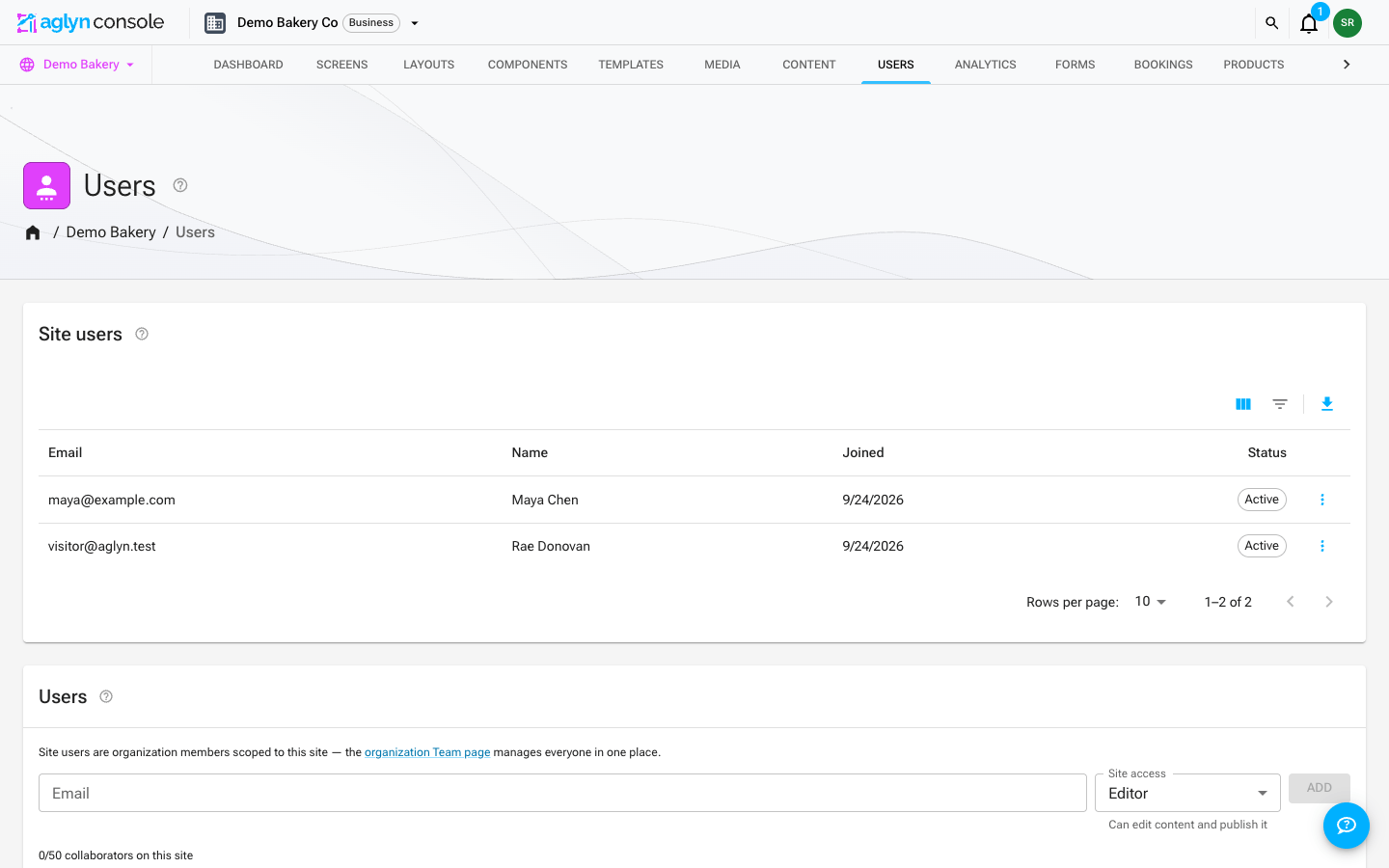
Click a member to open the member drawer:
- Profile — email, display name, and join date, with a Suspended chip when applicable.
- Lifetime purchases — charged order totals minus refunds (pending and canceled orders excluded).
- Orders — the member's payment history, newest first: order number, status, total, date, any refunded amount, and the Stripe payment reference. Needs the editor or admin role on the site.
- Subscriptions — each with its renewal date and status chip.
- Addresses — the member's saved addresses.
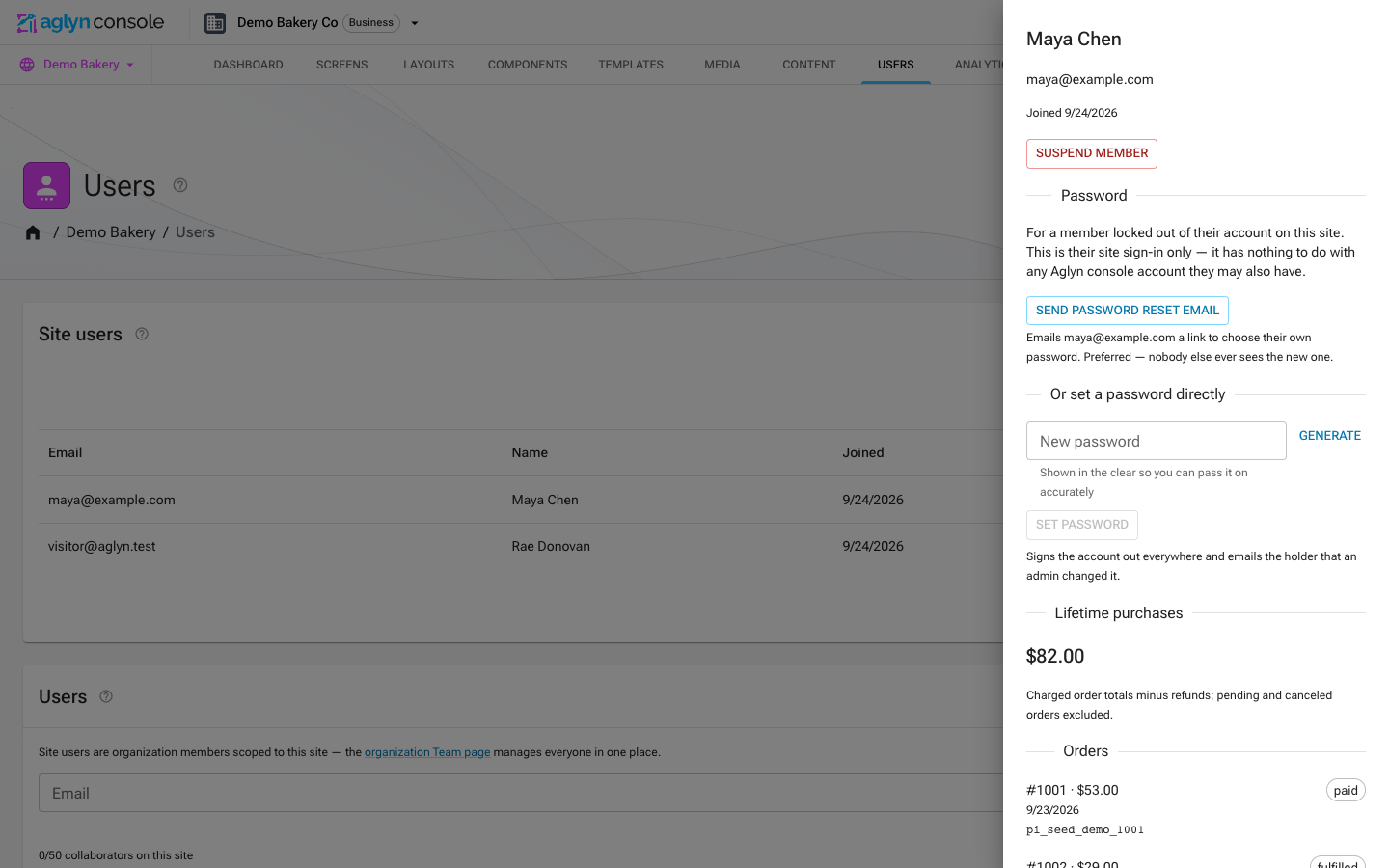
Suspend & reactivate
The drawer's action button flips between Suspend member and Reactivate member, each behind a confirmation:
- Suspend — the member can no longer sign in on the published site (they see an "account suspended" message), and their account page signs out on its next load. Orders, subscriptions, and history are all kept.
- Reactivate — restores access with the member's existing password.
Both actions are recorded in the site's activity log.
Password help
The drawer's Password section gets a member back into their account. This is their sign-in for this site only — it has nothing to do with any Aglyn console account the same person might also have.
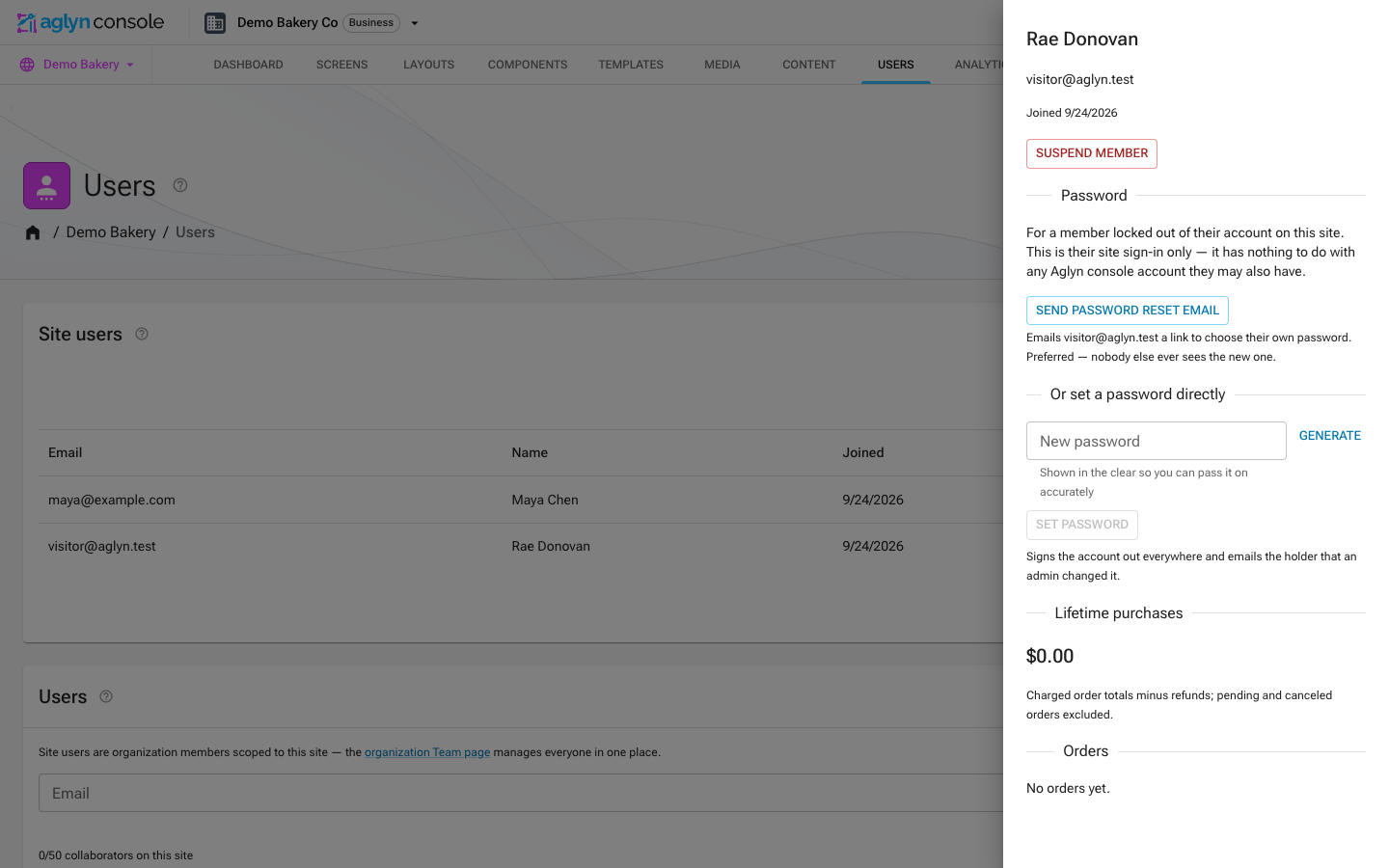
- Send password reset email — emails the member a link to the site's
/recoverpage. The link works once and expires after an hour, and their current password keeps working until they use it. This is the option to reach for. Capped at a few sends per hour to the same member, so a stuck retry loop can't flood their inbox. - Set a password directly — replaces the member's password with one you choose. Use it only when the member cannot receive email; you then have to pass the new password to them yourself. The member is signed out on every device and is emailed to say an administrator changed their password.
Both need the admin role on the site (or an organization role that manages members), and both are recorded in the site's activity log — never the password itself.