Plugins & Marketplace
Plugins extend Aglyn with new components and capabilities. You install them from the organization marketplace (Marketplace in the org navigation), configure them per site, and they run sandboxed so they can't compromise your site.
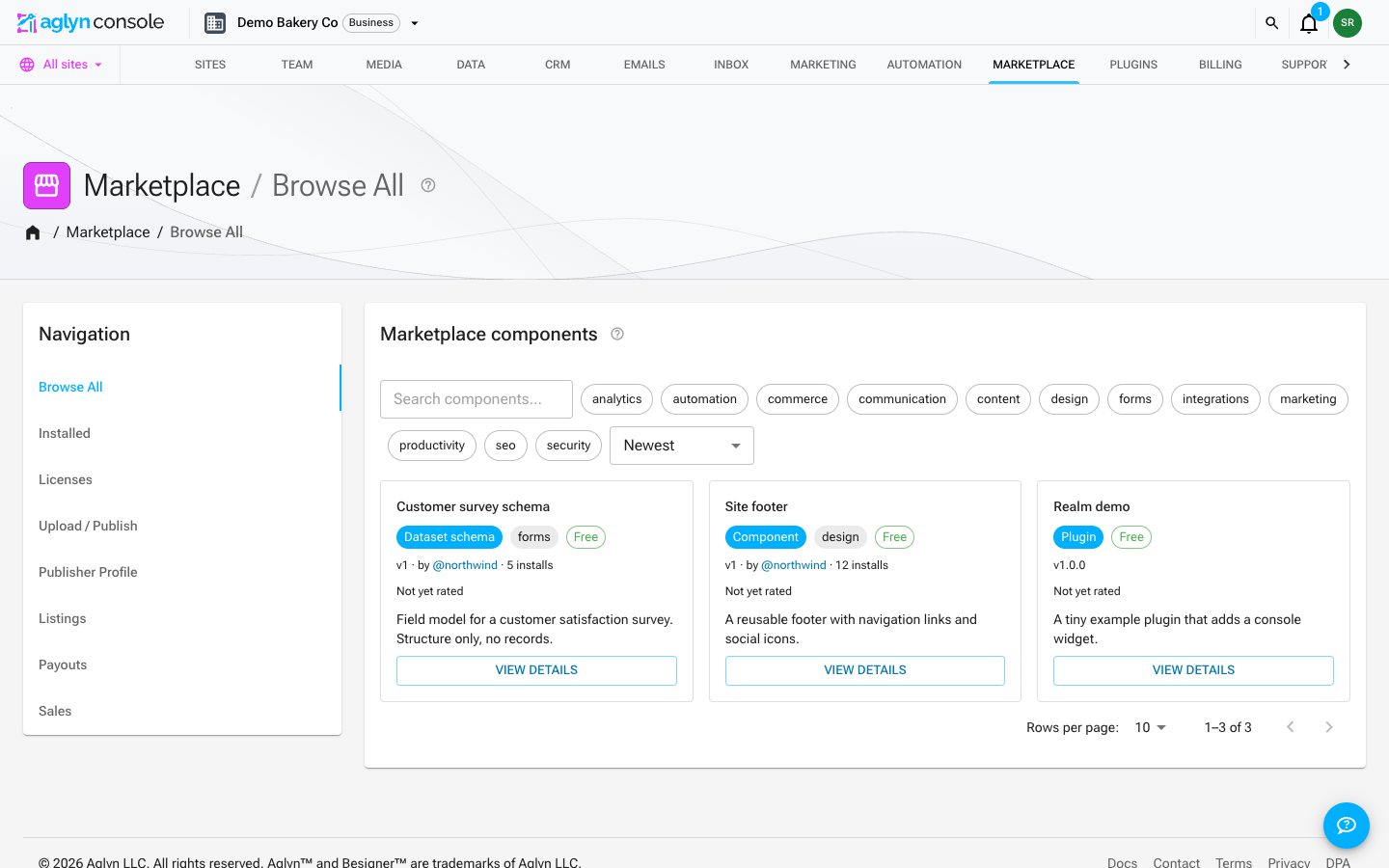
The marketplace lives at the organization level rather than inside each site. Its own Navigation panel lists Browse All and Installed; publishers additionally get Upload / Publish, Publisher Profile, Listings, Payouts and Sales.
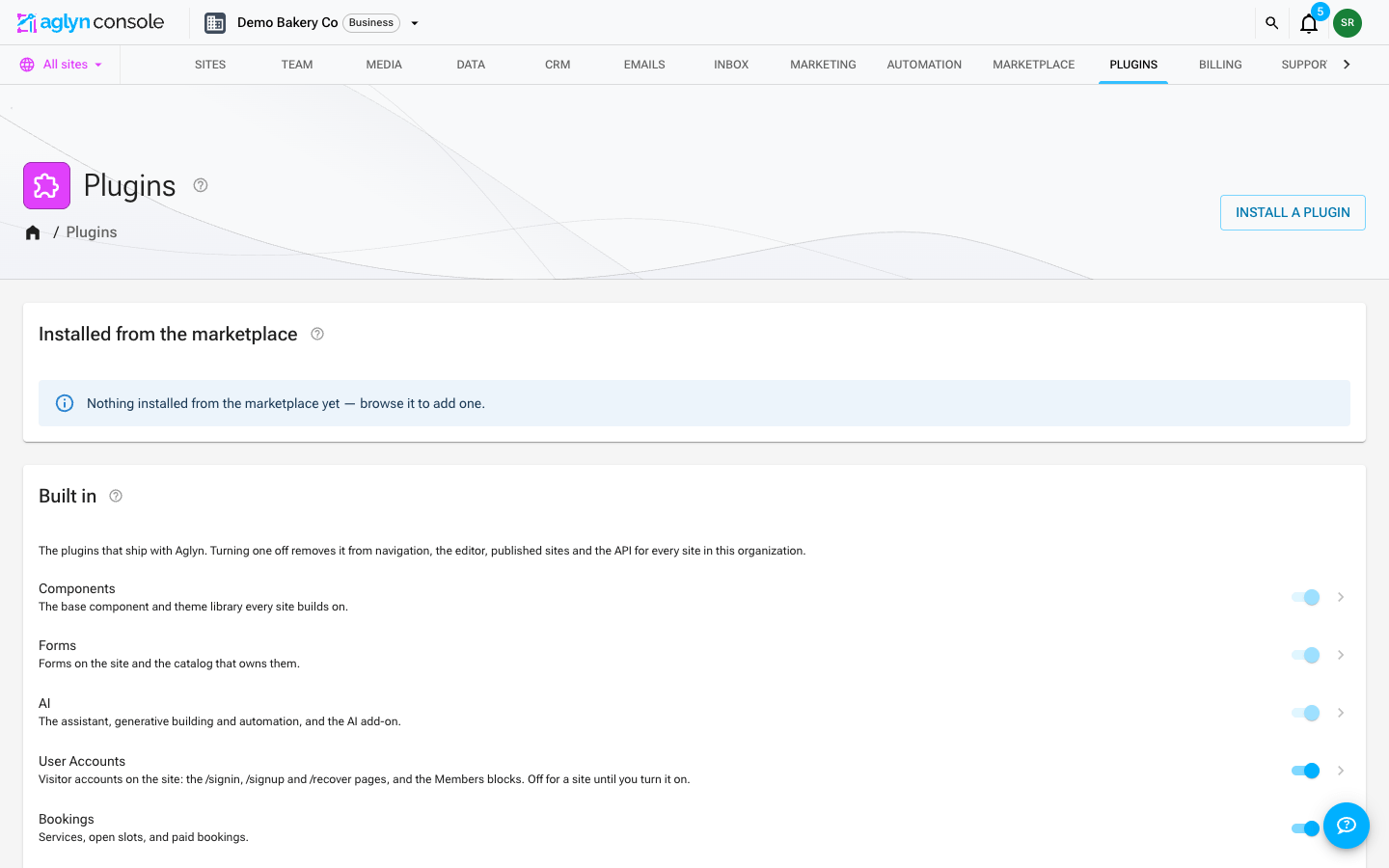
Marketplace is now purely the market. Turning plugins on and off for the workspace moved out to its own Plugins section in the org navigation, next to Marketplace. Installed remains as a convenience for uninstalling something you just installed — every row links through to Plugins.
Free to install marketplace plugins; some plugins and marketplace monetization features are paid.
This page is the reference. If you'd rather be walked through it click by click — find something, choose which sites get it, install, upgrade, remove — start with Install your first marketplace item.
Install & upgrade
- Open Marketplace in the organization navigation and Browse the listings. Browse is a catalog: cards link to the detail page, which is the only place an install happens, and a confirmation dialog names exactly where it will land before anything is written.
- When you install a plugin, choose where it applies: All sites (organization-wide — including sites you add later) or Selected sites (a specific subset). Only plugins and dataset schemas install org-wide; components, templates, layouts, themes and email templates are site-scoped, so "All sites" installs them onto every current site and does not cover sites added later. The listing's What's included box says which of the two you are looking at.
- Installs are version-pinned, and you can upgrade deliberately.
- Installed plugins appear as named entries in the Besigner drawer, alongside built-in components.
- Manage what you have from the marketplace's Installed section: every marketplace install, with upgrade, uninstall, and share-with-organization actions. A listing's own detail page also carries Uninstall (or Uninstall org-wide) once you have it installed.
- Turning a plugin on or off is the Plugins section, not Marketplace. Plugins in the organization navigation lists Installed from the marketplace and Built in, each row with its switch, its release state, and a link through to that plugin's own settings. If you are hunting for a switch, that is where it is.
- Rating a listing needs a verified email and an organization that actually installed it; commenting is open to any signed-in user.
- Installing enables the plugin for the workspace automatically; uninstalling disables it once no site keeps its own pin. Uninstalling never deletes the data a plugin created — reinstall and it picks up where it left off.
What a browse card shows
Every card in Browse All carries the same four claims, so two listings side by side are comparable:
- A price chip, always. A paid listing shows the price —
$29— and a free one shows the word Free. There is no such thing as a card without a price chip: a missing chip would read as an oversight next to the $29 beside it, which is the one thing "free" must not look like. The card's button repeats the price for a paid listing you don't own yet: View details · $29. - A star rating, with its count. Stars plus the average and the number of ratings
in brackets —
4.8 (12). The count is never dropped, because "5.0" from one rating and "5.0" from forty are not the same claim. - Not yet rated, in words, when nobody has rated it. An unrated listing draws no stars at all, and silence reads as "zero stars" rather than "no ratings yet".
- Version, publisher and installs —
v3 · by @handle · 41 installs— plus the Reviewed badge when the version on offer has passed review.
The listing's own page repeats the price chip and the rating in its header, where the install decision is actually made. On that page an unrated listing shows nothing rather than the "Not yet rated" wording.
What's included
A listing page carries a What's included box. Aglyn generates it from the listing — it is not publisher copy, so it cannot promise something the install does not do, and it says nothing about how much content is in there.
The first row is what the install physically produces, which depends on the type:
| Type | The row reads |
|---|---|
| Plugin | A plugin, sandboxed on its own origin with a per-plugin CSP |
| Component | An editable component you can place on any page |
| Template | Editable pages you can rework in Besigner |
| Layout | An editable layout you can apply to any page |
| Dataset schema | A new empty dataset with its fields already defined |
| Email template | An editable email design you can send campaigns from |
| Theme | A theme applied to the site you choose |
Then, in order, up to four more rows:
- Where it lands. Plugins and dataset schemas install org-wide — Installs org-wide, covering sites you add later. Everything else is site-scoped and says so: Installs per site — new sites are not covered automatically. That row is marked as a note, not a tick, because it is a limit you are being told about rather than something you are getting.
- Review — This version passed marketplace review — only when the version on offer is approved. A new release from the same publisher starts without it.
- The license, when the publisher set one: Licensed MIT.
- Price and updates. A paid listing reads A one-time purchase — updates to this listing are included; a free one reads Free, including every future update. Either way, updates are not a second charge — but they are still deliberate, not automatic.
What the box will never tell you is how many pages or blocks a template contains. Aglyn collects no manifest of that, and counting it would mean inventing a number, so the box stays to facts the listing actually carries.
What the badges on a listing mean
Two badges can appear on a listing, and they say different things. Read them as two separate claims, because that is what they are (AGL-1121).
| Badge | What Aglyn is claiming | What it survives |
|---|---|---|
| Verified publisher | A human at Aglyn confirmed who the publisher is, and that their listing describes what their code does. | A version bump. It is a claim about the publisher, not about any particular release. |
| Reviewed | A human at Aglyn read these exact bytes — the version currently on offer — against a required checklist. | Nothing. It is re-earned per version, so a new release starts without it. |
So a new release from a verified publisher shows Verified publisher but not Reviewed, and that is honest rather than a gap: we vouch for the person, and nobody has read this particular code yet.
Neither badge is a security guarantee. Every plugin runs in the same sandbox with the same limits whether it is badged or not, and installability is identical — a listed plugin is installable by every workspace regardless. The badges tell you how much human attention this listing has had, not whether the code is safe.
A listing with neither badge is not necessarily suspect; it may simply be new. It does mean nobody at Aglyn has looked at it, so read the publisher and the docs before installing.
How plugins run
- Each plugin loads into a sandboxed PluginFrame host runtime, isolated by origin.
- A manifest + sandbox bridge protocol defines what a plugin can do.
- A host-mediated network bridge lets plugins make network calls without direct access to your environment.
- See Sandbox security model for what that isolation actually enforces — including the per-plugin network policy — if you're writing one.
- Your workspace decides which plugins are enabled at all, and a site admin can narrow that further per site from the site's Admin → Plugins page. A plugin disabled for a site disappears from that site's navigation, editor, published pages, and API — other sites in the workspace are unaffected, and a site can never enable a plugin the workspace has switched off.
- The site's Admin → Plugins page lists both kinds in two groups — what ships with the platform, and what the workspace installed from the marketplace — because which one a row is is the first thing you need to know before switching it. A marketplace plugin gets the same per-site switch as a built-in one.
- Most plugins are on for a site unless it turns them off. User Accounts reads
the other way: a site has it only once the site turns it on, because it is the one
that decides whether the site serves
/signin,/signupand/recover— and a sign-in page on a marketing site is worse than a missing one. A new site is created with it turned on; a site created before that has it off until it asks. See Member accounts for what the switch does. - AI has a site switch and no workspace switch. It is on for every workspace, because the AI add-on, credits, allotments and overage billing belong to the workspace rather than to any site. A site can switch AI off for itself on its Admin → Plugins page: that hides AI on the site, refuses every AI request made for it and stops its queued jobs without spending credits, while the workspace's AI keeps running. See Switch AI off for one site.
- Forms works the same way: no workspace switch, because the form catalog and the submissions already stored belong to the workspace, and a site switch that asks first. With Forms off for a site, its published pages draw no form, the submit endpoint refuses every submission for it, and publishing a form or a page carrying one is refused. See Switch Forms off for one site.
- A switched-off plugin's elements are not drawn on the site's published pages — not by the browser, and not in the page the server sends either, even when the server has the plugin loaded for another site.
When one plugin depends on another
Some plugins cannot run without another one. User Accounts is the case that exists
today: its Members blocks and its membership/* API handlers ship inside the Commerce
bundle, so User Accounts with Commerce switched off is a site that still routes /signin
while nothing can answer the sign-in request.
Switching off a plugin something else depends on therefore asks first. The dialog names every dependent, says what disabling each one does to a site that is already published, and offers Cancel or Continue and disable those too:
- Cancel writes nothing and the switch stays where it was.
- Continue disables the plugin and every dependent in a single save, so a half-applied cascade cannot happen.
- Dependents are followed transitively — if C needs B and B needs A, switching off A names both.
- Re-enabling does not undo a cascade. Turning the plugin back on later does not switch its dependents back on; re-enable each one yourself.
Two consequences are possible and the dialog distinguishes them, because they are very different decisions:
| The dependent | What disabling it does |
|---|---|
| Registers site components (Commerce, Bookings, Email, Events Calendar, Marketing) | Elements already placed on published pages stop rendering. For a single site the dialog counts them. |
| Serves routes (User Accounts, Redirects, Automation) | Published pages keep rendering, but the routes or rules it serves stop. |
| Console-only (CRM, Data, Inbox, Logic, Marketplace) | It leaves navigation and the editor. Published pages are unaffected. |
Counts come from scanning the published version of each page, layout and component, and are capped — where the scan hits its cap the dialog says "at least". Drafts are not scanned.
First-party plugins declare what they require. Marketplace plugins are not covered at all: a plugin manifest has no way to declare a dependency yet, so no third-party plugin is ever listed — whether or not it actually depends on the one you are switching off. The dialog says this rather than implying the list is exhaustive. If you rely on a marketplace plugin, check it yourself before switching off something it might be built on.
Every plugin's page — at the workspace and at a site — carries a Dependencies card showing both directions: what the plugin needs, and what needs it. Each related plugin links to its own page at the same scope, so a site page links to site pages.
A dependency that is off for one site
A site can switch off a plugin that another plugin on that same site depends on — by disabling it directly, or simply by never opting in. When that happens the dependent stays switched on. Nothing about it looks wrong: its workspace page is healthy, its own switch is on, and the site keeps serving whatever routes it registers.
What is actually missing is the code. A site loads only its own enabled bundles, so a
missing requirement's elements stop rendering on published pages, and the plugin API
dispatcher answers 404 for any path belonging to a plugin that site has off. User
Accounts with Commerce off is the shape: /signin is still served, and the membership/*
request the form posts to has nothing behind it.
The site's plugin page is the only surface that can see this, so it says so there — the Dependencies card marks the requirement as off for this site and warns rather than showing a neutral label. The fix is either to turn the requirement back on for the site or to turn the dependent off.
Configure
A plugin declares the settings it takes, and the console renders the form. A workspace sets a value once and every site follows it. See Plugin configuration.
This is the same for a marketplace plugin. A published manifest may carry a config
block declaring the plugin's fields and their defaults, and the console renders it from
the pinned manifest — the same form, the same workspace-default and per-site-override
behavior, with nothing for the publisher to build. See
Plugin manifest.
Settings for one site
A site that needs a different answer overrides that one field and keeps inheriting the rest — including later changes the workspace makes to the fields it did not override. So the same plugin behaves differently on each site without the author writing any inheritance of their own.
Each field on a site's plugin page says which state it is in, shows the workspace's own value beside it, and offers a one-click way back to inheriting. Editing a field is what overrides it; reverting deletes the site's value rather than storing a copy of the workspace's, so the site resumes following.
Publish your own
The publish + install pipeline lets developers ship plugins to the marketplace with version pinning. The marketplace also supports paid listings, Stripe Connect payouts, and a publisher ledger.
Related
- Install your first marketplace item — the click-by-click walkthrough of everything on this page
- The Besigner
- Site templates & block library
- Building feature plugins — the developer guide to every extension surface
- Repo docs:
docs/PLUGIN_LOADING.md(loading architecture and trust tiers) anddocs/PLUGIN_PLATFORM_GAPS.md(competitive analysis and the v2 roadmap)