Commerce end to end
This walkthrough runs the whole selling loop: catalog → storefront → checkout → orders → subscriptions. It links into the commerce reference rather than repeating it — the goal here is the end-to-end path.
Selling needs a paid plan (fees drop as you upgrade — see Billing & plans). Storefront subscriptions (including the subscribe side of "Both — buyer chooses") need Business and above.
1. Connect payments
Aglyn sells from your own Stripe account via Stripe Connect. On the Products hub, the payments card walks you through Express onboarding; checkout stays disabled ("This site has not enabled payments yet") until Stripe reports charges enabled. Aglyn adds its per-sale platform fee automatically per your plan.
2. Create products
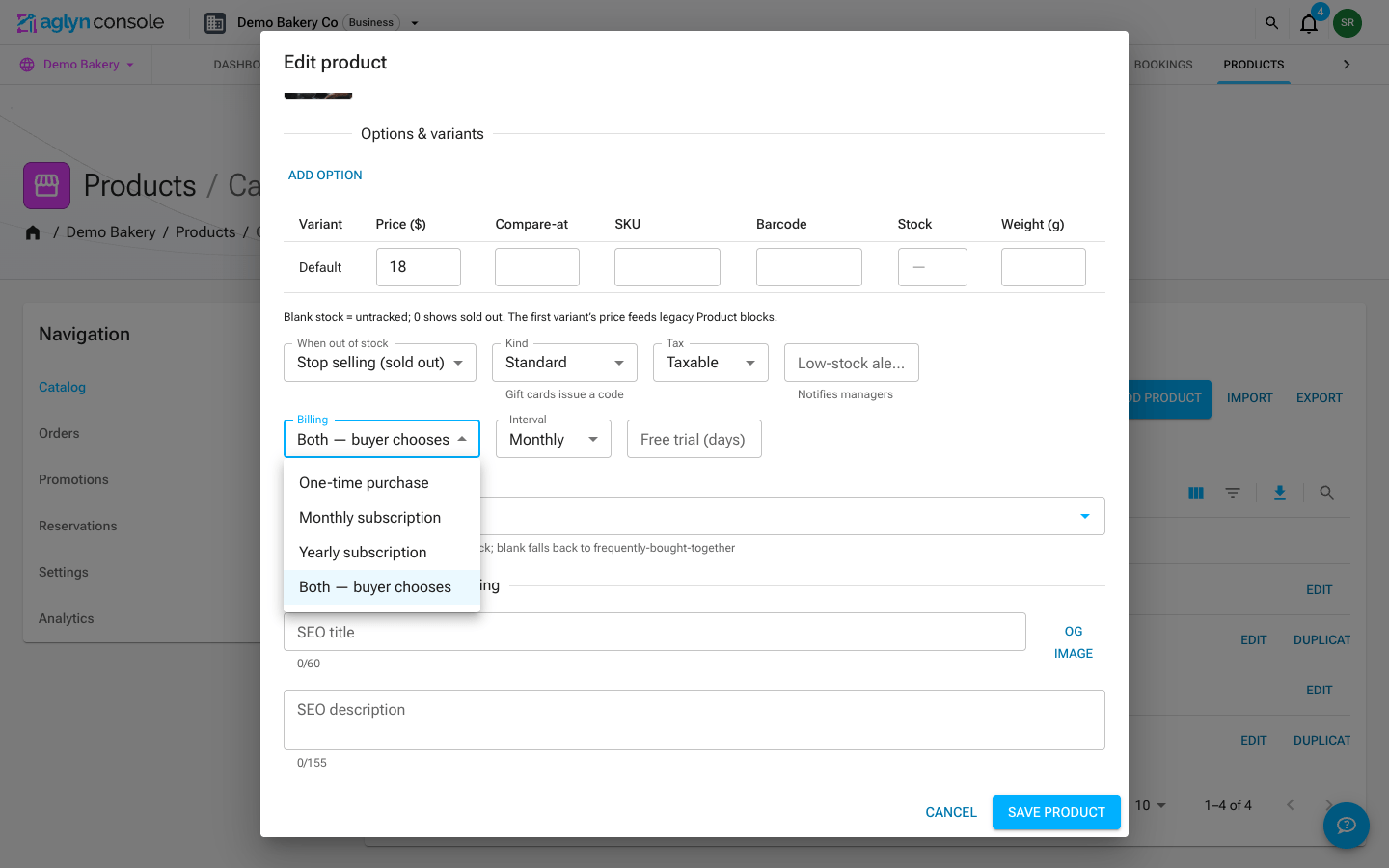
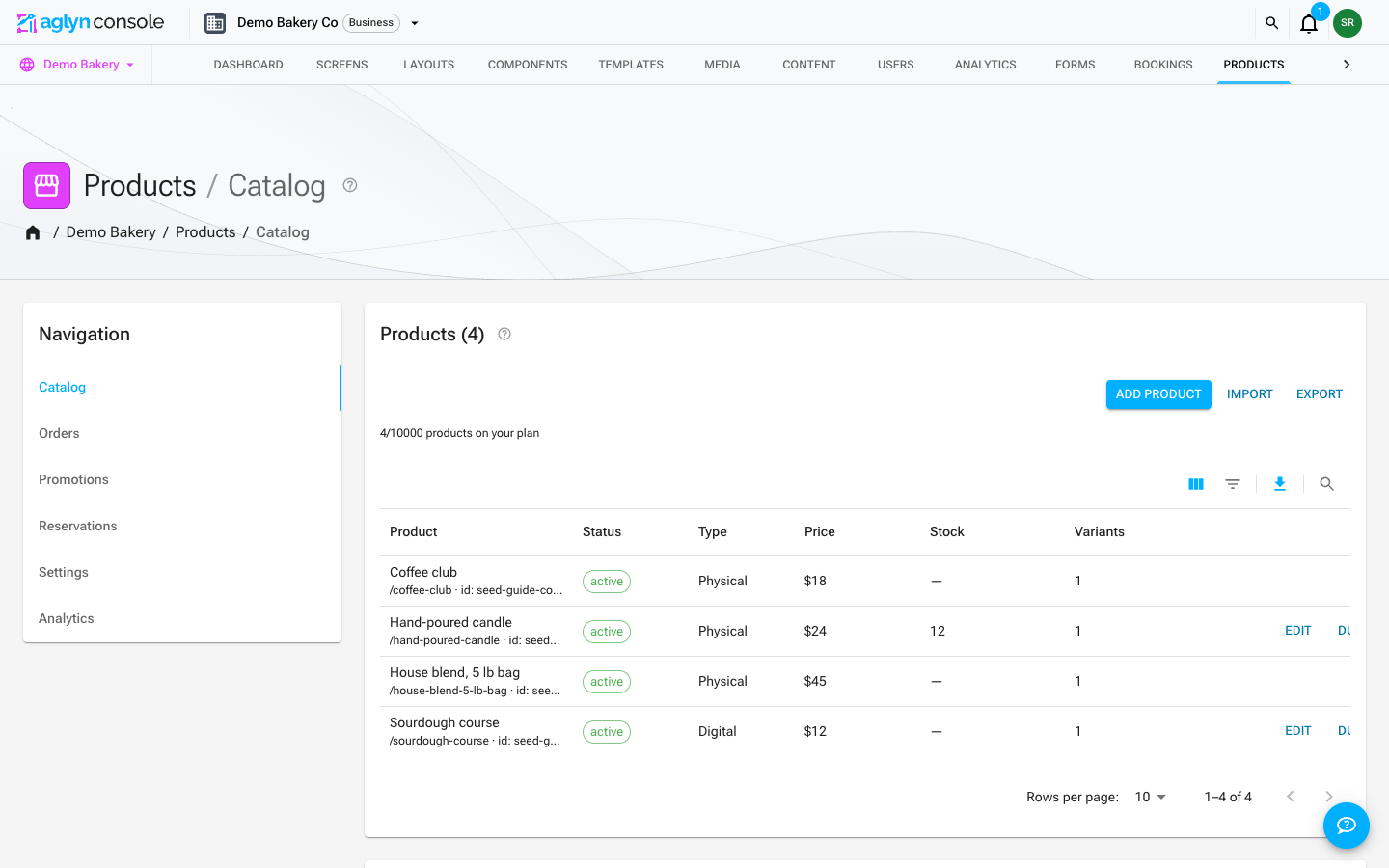
On the site's Products page (Catalog tab), choose Add product. The editor dialog covers everything the catalog reference describes:
- Basics — Name, Slug (
/products/{slug}), Type (Physical / Digital / Service), Status (Draft / Active / Archived), description, tags, categories, media. - Options & variants — up to 3 options expand into a variants matrix with
per-variant Price, Compare-at, SKU, Barcode, Stock, and
Weight. Blank stock = untracked;
0shows sold out. - Billing — how buyers pay:
- One-time purchase (default) — a normal order.
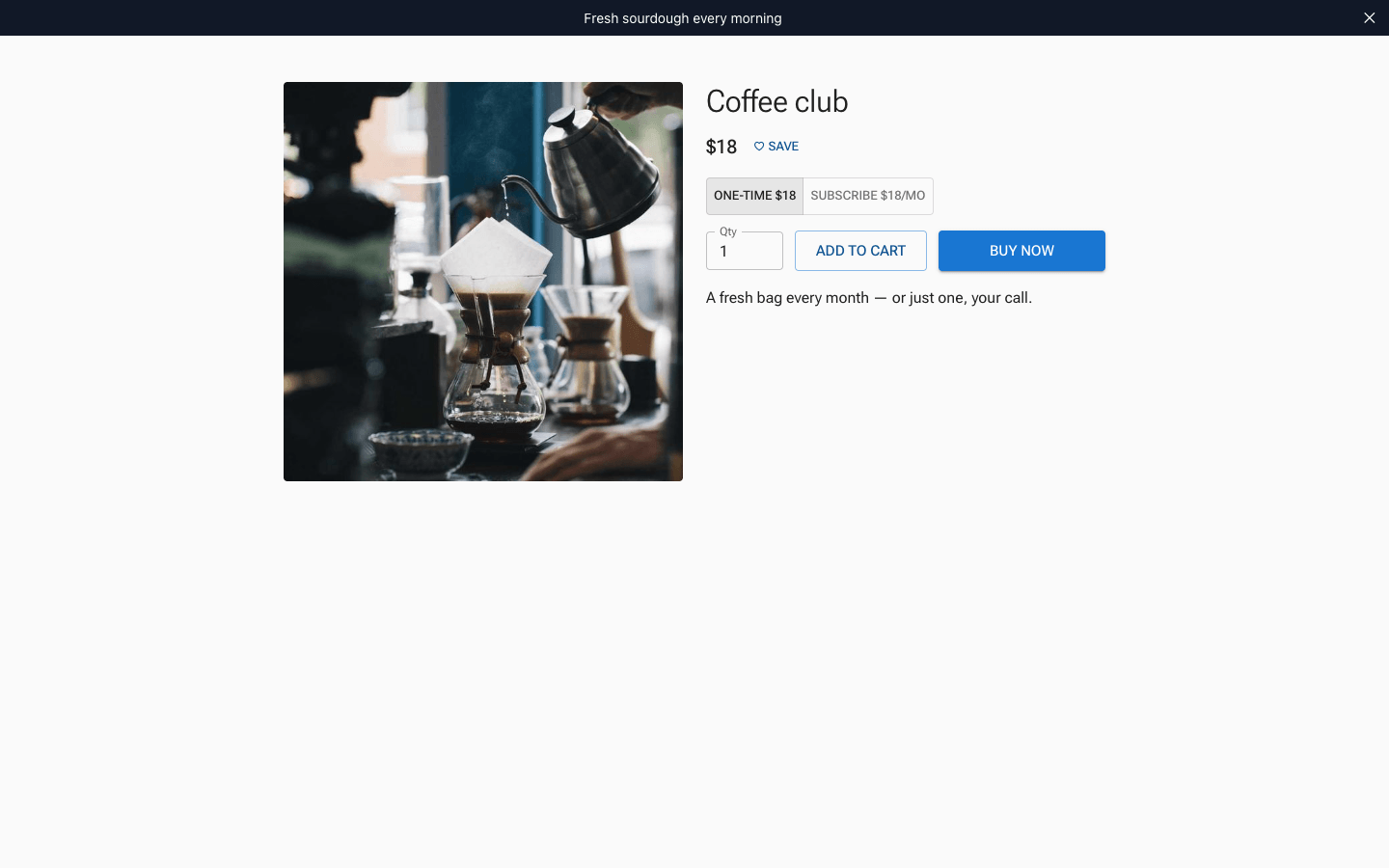
- Monthly subscription / Yearly subscription — the product page prices per interval and the buy button becomes Subscribe.
- Both — buyer chooses — the product page shows a one-time vs subscribe toggle (defaulting to one-time); pick the Interval the subscribe side bills at. The buyer's choice is validated server-side against the product.
- Any subscription mode reveals Free trial (days) — the trial precedes the first charge.
- Digital delivery (digital products) — attach files from the media library, optionally versioned, with a per-order Download limit. Buyers always download the current files; uploading a new version re-delivers. An attached file is made private, and each download hands the buyer a link that works for one hour; see Members videos are private files.
Set the product's Status to Active — drafts are invisible to visitors.
3. Design the storefront
Open a page in the Besigner and add blocks from the Commerce group of the element picker:
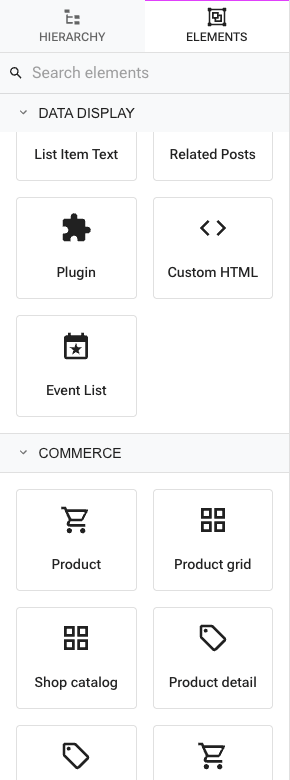
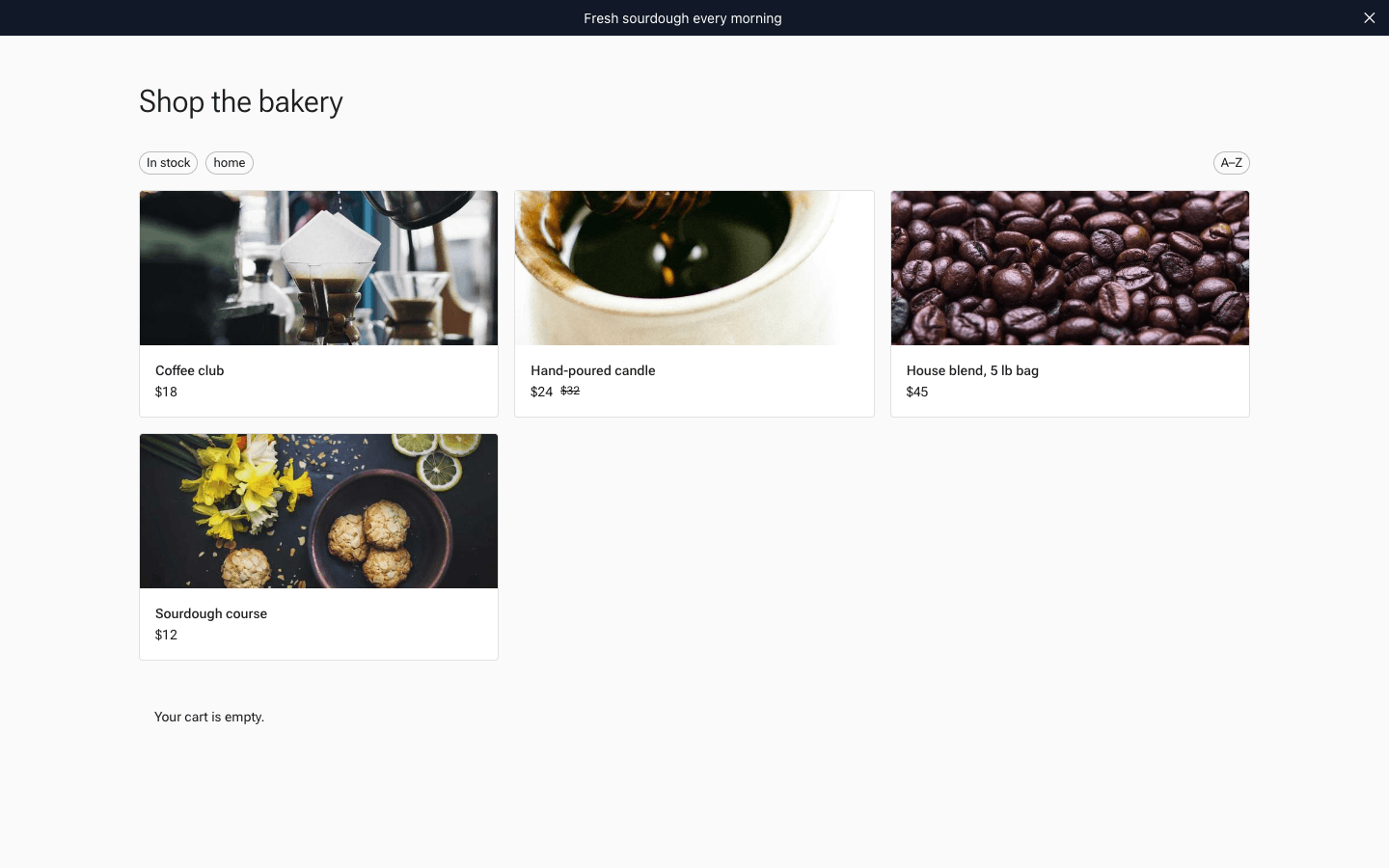
- Product grid — a responsive catalog grid. Its Show property scopes
it to all products, a collection, a category, or a tag; set Columns,
Sort, a cap, and optional visitor-facing filter chips. Cards link to
/products/{slug}. - Product detail — gallery, variant picker, price (with sale badge, trial
caption, and
/mo·/yrwhen subscribing), Add to cart, and the buy button (Buy now / Subscribe, or the one-time-vs-subscribe toggle for "Both" products). Leave its Product slug blank on a template page so it follows the URL. The Product page preset drops the whole commerce-standard page in one go: aShop / {{product.name}}breadcrumb, the detail block, a You may also like strip, and product reviews. - Cart — two presets: a Cart button (app-bar icon with an item-count badge and a slide-out drawer — the badge updates live as blocks add to the cart) and a Cart page (inline, with coupon and gift-card fields). Both end in a Checkout button.
Catalog search, filters, and sort
The Product grid carries a toggle per storefront catalog control, so a bare strip on the home page and a full shop page are the same block:
- Search box — a debounced search field above the grid; matches the start of a word in a product's name ("cof" finds "Acme Coffee"), using the first word typed.
- Category chips — one chip per product category (plus All), built from the categories you manage in the Products hub. Visitors tap to filter.
- Sort select — newest, name, price low→high, price high→low, right-aligned above the grid.
- Type filter — physical / digital / services chips, useful for mixed catalogs.
- Price filter — a two-thumb price range slider, automatically bounded by the lowest and highest prices among the products the other controls match (variant-priced products count by their "From" price). Visitors drag either end to narrow the range. While a range is set the grid is in price order — high to low if that is the sort chosen, low to high otherwise — and says so above the products.
- Filters — tag chips and an In stock chip, which hides products a card would mark sold out.
- Page size — products per page with a Load more button; leave blank to load once (Max items still caps the grid either way).
Everything resolves server-side through the catalog API, across the whole catalog rather than the products already showing — searching and filtering stay fast on large catalogs, and the browser never downloads the whole catalog. The search, a category and a tag each look a word up in a list, and only one of those can apply at a time: tapping a category or tag chip clears the search, and searching a grid pinned to a category searches the whole catalog and says, above the products, that the category is set aside. The Shop catalog preset inserts the grid with search, categories, sort, and paging already on.
Category pages
Two ways to give every category a browsable page:
- Pinned grid — set a grid's Show to A category and pick the
category, then place it on its own page (say
/apparel). The category is stored by id, so renaming it later never breaks the page. With Category chips on, the pinned category is the initial filter and visitors can still hop to a sibling category or back to All from the same grid. - Collection template — design one page with a Product grid whose
collection is left blank and set it as the Collection page template
(store settings): every
/collections/{slug}URL renders that page scoped to its collection.
The product page template
Individual product URLs (/products/{slug}) render through a template
page: design a page containing a Product detail block, then set it
as the Product page template in the Products hub's Settings tab (store
settings). The server composes that page per product — {{product.name}},
{{product.price}}, and friends resolve, and product SEO/structured data is
injected. Without a template, product URLs 404. A sibling Collection page
template does the same for /collections/{slug}.
4. What checkout does
Both buy buttons and the cart's Checkout redirect to Stripe-hosted Checkout, then back to your site with a success/canceled marker:
Paying without leaving your site
There is a second checkout that keeps the shopper on your own pages: instead
of sending them to checkout.stripe.com, the card form opens in place,
below the Buy or Checkout button, styled with your site's theme. Leaving the
store mid-purchase is one of the most common places a cart gets abandoned, so
this exists to remove that step.
Rolling out. In-page checkout is off by default and is switched on per workspace by Aglyn staff (release flag In-page checkout). Until it is on for your workspace, checkout behaves exactly as described above — the redirect is what your shoppers see.
Nothing else about a sale changes when it is on, and that is deliberate:
- The price, tax, shipping and any coupon are computed by the same code. The in-page form is the same Stripe Checkout Session as the redirect, just drawn by us instead of by Stripe — so the two cannot quote different totals.
- Your order is still created by Stripe's webhook, never by the browser. If a shopper pays and immediately closes the tab, the order, the stock decrement, the receipt and the gift-card or license-key steps all still happen. If they pay and then refresh the page, none of it happens twice.
- A declined card stays on the form. The basket, address and payment method the shopper already entered are kept, with the decline shown beside them, so they can try another card without starting over. Cards that ask for a bank verification step (3-D Secure) show that challenge in place.
- Abandoned in-page checkouts are still recoverable and still feed the abandoned-cart emails, the same as an abandoned redirect.
A shopper who cancels the in-page form is returned to the store with their cart intact.
- Prices are always re-read from your catalog server-side — the browser can't alter them.
- One-time purchases (and all cart checkouts) create a payment; the webhook then creates the order, decrements stock, sends receipts, mints gift-card codes, assigns license keys and download links, and routes dropship suppliers.
- Subscription checkouts (from the product page of a subscription or "Both" product) create a recurring Stripe subscription — with the trial you configured — and record it on the site. The cart never sells subscriptions; recurring products subscribe through their product page.
5. Run orders from the console
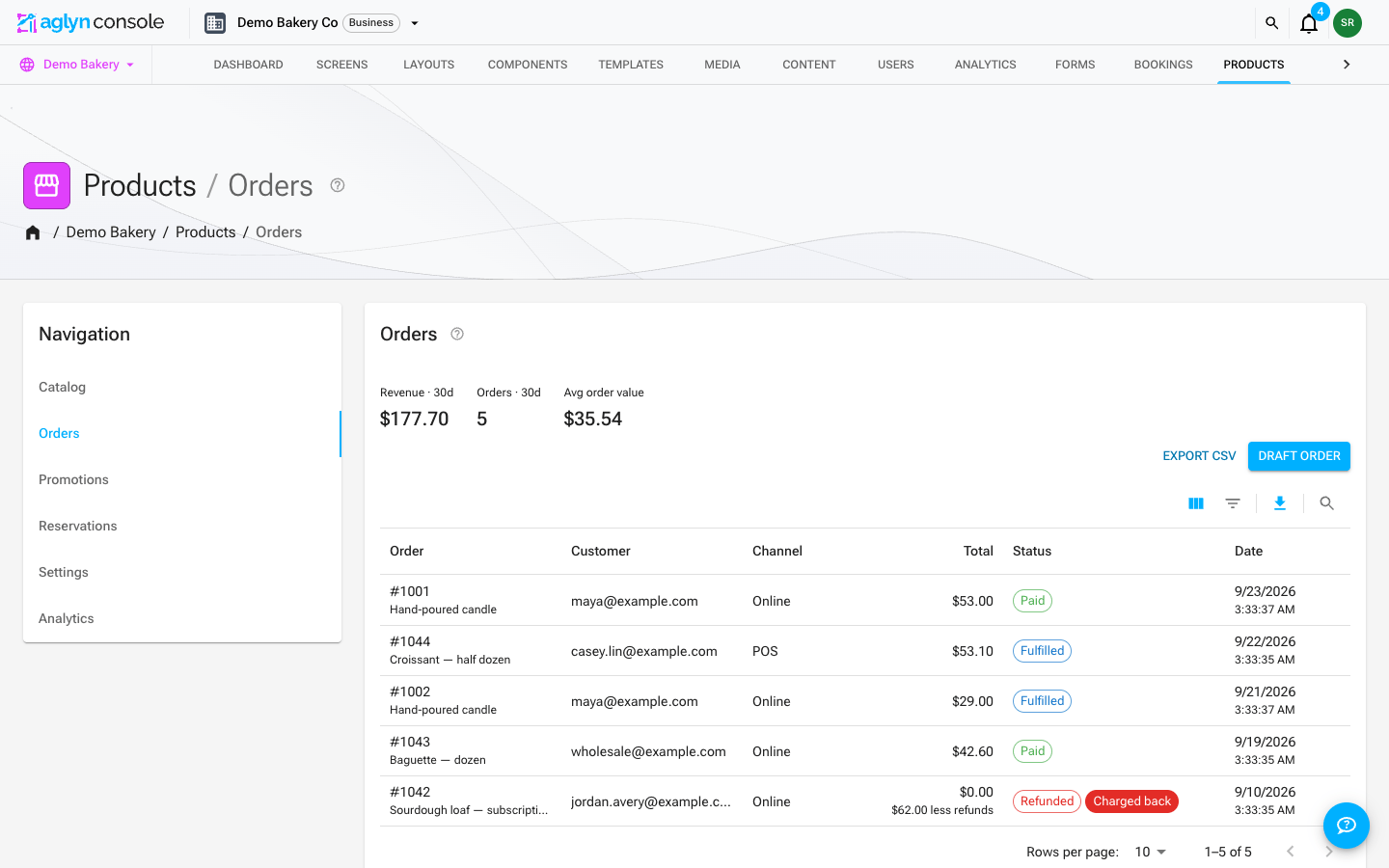
The Products hub's Orders tab lists every sale, newest first. Its Search finds an order by the start of a word in its number, the buyer's email or an item's name, and Filters narrows it by order number, product, date, status, channel, customer and dispute — across every order in the store, not only the page on screen (see The Orders page for what combines). Beside it sit Export orders and Draft order (build an order by hand and send a payment link).
Export orders writes every order the filters and the search match, however
many there are, one row per order, with the fields you pick: the order number
and date, status and channel, the customer and addresses, the items, and the
money — items subtotal, shipping, tax, discount, Total (the gross charge),
fee, Refunded and Net. Reconcile against a Stripe payout with Net, or
Total less Refunded. An order with several line items names the first and
counts the rest in Product, e.g. Blue Mug +2 more, and lists every line in
Items. See Import and export store data.
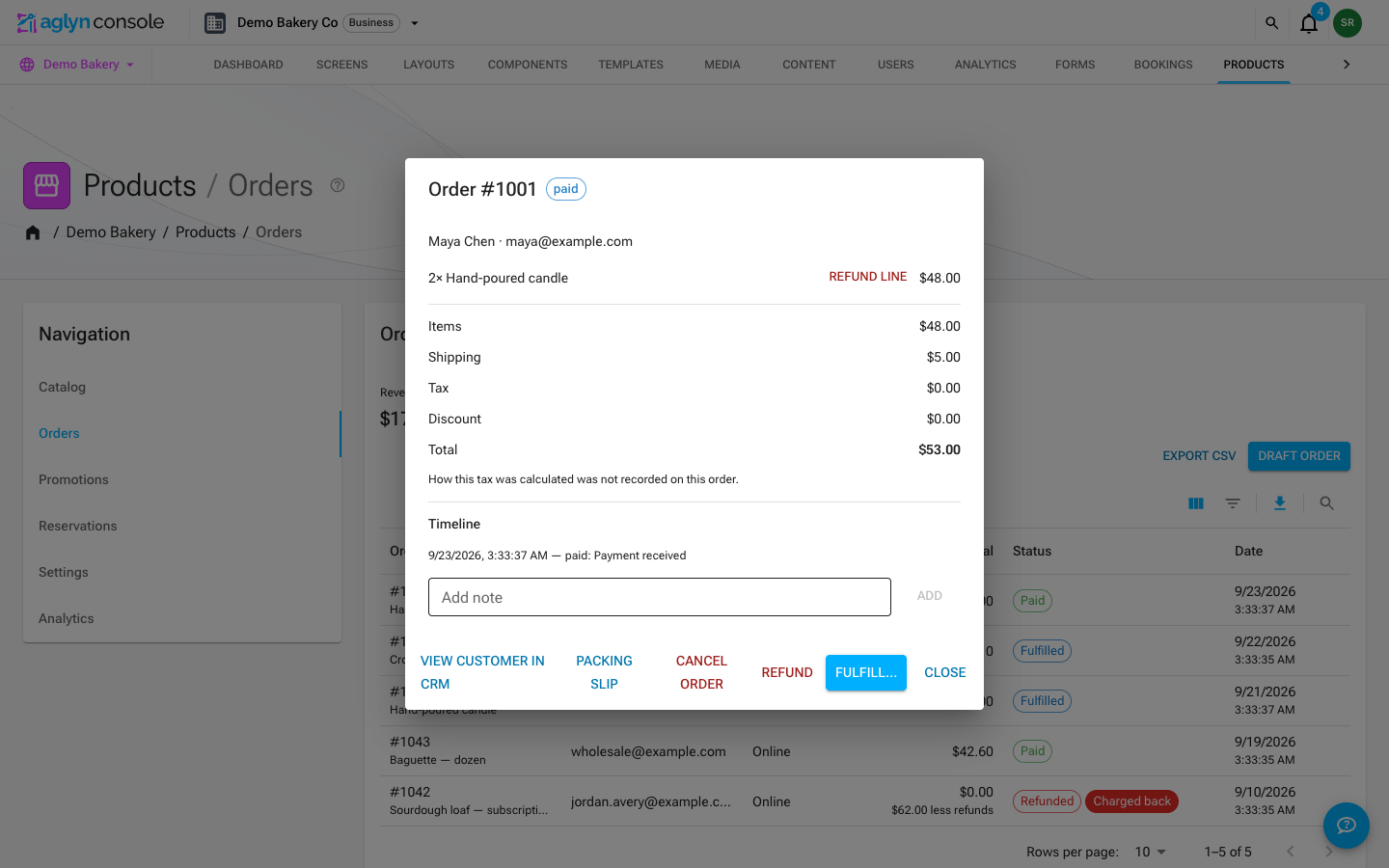
Open an order for the detail dialog — customer, line items, totals, timeline, and internal notes:
- Fulfill… — enter a carrier and tracking number; the order moves to fulfilled and the buyer's account page shows the tracking. Mark delivered closes the loop, and Packing slip prints one.
- Refund — confirms "Refund this order?", then refunds the buyer through Stripe (full or partial) and reverses the platform fee. Site-admin role only.
- Cancel order — for orders that shouldn't proceed (does not auto-refund).
Statuses move through a guarded machine: pending → paid → fulfilled → delivered, with cancel/refund exits — see the orders reference.
6. Subscriptions & the Stripe portal
Active subscriptions are recorded per site and surface in two places:
- Buyers manage their own — the Customer account block's Subscriptions section has a Manage button that opens the Stripe Billing Portal (update card, cancel, see invoices).
- You see each member's subscriptions in the member drawer on the site's Users page — what they subscribed to, the amount and interval, and the renewal date — and managers get a New subscriber notification carrying the amount on each signup, then a Subscription renewed notification carrying the amount on every cycle after it.
What a subscription puts in Orders depends on the product's Type:
- A physical subscription creates one order per paid cycle — the first charge included — on the Subscription channel, so every box has something to fulfill, pack and label against, and recurring revenue shows up in the Orders tab, the analytics card and the orders CSV alongside one-time sales. Each cycle's order also decrements the variant's stock (if tracked) and can trigger the low-stock alert.
- A digital or service subscription is not an order, by design: it does not appear in Orders, in the analytics card or in the orders CSV, and it does not decrement stock — there is nothing to ship.
Either way, what the subscriber pays is recorded on the subscription itself — each paid invoice, its period and its amount included, so a renewal is a record you hold rather than one only Stripe holds. The amount shown follows the latest cycle, so a price change, a tax change or a trial converting to a paid cycle is reflected rather than frozen at what the first charge was. Stripe keeps its own copy of every invoice, reachable from the Billing Portal.
An active subscription is also what members-only content can check for paid gating.