Run an agency workspace
If you build sites for other people — an agency, a freelancer with a roster, an internal team serving several brands — Aglyn is designed to be one workspace holding many sites, rather than one account per client. This page is the whole shape of that setup, in the order you'd actually do it.
It's written for someone who has built one Aglyn site already. If you haven't, do Build your first site first — this page assumes you know what a page and the besigner are.
The mental model, first
Three words, and getting them straight up front saves a lot of confusion later:
| Term | What it is | For an agency |
|---|---|---|
| Organization | The billing and identity boundary. Owns the plan, the invoice, the members, the shared library. | You. One organization for your agency. |
| Site (or host) | One published website with its own pages, domain, media and store. | One per client project. |
| Workspace | What the console calls your organization when you're working in it. | Same thing as organization — you'll see both words. |
The consequence that matters: your plan's limits are per organization, and your access controls are per site. You buy 25 sites once; you decide separately who can touch which one.
Use one organization when the sites are yours to run: you hold the domains, you bill the client for a service, you're the one on call. That's the normal agency shape, and it's what the Agency plan is priced for.
Use a separate organization per client when the client ultimately owns the account and you're only building it — they hold the card, the domain, and the risk. You then join their organization as a member and can leave cleanly.
To build first and hand over later, create a workspace for the client, build the site there, and then send the client an owner handoff from its Team page: Role → Owner (hand off this workspace). When they accept, the workspace and every site in it are theirs. You choose whether you stay on as an admin or leave. Staying needs a free team seat on their plan, so on Free choose Leave after the handoff, or have them add a seat first.
Step 1 — Pick the plan by site count, not by features
For agencies the binding limit is almost always how many sites you can publish, not which features you get. Check the site allowance on the plan table and pick from there.
Two things that change the arithmetic:
- Extra sites are an add-on, so you don't have to jump a whole tier for one more client. They're cheaper per site on higher plans.
- The platform fee on client storefront sales falls to 0% on higher plans. If your clients sell, that fee can dominate the subscription price — do that sum before choosing.
An upgrade applies immediately and prorates. A downgrade waits until the end of the period you already paid for, and $0 is due on the day you choose it. Plan seasonal capacity accordingly: dropping a tier in January doesn't reduce a January invoice. When each change takes effect.
Step 2 — Build your house style once
The single biggest saving in agency work is not rebuilding the same footer.
- Build one site properly — nav, footer, contact page, legal pages, theme.
- Save it as a template from the site's settings. See Save a template.
- Start every new client from that template instead of from blank.
Two more things worth doing once:
- Reusable components for the pieces you'll place on many pages within a site. Edit the component, every instance updates.
- The organization media library for assets shared across clients — your own logo, stock photography you've licensed, icon sets. Files there are available to every site in the workspace, so you upload once.
The organization library is shared across every site. Client logos and photography belong in that site's library, not the shared one — otherwise the next project's media picker is full of the last client's brand.
Step 3 — Decide who can touch what
Aglyn has two shapes of teammate, and the distinction is the one agency-specific thing worth learning properly:
| Workspace manager | Site collaborator | |
|---|---|---|
| Sees | Every site in the organization | Only the sites you grant |
| Costs | A manager seat | A collaborator seat on each site they can reach |
| Use for | Your own staff | Contractors, and the client |
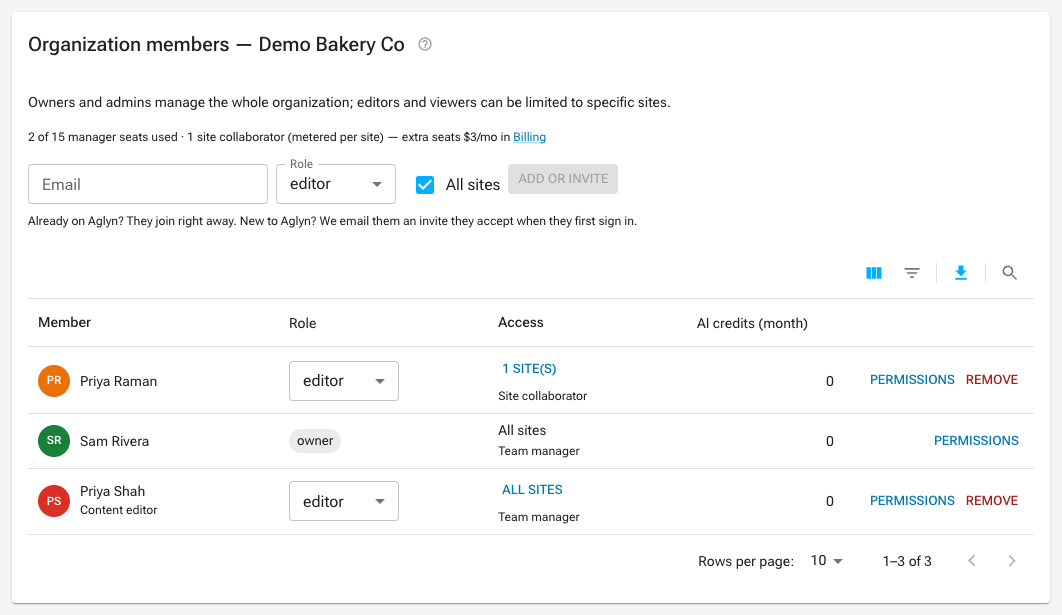
The Access column is where the difference shows: a manager reads All sites, a collaborator reads the number of sites they were granted. The line above the table counts the two separately, because only managers use a team seat.
Give clients collaborator access, not manager access. A manager can see every other client's site, their content and their form submissions. That is usually a contractual problem, and it's not undone by anyone being careful.
Steps:
-
Organization → Team to add your own staff as managers — leave All sites ticked on the invite row.
-
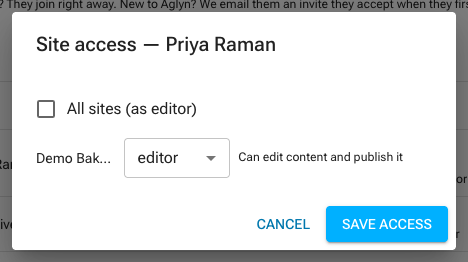
For a collaborator, invite them from the same page with All sites unticked, then use their Access cell to pick the sites and give each one a role. Access is granted per site from here, not from the site itself.
-
Give a client who should draft but not go live the Author role on their site. It is the site role between Viewer and Editor: it can edit every kind of content — pages, layouts, components and collection entries — and it cannot publish any of it. No route, no live version, no scheduled publish, no published entry. It also cannot read the site's orders.
-
Use custom roles for narrowing at the organization level — who may manage members, buy add-ons, or see billing.
Seats are metered and enforced per plan, and both kinds are available as add-ons if you outgrow the included count. A pending invite holds a seat — the count is checked when you send it and again when it is accepted — so plan headcount against invites sent, not invites accepted, or you will hit a refusal mid-onboarding.
Full detail: Teams, roles & membership.
Step 4 — Domains and handover
Each site gets a free *.aglyn.app subdomain immediately, which is what you build and
demo on. Connect the real domain at launch.
The handover question is who owns the DNS, and it's worth settling in writing at the start of a project rather than at 5pm on launch day:
- You hold the registrar — fastest to launch, and you can fix things. It also means you're the one a client has to ask to leave, which some clients dislike and some contracts forbid.
- The client holds the registrar — slower (you'll be sending them records to paste), cleaner to hand over, and the honest default for most work.
Either way the records are the same, and the site's setup page shows them. See Connect a domain.
Step 5 — Back up before you hand over
On Pro and above, every site exports a full backup from its own settings. Take one:
- before any large redesign, so "put it back how it was" is a real option;
- at handover, and give the client a copy — it is theirs, and having it makes the relationship easier to end well;
- before deleting anything. Deleting a site is immediate and permanent, with no hold period — unlike deleting an organization, which has one. There is no undo and we keep no copy.
Take one from the site's Admin → Backup & template. It includes the datasets that site can see — up to 50, with up to 1,000 records each — so a larger dataset also wants its own Export from the Data tab (CSV, JSON or NDJSON), which downloads every record.
Step 6 — Billing, and what to tell clients
The invoice is yours, at the organization level. Aglyn doesn't bill your clients and doesn't split an invoice per site. However you charge them — retainer, per site, marked-up hosting — is between you and them.
Two things that are per site, and are the ones clients ask about:
- Storefront platform fees come out of that site's own sales.
- Usage meters (page views, storage, form submissions, emails) roll up to your organization total. A single client having a very good month can move your invoice, so watch the usage figures on the billing page rather than being surprised.
Sales tax is added on top of your plan price where applicable, calculated from your workspace's billing address — see Sales tax.
Step 7 — Automate the repetitive part
Once you're running several sites, the console stops being the fastest way to do routine things. The REST API reads across one organization with one key:
- Sites — enumerate every site in that organization and its domain, which is the basis of any status dashboard you build.
- Form submissions — pull the leads from every site in the organization into one place, or into a CRM, and mark each one read as you go so the next run doesn't send it twice.
- Orders and Products — for clients who sell.
- Media — audit alt text across the organization's sites, or find what's filling your storage quota.
Start with Your first API call, which walks through creating a key and making a request from scratch.
API keys are minted per organization, and every endpoint is scoped to the organization the key belongs to. There is no key that reads across several.
So this step is only a single request if you took the one organization side of the choice in the mental model — clients as sites in your workspace. If you took the other side and each client owns their own organization, you need one key per client organization and your script loops over them. That is a real difference in effort, and it is the trade for the clean exit a separate organization gives you.
Create a separate key for each integration, scoped to the least it needs. A key that only reads form submissions can't be turned into a data breach across every site in the organization, and revoking one doesn't take the others down.
A checklist you can reuse per project
This is a list to keep yourself — in your own tracker, or pasted into a project brief. The console does not track it for you.
- Site created from your house template
- Client added as a site collaborator, not a manager
- Theme, logo, favicon set from the client's brand
- Legal pages present (privacy, terms, cookie banner if needed)
- Custom domain connected and verified
- SEO basics: titles, descriptions, social image, sitemap reachable
- Analytics visible to the client
- Backup taken and a copy given to the client
- Who holds the registrar, written down somewhere you'll find it