Datasets & schema deep-dive
This guide goes one level below the datasets overview: how the typed model actually works, what the limits are, and every path data takes in and out of a dataset.
Display names vs field ids
A dataset field has two names, and the distinction matters everywhere:
- The display name is what you type in the schema dialog and what table headers and record editors show. Rename it freely.
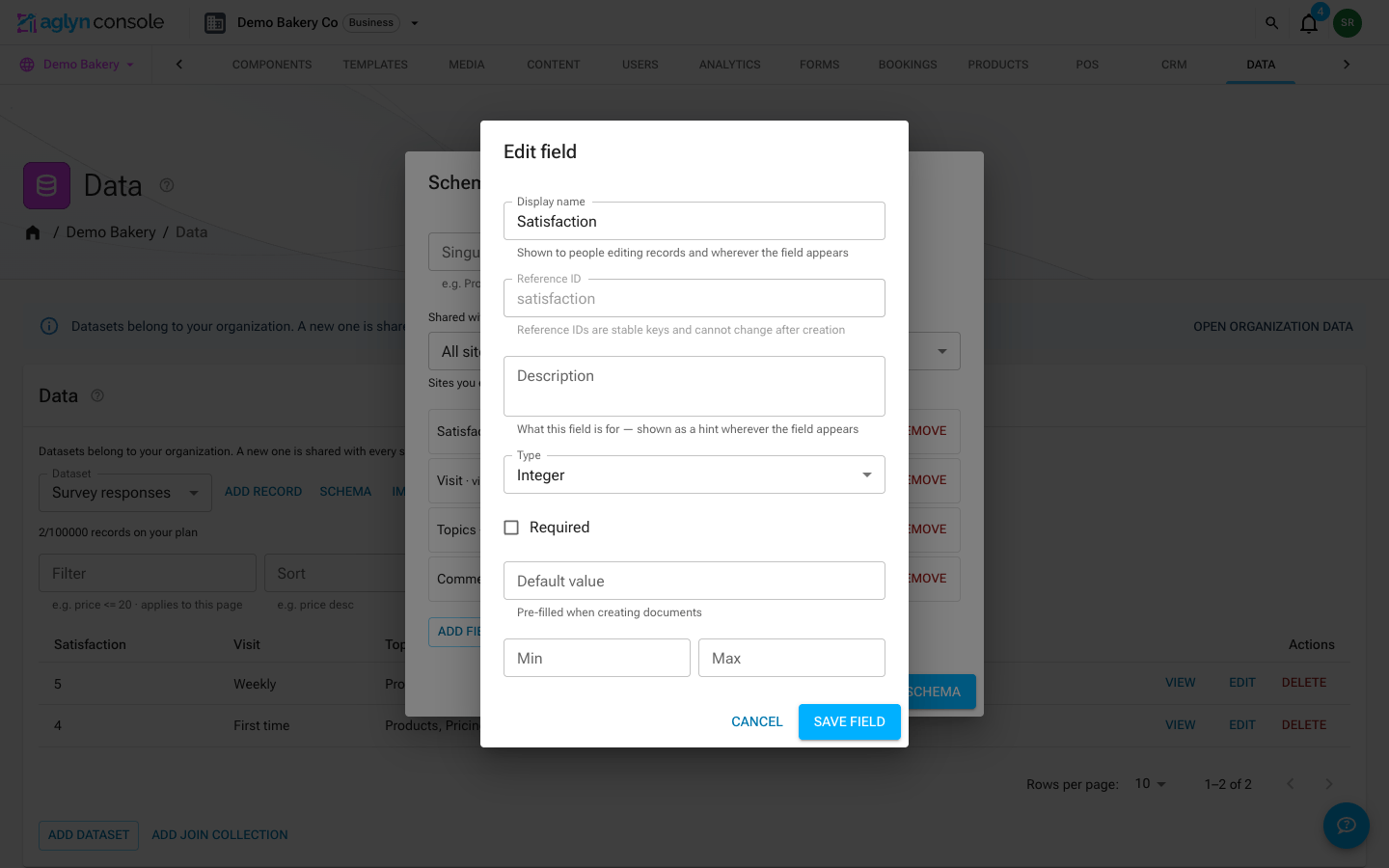
- The reference id is the stable key. It auto-fills from the display
name when you create the field (
Visit frequency→visit_frequency), and the schema dialog lets you edit it right there to set your own — for example a short, code-friendly key that differs from the label. Once the field is created the id is fixed and never changes. Records store values keyed by reference id — it's the key you use in{{item.reference_id}}bindings and what a form field's Maps to schema field picker stores.
The schema dialog shows both — each field row reads Display name · fieldId.
The Reference ID input sits directly under Display name in the field editor; it
follows the name as you type until you edit it, then keeps your value.
The dataset itself likewise has a Singular name and a Plural name; the
plural is the dataset's display name — the label its entry shows in
"Write to dataset"
and repeatable pickers (which store the dataset's id underneath, so renames
never break the bindings).
Naming & describing fields
Open the schema dialog and Edit a field to change how it presents:
- Display name — rename it freely, any time. The field id underneath never
changes, so
{{item.fieldId}}bindings, form field mappings, and stored records are all unaffected by a rename. - Description — a free-form note on what the field is for. When set, it
follows the field around the console:
- the schema dialog's field list shows it under the
Display name · fieldIdline, - the records table shows it as a tooltip on the column header,
- the record editor shows it as the input's helper text (a validation error takes its place while present).
- the schema dialog's field list shows it under the
Both are trimmed on save, and a blank description is dropped rather than stored. Descriptions are console-facing documentation only — they never render on the published site.
The typed model
A dataset's model is a map of field definitions plus a display order. Each field definition carries its type, whether it's Required, an optional Description and Default value, validation (regex pattern, min/max length, an enum of Options), and — for reference fields — the target dataset and delete behavior.
The types you can author:
| Type | Holds |
|---|---|
| Text | Strings; optionally pattern-, length-, or enum-constrained |
| Boolean | true / false |
| Integer | Whole numbers |
| Number | Floating-point numbers |
| Date & time | Timestamps |
| Coordinates | Latitude / longitude pairs |
| List | Ordered arrays |
| Reference | A link to a record in another dataset — see relations |
| Page address | A record's own segment of its page's address, filled in from a text field — see page address fields |
Plugins can register custom field types, which appear in the type picker suffixed with the plugin id. The console, imports, site restores and the REST API validate records against the model. Form submissions and the automation dataset steps do not: they store each value as text.
Datasets created before typed models (a flat comma-separated field list) still work: the runtime derives an effective model where every column is an optional text field whose id equals the column name. Open the schema dialog and re-type the fields to upgrade — ids are preserved.
Reference fields configure what happens when a referenced document is deleted: Clear the reference (default) or Block the delete. Tick Allow multiple for many-to-many relations.
Record quotas per plan
Dataset counts, records per dataset and dataset storage are entitlements of your organization's plan:
| Plan | Datasets | Most with add-ons | Records per dataset | Dataset storage |
|---|---|---|---|---|
| Free | — (no data store) | — | — | — |
| Starter | 3 | 10 | 1,000 | 1 GB |
| Pro | 15 | 50 | 10,000 | 5 GB |
| Business | 100 | 250 | 100,000 | 25 GB |
| Scale | 250 | 500 | 500,000 | 50 GB |
| Advanced | 500 | 1,000 | 1,000,000 | 100 GB |
| Agency | 2,000 | 5,000 | Unlimited | 500 GB |
| Enterprise | Custom | Custom | Custom | Custom |
- Creating datasets on Free is rejected with "Datasets require a Starter plan or higher."
- Hitting the record cap surfaces "Record limit reached — see Billing to upgrade" in the console. An import that would overflow writes the rows that fit and skips the rest, reporting them as over the record limit.
- Form submissions never fail on quota — if the dataset is full the record write is skipped silently, but the inbox copy is always kept.
- Add-ons raise the dataset count beyond the base allowance, up to the most shown above.
- Dataset storage past the included amount bills at $0.36 per GB-month from Starter to Agency. Enterprise has no overage rate, so writes stop at its limit.
Import & export
The Data page moves records in and out as CSV, JSON or NDJSON:
- Export opens a dialog where you pick the fields — every field of the dataset, plus the record's ID and its created and updated times — and whether to take every record or only what the table's filters show. Your choice is remembered for next time.
- Import opens a step-by-step wizard: upload or paste a file, check how its columns match the dataset's fields, decide what happens to values the dataset does not hold, choose how rows find the records they update, and review a dry run before anything is written. An import can be undone for seven days.
See import & export for each step and the choices it offers.
Repeatables
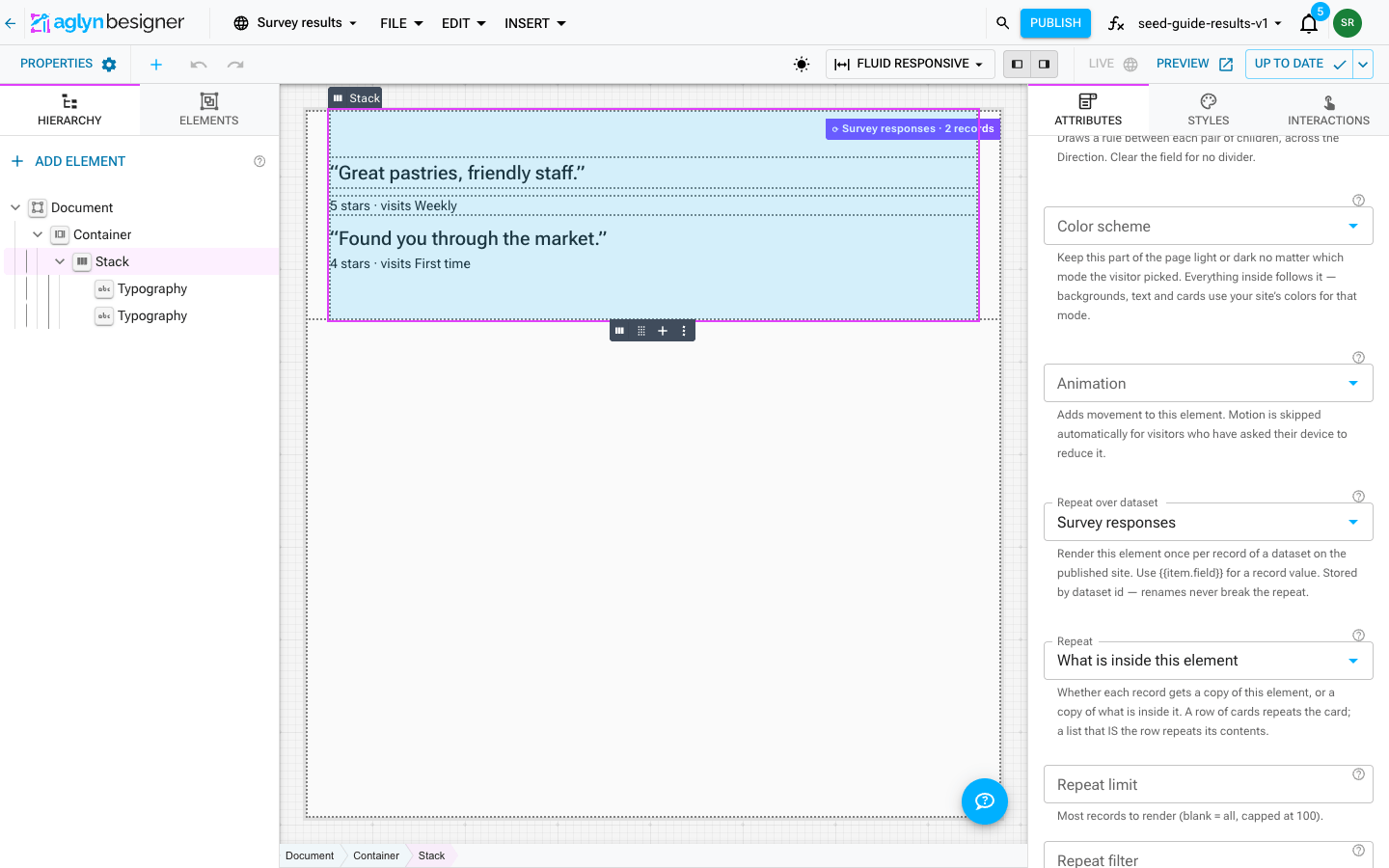
Containers (like a Stack) have a Repeat over dataset property. Set it and the container's children become an item template, rendered once per record on the published site:
- Select the container and set Repeat over dataset to your dataset (stored by id, so renames never break it).
- Inside the children, reference record values with
{{item.fieldId}}— e.g.{{item.name}},{{item.price}}. - Reference fields support one hop:
{{item.author.name}}resolves the referenced record's field. - Optionally set a Repeat limit, a Repeat filter
(
price <= 20, operators==,!=,>,>=,<,<=,contains), and a Repeat sort (price desc).
The canvas doesn't expand rows while designing — it shows a repeat notice on the container ("children render once per record on the live site") so you design a single template. Up to 100 records render per repeatable.
Everything that writes records
| Writer | How it behaves |
|---|---|
| Console — Add record / record editor | Typed inputs per field; validated and quota-checked. |
| Console — Import records | Bulk CSV/JSON with validation, upsert, and quota math. |
| Forms — the Form element's Write to dataset | Appends on each submission. The dataset is bound by id (a dropdown; legacy forms still match by name) and each form field can map to a schema field by id via Maps to schema field, with name-matching as the fallback — so renames never lose data. Best-effort (quota-full submissions keep only the inbox copy). See the survey guide. |
| Automations — the Write to a dataset step | Appends a record from a workflow/action run. |
| Automations — the Update a dataset record step | Updates a matching record (by email) or appends when none matches. |
Automation steps live in the Do list of an action — see workflows & actions.
Deleting a dataset
Delete removes the dataset and every record in it, permanently — the confirmation tells you how many documents go with it. There is no undo and no retention window, so Export it first if you might want the rows back. Deleting a single record from the table leaves the dataset itself alone.
The same applies to the two other things that hold records inside them: deleting an email list takes its enrolled subscribers, and deleting a collection takes the content entries published under it.