Forms & Lead Capture
Forms let visitors send you information — contact requests, sign-ups, lead capture. Submissions land in your inbox and can flow straight into a dataset and your CRM.
Free for basic forms and the inbox. Higher tiers raise submission and dataset caps.
Reading submissions from code
Everything on this page describes the console inbox. The same submissions are
available over the REST API — list them, mark each one read as your integration
processes it, and delete them once they're archived elsewhere. That read flag is
what stops a nightly sync from pushing the same lead twice.
See Form submissions in the API reference, or start from Your first API call.
Build a form
- Drop form components onto a page in the Besigner (fields, submit button).
- Configure the fields and the submit behavior.
- Publish — the form posts to Aglyn's submit API.
You can also describe the form you need and have Aglyn AI build it as a draft on the Forms page, with its fields, marketing consent and routing agreeing with each other. See Generate a form from a brief.
Submissions are capped at 10 per minute per site, per visitor address. A visitor over the limit gets a short retry delay, not a permanent block. It's per address, so one spammer can't lock out everyone else — but bulk-importing through your own public form will trip it. Use datasets for imports instead.
That per-address limit is one of several protections in front of your form — see Spam and abuse protection.
Place a saved form on a page
A form built on the Forms page goes on a page through a Form element: drop one in the Besigner and pick the form under Form. The page then draws that form's fields, and its button text, Success message, After submit outcome and styling come from the form itself, so editing them on the form changes every page that places it.
Picking the form clears the button text, message and caption the element started with (the Contact Section block's Send message, for example), so they can't hide the form's own. To change one of them on one page only, set it on the placed element after picking the form, or under Change it on this page only. That replaces just the setting you changed; anything you leave empty still follows the form.
Saved forms per site
Each plan includes a number of saved forms per site:
| Plan | Saved forms per site |
|---|---|
| Free | 1 |
| Starter | 5 |
| Pro | 25 |
| Business | 100 |
| Scale, Advanced, Agency | 500 |
| Enterprise | 500 by default; more by agreement |
The Forms page shows how many a site has used. The limit applies when you create or duplicate a form: at the limit, the next one is refused with a link to upgrade. A site that holds more forms than its plan includes, for example after moving to a smaller plan, keeps every one of them, and they keep collecting submissions.
Monthly allowance per plan
Each tier includes a monthly form-submission allowance, counted per site:
| Plan | Submissions / month |
|---|---|
| Free | 20 |
| Starter | 200 |
| Pro | 1,000 |
| Business | 8,000 |
| Scale | 25,000 |
| Advanced | 40,000 |
| Agency | 25,000 |
| Enterprise | 50,000 by default; more by agreement |
On Free, that allowance is a hard wall: at the cap, further submissions are declined — the visitor sees the form's error message rather than a fake success. On every paid tier it is a band, not a wall: submissions past the included count keep working and bill as metered overage, the same way storage and API requests do, because a dropped submission is a lost lead. Either way the count resets with the calendar month (UTC), and the billing page's usage meters warn you at 80% before you get there.
The allowance is per site. On Enterprise the figure is a default your agreement raises; Enterprise is not metered, so at that line further submissions are declined until the month turns or the agreement is updated. None of this is a promise that the endpoint will take any number of requests from anyone — every site, on every plan, sits under the anti-abuse ceiling below.
A single submission can carry up to 20 fields and about 10 KB of text — plenty for any real form, tight enough that a bot can't stuff your inbox.
Spam and abuse protection
A published form is a public endpoint on the open internet — that is the point of it. Three things stand in front of it, and none of them asks your visitors to prove they are human:
- A honeypot field. Every Aglyn form carries an input that humans never see and never fill. A bot that fills it in gets an ordinary-looking success and nothing is stored — it learns nothing and keeps wasting its time.
- A per-address rate limit. The 10-per-minute limit above, enforced across all of our servers rather than per instance, so it still holds when traffic is spread out.
- A per-site monthly ceiling. Below.
There is deliberately no CAPTCHA and no attestation check on the submit endpoint. A challenge in front of a lead-capture form is paid for by every real visitor so that a bot doesn't get through, and it costs conversions. Whether that trade is the right one is an open question we have not settled — see Trust & security for the same statement from the reviewer's side. Until it changes, the ceiling is what bounds the damage.
The per-site monthly ceiling
Separate from your plan allowance, each site has a monthly ceiling on how many submissions the endpoint will accept at all. It is abuse containment, not a quota: you are not metered against it, it is not something to plan capacity around, and no legitimate site reaches it. It sits at ten times your plan's included allowance, or 5,000, whichever is larger — and at 1,000,000 on the unlimited tiers — so it is always far above the volume you actually bought.
If a site does cross it:
- Further submissions are refused for the rest of the calendar month, and a refused submission is not billed. It is turned away before the billing counter moves, so a flood cannot add anything to your invoice — not even the part that was refused.
- Nothing is stored, so there is no spam in your inbox to clean up afterwards.
- The visitor is told plainly that the form isn't accepting messages and that their message was not sent — never a fake success that leaves a real customer waiting for a reply. If your site publishes a support email, the notice offers it, so there is still a way to reach you.
- Your site's Inbox shows "Form submissions are paused" above the tabs, with how many submissions were refused and the date it lifts, and site managers get a notification.
- It lifts by itself at the start of the next month (UTC).
Crossing the ceiling almost always means a bot found one of your forms. If it was real traffic, contact support and we will raise the ceiling for your site.
Field types
Each Form Field has a type that controls what visitors see and what is submitted:
| Type | Visitor sees | Submitted value |
|---|---|---|
| Text (default) | Single-line input | The text |
| Email input | The address | |
| Multiline | Multi-row text area | The text |
| Dropdown | Select menu | The chosen option |
| Radio choice | One radio button per option | The chosen option |
| Checkboxes | One checkbox per option | All ticked options, joined with , |
| Star rating | Five stars | The number of stars (e.g. 4) |
Dropdown, radio, and checkbox fields take their choices from the field's Options setting — enter one choice per line (or separate them with commas). Blank entries are ignored. The Required? switch works per type: a required checkbox group needs at least one box ticked.
Labels and placeholders
Every field has a Label — the visible name of the input, and the one screen
readers announce. A field can also carry a Placeholder: a gray example
inside the empty input, such as you@company.com or "Tell us about your setup".
Set one and the label moves above the box so both are readable at once; leave it
empty and the label keeps its floating behavior.
A placeholder is a hint, never a substitute for the label — it vanishes the moment a visitor starts typing, and a field labeled only by its placeholder is unusable with a screen reader. Text, email, and multiline fields show it inside the input; a dropdown displays it until a choice is made; radio, checkbox, and rating fields ignore it. Clearing the setting removes the hint.
Example: a quick survey
Build a feedback survey with four fields:
- A Star rating field named
satisfaction, labeled "How satisfied are you?". - A Radio choice field named
visit-frequencywith optionsFirst time,Monthly,Weekly. - A Checkboxes field named
topicswith optionsProducts, Support, Pricing— visitors can tick several. - A Multiline field named
commentsfor anything else.
Submissions land in the inbox like any other form — a visitor who ticks two
checkboxes submits topics: Products, Pricing, and the rating arrives as 4.
The Inbox keeps every value as the visitor typed it. A bound
dataset stores each value as its field's type instead: the
rating 4 becomes the number 4 in a number field, and Products, Pricing becomes a
two-item list in a list field.
After submit
The form's After submit setting controls what a successful submission does:
| Outcome | What the visitor sees |
|---|---|
| Show the success message (default) | The form is replaced by your Success message |
| Redirect the visitor | The browser navigates to a page you pick (rename-safe — slug changes never break it) or, with no page picked, to a Redirect URL (a same-site path like /thanks or an https URL; anything else is ignored) |
| Reveal a hidden element | An element you pick from the canvas — hidden on the published page until then — appears in place of the form |
For the reveal outcome, drop the follow-up content (a thank-you block, a download link, an embedded video) anywhere on the page, then select it as the Element to reveal. It stays hidden for visitors until the form is submitted; in the Besigner it stays visible so you can keep editing it. If a redirect target can't be resolved (the page was deleted, the URL was rejected), the form falls back to the success message.
Example: grow an email list from a signup form
Combine an outcome with a conditional automation:
- Add the Marketing consent field from Forms in the Besigner's element picker: a
Checkboxes field named
marketingConsent, labeledMarketing emails, with one option,Email me news and offers. If you reword the option, keep it free of commas: the Options setting starts a new box at every comma. - On the form's own page, pick
marketingConsentas the Marketing consent field, so a tick is recorded as the person's consent. - Set After submit to Redirect the visitor and pick your
/thankspage. - On Automation → Actions, add an action on formSubmission with the condition
"A field is not empty" →
marketingConsentand the step Enroll in a list, picking your email audience.
Visitors who tick the box are added to the list (and can be targeted by email campaigns); everyone lands on the thank-you page.
Need a finer net? Conditions
chain with AND/OR
— e.g. enroll only when marketingConsent is ticked and plan equals Pro, or when
either of two topic boxes is ticked.
When the site shares a consent group
If your organization has declared this site one sender with others, the form shows one more line under its Marketing consent field: "You'll receive marketing email from {name}, which covers {n} sites." That line is what lets a tick count for every site in the group, because it tells the person who they will hear from. Without it, consent is recorded for this site alone.
- The line comes from the group's name, so renaming the group changes it on every form at once. A form on a site in no group shows nothing extra.
- A submission records the group the form showed. One sent from a page that was loaded before the group changed is recorded for this site alone, because the person saw a different set of sites.
Where submissions go
- Inbox — every submission is captured; open it in the console's mail reader dialog.
- Datasets — bind a form to a dataset (Write to dataset on the Form element) and each submission is also appended as a record. The inbox always gets its copy, and each submission's own detail dialog carries chips saying where it went — including saying nothing about a dataset when the record wasn't created.
- Contacts — every submission that carries an email address updates the person in the CRM at stage Lead: a new contact when the address is new, an interaction on their timeline when it is not, and a customer stays a customer. A field can also save its answer into one of your custom contact fields — pick the field under Saves to contact fields on the form's own page.
- Leads — only when the form's CRM routing card has the lead switch on. See What makes a lead.
The inbox
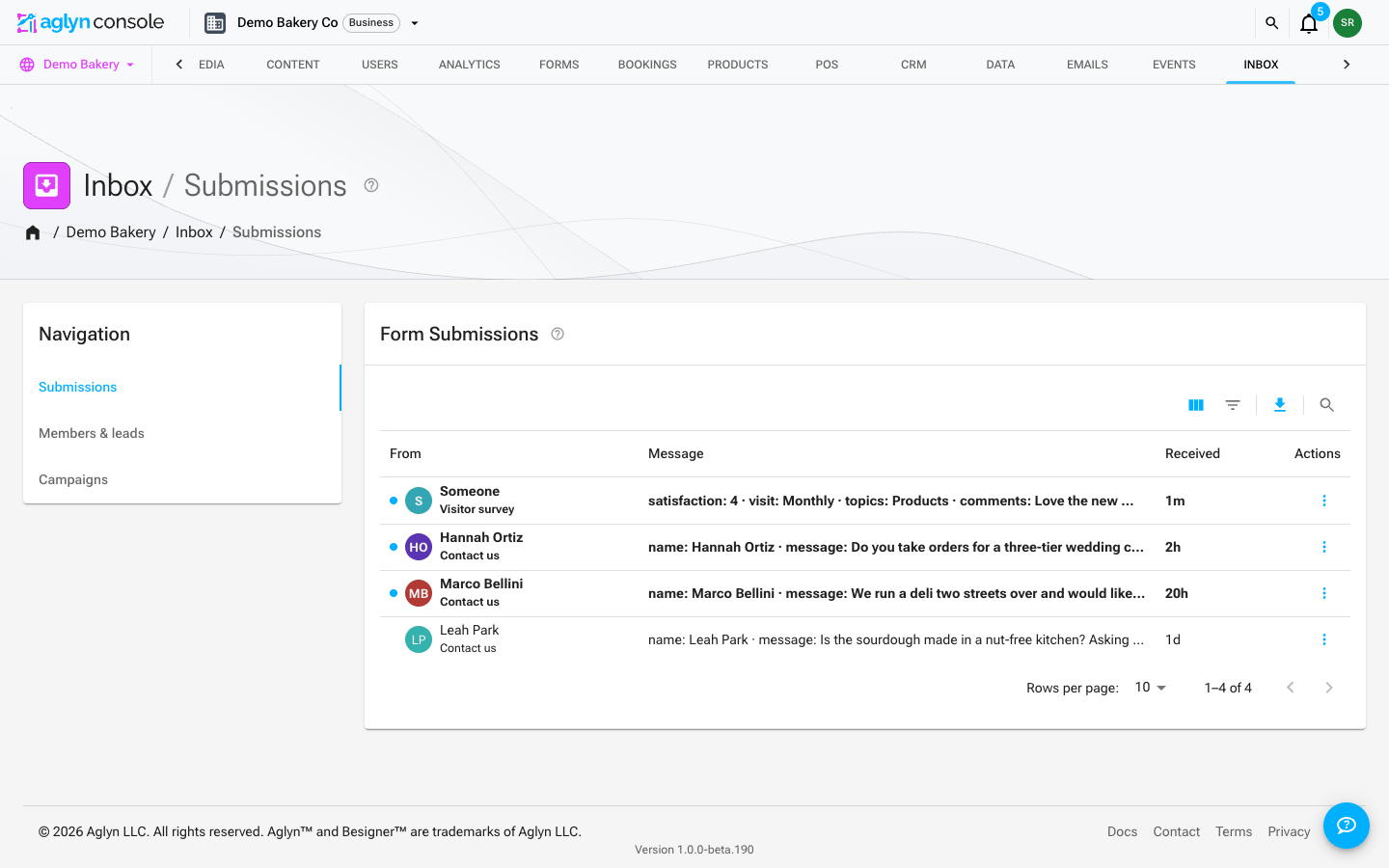
The site's Inbox page collects everything visitors send, in three tabs — Submissions, Members & leads, and Campaigns. The Form Submissions table reads as a list of people, not of forms: From, Message, Received, and the row actions.
- From shows the sender — a colored initials avatar and their name, with the form name as a caption underneath (the Form element's Form name attribute, so name your forms distinctly: "Contact", "Newsletter", "Survey"). The avatar's color is derived from the name, so one sender keeps one color on every machine.
- Unread submissions are bold with a dot at the left of the row. There is no "New" chip — bold text and a chip saying New are the same fact twice. Site managers also get an in-app notification per submission, and an email too for anyone who switched that on. It names the form, the page and the campaign, and opens that submission rather than the list — see What an open submission links to.
- The row's ⋮ menu holds Open contact in CRM — the person this submission updated, found by the address they gave — beside Mark read and Delete. A submission that carried no email address updated no contact, and the item says so.
- The CRM links back the other way: Open submission on a captured entry of a
contact's timeline lands on this tab with the reader
already open on that submission (the address carries
?submission={id}) and marks it read, as a click would. A submission that has since been deleted says so. - The dashboard's Inbox card previews the newest submissions and counts the site's open leads, linking to CRM → Leads.
- Received is relative —
now,18m,3h,2d,4w,7mo. Hover it for the absolute date and time; the detail dialog carries the absolute time too. An inbox is scanned for recency, and a locale timestamp makes you do the subtraction. - Click a row to read it — every field the visitor filled, labeled — and it's marked read; Mark unread puts it back.
- Delete removes a submission permanently (it asks first).
Filter the Inbox tables
Every Inbox table filters and searches through its toolbar, and every filter and the search reach everything the site holds, not only the page on screen: the table asks for the matches, newest first, and paging forward shows the next page of them.
The submissions table's Filters narrow it by From (contains a word the sender's name or address starts with), Read (Read or Unread), and Form on a site's Inbox when the site has forms — or Site in its place on your organization's Inbox. Search finds a word at the start of any word in the sender's name or address or in the message — up to the first 40 different words of a message are searchable, fewer when they are long. A form's name isn't searched: a form you rename would go on being found by the name it had when each message arrived. Use Form instead, which follows the form through a rename.
The Members & leads section lists one of two things at a time, chosen by the Members | Leads toggle above the table — a person who left their address and later signed up is in both, as a member and as a lead:
- Members filters by Email (the whole address) and searches the start of any word of a member's name or address.
- Leads filters by Email and searches a lead's name, address, company, job title and tags. On your organization's Inbox it also filters by Source — a booking, added by hand, the API, an import or a sign-up; a lead filed from a form is filed under that form, so there is no single "form" choice — and by Site, any of the sites that captured the person.
A table holds one filter that matches words or a list at a time, and the search counts as one: From doesn't combine with the search, and on your organization's Leads, Source and Site combine neither with each other nor with the search. When you ask for a combination the table can't answer at once, it applies what it can and says, above the table, which filter it didn't apply. For a collaborator invited to particular sites, Search on a site's Leads matches the start of a lead's address (the first word typed) and lists the matches by address; the table says so. See Filter and search a list.
Who a submission is "from"
A form is yours to define, so there is no guaranteed name field. The sender is resolved from the submitted values by convention, in this order:
- A name field —
name,fullname,yourname,firstnameorcontactname. - An email field —
emailoremailaddress. - The literal Someone.
Matching ignores case, spaces, underscores and hyphens, so Full Name, full_name and
fullname are all the same field. Empty values don't count, and where a form has two
spellings of the same name the first one submitted wins.
A form whose fields are named something else entirely — q1, who, sender — shows
Someone on every row. That is the design, not a fault: an avatar with no letters in
it is worse than a generic one, and the console will not guess which of your fields is a
person. Rename the field to one of the conventional names if you want the sender on the
row; the submission itself is unaffected, and every field is still in the detail dialog.
What an open submission links to
Under the sender, an open submission lists where it came in and what it made, each as a link:
- Form — the form that took it, opening the form's own page.
- Page — the page it was sent from, opening the live page in a new tab.
- Lead or Contact — the person the CRM filed it as, opening their record. Absent when the submission carried no email address.
Below the fields, its Campaign block keeps two facts apart, because a submission can be one without the other:
- Filed under — the campaigns its form and its page were in when it arrived. That is where you put them, and it is true of everyone who submits there.
- Credited to — the campaign the visitor arrived through: a click on one of its
emails, a link carrying a
utm_campaignlabel it declares, or a page filed under it, with the channel and the time. It can be a different campaign from the ones it is filed under, or none — see How a visit is credited to a campaign.
Each campaign is a link to its page.
Where this one went
Open a submission and, under its fields, chips report what actually happened to it:
- Saved to Inbox — always, on every submission. It's reassurance rather than a status: a submission you're looking at is, by definition, in the inbox.
- Added to "Leads" dataset — only when this submission really did become a record in that dataset, named as the dataset is named today.
- Not added to "Leads" dataset: Seats must be a whole number — when a submitted value doesn't fit the dataset's model, the record is not written, and the chip names each refused field and why. The visitor still sees your success message; fix the form's field (or the dataset's) and later submissions land.
The rule behind the second chip is worth knowing, because its absence is informative. It is stamped at submit time, only when a record was genuinely created. If the bound dataset had been deleted, or its record quota was full, or none of the submitted fields map onto the dataset's fields, or a value was refused by the dataset's model, the submission is still kept in full — it's the record that didn't happen. In those cases no "Added to" chip appears, rather than a chip pointing at a row that doesn't exist; a refused value is the one case that says why. A submission with only Saved to Inbox on a form you bound to a dataset is the signal to go and check the dataset.
Replying to a submission
Open a submission and, under the fields, there is a Reply composer. Write a message, press Send reply, and it goes by email to the address on the submission. The original message is quoted underneath yours, so the person can see which of their messages you are answering.
Read this part before you use it, because it decides where the conversation continues:
- Answers arrive in your email, not in the Inbox. The reply is sent with your console account's address as its Reply-To, so when the recipient answers, their answer lands in your own mailbox. Nothing on this platform receives mail, so the Inbox will not show it. The Inbox is a record of what your site collected and what you sent back — it is not a mailbox.
- The reply leaves on whatever this site sends as, with your site's sending name in front of it — a domain of the site's own if it has one, and the shared Aglyn address if it does not. See which domain your mail leaves on. The Reply-To above is what makes the round trip work either way, because it is the only part of the address that may point at a mailbox nobody here has verified.
- Replies sent lists what you have already sent on this submission, so you can see whether someone else on your team has answered.
A reply is transactional mail: someone wrote to you and you are writing back. It is not marketing, it does not need a marketing opt-in, and it does not add anyone to a list. It still respects the addresses that can no longer be mailed — if the address has bounced, reported a message as spam, or unsubscribed from your site, the composer refuses and tells you which. Replies count toward your email costs but never toward the campaign allowance your plan limits, so answering customers cannot use up the quota that sends your newsletter.
A submission whose form had no email field cannot be replied to, and says so instead of offering a Send that would fail.
Every site's Inbox at once
Your organization has an Inbox of its own, beside CRM and Marketing, for the people who span the whole organization — owners, admins, and members with access to every site. It has the same three tabs, over every site at once:
- Submissions lists every site's form submissions in one list, newest first, with a Site column saying where each one was sent. Open one to read it and it's marked read, as on the site's own Inbox. Reply, Add to list and Where this came from act as the site the submission was sent to, so a reply leaves on that site's sending address.
- Members & leads lists the organization's leads, each with the sites that captured the person. A member signs up to one site, so the Members list waits until you choose a site. This tab needs the Manage data permission, the one the CRM asks for.
- Campaigns lists every campaign, as the organization's Marketing page does.
The Site filter above the tabs narrows the whole page to one site: its submissions with their Form filter, its members and its leads, its campaigns, and its paused and spam notices, which belong to a single site. Your choice is kept while you move between tabs. An organization with only one site goes straight to that site's view, with no filter to set.
Collaborators invited to particular sites don't see the organization's Inbox — they keep each site's own, which is unchanged.
One form's own page
The Inbox answers "who is waiting for a reply" for the whole site. Forms → a form answers a different question: how this one form is doing. Open it from the Forms list.
CRM routing says what the CRM does with a submission. The switch — Also create a lead from the address someone gives this form — makes the form a lead surface: a submission files a lead in CRM → Leads for the sales team to work, and no contact, unless the person is already a contact, in which case the submission lands on their record instead. With the switch off, a submission updates the open lead this site holds for the address, or the contact otherwise. The caption under it says what that needs before you flip it: an email field in the published design (a submission without an address cannot key a lead) and a Marketing consent field (a lead nobody opted in with is one the team cannot email). Publishing with the switch on is refused until the design has both; a checkbox named for the opt-in — such as subscribe or marketing consent — counts even before you pick it as the consent field. See the contacts this form captured in the CRM opens the Contacts list narrowed to source Form and this form.
Each card saves what it shows, from the Save in its own header: Details saves the name and campaigns, and CRM routing saves the lead switch and the consent field. A card's Save and Discard changes stay grayed out until something in that card differs from what's saved, and saving one card never saves the other. If you reload or close the page, or open the Besigner, while a card has unsaved changes, you're asked first.
What this form has collected carries the counters:
- Views — times the form was rendered on a live page. Not times it was seen: a form below the fold that nobody scrolled to still counts, and a form in a popup counts only when the popup opens. Views of the form in the besigner or in Preview are never counted — that would put you in your own numbers.
- Submissions — everything filed under this form's id.
- Leads — the people this form filed to CRM → Leads that are still there. One person is one lead, so someone who submits twice is two submissions and one lead, and a lead you erase stops counting.
- Views that became a submission, Started and never submitted, and Submissions that became a lead — each printed with the population it is over, so you can see what is being divided by what.
Submissions by month starts at the first month this form recorded anything and runs to the present. Months in between with nothing are drawn at zero; months before the counter existed are not drawn at all, because nothing was counting then and a zero would be a claim.
Two things to know before you read the rates:
- Views and starts are counted in the visitor's browser; submissions are counted on our servers. A visitor whose browser blocks the measurement can still submit, so a completion rate can read above 100%. We show what was measured rather than capping it at a tidy number.
- Each rate covers only the months its denominator was being recorded, which is why a form with years of submissions may show a completion rate over a much shorter period.
Submissions to this form is the same table the Inbox shows, narrowed to this form, and it loads when you press Show submissions rather than on every visit — reading messages is a query over everything the site has ever collected, and most visits to this page are about the form's settings.
Saves to contact fields lists every field the published design declares, with a choice beside each of your custom contact fields. Pick one and every submission's answer is stored under it on the contact the submission creates or updates, converted by that field's type. The mapping is kept by field name, so publishing a new design does not lose it; a field renamed on the canvas starts unmapped. The sender's name and email are recognized from the field name (see who a submission is from) and never need mapping.
Submissions collected before a form became a form entity are filed under the name they were sent with rather than this form's id, so they stay in the Inbox under All forms.
Export submissions
Take a copy of what visitors sent, as a file:
- One form's submissions. On the form's own page, Export in the header of the Submissions to this form card exports that form's submissions, newest first.
- Every form's at once. On the Forms page, Export submissions in the header of the Forms card exports every submission the site has received, including those sent before a form became a form entity.
You choose the columns, and their order, or start from a preset:
- Submission — the Aglyn ID, when it was submitted, the form's ID and the name it had when the submission arrived, the page it was sent from, whether it's been read, when it was last replied to, the form's campaigns at the time, where else it was filed (such as a dataset), and the site's ID.
- Answers — one column per question, labeled with the question. Exporting one form offers that form's questions; exporting the whole site offers every form's, each form its own group, and a question two forms share by field name (such as email) is one column. Answers are exported exactly as the visitor typed them.
- Other answers — answers the form's recent submissions carry that its current design no longer asks for, so a question you've since removed isn't lost.
Files come as CSV, JSON or NDJSON, and your last choice of columns is remembered for next time.
Exporting needs the Manage data permission on the site, and every export is recorded in the workspace's audit log — who exported, when and how many submissions, never the submissions themselves.
Submissions can't be imported. A submission is what a visitor sent through a published form, stamped with the time and the page it came from; a file can't have sent one.
Find a form in the list
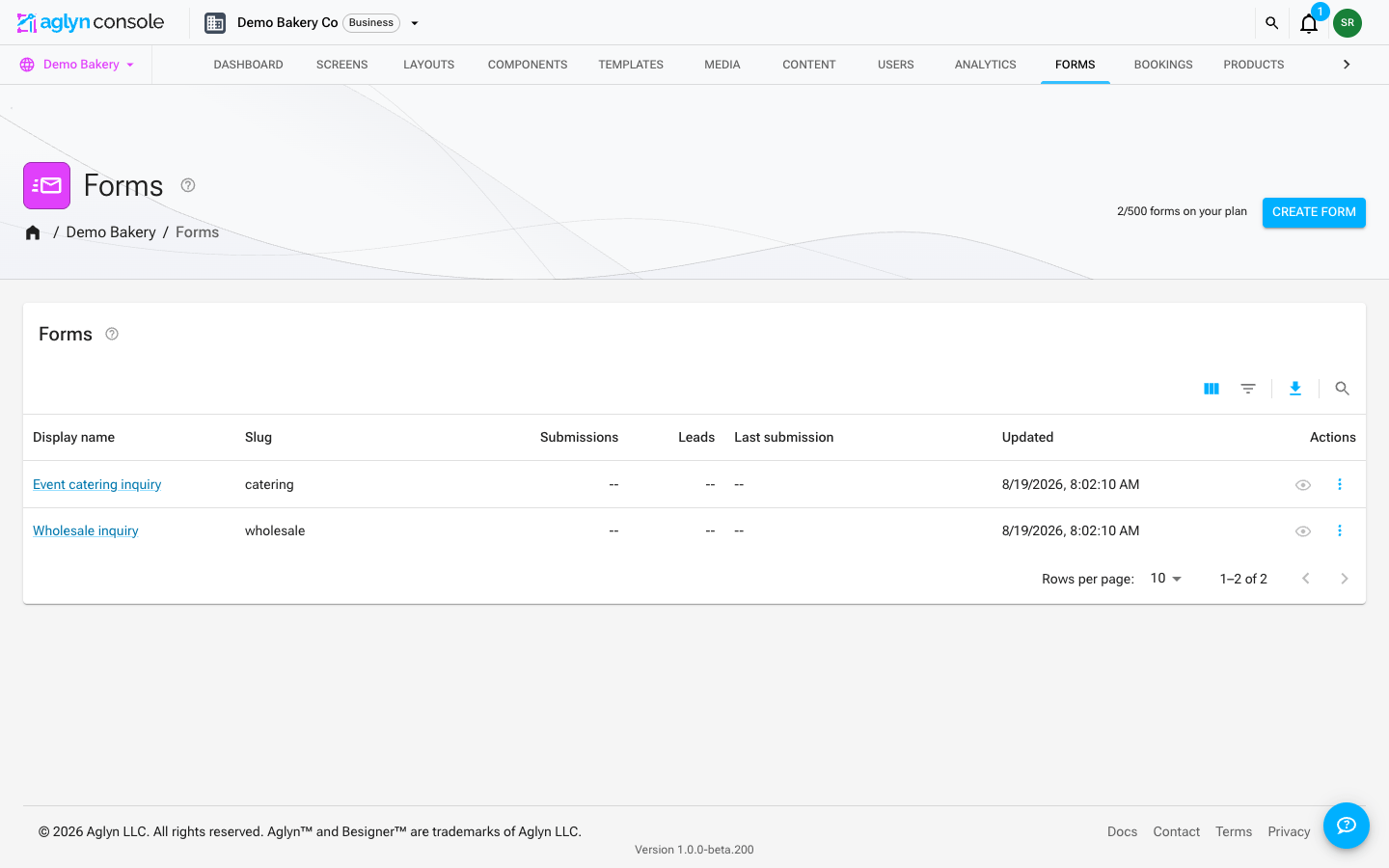
The Forms table filters through its toolbar by every column it shows:
- Display name, by the start of a word in it: contains "audit" finds "Multi-brand site audit".
- Slug, equals the whole slug.
- Submissions, as a number:
=,!=,>,>=,<or<=a number, is empty or is not empty. A form that hasn't had a submission shows a dash, and is empty finds it. - Leads,
=a number, or is empty. Leads counts the people the form filed as leads that are still in CRM → Leads: a visitor who submits twice is one lead. A form with the lead switch on shows 0 until its first lead, so Leads = 0 finds the lead forms that haven't filed one yet. A form that has never routed to leads shows a dash, and is empty finds it. - Last submission and Updated, as days: is, is after, is on or after, is before or is on or before a date. Last submission is not empty finds every form that has had a submission.
Three more columns stay hidden until you show them from Columns, and the Filters panel offers them either way: Status (Active or Retired), Lead routing (On or Off, the switch on the form's CRM routing card) and In a campaign (Yes or No; No finds the forms filed under no campaign). Campaign finds the forms filed under any of the campaigns you pick, up to 30. The panel lists the site's campaigns once you open it.
Submissions, Leads and Last submission are recounted from what's left whenever a submission is deleted from the Inbox or a lead is erased, so they never count something you removed. Retiring or restoring a form, and taking it out of a deleted campaign, moves its Updated date.
Search finds a form by the start of a word of its name or slug, or the start of its ID. It looks for one word, the first you type, and says so when you type more.
Every filter and the search look through the whole catalog, not just the page on screen, and the pager turns through the matches. Filters on different columns add up, with two limits, because one query answers them all:
- One range at a time. A range is any Submissions comparison other than
=or is empty, any date on Last submission or Updated, and Last submission is not empty. While one is in force the list runs in that column's order — fewest first for Submissions, newest first for a date; otherwise forms run in a fixed order, by their ID. - Campaign or the search, not both. A query can match one list at a time, so Campaign isn't applied while a search is typed.
A filter that breaks either limit isn't applied, and a note above the list names it and says why. Retired forms stay out of the list until you ask for them: choose Status in the Filters panel and pick Retired to find one and restore it. See Filter and search a list.
Duplicate a form
Duplicate… in a form's row menu makes a second form with the same design,
fields, validation, consent field and routing, named Copy of <form> unless
you type another name. It is a form of its own: submissions stay with the
original, the copy starts collecting only once you place it on a page and
publish, and it counts against your form allowance like a new form.
Switch Forms off for one site
Forms is on for every site in a workspace. A site admin can switch it off for one site on that site's Admin → Plugins → Forms page. The switch asks first: it lists the published pages on the site that carry a form, because those forms stop rendering and stop accepting submissions the moment Forms is off.
With Forms off for a site:
- a form on its published pages is not drawn. The rest of the page stays; where the form was, there is empty space and no error;
- every submission sent to the site is refused with This site is not accepting form submissions, including one from a page a visitor opened before the switch;
- publishing a form, or a page, layout or component that carries one, is refused until Forms is back on for the site. Remove the form to publish the rest of the page;
- the Forms page leaves the site's navigation.
What it keeps: the submissions already received, the workspace's form catalog and the CRM leads its forms created are untouched, and forms keep working on the workspace's other sites. A Marketing popup that collects an email address is a Marketing element rather than a form, so it keeps collecting while Marketing is on for the site.
Switch Forms back on and the forms on the site's published pages render and accept submissions again.