Looks and themes for AI sites
Aglyn AI is in beta. It is available today on every plan that includes it, and it is still changing as we improve it. Beta means you can use it now, while what it builds and the steps on this page may still change.
Every site started with AI gets a look of its own: a base theme, colors, a pair of fonts, and the style of its buttons, cards and forms. The style you choose decides the family that look comes from. The details are picked fresh for each site, so two sites with the same style and the same answers still look different.
Choose a style
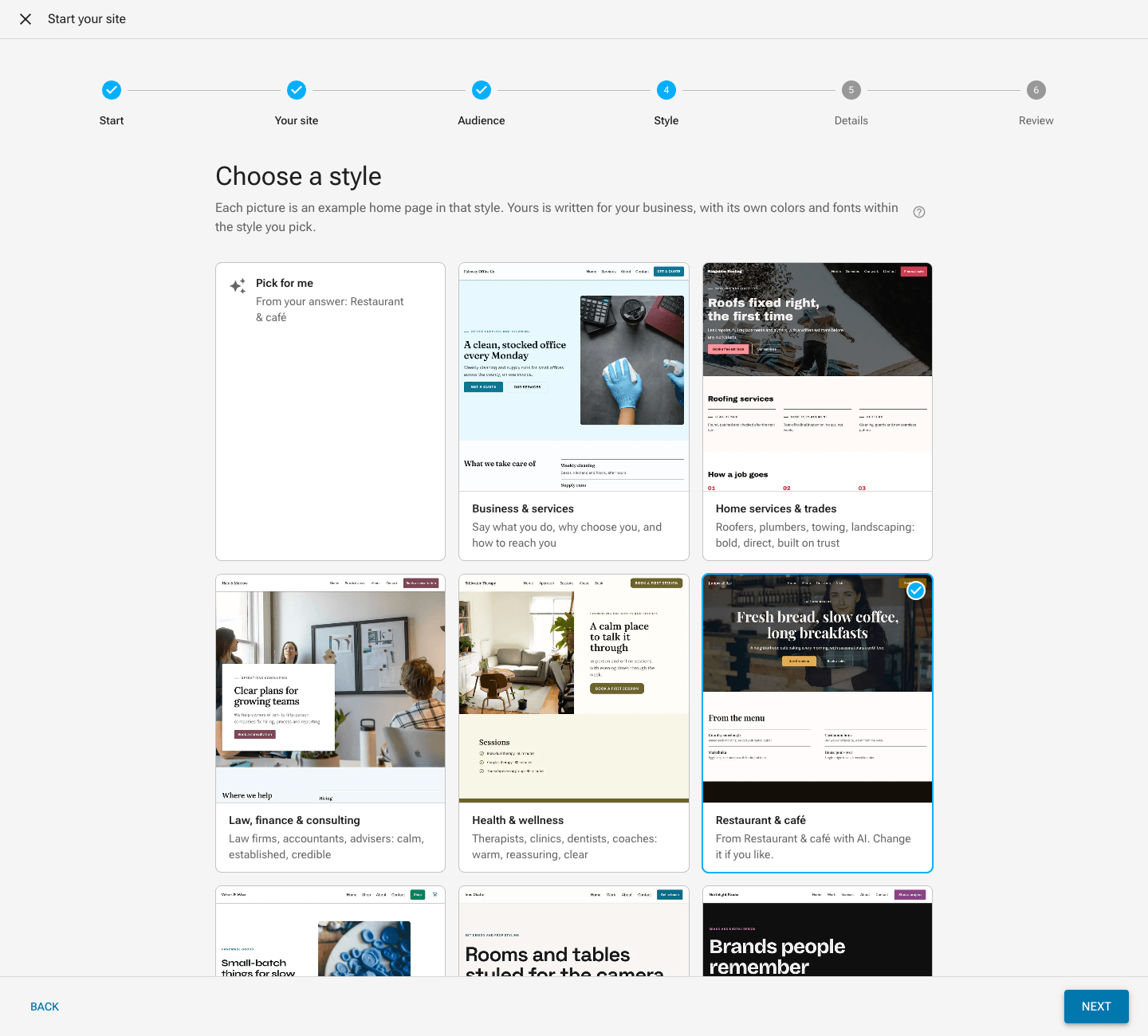
The Style step of Start your site offers these styles, each as a card with a picture of an example home page of that kind, drawn in its style. Nothing is chosen until you pick a card. Pick for me, the first card, uses the style that what you said the site is suggests, and names it.
The same styles start the starter site too. Start from the starter site, and Create site when Aglyn AI is not part of your plan, ask you to choose one of them before the site is created; there is no Pick for me there. The starter's home page, header and footer then come in that style's built-in theme, brand color and fonts, which you can change under Setup → Theme.
| Style | For |
|---|---|
| Business & services | A local business or service company. The fallback when nothing else fits. |
| Home services & trades | Roofers, plumbers, electricians, cleaners and other trades. |
| Law, finance & consulting | Professional practices. |
| Health & wellness | Clinics, therapists and practitioners. |
| Restaurant & café | Restaurants, cafés, bakeries and bars. |
| Online store | A shop that sells products. On a paid plan it adds products. |
| Portfolio | Showing your work. |
| Design studio & agency | Studios and agencies. |
| Photography | Photographers. |
| Blog & writing | Reading-first pages. On a paid plan it adds posts. |
| Events & weddings | An event, a venue or a planner. |
| Fitness & sports | Gyms, trainers, teams and clubs. |
| Yoga & mindfulness | Studios and teachers. |
| Beauty & salon | Salons, barbers and spas. |
| Real estate | Agents and agencies. |
| Courses & education | Classes, tutors and schools. |
| Nonprofit & community | Charities, groups and clubs. |
| Music & bands | Musicians and bands. |
| Personal & resume | A personal site or a resume. |
| Landing page | One offer on one focused page. |
| Coming soon | A placeholder that collects interest. |
Each card says, in a line, what its look is like. Its picture is one variation of the style; your site gets its own. A style also suggests the pages that kind of site usually has, such as a menu for a restaurant or services for a trade.
Each style's layout
A style also decides how its pages are laid out, so two styles never read as the same page in different colors. Each style opens its pages in one of two ways of its own, and your site gets one of the two:
- A photo across the whole page, with the words over it at the start (a trade, a nonprofit, a band) or centered in large type (a restaurant, a coming soon page).
- A photo filling half the page, edge to edge, with the words in the other half (health and wellness, fitness).
- The words beside a photo (business and services, courses and education), or beside two overlapping photos (an online store, an event, a salon).
- A white card over a photo, holding the words (law, finance and consulting, real estate).
- Large type above a wide photo (a design studio, a portfolio) or a centered heading above a wide photo (a blog, yoga, a landing page).
- A round portrait above the words (a personal page).
The style also sets how its header is arranged, how its lists and cards are drawn (cards, lines under thin rules, or icons), whether its sections of text take a photo beside them, and whether a heading sits beside its items. The words, the sections and their order are still written for your business.
An AI starter's look
AI starters are rolling out, and your workspace may not have them yet. When you start from an AI starter, its style arrives chosen on the Style step. Its card says which starter it came from and what its look is set in, such as Set in Bootstrap with Fraunces and Inter; pick another style to change it. The Style line on Review says the same. Its brand color arrives picked under More details on the same step, as Chosen color.
Your site then wears the look the starter shows: its built-in base theme, its fonts, and its page background, corners and buttons, in your brand color. The rest of the look, such as its cards and how its pages move, is chosen within the style as for any start. If you gave sites you like, the starter's look comes first, and what those sites suggest fills in the rest.
To change it, choose another style card. The starter's base theme and fonts go with it, and your site gets that style's own look. Choose the starter's card again to have them back. Choose another brand color, or Let the style choose, to change the color.
How the look is made
The style sets the range the look is chosen within: which base themes suit it, the range of colors, how strong the palette is, the page backgrounds, the font pairings, how rounded the corners are, the style of the buttons, the size of the headings and how much space there is. The Designing your look step then picks one look from that range for your site:
- Unique each time. Each job has its own variation, and a look that would repeat one of your workspace's other sites is drawn again.
- Readable. The colors are checked for contrast, so text stays readable on its background. A palette that fails the check falls back to the starter colors.
- Moving. Every page gets animations that suit the style: calm styles fade in gently, bold ones arrive with more energy, and portfolios zoom their pictures in. Choosing them costs no credits.
- Cheap. The look is one short step, a few credits of the start's total.
Your theme afterwards
The look is saved as an ordinary theme: the base theme it started from, plus its changes. Setup → Theme names the base, and you edit every color, font and spacing value there as you would any theme. Every page, the header and footer, and the contact form use the theme's values rather than fixed colors, so a change in the theme editor changes the whole site.
A site whose owner has already changed its theme keeps that theme: a guided start never replaces a theme you edited.
Change the look later
To change the look with AI, describe the change in Setup → Theme, such as warmer colors and a serif for headings, and review the proposal before you save it. See Change your site's theme with AI.