Media Library & CDN
The media library stores your images, video, and files, keeps them organized, and serves them quickly. Media plugs into components like Image and Video and into the theme's favicon.
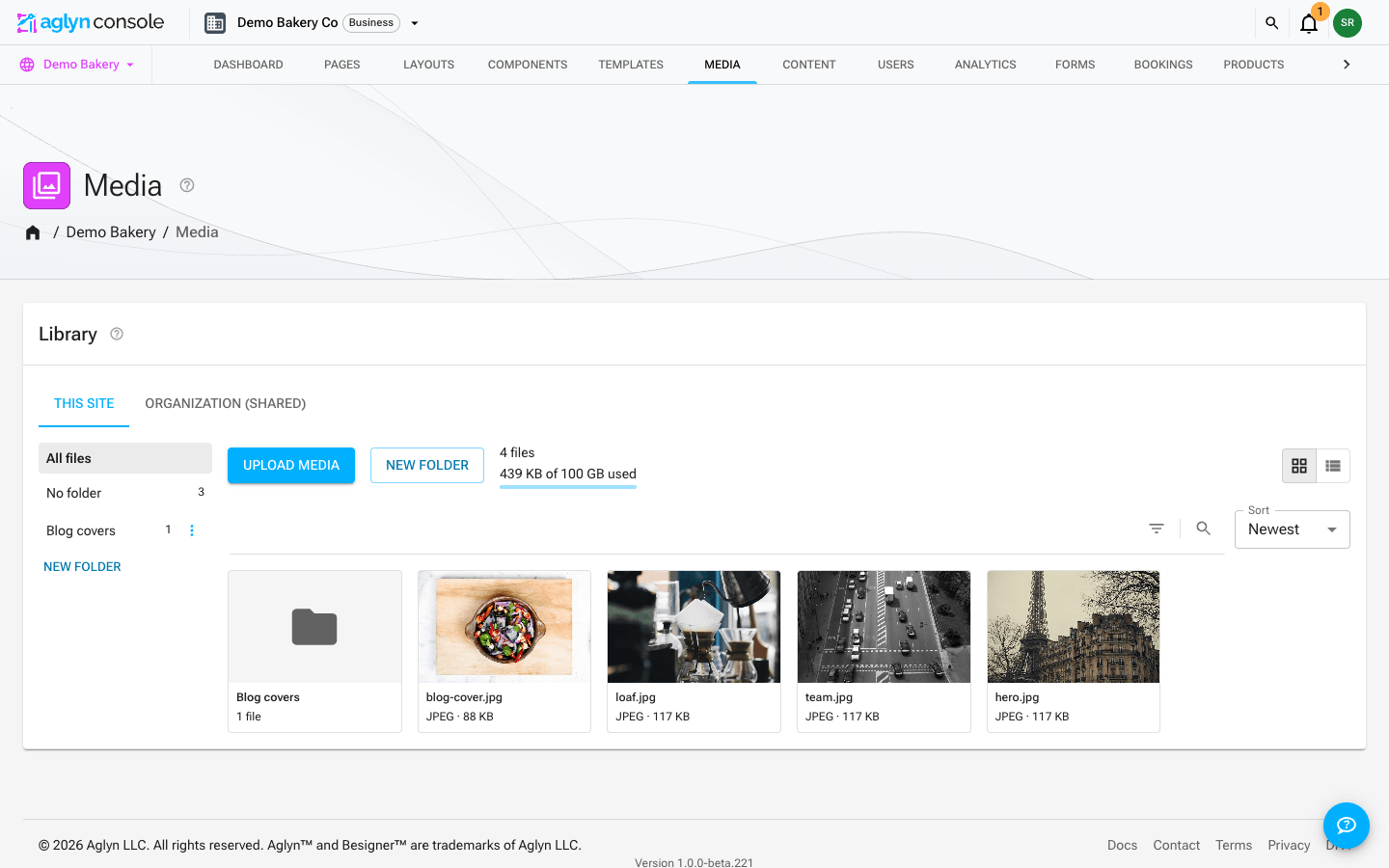
A site's Media page has two tabs: This site, the site's own library, and Organization (shared), the workspace assets this site may use. The organization library loads only when you open its tab.
Free with storage quotas. CDN delivery with WebP variants is on every plan, free included; document uploads and higher storage are gated by plan. Video uploads are paused on every plan for now — see Upload.
Organize
-
Arrange media in a folder hierarchy. Folders appear as cards in the grid (folders first, before files) as well as in a side rail — open one to browse into it, and use the breadcrumb to step back out.
-
Drag and drop to reorganize: drag a file (or a whole selection) onto a folder to move it in, drag a folder onto another to nest it, or drop onto a breadcrumb to move items up and out. Nesting depth and name-collision rules are enforced automatically.
-
Move to folder… shows the full path, not just the folder name —
Blog / CoversandPress / Coversare two different destinations and the menu says so. The same paths appear in the detail drawer's Folder field. -
Big moves are safe to interrupt. Moving a large selection relocates the stored objects one at a time, so the library keeps working through it and tells you how far it has got. If it cannot finish everything, it reports the real split — Moved 7 of 19 — 12 could not be moved — and leaves the files that did not move selected, so clicking Move again picks up exactly where it stopped. Nothing is lost either way: a file is only ever in one folder, its URL keeps working, and a repeat move of a file that already arrived does nothing.
-
Filter, search and sort through the same toolbar as every other list in the console, in either of two views — see Filter and search and Grid and List views below.
-
Search finds a file by the start of any word of its name —
bannerfindshero-banner_2x.png, because a file name's words are split at dashes, dots and underscores as well as spaces. Results come from the whole library, however large, and ✕ (or Esc) clears the box. -
Capture and edit metadata in a detail drawer — file name, alt text, description, tags, and your own custom key/value metadata (mirrored onto the delivered object's storage metadata). Bulk-edit tags and folders across a selection.
-
See and edit the details inside the file itself — a photo's caption, credit, copyright, keywords and camera, a PDF's title and author, an Office file's properties, a video's tags — under File info in the same drawer.
-
Each card has an overflow menu (the ⋮ button that appears on hover) so actions stay tidy. What it offers depends on the file:
- Copy URL — public files only. Copy temporary link replaces it on a private file, because a private file has no permanent URL to copy.
- Make private / Publish file — only in the organization library, and only for members with organization-wide access.
- Download file — always, public or private. See Download the original file.
- Replace file — for any file, not only images. The new file has to be the same kind as the one it replaces (a picture for a picture, a video for a video, a document for a document), because every page that uses it keeps the same link.
- Details and Delete.
Copy URL gives you a full absolute URL on the site's own domain, ready to paste anywhere — including outside Aglyn. The whole menu is hidden when the library opens as a picker (choosing an image for a page, a logo or a favicon): a picker is for choosing, not for editing.
-
See per-asset usage: delivery counters load automatically, and a Used on audit runs on demand — click Find where this is used to list everything that references the asset, each a link that opens it. The audit covers pages, layouts, reusable components, emails, site settings (logo, favicon, social image), content entries, and plugin content — products and their variants, product categories, events, bookable services, member posts and the rest. It reads every version of a page, not just the published one, so an image held only by a draft still shows up.
Two things it deliberately does not check, and it says so under the result: order history, form submissions and the activity log. Those record a past use — an order keeps a copy of the product photo as it was when it sold — so deleting the file changes nothing about them.
If the audit cannot finish, it tells you that instead of showing an empty list. "We could not check everywhere" is not the same answer as "nothing uses this", and only the second one is safe to delete on.
-
Delete from the detail drawer too, right under the usage audit — so you can run Find where this is used, read the answer, and act on it without leaving the file. The confirmation opens immediately and fills the usage warning in as the scan lands, and the message afterwards names the file (or counts and names them, for a selection).
-
Undo a delete. The message that confirms a delete carries an Undo button, and pressing it puts the file back exactly as it was — same link, same folder, same tags, alt text and sharing, and any site that was using it starts rendering it again. It works for a whole selection too, so a bulk delete is one button to reverse.
Undo lives on that message and nowhere else. Once it goes, the file is gone from the library for good, so read the message before dismissing it. Very occasionally Undo will decline — if putting the file back would push you past your plan's storage limit, it says so and leaves the button where it is, so you can free up space and press it again.
-
Select a range with ⇧-click: click one card, then hold ⇧ and click another — every card between the two is selected, in the order they are on screen. Works on the card itself and on its checkbox, and un-selects a whole range the same way.
-
Deleting keeps your place. However many times you clicked Load more, the files you deleted disappear and everything else stays exactly where it was — so a long clear-out is one pass, not one pass per file.
Filter and search
The library filters like every list in the console: Filters in its toolbar adds a filter, each filter in force shows as a chip above the files, and Search finds files by name. See Filter and search a list for how the panel and the chips work everywhere.
Every filter and the search look through the whole library, not just the files on screen: a file that matches is found however far down the library it is, and Load more only ever brings more matches.
What you can filter by — every field is one the library stores for each file:
- Type: is or is any of Images, Video, PDF, or Other documents (ZIP, Word, Excel, PowerPoint, CSV, text, Markdown and JSON).
- Tags: is, or is any of, the tags the library has shown you.
- Uploaded: is a day, is after, is on or after, is before or is on or before one.
- Size (MB):
>,>=,<or<=a size in megabytes. - Uploaded by: is or is any of — a teammate, or API key for a file an integration uploaded over the API.
- Alt text: Missing or Set. Alt text is Missing is the quick way to find the images a screen reader cannot describe yet.
- Orientation: is or is any of Landscape, Portrait or Square, from the dimensions measured when the file was uploaded — an image's own, or a video's frame.
- Name: starts with.
Folders stay in the rail, and so do the breadcrumbs: open a folder to see what is in it, and tick Include subfolders beside the breadcrumbs to see every file in the folders under it too. A folder with a great many subfolders is read on its own, and the library says so.
Search looks for one word at a time: hero banner searches for hero, and the
library says so. Words are matched from their start, so ban finds banner and nner
does not. For a collaborator whose access is limited to some sites, search in the
organization library finds files whose name starts with what you type instead, and
the library says that too.
Filters on different fields add up: a file shows when it matches all of them. A few combinations cannot be looked up together, and when you set one the library does not guess — it names the filter it set aside and why, above the files:
- One range at a time. Uploaded, Size (MB) and Name starts with each look up a range, and one range can apply at a time. A range also orders the files by what it ranges over — an Uploaded filter sorts them by date, Size largest first, Name by name — and the library says when it has changed the order you picked. For a collaborator limited to some sites, a search is itself a name range, so an Uploaded or Size filter gives way to it.
- Tags beside search. A Tags filter and a search cannot be looked up together: clear one to use the other.
- At most 30 choices at once. The values picked in every is any of, multiplied together — and by the folders searched when Include subfolders is on — can come to at most 30.
- Tags for a collaborator limited to some sites is not offered: the lookup that shows them only the files they may see is the one of that kind a search can make.
Your own custom metadata, the alt text's words, the description and the folder name are not filters or search terms: they are shown and edited in each file's Details.
Grid and List views
The buttons at the top right of the library switch between two views of the same files. Both use the same filters, chips, search, sort and selection, and the library remembers the view you chose — on every library you open and on every device you sign in on.
- Grid shows thumbnails, with the current folder's subfolders as cards before the files (not while a search is typed). The Sort control beside the toolbar orders them Newest, Oldest, Name or Largest. The toolbar has Filters and Search, but no Columns or Export — those belong to the table.
- List is a table of files only — folders stay in the rail and the breadcrumbs: a thumbnail, the name, type, size, dimensions (and a video's length), tags, folder, upload date and who uploaded it, and an Actions menu (⋮) with the card's own actions. Three headers sort, each only the way the library can look it up: Name A to Z, Size largest first, and Uploaded newest or oldest first; the other headers don't sort. Tick rows to select them for the bulk actions, click a row to open its details, and drag a row by its name onto a folder in the rail to move it. The toolbar's Columns hides columns, and Export downloads the rows the table has loaded — press Load more first to include more.
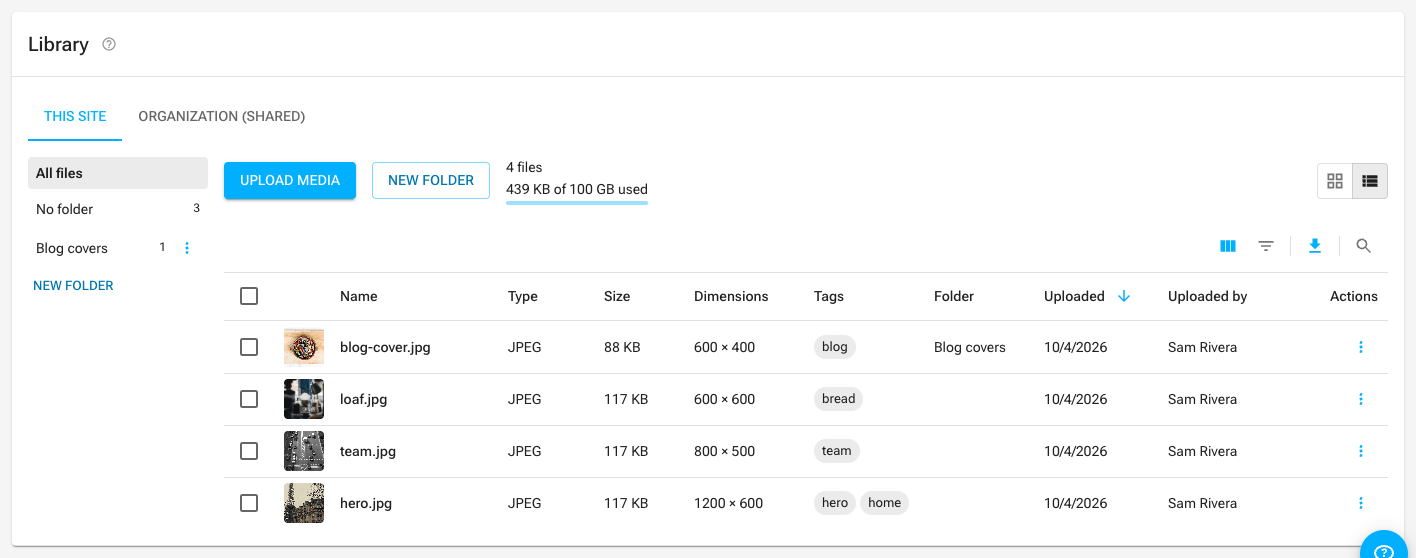
Where a file is used is not a column: finding that means checking every page, layout, component and email, so it runs on demand from the file's details — see Find where this is used above.
A picker that only takes one kind of file — a video field, say — shows a Type is Video chip you cannot remove, and offers no other type.
Tags
Open a file's Details drawer and look under Tags. Existing tags are chips: click the ✕ on one to remove it. Below them is an Add a tag field, with the helper text Press Enter to add. A file with no tags yet reads No tags yet.
The typed tag is folded in when you press Enter — and also when you click away from the field, which is the case worth knowing: the commonest way to lose a tag is to type it and press Save without pressing Enter first, and here that still saves the tag. Nothing is stored until you press Save in the drawer, so a chip you removed by mistake comes back if you press Cancel instead.
A tag is tidied as you add it, not quietly at save time:
- surrounding blanks are trimmed, and a blank entry is dropped;
- it is lower-cased, so
Heroandheroare the same tag; - a tag already on the file is not added twice — re-adding one looks like nothing happened, because it is nothing.
That matters for finding things again. The library's Tags filter matches the stored tag, so a tag that carried a trailing space used to become a tag no chip could ever match — a file you tagged and then could not find by that tag. Normalizing at entry is what makes the chip you see and the tag that gets stored the same thing. The exact caps are in Tag limits.
Custom metadata
Under Custom metadata in the Details drawer, Add field gives you a key and a value — a campaign code, a license number, whatever your team files things by. Removing a field or renaming its key and pressing Save takes the old one off the file for good; it does not come back the next time the drawer opens.
Custom metadata belongs to Aglyn, not to the file: it is never written into the file's bytes, so a download does not carry it. For details that should travel with the file, use File info.
Details inside the file
Most files carry details of their own, written by the camera, the editing app or whoever prepared them — a photo's caption and copyright, a PDF's title and author. File info, near the bottom of the Details drawer, shows them next to what Aglyn itself measured (type, size, dimensions, running time, when it was uploaded and last changed).
The first time you open a file that was uploaded before this existed, Aglyn reads the file and keeps what it found, so the next visit is instant. New uploads are read as they arrive, and so is a replacement: Replace file reads the new file, so File info shows its details — a changed caption with its new wording, and nothing the new file no longer carries.
What is read:
| File | Details |
|---|---|
| JPEG, PNG, WebP, TIFF | Title, headline, description, keywords, creator, copyright, credit line, source, usage terms, city/state/country, GPS position, date taken, camera, lens, exposure, rating and label — from XMP, IPTC and EXIF, plus PNG text |
| HEIC, AVIF, GIF, SVG | The same where the format carries it |
| Title, author, subject, keywords, the app it was created with, producer, dates, page count, and any custom document properties | |
| Word, Excel, PowerPoint | Title, subject, author, keywords, comments, category, company, dates, and custom properties |
| MP4, MOV, WebM | Title, artist, description, recording date, location, camera and encoder tags |
When a photo holds the same detail in more than one place (a caption in XMP, IPTC and EXIF, say), File info shows it once.
Editing. Press Edit to change a value, clear it, or Add a field from the list of fields that kind of file can hold, then Save to file. The change is written into the file itself — the same link, served to every page that uses it, and included in every download — without re-encoding it: the picture, the pages and everything else in the file stay byte-for-byte the same. Where a photo holds a detail in several places, all of them are updated, so no app is left reading the old value.
- JPEG, PNG, WebP, TIFF, PDF and Word/Excel/PowerPoint files can be edited. Video, HEIC, AVIF, GIF and SVG details are read-only.
- Encrypted or digitally signed PDFs are read-only — changing a signed PDF would break its signature.
- Measured facts (size, dimensions, exposure, page count) cannot be edited, because they describe the file rather than annotate it.
- If someone replaced or edited the file since you opened the drawer, saving tells you to reopen it instead of writing over their change.
Remove location. A photo taken on a phone usually records where it was taken, and anyone who downloads it from your site can read that. When a photo carries a GPS position, Remove location from file erases it from the file itself. It cannot be put back afterwards, so Aglyn asks first.
Upload
- Upload images, PDFs, ZIP archives and documents (Word, Excel, PowerPoint, CSV, RTF, plain text, Markdown and JSON). Click Upload media, or drag files straight from your desktop onto the library — dropped files land in the folder you have open.
- Video uploads are paused. New MP4, WebM and QuickTime files are not accepted on any plan for now, from the console or the API, and a video's file cannot be replaced. Videos already in your library keep playing, and the Video element can still use them. While the pause lasts, the library shows a Video uploads paused chip beside Upload media.
- Create images with AI. Create with AI, beside Upload media, draws an illustration, icon, pattern or logo mark as an SVG from a description, or makes a photo where photos are on, and adds it to the folder you have open with alt text. Each picture is stored like an upload and costs AI credits — see Create images with AI.
- Documents and archives are stored and served exactly as you uploaded them — nothing
is opened, extracted or converted. Macro-enabled Office files (
.docm,.xlsm,.pptm) are not accepted. - Rename, replace the file behind an asset, and edit images in place. Replace works for images, PDFs, archives and documents alike, and for video once video uploads resume — it is available from the asset's details drawer and straight from the card's overflow menu, and it keeps the asset's link, folder, tags, alt text, custom fields and sharing exactly as they were. Swapping one kind of file for another is not allowed: upload that as a new file. Cropping, rotating and resizing stay images-only, for the obvious reason.
Size and plan limits
| Upload | Cap | Plan |
|---|---|---|
| Images | 15 MB per file | Every plan |
| PDFs | 25 MB per file | Pro and above |
| Documents (Word, Excel, CSV, RTF, text, Markdown, JSON) | 25 MB per file | Pro and above |
| Presentations (PowerPoint) | 50 MB per file | Pro and above |
| ZIP archives | 50 MB per file | Pro and above |
| Video | 200 MB per file | Paused on every plan |
Any file over 3 MB automatically uses signed-URL uploads, so big files go straight to storage without tying up the console. Folders nest up to 5 levels deep.
Every upload is checked structurally before it is stored:
- the bytes have to match the type the file claims to be, so a program renamed
invoice.pdfis refused rather than stored and served from your domain; - programs and installers are refused under any file type or name;
- a Word, Excel or PowerPoint file carrying macros is refused, including one
renamed from
.docmto.docx.
A refused upload names the reason in the message that appears in the library, and nothing is stored or counted against your storage.
This is not a virus scan. These checks establish that a file is the kind of thing it says it is; they do not examine what is inside it. A harmful document that is a genuine document of its type will be accepted. Treat files you upload as content you are responsible for, the same as anything else you publish.
An SVG is a document, not just a picture — it can carry scripts, event handlers and references to other sites. Uploaded SVGs have all of that stripped, and the delivery URL serves them under a policy that blocks scripting outright. Your marks and logos render exactly as before; a decorative SVG that relied on embedded script or on pulling an image from another domain will render without those parts.
Storage
Storage is one allowance for the whole workspace: your plan's storage per site, times the number of sites your plan allows, add-on sites included (the figures are on the pricing page). Every site's library and the organization's shared library count toward it together, so room one library isn't using is there for the others.
The library's toolbar says where you stand:
- Files. With no folder open, how many files the library holds. With a folder open, how many are in that folder and how many are in the library — for example 15 files in Project photos · 17 in the library. Both are totals, not how many thumbnails have loaded.
- Storage. How much this library holds out of your plan's allowance. When other libraries in the workspace hold files too, the line shows this library's share first, marked here, and then the workspace's total out of the allowance, marked across your workspace — so one library's size is never read as if it were the whole workspace's. A plan with unlimited storage says so instead of showing an allowance.
- The meter. A slim bar under the storage line fills as the workspace uses its allowance. It turns amber at 80% and red when the allowance is used up, the same as the billing page's meters, which show storage alongside everything else.
What happens past the allowance depends on your plan — see storage overage.
Edit images
Edit image, in an image's details, opens the editor: rotate left/right, flip horizontally or vertically, drag a crop (pick a Crop ratio — 1:1, 4:3, 3:2, 16:9, or Free — first to lock the aspect), and set a Max width to downscale. Finish with Save as copy to keep the original, or Replace original to update every place the asset is used at once.
Download the original file
Download file saves the file itself back to your computer, under the file name the library shows — not the storage object's name. You'll find it in two places:
- in the file's Details drawer, beside Copy URL;
- in the card's overflow menu, without opening the drawer.
It works for private files as well as public ones, and that is the point: Copy URL is the wrong tool for a private file (it is hidden there — see Private files), so downloading is how you get the bytes of a private asset out of Aglyn. Behind the scenes the console mints the private file's temporary link per click and never holds it, which is why there is no link to copy but there is always a file to save.
Two things you may see:
- The menu item is absent in the media picker. Pick the file, then download it from the library.
- If your browser blocks the direct save, Aglyn opens the file in a new tab instead and says so. You still get the file; it arrives under the server's own name.
Deliver over CDN
Every plan serves media via a CDN with automatic WebP variants, so images load fast and cache well.
Image optimization is automatic, with nothing to set:
- Each image gets WebP copies at a range of widths, and pages ask for the smallest one that still fills the space the image is shown in. No copy is ever wider than the image you uploaded, and none is kept when it would be larger than the file it stands in for.
- Photos are turned upright, and the details inside the file — camera, date and the GPS position a phone records — are left out of every copy a visitor receives.
- An image larger than 2560 pixels on its long edge is delivered at 2560, in its own format, so a phone photo pasted into a page does not cost visitors several megabytes.
- Your original is kept exactly as you uploaded it. Download file always gives it back byte for byte, and File info still reads its details.
- Images already in your library pick up improvements to this on their own, the first time each one is viewed after the change.
Video, audio and documents are sent fresh on every request, so they count toward your organization's bandwidth allowance by the bytes they send — a play, a seek or a download, from your site or from anywhere else the link is used. Video, audio, file downloads and other media served from our servers count 1.6× toward bandwidth, because serving them costs more than serving pages. Public images do not count separately: they are part of what a page weighs, which the allowance already counts. A private image, which only a signed link opens, counts like a file. Your own team previewing it in the console does not.
URLs are stable
A media URL is keyed to the asset, not to its bytes or its location. That means the link you copied stays correct when you:
- Replace the file — every page, layout, and content entry that embeds it serves the new file immediately, with no re-linking. A replaced video also drops the poster frame and any encoded versions of the old footage, so nothing left over is served under the new file's link. The file's details are read from the new file, and your custom fields stay with the asset.
- Move it between folders — organizing your library never breaks a live page.
So replacing a logo across a whole site is one upload, not a hunt for every reference. Links copied before this behavior shipped keep working too.
Page elements point at the asset, not at a link
When you place an image with Browse media, the element records which asset you chose rather than a link to it. You never have to copy or paste a path, and the element keeps working through folder moves, file replacements, and any future change to how we deliver media. Copy URL is still there for pasting a link somewhere outside Aglyn.
You can also type any external image URL into the field by hand — useful for hotlinking an image hosted elsewhere. Images placed before this shipped keep rendering exactly as they did.
What hotlinking means for your visitors
Hotlinking is a supported feature and we do not intend to remove it, but it has a consequence worth knowing before you rely on it: your visitor's browser fetches that file from that host directly, and we do not proxy it. Aglyn never sits in the middle of the request, so the host you named receives the visitor's IP address, their browser user-agent and the address of the page they are reading, and it can set its own cookies on them.
That makes it your choice rather than ours, and it follows that:
- The host is not on Aglyn's subprocessor list, and it never will be. That list names the parties Aglyn engages to process data. You engaged this one, and only you know which sites and pages it is on — so if you hotlink, name those hosts in your own privacy notice.
- This field does not check what you type. An
http://address ships exactly as entered; browsers block it on anhttpspage as mixed content, so the image simply fails to appear. Pastehttps://links. Some other surfaces do refusehttp://outright — Trust & security lists which ones, per surface. - Uploading the file to your media library instead avoids all of it, and gets you the CDN, WebP variants and stable URLs described above.
When a visitor saves a delivered file, it keeps the asset's original filename and extension, even though the URL itself doesn't carry one — the CDN response declares the name. Download file in the console arrives under that same name by a different route: the console names the saved file from the library's own File name field, so renaming a file in the drawer changes what a download is called.
What the drawer says about delivery
Open a file's Details drawer and read the line with the small dot next to it. It describes this file, and it says one of exactly three things:
| Line | Dot | What it means |
|---|---|---|
| Served from storage · no CDN, no variants | gray | This asset has no CDN path — a plan without the media CDN, or an asset stored before you had it. |
| CDN · variants 320 / 640 / 1280 | green | On the CDN, with those WebP widths generated for it. The widths listed are the ones this file actually has — a 1600-pixel photo lists the widths up to 1600, not the whole range. |
| CDN · no responsive variants for this file | green | On the CDN, serving the original bytes only. |
The third line is not a fault report. A file has no variants when there was nothing to generate — an SVG, a PDF, a video, anything that isn't a raster image — and also when generation has not run or did not succeed for it. From outside those look identical, so the drawer says what is true either way: there are none right now. An image that stays variant-less after a re-upload is worth a support ticket; a logo in SVG is working as designed.
The line reads the asset, not your plan: a paid plan does not make a line say
variants 320 / 640 / 1280 for a file that has none.
Who an asset is shared with
Workspace media is shared across every site by default. The Shared with control narrows that, with the same two choices as datasets — All sites or Selected sites…. You'll find it in three places:
- on a single asset, in its details drawer;
- on a selection — tick several files and use Shared with… in the toolbar;
- on a folder, from its ⋮ menu, which offers to apply the same sharing to the files inside it and its subfolders (it names the count, so you know what you're about to change).
A folder applies its sharing when you save it — files keep their own setting afterwards, so moving a file into a "Client A" folder later does not re-share it. Narrowing a file that sites are already using names those sites first and asks you to confirm. Only workspace owners and admins can change sharing.
A new folder or file starts shared with All sites, so it appears everywhere the moment you create it — or with the site you were working in, if your workspace has been set to make new resources site-scoped by default. That default is Default sharing for new data and media, at the top of the workspace's Media page, and it changes nothing that already exists. The site you were working in is the one whose Media tab you uploaded on, or the one you were editing when you opened the media picker. A folder or file created on the workspace Media page has no site to limit it to, so it starts on All sites either way. The default applies to new datasets the same way: one created on a site's Data page follows it, and one created on the organization Data page starts on All sites. If the Shared with dialog ever opens on "Not shared with any site", that folder or file has no sharing stored at all: it is hidden from every site, and any file inside it turns up under No folder there. Pick a value and save to fix it.
In the media picker's Organization (shared) tab, a site sees only the assets it may use. An agency's internal artwork stays out of the client sites' pickers entirely.
Sharing decides which sites may find and use an asset, and stops the CDN serving a restricted asset to a site it isn't shared with. It does not make the bytes secret: anyone holding a delivered media URL can still fetch it, because that URL is public and cacheable by design — that is what makes the CDN fast.
Treat an ordinary media URL as a shareable link. For files that must never be fetchable by someone who simply has the URL, mark them Private — see below.
Private files
Private is a separate switch from sharing, and it answers a different question:
| Question it answers | |
|---|---|
| Shared with | Which of your sites may use this file? |
| Private | May anyone fetch these bytes at all? |
A private file:
- has no public URL — the normal media link does not exist for it, and Copy URL is hidden on it in both the card menu and the drawer,
- loses any public URL it already had. Turning Private on revokes the file's public address at the moment you confirm it, so a link you copied and sent last month stops working too. That is the part people expect and the part that is easy to get wrong: a switch that only stopped new links would leave the one already in circulation serving the file forever,
- cannot be placed on a page; the picker refuses it and says why. The one place a private file can be added is a product's members videos and digital downloads,
- is viewable and downloadable in the console by people who can already see it, through a temporary link that stops working after about fifteen minutes.
Two menu items do that last part, and they are not interchangeable:
- Copy temporary link (organization library, organization-wide members) puts a fifteen-minute link on your clipboard — for handing to one person, once, now. Nothing in Aglyn renews it, so it is a trap in a document or a page: what you paste stops working while the page still looks fine.
- Download file saves the bytes. Aglyn mints a fresh link for that click, so the expiry never reaches you.
Copy URL being hidden rather than disabled is deliberate: there is no permanent address to hand over, and a copied link that 404s is worse than no button.
That expiry is the point. A normal media URL, once shared, works forever and there's no way to take it back. A private file's link dies on its own, so a link pasted somewhere it shouldn't have been is a short problem instead of a permanent one.
Use Private for things that aren't website assets: a signed contract, unreleased artwork, an embargoed announcement, anything with personal data in it. Don't use it to keep an image off one particular site — that's what sharing is for, and marking it private will just stop the image working everywhere.
To publish a private file later, turn Private off. It gets a normal URL from that moment on — a new one. The address it had before you made it private stays dead, so anything still pointing at the old link needs the new one.
One thing none of this reaches: bytes somebody already downloaded. Revoking an address stops the file being fetched again; it cannot recall a copy that is already on someone's disk, in a browser cache or in a web archive. Nothing anyone sells can, and a product that implied otherwise would be the more dangerous thing to trust.
Members videos are private files
A video you add to a product as a members video is a private file, because a private file is the only kind whose links can expire:
- Adding a video makes it private. If the file is public, Aglyn asks first and lists anywhere else it is used, such as a trailer on a public page. Making it private stops it showing there, and any public link to it that was already shared stops working.
- Buyers get links that expire. When a buyer presses play, the store checks the purchase and gives the player a link that works for four hours. If a long sitting outlives the link, the player asks for a new one, which checks the purchase again, and carries on from the same second. A buyer who has lost access sees the sign-in prompt instead.
- A public members video does not play. If the file is public, because it was published again or added some other way, buyers cannot play it. The product editor marks it Public and offers Make private.
- A file a product still sells cannot be published. Publish file refuses while any product lists the file as a members video or a digital download, and names the product. Remove the file from the product first.
A members video added as a link to another site is served by that site, so Aglyn cannot make its links expire. The product editor marks it Hosted elsewhere.
Files a product sells as digital downloads work the same way. Adding one makes it private after the same check, and the download link in a buyer's receipt hands over a link to the file that works for one hour. A file that is still public is refused rather than handed out, and a refused download does not count against the order's download limit.
Approved image hosts
Most images on your site are ones you uploaded here, and those always work. But you can also point a block at an image that lives somewhere else by pasting its URL — a photo on your own CDN, say, or an image your supplier hosts.
Those are worth being deliberate about, for a reason that is easy to miss: when a visitor opens a page with an external image on it, their browser fetches that image directly from the other site. So that site sees your visitor's IP address and which page they were on, whether or not you have any relationship with them. It is a real disclosure, and it is one you are making on your visitors' behalf.
So your site keeps a list of the external hosts it is allowed to load images from, under Admin → Security → Approved image hosts. Add a host and images from it load normally. Leave it off the list and browsers refuse it.
You do not have to think about this for anything you upload — your own media is always allowed, and so is your site's own address.
Adding a host
Enter the host on its own, with no https:// and no path:
cdn.example.comallows exactly that host.*.example.comallows every subdomain of it, which is what most image CDNs need because they give each account its own.
If you paste a URL into an image block for a host you have not approved, the editor tells you so while you are editing, rather than letting you publish a page whose image is blank for everyone but you. The warning names the host, so approving it is a copy and paste.
When an image does not appear
If an image shows in the editor but not on the published page, an unapproved host is the first thing to check. Open the page, right-click the missing image, and the browser console will name the host it refused.
Reference
The details behind the sections above, for anyone wiring media into their own code.
Variant widths
Aglyn generates WebP variants at 160, 320, 480, 640, 768, 960, 1280, 1600, 1920 and 2560 pixels wide when an image is uploaded, up to the image's own width. That is the whole set — there is no arbitrary resizing service behind the CDN URL.
Add ?w= to a CDN URL to ask for one: …/api/media/cdn/org:{orgId}/{mediaId}?w=640. A
width the asset does not have is not an error and not a resize — the URL's plain answer
is served instead, so a ?w=200 request answers with the full-size image. Check the
drawer's delivery line to see which widths a given file has.
The plain URL, with no ?w=, serves the image itself — except for a JPEG, PNG or WebP
that is larger than 2560 pixels on its long edge, carries details such as a GPS position,
or relies on a camera's rotation flag. Those are served as a copy in the same format:
upright, at most 2560 pixels on the long edge, with the details removed. Only the
original counts toward your storage; the copies are rebuilt from it whenever needed.
?download=1 on the same URL makes the response save rather than open in a tab, and it
always serves the original file exactly as uploaded. Both parameters are read after
every access check, so neither widens what is served, and both are part of the cache
key, so they cannot bleed into each other.
How long a media URL is cached
The ordinary URL — the one Copy URL gives you — is revalidated: a browser keeps it for 60 seconds and the CDN edge for an hour, so a Replace reaches every copy of it within that time.
A published page asks for its images by a versioned URL instead, the same address
with ?v= and a version that changes whenever the file is replaced (or its smaller
widths are regenerated). While the version is the current one, the response may be kept
for a year by the visitor's browser, so a returning visitor loads the page's images
from their own disk. The page names the new version the next time it is built after a
replace; an old version still in someone's copy of the page is answered with the
current file under the ordinary 60-second rule, never with a year of the old one.
Tag limits
Tags are stored lower-cased and de-duplicated. A tag longer than 40 characters is dropped, and a file keeps at most 20 tags — entries past the twentieth are dropped rather than replacing an earlier one.
Over the API
The REST API lists and reads media — file names, sizes, dimensions, tags, folders, both URL forms, your custom fields and the details inside each file — and uploads new files. The same fields come back through Aglyn's MCP server. See the Media API resource, including what it does not return.
Components
- Image — place and bind images from the library.
- Video — embed a video that is already in your library.
- Favicon picker — choose the site favicon from your media.
- App icon picker — choose the square mark your site installs with.
Everywhere you pick media — the Image and Video components, the logo, favicon and app icon pickers, and the organization logo field — the same media picker opens, with This site and Organization (shared) tabs so you can pull from either library without leaving the dialog.
Related
- Bindings
- SEO toolkit (Open Graph & Twitter images)
- Media API resource — reading the library from your own code