Billing & Plans
Your plan determines which features you can use and how much of each. Aglyn checks entitlements (can you use a feature) and quotas (how much) throughout the product, and shows usage meters so you always know where you stand.
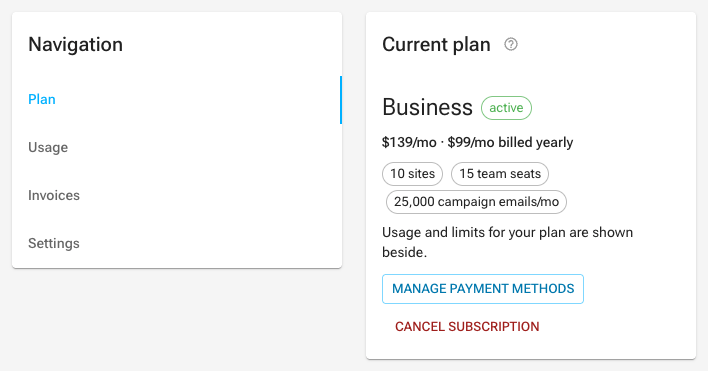
Every site has a plan. Free, Starter, Pro, Business, Scale, Advanced, and Agency unlock progressively more, and Enterprise sits above them all.
Tiers & entitlements
Current prices — monthly, annual, transaction fees and per-unit overage rates — are on aglyn.com/pricing, and your own plan and next invoice are in Billing in the console. This page explains how billing WORKS; it deliberately does not restate the numbers, because a second copy is a copy that goes stale.
| Plan | Commerce |
|---|---|
| Free | Build & publish only — no selling |
| Starter | Sell products, with the highest transaction fee of the paid tiers |
| Pro | More products, a lower fee, POS, abandoned-cart recovery, reviews, dropshipping |
| Business | More products again, a lower fee, subscriptions & paywalls, gift cards |
| Scale | Higher product and site limits, lower fee again |
| Advanced | Unlimited products, no transaction fee, high-volume commerce & API |
| Agency | Many sites under one organization, white-label |
| Enterprise | Twice Agency's capacity by default and more by agreement, SSO, white-label, no transaction fee |
Transaction fees are Aglyn platform fees on the sales you take through your site — storefront orders, paid memberships and paid bookings alike — separate from Stripe's payment-processing fees. Upgrading is the way to reduce them.
Every plan also includes an amount of monthly traffic — 2 GB on Free, rising to 790 GB on Enterprise by default (an agreement can set more). Passing it is metered and billed on a paid plan, and pauses the site until the start of next month on Free. See Bandwidth for the table and for what a paused site shows a visitor.
Video, audio, file downloads and other media served from our servers count 1.6× toward bandwidth, because serving them costs more than serving pages. See how usage is counted.
Each site also holds a number of saved forms and reusable components: one of each on Free, more on every paid plan (components are unlimited from Starter up). The limit applies when you create one, never to what a site already holds, so a site that moves to a smaller plan keeps everything it built.
Links on a new Free site
For a Free workspace's first 14 days, its sites send links and redirects to other websites through a short "You're leaving" page on the site's own address first. The page shows the full address the link goes to, says Aglyn doesn't operate that website and that neither Aglyn nor your site will ever ask for a password there, and offers Continue and Go back. Links to your own pages, your custom domain and Aglyn, and email and phone links, open as usual, and search indexing is unaffected. The page stops appearing as soon as the workspace is on a paid plan or 14 days old.
A plan the Aglyn team set up for you
Sometimes a workspace is on a paid plan with no subscription behind it. Most often the Aglyn team built the workspace for you and put it on the plan you are evaluating, so you can try every feature of it before you pay. The plan's card on the Billing page shows Current plan, and says the workspace is on that plan with no subscription behind it.
When you are ready to keep it, choose Start your plan subscription on that card. It runs the same checkout as any upgrade, and from then on the subscription is what keeps the workspace on the plan. You can also pick a higher plan instead. Moving to a lower plan still goes through us, because there is no subscription to move down from.
When the Aglyn team proposes a plan
When the Aglyn team proposes a plan for your workspace, the owner gets an email, and everyone who manages billing sees a card on the workspace's home and at the top of the Billing page: "Workspace's Aglyn team proposed the Plan plan". Review the plan opens Billing with that plan selected. Nothing is charged until you start the subscription yourself. The card goes away once a subscription is live, or when the team withdraws the proposal. Other members never see it.
Enterprise
Enterprise is the one tier you cannot buy from the Billing page. It has no list price — the plan, term, and invoicing are agreed with us, and we provision the organization directly. On top of everything in Agency it doubles every quota Agency bounds — and your agreement can set any of them higher — and adds SAML / OIDC single sign-on, so your team signs in through your own identity provider.
To start a conversation, use the Contact sales button on the Enterprise card at the bottom of your Billing page. Once your organization is on Enterprise, plan changes go through us rather than the self-serve upgrade and downgrade buttons.
Single sign-on and enforcement
Your people sign in through your identity provider. While SSO is on but not enforced, any sign-in method someone already had — a password, a linked Google account — keeps working, so nobody is locked out during rollout. New ones cannot be added: an account governed by your IdP is not offered "Continue with Google".
Turning on enforcement removes those other methods. For every account in your organization's identity tenant, we unlink every sign-in method that is not your IdP and end that person's existing sessions, so access flows through your IdP from that moment — including when you revoke it there. Affected people are notified in the console that their sign-in methods changed.
Two things worth knowing before you ask us to switch it on:
- It applies to everyone in the tenant at once, and to anyone who joins afterwards.
- An account whose only sign-in method is not your IdP is left alone rather than stripped, because removing it would leave an account nobody could reach. Those are reported to us so they can be fixed rather than silently skipped.
Enforcement is switched on by us, at your request.
Aglyn is in pre-release: prices, plans, tiers, quotas, and the features included in each tier are provisional and may change at any time — including for existing subscribers. Nothing here guarantees that a price or feature set will remain the same.
- Each tier maps to a set of entitlements and quota limits.
- The runtime enforces them with
checkEntitlementandcheckQuota, so gated features are consistent across the console and the live site. - Entitlement follows the subscription state: organizations without a plan resolve as
Free, and a canceled or unpaid subscription downgrades enforcement to Free until payment
resumes (
past_duekeeps working as a grace period). - Feature pages in these docs note the tier they require in a Plan availability callout.
Usage meters
- The billing page shows meters for every quota — storage, bandwidth, datasets, seats, sends, CRM records (with the contacts, companies and deals beneath the total), one-to-one emails sent today, AI assist credits, workflow and action runs, and more — with redesigned plan cards. Workflow and action runs are one monthly allowance for the whole workspace, so every site's runs count against them.
- Storage is one allowance for the whole workspace too — see storage overage. Storage (organization) shows everything your workspace stores — every site's media library and the organization library — out of that allowance, with how much of it the organization library holds. Under each site, Storage on this site lists what that site's library holds: its share of the one allowance, not a limit of its own. The Metered usage estimate counts the organization library in the same Storage line; it has no separate allowance.
- A usage-cap banner appears site-wide at 80% and 100% of a quota, with an upgrade link. Its storage warning is about the whole workspace's storage, and says what happens at the allowance on your plan: on a paid plan, extra storage is billed unless you set a storage cap, with a link to Billing → Usage; on Free, new uploads stop until you free up space or upgrade.
- Org admins also get an in-app notification and an email when sites, pages on a site, storage, datasets, email sends, or bandwidth crosses 75%, 80%, 90% or 100%, so nobody has to be watching the console to find out. Only the highest step reached is sent — usage that jumps from 70% to 95% gets one 90% notice — and each is sent once per crossing: something your workspace has — sites, pages, datasets, stored files and data — is announced when it first reaches a threshold and again only if it drops below and reaches it again, and a monthly meter — email sends, runs, bandwidth, AI credits — once per threshold each month, because it starts from zero on the 1st. The storage message is about the workspace's one allowance — every site's media library and the organization library together — and says how much of it the organization library holds; there is no separate notice for the organization library. The storage and bandwidth messages differ by plan, because what happens next differs by plan: paid organizations are told the extra is billed (for storage, unless they set a storage cap); Free organizations are told new uploads stop when storage is full, and that the site will be paused when bandwidth is.
- The monthly email allowance caps campaign sends. Transactional mail — password resets, invites, order confirmations, booking reminders and workflow notifications — is counted toward your usage but is never blocked by the cap, at any plan. Going over shows up as an overage on the usage rollup rather than as mail your customers never receive.
- Usage is rolled up with a cost-plus estimate for metered features.
Who is generating what
Beneath the meters on Billing → Usage, a table lists each member's AI credits for a month — their share of the workspace's spend, requests, and how often the assistant refused them — dearest first, with the kinds of request they mostly made. The month picker walks the last thirteen months; Export CSV hands the same month to a spreadsheet, and the console refuses to save a file that arrived short.
Open a member from the table for their page, which splits the figure by site and by kind for this month and last — so an agency or a multi-brand workspace can see which client site's people are generating what. The organization Team page carries the same month's credits as a sortable column, and each site's Users card shows what its collaborators drew on that site alone.
The table requires the View billing permission. It names who drew from the pool and how much; it makes no judgment about it, and it never shows a dollar figure — the share is of the workspace's own credits.
AI allotments
Beneath that table, AI allotments gives a team member, a site collaborator on one site, or a whole site a monthly share of the workspace's AI credits. A hard allotment stops AI requests at the line; a soft one keeps them working and notifies the person and the owners and admins at 75%, 80%, 90% and 100%. Select several members or sites to set one allotment for all of them, or use Same for every client site to give every site the same share. An allotment can also limit which models are used, and on Agency and Enterprise the organization can restrict models for everyone.
An allotment is a share of the pool, never extra credits: the workspace's included credits and its own stops are checked first. Seeing allotments requires View billing; changing them requires Manage billing. See AI allotments, usage and model choice.
Storage overage
Your plan includes an amount of storage for each of its sites, and the workspace shares it as one allowance: every site's media library and the organization library draw on the same total. On a paid plan, going past it is not a wall:
- Uploads keep working. You are never stopped from adding files because you reached your included storage.
- The extra storage is billed on your monthly invoice at our infrastructure cost plus 30%, kept after card fees — the exact per-GB rate is on the pricing page and in Billing → Storage cap.
- We tell you before it happens. You get an alert as you approach your included storage and another when you cross it, so the invoice is never the first you hear of it. See usage meters.
If you would rather uploads stopped
Set a monthly storage cap in Billing → Storage cap. This is optional and off unless you choose it. Once a month's storage overage would pass the amount you set, new uploads are refused and you are never billed above that number.
You can change or remove the cap at any time, including while you are over your included allowance. Nothing is ever deleted — a cap only affects new uploads, and removing one takes effect immediately.
On the Free plan there is no storage overage at all. Your included storage is a fixed cap, shared the same way: uploads stop when the workspace reaches it, wherever they are going, nothing is metered, and no amount of usage produces a charge — so there is nothing to cap and nothing to configure. Enterprise storage is a fixed default that an agreement raises, with no overage either: uploads stop there.
Two things prevent one, and they work in different ways. The alerts at 75%, 80%, 90% and 100% of your allowance mean nobody first learns about overage from an invoice. The optional cap means anyone who wants a hard ceiling can have one, at a number they choose.
AI assist overage
Paid plans include a monthly band of AI assist credits — the Aglyn Assist credits meter on the billing page shows how much of it this month's assistant use has drawn. The Aglyn AI add-on widens that band and opens generative building; it is one pool, so everything below applies to the widened band as a whole. What the credits are spent on, and what each kind of request costs relative to the others, is under Aglyn AI. On a plan that sells credits past the band, reaching it is not a wall:
- The assistant keeps answering. Nothing stops because you reached your included credits.
- The extra credits are billed on your monthly invoice, per 1,000 credits over the band, at your plan's rate — the exact figure is on the pricing page and in Billing → Usage → AI assist overage.
If you would rather the assistant stopped
Turn on Stop AI assist at the included band in Billing → Usage → AI assist overage. This is optional and off unless you choose it. Once it is on, the assistant refuses once the included credits are used — the refusal names this switch and where it lives — and you are never billed for AI assist. Turn it off at any time to keep going at your plan's rate; either change takes effect on the next message. Changing it needs the Manage billing permission.
If you would rather it kept going, up to a figure you choose
With the switch off, the same card offers a monthly ceiling on the extra credits you will pay for: Stop AI when this month's overage reaches a dollar figure you type. Once the month's overage — the extra credits priced at your plan's rate, exactly as the invoice would price them — reaches that figure, the assistant stops for the rest of the month, and the refusal names the ceiling and where to raise or remove it. It resets with the month.
The ceiling and the switch are separate controls. The switch decides whether anything past the band is sold at all; the ceiling bounds how much. With the switch on the ceiling is never reached, because nothing past the band is sold. Setting, changing or removing the ceiling needs the Manage billing permission, and a ceiling is never applied unless you set one.
Every paid plan includes AI assist credits and sells credits past them, so the switch and the ceiling are on every paid billing page — Starter included, at the same rate as Pro, with or without the Aglyn AI add-on.
A workspace on a plan that sells no credits past its band — Enterprise, whose credits are set by agreement, or a Free workspace — stops at the band on its own: the assistant refuses there until next month or an upgrade, and nothing is ever billed for AI assist. Neither the switch nor the ceiling is offered, because neither would change anything.
Free workspaces
Every Free workspace includes 300 AI credits a month — enough to generate a first page or a few sections and see what the assistant does. The band is a hard stop: when it is used, AI generation pauses until next month or an upgrade, and nothing is ever billed. There is no overage on Free, so there is no switch or ceiling to set.
The 300 credits are yours as a person, not per workspace: if you own more than one Free workspace, they share the allowance, and the meter on each workspace's billing page shows that workspace's share of it. Members you invite to a Free workspace draw on that workspace's credits, not on their own account. A few other limits apply only to Free workspaces and only to AI generation — a short wait after an account is created before it can generate, a daily cap on free requests, and a platform-wide daily limit on free generation that, when reached, pauses it for every Free workspace until the next day (UTC). Each one tells you what to do when it applies; none of them can produce a charge.
Alerts on the way there
Workspace owners and admins are notified — in the console and by email — when the month's AI assist use passes 75%, 80% and 90% of the included credits, and again at 100% — each step once a month, and only the highest step reached. The 100% notice says what happens next for your plan: on a plan that sells credits past the band, that the assistant keeps answering and the extra credits are metered at your plan's rate unless you set a stop; on a plan that sells none, that the assistant stops until next month or an upgrade. The same warning appears as a banner in the console, with a link to Billing → Usage.
Usage budget
A usage budget is a monthly amount you choose, plus the percentages of it you want to hear about — the same shape as a Google Cloud billing budget. Set it in Billing → Monthly usage budget.
- It warns, it never limits. Passing a budget sends a notification and an email. Nothing stops, no upload is refused, and your bill is unaffected. If you want usage to actually stop, that is the storage cap or the AI assist stop and ceiling above — different controls, deliberately kept separate.
- You choose the alert points. The default is 50%, 90% and 100%; you can set your own, including percentages above 100 so a runaway month keeps speaking. Up to six.
- One alert per percentage per month. Crossing 50% tells you once, not once an hour. Climbing to the next percentage alerts again, and every percentage resets when the month does.
- Both channels. Alerts arrive in the console notification menu and by email to your workspace owners and admins, so you do not have to be signed in to find out.
- The figure is the invoice's own. Budget alerts quote the same metered total the billing page shows and the invoice charges — totalled once a day, so the first days of a month may show no total yet.
Changing the amount clears the alert history for the month, so a budget you lower starts warning you against the new number straight away.
Seats
- Team seats (workspace-wide) and per-site collaborator seats are metered and enforced per tier — seats cover the people who build and manage your sites.
- Buy paid seat add-ons to grow your team beyond the included seats — self-serve from Billing → Add-ons, alongside extra sites, datasets, POS registers, the Event Calendar, and Aglyn AI.
- Site member accounts are not seats: visitors who sign up to your published site are unlimited on every plan.
- Aglyn staff take no seat, whether they built the workspace or joined it to help. See Aglyn staff on your team.
CRM records
Your CRM — the contacts captured from forms, member sign-ups, buyers and bookings, and the companies and deals your team files beside them — is priced as one CRM records band, not a hard cap. A record is a contact, a company or a deal; tasks, logged activities, pipelines and custom fields are not counted.
- Each tier includes a band: Free 100, Starter 1,000, Pro 10,000, Business 50,000, Scale 100,000, Advanced 150,000, Agency 500,000 records; Enterprise 1,000,000 by default, and more by agreement.
- On paid tiers, growing past the band never blocks or drops anything — extra records are metered overage on your monthly invoice, at a per-1,000 rate that falls as you move up the plans — see pricing for the current rate on your plan, per extra 1,000 records per month. Upgrading a tier is always cheaper than sustained overage.
- On Free, which includes no CRM, the band is a hard limit on capture: past 100 records a site adds no new person — a new visitor keeps their member account and orders, but no contact is kept — and the count of missed captures is recorded. On Billing → Usage the band reads Stored records (organization), captioned At this limit your sites stop adding new people. Working with them is part of the CRM, included from Starter. The Free plan card names no CRM records.
- The billed count is the size of your CRM at the end of the month, not its size on any other day. The three collections are a running total rather than a monthly tally, so a month has to be charged on one moment in it, and that moment is the last daily reading taken before the month closes. Records added after a month ends belong to the new month; records deleted after it ends do not undo the month that already ran.
- On a plan with the CRM, the billing page's CRM records (organization) meter shows the total against your band, with the contacts, companies and deals it is made of beneath it.
The CRM
The CRM is included from Starter, while the subscription is live: Leads, Contacts, Companies, Deals, Tasks, Reports, Fields and Settings; working a lead — its status, owner and notes, converting it and importing leads; adding a contact by hand, importing a CSV, saved views, and every edit to a contact — profile, tags and notes, owner, lifecycle stage, company, custom fields, tasks, deals, files, logged calls and activities, one-to-one email and merges; the CSV exports on its lists and Erase this person on a record; the two CRM cards on the site dashboard; the CRM steps in automations; and the CRM's resources on the REST API.
Free includes no part of the CRM, and neither does a paid plan whose subscription
has ended. The CRM tab stays in the navigation: every section is drawn locked in the
CRM rail beside a notice that the CRM is not included in your current plan and is
included from Starter, with a View plans button, and a bare …/crm address shows
the same notice. Nothing in the CRM can be read or changed — not in the console, not
through its routes, and not over the REST API, where contacts, leads, companies, deals,
tasks, pipelines, activities and email templates refuse with plan_required.
Two things do not depend on the plan:
- Capture. Every form submission, sign-up, order or booking that carries an email address updates the person in Contacts, and a form files a lead only when its lead routing is on — the same on Free as on a paid plan. Those records are kept and count against the band; on Free the CRM that shows them is locked, and they are there when the plan includes it.
- Privacy requests. Workspace owners and admins export every contact and every lead the workspace holds, and erase a person by email address, from Settings → Privacy — see Privacy requests.
One-to-one email
A one-to-one email is a message a teammate writes to one person from a CRM record — Send email on a contact's, a lead's or a deal's page, described under Activities & the timeline — as against a campaign, which is one send over an audience, or the transactional mail your site sends on its own. It is capped per organization per day (UTC): Free 0, Starter 50, Pro 150, Business 200, Scale 300, Advanced 500, Agency 1,000; Enterprise 2,000 by default, and more by agreement. The cap is a pace rather than a meter: at the cap the send is refused — the dialog says so and names the count — until the day turns over, and nothing is ever billed for it. An email an automation sends is metered as usage and does not count against the cap. Every send still counts toward your organization's email usage like any other message. On plans that have the cap, the billing page shows One-to-one emails (today) against it.
Organization data
- Datasets are organization-scoped: counts and storage meter against your organization, not individual sites.
- Each paid tier includes a number of datasets and an included data storage size (Starter 1 GB, Pro 5 GB, Business 25 GB, Scale 50 GB, Advanced 100 GB, Agency 500 GB).
- Extra datasets are a monthly add-on whose price falls as you move up the plans; storage beyond the included size is metered overage, billed per GB-month on your monthly invoice.
- The billed size is what you were storing at the end of the month, on the same basis as the audience band above: the last daily reading taken before the month closes. Clearing datasets after a month has ended lowers the next invoice, not the one for the month that just finished.
API access
The customer REST API is a Business tier and above feature — mint scoped API keys
and call the versioned /v1 endpoints from anywhere. Requests are metered per
organization:
| Plan | Included requests / month | Overage |
|---|---|---|
| Business | 100,000 | Metered per additional 1,000 |
| Scale | 300,000 | Metered, at a lower rate than Business |
| Advanced | 1,000,000 | Metered, lower again |
| Agency | 5,000,000 | Metered, the lowest per-unit rate |
| Enterprise | 10,000,000 by default; more by agreement | — |
- Requests past the included quota keep working and bill as metered overage on your monthly invoice — never a hard wall mid-integration.
- The billing page shows an API requests meter, and the usage-cap banner warns at 80% and 100% of the included quota.
- Only requests that pass authentication and the rate limit are counted — rejected calls (bad key, wrong plan, rate-limited) are never billed.
Payments
Billing runs through Stripe. Paid features (commerce, bookings, campaigns) share the same Stripe integration.
Your billing details live on the Billing page in the console, one card per thing you might want to change. Each card saves on its own, so editing your address never touches your tax ID and vice versa.
Paying an outstanding invoice
If a payment fails, the invoice stays open and the Billing page shows it with a Pay now button.
- It works even if the subscription has already been canceled. Dunning cancels subscriptions after enough failed retries; the invoice is still owed and still payable, and paying it does not require a plan.
- Your bank may ask you to confirm the payment. That step is your bank's, not ours, and it appears for the same reason it does anywhere else.
- We do not mark it paid because the button worked. The invoice updates when Stripe confirms the money arrived, so what you see is the settled state rather than an optimistic one.
- The amount is the amount the invoice was issued for. Tax on an invoice is fixed when it is issued and is never recalculated later.
What a plan will cost
Before you subscribe, the Billing page quotes the plan you are looking at with tax included, taken from Stripe's own invoice preview rather than worked out here.
- A total is only shown as final once tax has been calculated, which needs your billing address. Until then the page says so rather than showing a total that quietly leaves tax out.
- A zero tax is explained, because a zero has several meanings: reverse charge applies and you account for the tax under your own registration; your account is registered as tax-exempt; or nothing is charged in your location.
- Promotion codes are applied here. An invalid or expired code is refused immediately, with the reason — not at the moment you are charged.
Billing email
Invoices are sent to the billing email, along with receipts and — the one that matters most — the notices we send when a card fails and a subscription is about to lapse.
- It is not the same field as your organization's contact email. The contact email is the workspace's public-facing address; it appears on your marketplace profile. The billing email is where the money mail goes, and most teams want that to be an accounting inbox rather than a published one.
- Until you subscribe, invoices go to the address on the account that signed up. Once you are on a paid plan you can send them somewhere else.
Payment methods
The cards your subscription and any usage overage are charged to.
- Add new card opens Stripe's own form. Card numbers are typed into Stripe and go to Stripe — they never reach Aglyn's servers or logs, which is also why the form looks like Stripe's rather than ours.
- The default method is the one your next renewal charges. Changing it here updates the subscription as well as the customer record, so the change applies to the next invoice rather than only to one-off charges.
- You cannot remove the last card while a subscription renews against it. Doing so would not cancel anything — it would make the renewal fail weeks later, with a dunning email as the first sign. Add a replacement first, or cancel the subscription if that is what you meant.
- Wallets and Link appear here too, identified by email rather than by a card number.
Billing address
The address Aglyn issues your invoices to, and the address sales tax on your Aglyn subscription is calculated from.
- This page is where you edit it. It also appears, read-only, on Settings → Profile, which links back here. One address, one place to change it.
- It is not your payout address. Money that flows out to you from marketplace or storefront sales is keyed by the identity Stripe holds for your connected account, which you set up under Marketplace → Payouts.
- It is not your storefront's tax origin either. Sales tax on orders your buyers place is calculated from the origin set per site in Commerce → Settings → Taxes.
- It can be replaced but not emptied. A workspace with no billing address cannot have tax calculated at all, so clearing the form is refused rather than obeyed; an addressless invoice in front of a tax authority is a worse outcome than a stale one.
- Changing it affects your next invoice. Invoices already issued are never re-rated.
Tax IDs
A business tax ID — VAT, ABN, GST, EIN and the rest — printed on the invoices we issue you.
- Choose the type and enter the value. The type is country-specific and decides how the number is printed and how a tax authority reads it, so the picker is searchable: type your country, the abbreviation, or the code your accountant gave you.
- The list of types is Stripe's own and is refreshed with the Stripe library, so a jurisdiction Stripe adds shows up without waiting on us.
- Stripe validates the number against the rules for the type you picked, and if it refuses you will see Stripe's own explanation of the format it expected. We do not second-guess it — a check of ours would eventually refuse a number that is perfectly valid.
- Some types are verified asynchronously; a number still being checked, or one that came back unverified, says so beside itself rather than looking accepted.
- Removing a tax ID stops it appearing on future invoices. Invoices already issued are unchanged — a finalized invoice is a record, not a document that gets edited.
Sales tax
Plan prices are quoted before tax. Where Aglyn has a tax collection obligation, sales tax is added on top at checkout and on every renewal, and appears as its own line on the invoice.
- Tax is calculated from the billing address on your workspace, not from your card's country and not from your personal address. It is computed automatically at the moment each invoice is created, so moving your workspace changes the tax on your next invoice rather than re-rating past ones.
- A workspace with no billing address cannot have tax calculated at all, which is why the address can be replaced but not emptied — see the address bullets below.
- Adding a business tax ID (VAT, ABN, EIN and the like) puts it on the invoice. That's what makes an invoice usable for reclaiming tax or handing to an accountant, and in some jurisdictions it changes who accounts for the tax. Checkout collects one at purchase; the Tax IDs card is where you add, change or remove one afterwards.
- Every invoice states the tax separately from the amount charged, so the figure you reclaim is never one you have to back out of a total yourself. Invoice PDFs and receipts are on the Billing page's Billing history table.
- Marketplace plugin purchases are taxed the same way, and Aglyn collects and remits that tax as the marketplace provider — the plugin's publisher does not charge you tax separately, and you should not receive two tax charges for one plugin purchase. If you ever do, that's a bug worth reporting.
Sales tax on your own storefront's sales to your customers is a separate charge from the tax on your Aglyn invoice, and it is allocated by Terms of Service §10.7: for storefront sales Aglyn acts as a marketplace facilitator, so where applicable law gives Aglyn a collection obligation Aglyn calculates, collects and remits that tax itself — added on top at checkout, and never transferred to your connected payment account. Flat rates you configure yourself (lodging, service and similar) stay yours to set and to remit. See Shipping & taxes.
Platform fees
Sales you take through your site carry a declining platform fee on top of Stripe's processing fee — higher tiers reduce it to 0%, which is the upgrade motion for sellers:
| Plan | Physical goods | Digital goods, memberships & bookings |
|---|---|---|
| Starter | 2% | 5% |
| Pro | 0% | 3% |
| Business | 0% | 2% |
| Scale | 0% | 1% |
| Advanced | 0% | 0% |
| Agency | 0% | 0% |
| Enterprise | 0% | 0% |
Paid memberships, gated content and bookings bill at the digital rate — the fee is applied at checkout as the Stripe Connect application fee, on one-time sales and recurring member subscriptions alike. A paid booking is a service sale and sits on that same digital line rather than carrying a rate of its own; see Bookings. Selling requires a paid plan with commerce.
Stripe's processing cost is passed through at cost, on every tier, alongside the platform fee above. On a one-time sale it is a cents amount inside the application fee. On a recurring membership it is folded into the fee percentage, because a Stripe subscription accepts only a percentage: the fixed per-transaction part becomes a share of the recurring price, rounded up to two decimals, so a $10-a-month membership carries a higher percentage than a $100-a-month one. The platform take itself does not move, and a 0% tier still takes 0%.
In-person sales carry the same rate. The fee is charged on the sale, not on the tender, so a cash sale or a charge-to-room sale at the register is priced exactly like a card sale. Card payments have the fee deducted from the Stripe payout; cash, gift-card and room-charge payments have no payout to deduct from, so their fees are added to your next monthly invoice as a usage line. A split sale does each part its own way, and tips carry no platform fee. See POS & reservations.
- Annual billing — a toggle on the plan cards; annual billing is the discounted headline price (annual billing costs less per month than month-to-month; the two figures for your plan are on pricing).
- Plan switches on an active subscription apply in place (no second checkout), and show you what's due before you confirm. Upgrades charge the prorated difference for the rest of the period when you confirm, and apply as soon as that payment goes through. Downgrades take effect at the end of the current period and preview $0 due today plus the effective date — see when each change takes effect.
- Cancel any time — the subscription runs to the end of the paid period; a warning chip shows the end date and you can resume before it hits. Cancel opens a short dialog that may offer you a smaller plan or a time-boxed discount first; what the Cancel button actually opens walks through every step of it.
- Invoices & receipts — the billing page's Billing history table lists every
invoice with its date, status, and amount. Each row links to the Stripe-hosted
invoice (View), a PDF download of the invoice, and the payment Receipt once
it's paid — everything you need for expense reports and bookkeeping. Older invoices
load on demand. Filters in the table's toolbar narrows it by Status (is
one of Open, Paid, Uncollectible or Void), by Invoice number (equals the whole
number), or by Date (is, is after, is on or after, is before or is
on or before a day), and Search finds a whole invoice number or a
Stripe invoice ID (
in_…). Filters and search are asked of Stripe itself, so they reach your whole billing history, not only the invoices on screen. The Invoice filter and the search both look up a number, so with the filter set the search is named above the table and not applied. A just-issued invoice can take a minute to be found by its number. See Filter and search a list. - Changing your billing address — edit it under Billing → Settings. It is the workspace's address, kept separate from the personal address on your own Manage Account page: the workspace's is what appears on invoices, and yours is visible only to you and to Aglyn staff. Saving pushes the change to the payment processor, so a workspace that moves gets the new address on its next invoice rather than keeping the one captured at signup. Settings → Profile shows the same address without letting you edit it there — a tax input with two forms behind it is a form that silently undoes the other one.
- Clearing the address does not remove it from your invoices. An invoice with no address on it cannot have tax calculated, so emptying those fields is not treated as an instruction to strip the address from your billing account — the one already on file keeps being used. When the two differ, Settings → Profile says so, and the same warning appears if a change ever fails to reach the payment processor. To replace the address, enter the new one under Billing → Settings and save; there is no supported way to leave a paying workspace with no billing address at all.
- Billing details at checkout — checkout asks for a billing address, a phone number, and optionally a business tax ID (VAT, ABN, EIN and the like). The address and tax ID appear on the invoice, which is what makes it usable for reclaiming tax or filing it with an accountant. Previously an address was collected only when the card happened to require one, and the phone and tax ID never were.
- Update payment method, at the top of the Current plan card, opens Stripe's own add-a-payment-method step and brings you back to Billing when it is saved. The new method becomes the one your subscription is charged to, including the retries of a payment that failed. It works even after a subscription lapses.
- Manage payment methods goes to Payment methods under Billing → Settings, where you add and remove cards and choose the default.
- If a payment fails, the console shows a past-due banner while Stripe retries; access continues while you fix the card, and entitlements only downgrade if the subscription dies.
- What happens after a failed payment. Stripe retries the charge automatically, several times over a period of weeks. Your plan keeps working throughout — a past-due banner appears in the console, and nothing is switched off while the retries are still running. If every retry fails, the subscription ends and the workspace moves to Free; the console notifies the workspace's owners and admins when that happens. Paying the outstanding invoice at any point beforehand restores the plan with no further action, and you can update your card at any time with Update payment method on the Billing page, which keeps working even after a subscription lapses. The failed-payment email and the past-due banner both link straight to it.
- A shortcut straight to billing:
app.aglyn.com/billing. It doesn't name a workspace, so it's safe to bookmark or to follow from an email. Sign in and it takes you to your workspace's Billing page; if you manage several, it asks which one. It keeps working while a workspace is past due or suspended for non-payment — a lock over an unpaid bill must never be the thing that stops you paying it. - We don't quote you an exact number of retries or days, and that is deliberate. The retry schedule is a Stripe-side setting rather than something Aglyn controls or can read back, so any specific figure we printed here would be one we could not guarantee. If you need the exact schedule for your account, the invoice in your Stripe billing portal shows the next scheduled attempt.