Members-only areas
Beyond your team, your site visitors can become members — and you can restrict certain pages to signed-in members only.
Business and above. Members-only pages, gated video, and the content paywall need the content-gating feature; on lower plans (or if a subscription lapses) gated content is not served.
Let visitors sign up
Enable site membership so visitors can sign in / sign up to your site. New members flow into your CRM automatically.
Sign-in, sign-up, and recovery pages
Every site serves three membership routes out of the box:
/signin— email + password sign-in/signup— create an account/recover— forgotten-password recovery
By default these render simple built-in forms styled with your site theme. To make them fully yours, design them in the besigner like any other page:
- Create a page and drop in the matching block from the Members group of the element picker — Member sign-in, Member sign-up, or Password recovery. Add anything else you like around it: your logo, imagery, copy.
- Open Admin → Plugins → User Accounts and assign the page to its route on the Sign-in & sign-up pages card.
Assigned pages render through the normal pipeline — your theme, shared layout, and all — and are kept out of search results. Clearing a slot falls back to the built-in form.
The sign-in and sign-up blocks honor a continue query parameter
(e.g. /signin?continue=/members/welcome), so links from gated pages can return
the visitor to the page they wanted. Only same-site paths are followed.
Forgotten passwords
Members who forget their password can request a reset from the Forgot password?
link on the sign-in form (or by visiting /recover directly):
- The member enters their account email. The response is always the same, so the form can't be used to check whether an address has an account.
- If the address belongs to a member, they receive an email with a reset link to your site. The link works once and expires after one hour — and completing a reset invalidates any other outstanding links.
- The member sets a new password and signs in with it. Suspended members don't receive reset emails.
Gate a page
- Open the page you want to protect.
- Mark it members-only.
- Publish. Only signed-in members can now view it; everyone else is prompted to sign in.
Manage your members
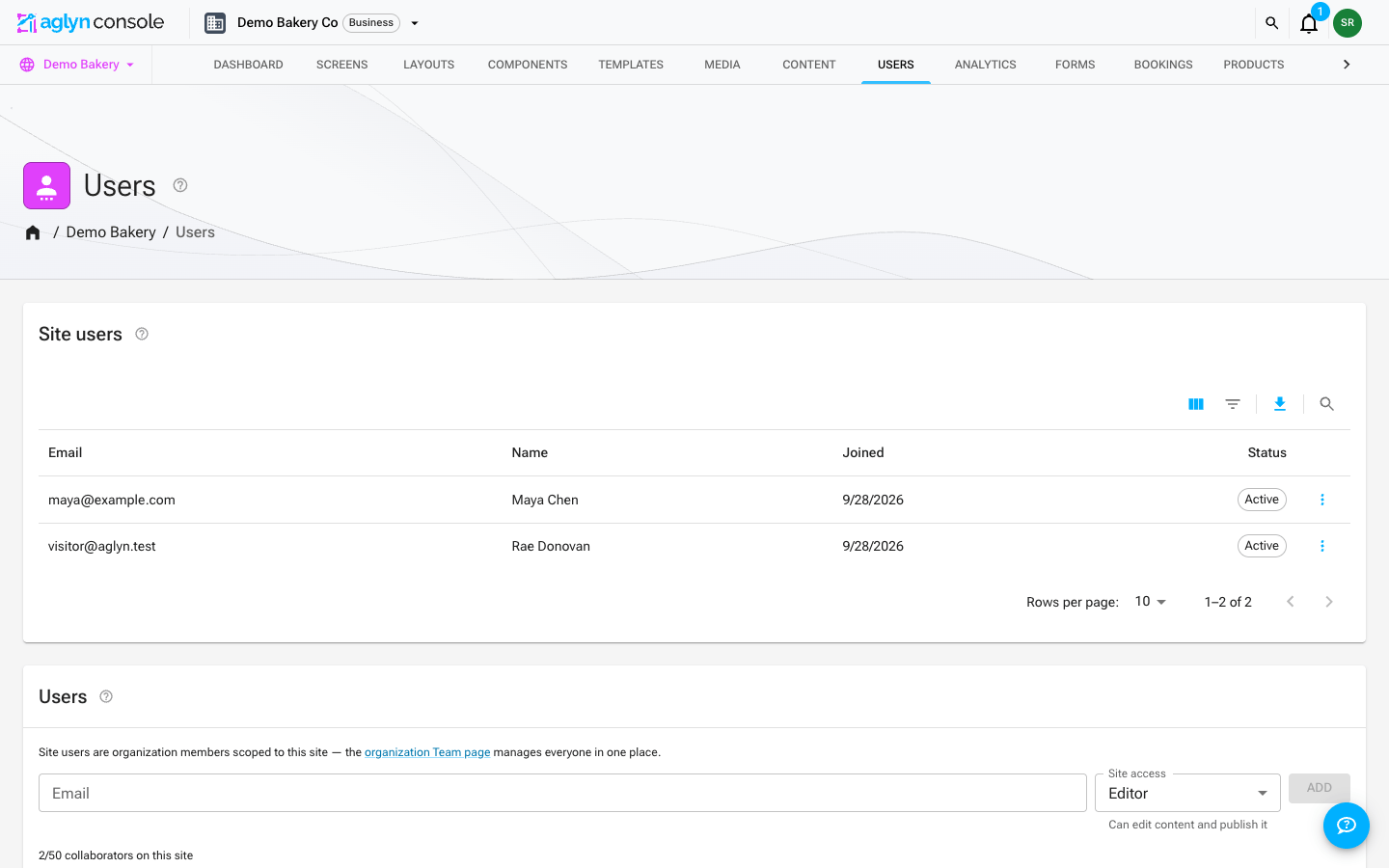
The site's Users page lists everyone who signed up on your published site — paged, newest first. The search box finds a member by the start of any word of their name or email address, and Filters in the table's toolbar narrows the list by email, name, join date or Status (Active or Suspended). They add up — except that a Name contains filter and a search can't stand together, and the list says which it set aside — across every member rather than the page on screen, because the query that reads the list answers them all. The member guide names each filter's operators. See Filter and search a list. Click a member to open their detail drawer:
- Profile — email, display name, join date, and saved addresses.
- Order history — the member's payment records, newest first: order number, status, total, and date, plus the Stripe payment reference and any refunded amount. Order history is visible to site admins and editors.
- Subscriptions — active and past storefront subscriptions with their renewal date.
- Lifetime purchases — everything the member actually paid: charged order totals minus refunds (pending and canceled orders don't count).
Suspend or reactivate a member
From the drawer you can suspend a member (with a confirmation). A suspended member:
- can no longer sign in on your published site — they see a clear "account suspended" message;
- is signed out the next time their account page loads;
- keeps all orders, subscriptions, and history — nothing is deleted.
Reactivate restores access with the member's existing password. The member list shows each account's Active/Suspended status at a glance.
Tips
- Combine members-only pages with email campaigns to nurture your member base.
- For one-off protection without accounts, use a per-page password instead.