Invite teammates
Bring collaborators into a site so they can build and manage alongside you.
Paid. Team seats are metered per tier; buy seat add-ons to grow. See Billing & plans.
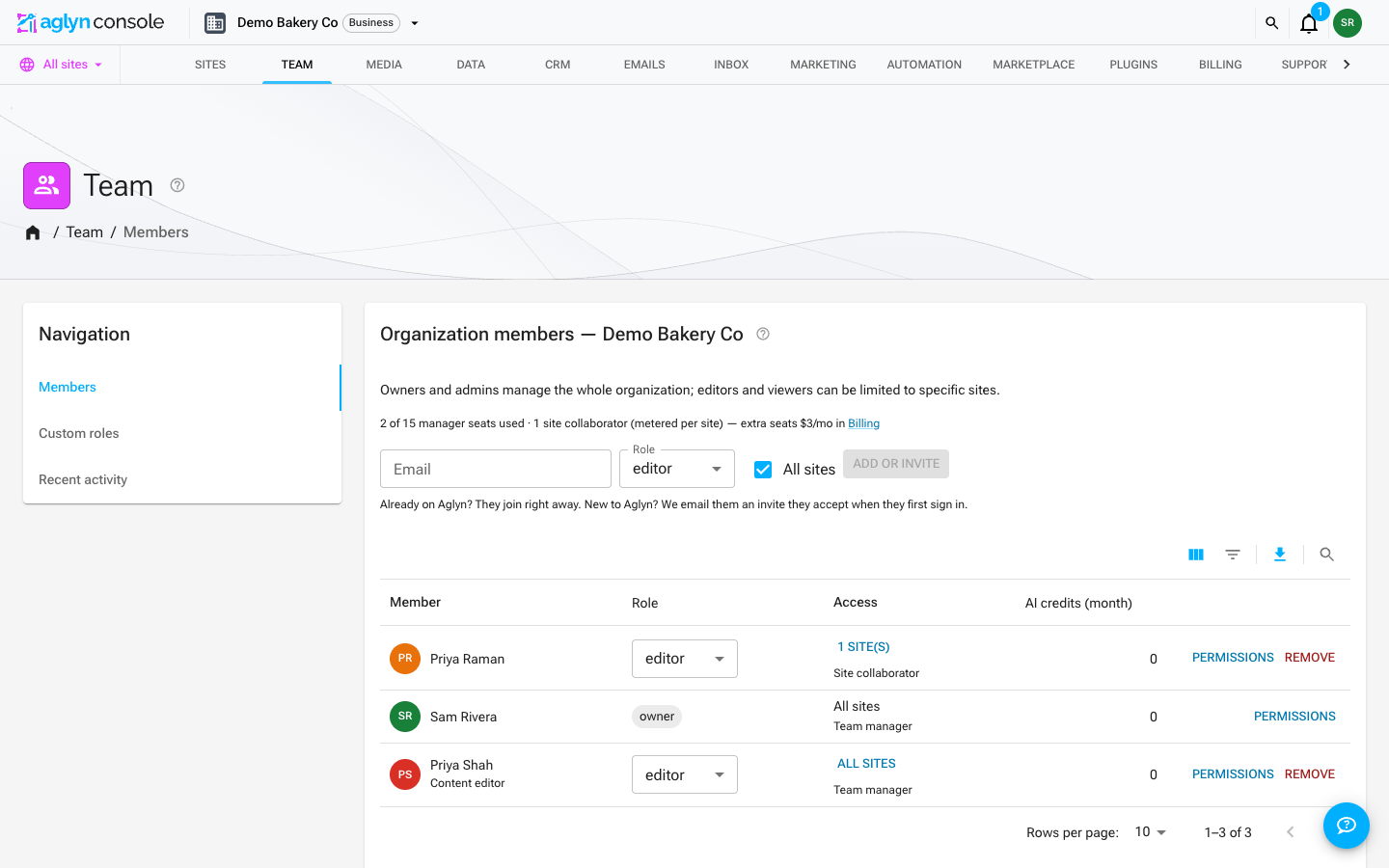
Invite someone
- Open the organization's Team page and choose Add or invite.
- Enter their email and assign a role.
- What happens next depends on whether they already have an Aglyn account: already on Aglyn — they join right away and see the workspace on their next visit; new to Aglyn — we email them an invite to accept.
Pending invites
Invites that haven't been accepted are listed with Resend (send the email again, for the address that lost it in a spam folder) and Revoke. A revoked invite's link stops working immediately.
Who gets told
- The person you invited gets the invite email. The confirmation you see says whether one actually went out — "email sent" versus "they'll see it when they sign in" — so a workspace with email delivery unavailable never leaves you assuming a message was delivered.
- If the address already belongs to an Aglyn account, that person also gets an in-app notification. Clicking it opens the invitation, where they can accept or decline it.
- Your workspace's owner and admins get an in-app notification when an invite is created, and again when it is accepted or declined, so whoever sent it finds out what happened without re-checking the Team page. These appear under Team & access in the notification bell, and can be muted there like any other category.
Accepting an invite
If you're the one being invited, sign up or sign in with the address the invite was sent to, or with any address you've confirmed on your account. That's usually Google, if it's the address. A banner at the top of every console page reads "You've been invited to …" and has Accept and Decline buttons. When you accept, the workspace opens.
If you're already signed in and working in another workspace, you don't have to go looking: the same banner appears on whatever page you have open, and the invitation also shows up in the notification bell. Clicking it there opens a dialog to accept or decline.
If the invite is your only workspace, the Workspaces page leads with it and also offers Create my own site instead, so accepting isn't your only option.
Declining an invite
Decline asks you to confirm, then removes the invitation, and the workspace's admins are told you declined. You can't undo a decline. To join later, an admin has to invite you again.
An ordinary invitation never changes who owns the workspace
Accepting an invite normally sets your role to whatever the invite offered. The one role it cannot touch is the owner's. If an ordinary invitation is sent to the address that owns the workspace, accepting it is refused rather than applied — otherwise the owner would be quietly stepped down to a viewer or an admin, and only the owner can transfer ownership back, so nobody left in the workspace could undo it.
Ownership moves in two deliberate ways, and in no other: Settings → Transfer ownership, by the current owner, to somebody already on the team; and an owner handoff, below, which invites an address to take the workspace over.
Hand off the workspace to a new owner
An owner handoff invites someone to take the workspace over as its owner. It is how a workspace built for somebody else reaches them: an agency or the Aglyn team builds the site, then hands it to the client, who may not have an Aglyn account yet.
- Open the organization's Team page.
- Enter the new owner's email, and in Role choose Owner (hand off this workspace). Only the current owner sees this choice. (Aglyn staff send it from the staff console.)
- In Current owner, choose what happens to you once they accept: Stay on as an admin after the handoff, or Leave after the handoff.
- Choose Send handoff.
The new owner gets an email saying the workspace is being handed to them, and the invitation shows in their console with Accept and Decline. Nothing changes until they accept. When they do, in one step:
- they become the owner of the workspace and every site in it;
- you stay on as an admin, or leave the workspace, as you chose;
- the invitation is marked accepted and the activity log records the handoff.
They land on the workspace's home, like anyone joining. Accepting does not ask them to upgrade or start a subscription.
Some rules hold for every handoff:
- One at a time. A workspace has one pending handoff. Sending a new one replaces the last.
- No seat reserved. The owner seat moves rather than being added, so a pending handoff never counts against your team seats.
- Staying needs a seat. If you stay on as an admin, the workspace ends up with one more manager than before, so it needs a free team seat for you. On a plan with no seat to spare (Free has one) the handoff is refused when you send it, and the message points you to Leave after the handoff instead. Aglyn staff hold no seat, so a staff member can always stay on.
- Single sign-on. If the workspace enforces single sign-on, a handoff that would leave it with no way in when your identity provider fails is refused, the same as a transfer.
The pending handoff is listed under Pending invites with Resend and Revoke, like any other invite.
Aglyn staff on your team
Aglyn staff sometimes join a workspace to build it or to help. A staff member's row on the Team page carries an Aglyn staff · no seat chip, and takes none of your seats: the seat line above the table leaves them out, and an invitation to a staff address reserves nothing. If someone stops being Aglyn staff, their row takes a seat again like anyone else's. Nobody loses access when that happens; you just can't add the next person until a seat is free.
How team members act
Team members act in the owner's organization, not their own — so their changes apply to your site, and permissions are enforced across the console's APIs and surfaces. Seat limits are enforced per tier; if you're at your limit, add a seat add-on before inviting more.
You are a site collaborator's support channel
Someone you invite to a single site gets a console scoped to that site, which leaves out the organization pages — including Support. That is deliberate: a support ticket is a conversation between the whole organization and Aglyn, readable by your team, not a per-site channel.
The practical consequence is that a site collaborator who hits a problem comes to you. Open a ticket on their behalf if it needs Aglyn — include the site and the exact error, as Support & community describes, since you will be relaying rather than reproducing. Someone invited to the whole organization keeps Support unchanged.
Help a teammate who is locked out
Open the member from the Team page and use the Password card. It has two options, and the first is almost always the right one.
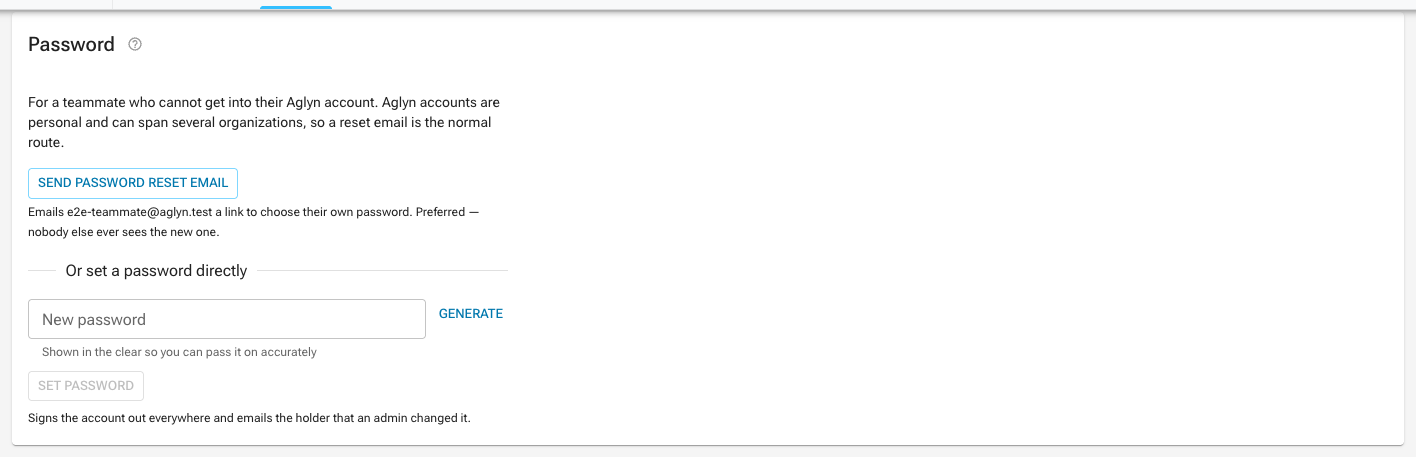
Send password reset email emails the member a link to choose their own password. Their current password keeps working until they use the link, and nobody else ever sees the new one. This works for every member. A few sends per hour to the same person is the cap — it's their inbox, and a reset link is good for an hour anyway.
Set a password directly replaces the member's password with one you choose. Use it only when the member cannot receive email at all — you then have to pass the new password to them over a channel you trust. When you do:
- they are signed out on every device, and
- they are emailed to say an administrator changed their password.
Why you can't always set a password
An Aglyn login is personal, not per-organization. One person has one account no matter how many organizations they work with, so setting someone's password can hand you the keys to workspaces that have nothing to do with yours.
The Set a password directly option is therefore unavailable — with the reason shown in its place — when the member:
- also belongs to another organization,
- is the organization owner (use Settings → Transfer ownership instead),
- is an Aglyn staff account, or
- is you (change your own password in your account settings).
In every one of those cases, Send password reset email still works. The link goes to the member's own inbox, so it is safe regardless of what else their account can reach.
Both actions are recorded in the organization's activity log, along with who performed them. The password itself is never written to the log.
Activity log
The organization's Team page shows a Recent Activity log: what happened at organization level — renames, workspace URL changes, ownership transfers, members added/removed or re-roled, and invites sent, revoked, or accepted — together with the changes made on each of the organization's sites, newest first, each with who did it, where and when.
Visible to members whose role carries the Activity & audit log permission. Owners and admins have it by default; viewers do not, and neither does a custom role until you grant it. Revoking it does not merely hide the card — the feed is served by an API that checks the permission, so a member without it cannot read the log by any route.
Who is always someone you can narrow down:
- a person, by the address they had when they acted — or, for the few entries that recorded only their account (subscription changes made before the log carried the address), the address that account has now;
- an integration, as API key and the name you gave the key;
- a workflow run, as Workflow and the workflow's name;
- Aglyn, for what the platform did on its own — a subscription Stripe ended after failed payments, a cancellation made by Aglyn staff, inbound CRM mail, a background AI job.
Entries name the thing that changed and link straight to it, so "Saved the screen — Home" takes you to that page. Entries recorded before this shipped show a plain description instead of a link.
The log filters through its table's toolbar, across the whole log rather than the page on screen:
- Filters narrows it by Action — is one, or is any of several, picked from the actions the log records as named entries, such as the AI entries below — by Who (is one of the organization's members), by Where (is the organization itself or one of its sites), and by When (is, is after, is on or after, is before or is on or before a day). They add up, and every one is answered by the log's own query.
- Search finds an entry by the start of a word of the address of the person who made the
change (or the API key's name, for an entry an integration wrote) and of the name of what
changed —
ada,example.comorhome— across the whole log. It matches one word at a time: type two and the log says it searched the first.
Every filter and the search are on the log's own query. Anything that query cannot take is not applied, and a notice above the table names it.
Changing a filter or the search starts the log again at its first page. See Filter and search a list.
A site's own activity log, under the site's Admin → Activity, filters and searches through its table's toolbar, across the whole log rather than the page on screen: Filters narrows it by Action — equals one, or is any of several, typed as the action is recorded, since the panel offers no list of them — and by When (is, is after, is on or after, is before or is on or before a day), and Search finds entries the same way the organization's log does. They add up, and the log stays newest first. See Filter and search a list.
AI actions in the log
Everything the AI does in your workspace is recorded in the same feed, attributed to the member who asked for it — or to Aglyn, when nothing a person did caused it (a generation that paused because the included band ran out, or the add-on leaving at the end of a billing period). The feed's AI chip keeps only these rows, across the whole log; press it again to see everything.
| Entry | What it records |
|---|---|
| Started an AI generation | A generation was briefed: what it builds, how long the brief was, and the site. |
| AI generated | One thing a generation produced — a page, a layout, a component — linked like any other change. A site's own activity carries a copy. |
| Canceled an AI generation | A generation was stopped before it finished. |
| AI generation paused for input | A generation stopped and asked for a person, and why: the included band, the overage ceiling, the monthly message cap, or the job's own budget. |
| Applied AI edits | Edits from a proposal landed on a page version, with a count of what changed. |
| AI generated a section | The assistant returned a section for a page. Single-element rewrites are not logged one by one; their count is in the AI usage rollup. |
| AI stop-at-band switch / AI overage ceiling | Someone changed the workspace's AI overage controls on the Billing page. |
| AI permission changed | An AI permission moved on a role, a member, or a site collaborator. |
| Added the AI add-on / Removed the AI add-on | The AI add-on joined or left the subscription. |
The feed records the act and its size, never the brief you wrote or the copy the AI produced — that is your site's content and stays in the site.
AI usage per member
Each member's page carries an AI usage card: their AI credits this month and last, their share of the workspace's pool, their requests, the kinds of request they mostly made, and the split by site. The Team roster shows the same month's credits as a column you can sort on, and every member for the month is on Billing → Usage.
The card is visible to the member themselves and to members whose role carries View billing or Activity & audit log; a manager without either sees the page without the card. It describes who drew what, on which site — nothing more.
AI allotment
The same page carries an AI allotment card: the share of the workspace's AI credits the member may draw each month — across every site for a team member, one per site for a site collaborator — hard or soft, with any list of models. Members with Manage billing set it there or on Billing → Usage; a site's admin can set a collaborator's on that site. The member sees their own allotment, and the assistant shows it beside their usage as they work — see AI allotments, usage and model choice.
Tips
- Start people on a least-privilege role and widen it with per-member overrides only where needed.
- Removing a member frees their seat.