Downgrading, canceling & your data
Changing to a lower plan, canceling, or deleting are three different things with three different effects. The short version: downgrading and canceling never delete anything — only deletion does, and deletion is deliberate and reversible within a hold window.
When each change takes effect
Plan changes are deliberately asymmetric, and knowing which direction you're going tells you what you'll be charged — and when. Anything that adds to your subscription is charged to your card as soon as you confirm it, and takes effect once that payment goes through. If your bank asks you to confirm the payment, Billing shows its check right there; if the card is declined, nothing changes and you stay on what you already have.
| You're doing | When it takes effect | What you are charged, and when |
|---|---|---|
| Upgrading to a higher plan | Immediately, once the payment goes through | Today. The prorated difference for the rest of the current period is charged when you confirm |
| Downgrading to a lower paid plan | At the end of your current billing period | Nothing |
| Canceling | At the end of your current billing period | Nothing |
| Adding an add-on | Immediately, once the payment goes through | Today. Prorated for the rest of the current period and charged when you confirm |
| Removing an add-on | At the end of your current billing period | Nothing |
The reason downgrades wait is simple: you already paid for the current period, so you keep everything you paid for until it runs out. There is no proration credit on a downgrade because there is nothing to credit — nothing changes today.
Billing opens on your current plan and the next one up. To see the plans below yours, choose Compare all plans, then Looking for something smaller? — the help tip beside it says when a downgrade takes effect.
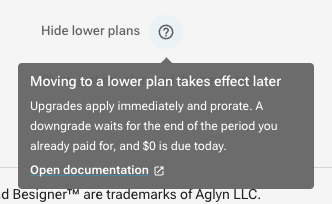
Downgrading to a lower plan
A downgrade changes your entitlements — which features you can use and how much — but it does not remove anything you've already created, and it does not take effect the moment you click.
The pending-downgrade window
When you switch to a lower paid plan:
- Confirm the switch. The dialog states the effective date and that $0 is due today.
- Your current plan keeps running to the end of the period you already paid for. Every feature of the higher plan stays on the whole time.
- A chip appears on the Current plan card — "moves to {plan} on {date}" — so the scheduled change is visible every time you open Billing, not just in the confirmation you clicked past.
- On the effective date the plan changes and the lower price starts.
Changing your mind
While a downgrade is pending, the Current plan card shows Keep my current plan. Clicking it cancels the scheduled change, and the plan you're on simply continues at its normal price. You can also do this by switching to any higher plan — an upgrade cancels the pending downgrade and then applies immediately, in that order.
Canceling your subscription while a downgrade is pending also drops the schedule, so the two never collide: you cancel from the plan you're on, not from the one you were scheduled to land on.
What changes when the downgrade lands
Nothing is deleted. Every site, file, dataset, product, and team member you have keeps existing.
What changes:
- You can't create more past the new limit. If Pro includes 3 sites and you have 5, all 5 keep working — but you can't add a 6th until you're back under the limit or upgrade again. The same applies to datasets, team seats, products, POS registers, and storage.
- Paid features you no longer have turn off at the door. Dropping the plan that includes them means: the Aglyn badge reappears on your published site (if you had branding removal), extra languages stop serving, and members-only / gated content stops being delivered. The underlying content stays in your account — it just isn't served while the feature is inactive.
- Your live sites stay up. Sites over your new plan's limit keep serving visitors — we don't take anything offline for being over a count. You'll get a reminder in the console when you're over a limit so nothing is a surprise.
You keep your data on a downgrade, but if you're tidying up it's a good moment to export. Each dataset exports to CSV or JSON from the Data tab, and each site exports a backup from Admin → Backup & template (site backup and packages).
Canceling your subscription
- Cancel any time. Your subscription runs to the end of the paid period — a chip on the Billing page shows the end date, and you can resume before it hits.
- When the period ends, your organization resolves to the Free plan. This is the same as a downgrade: nothing is deleted, over-limit resources persist, and paid features turn off.
- A failed payment doesn't cancel you immediately — your access continues while Stripe retries the charge (a past-due banner shows), and entitlements only drop to Free if the subscription actually lapses.
What the Cancel button actually opens
Cancel subscription doesn't cancel on the first click. It opens a short dialog with up to four steps. We'd rather tell you what's in it here than have it surprise you:
-
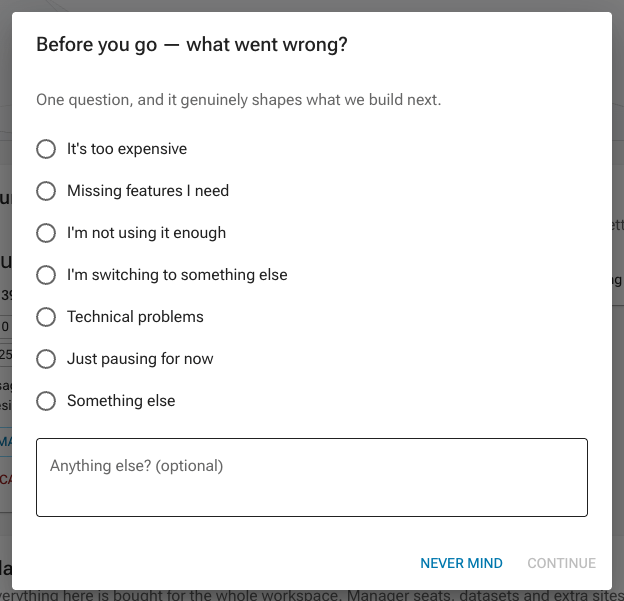
"Why are you leaving?" — one choice from a fixed list (too expensive, missing features, not using it enough, switching to something else, technical problems, just pausing, something else) plus an optional comment box. This is the only required step, and the comment is genuinely optional.
-
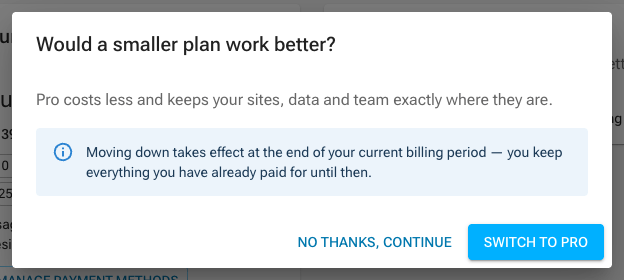
A downsell, if a smaller paid plan would still fit you. It names the plan and its price. No thanks, continue moves on.
-
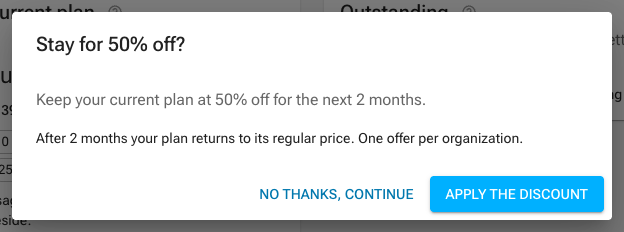
A winback discount, if you haven't used one before. It states the exact percentage and the exact number of months it lasts, because a discount whose end date you can't see isn't an offer. No thanks, continue moves on.
-
The confirmation. This step also lists anything you'll be over the Free plan's limits on once the cancel lands — extra sites, datasets, seats — so the consequence is visible at the moment you decide, not afterwards.
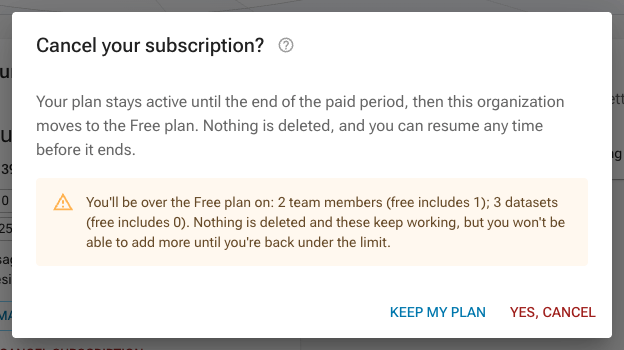
Things worth knowing about the offers:
- Every step has a visible way past it. There is no step you can only leave by staying. Keep my plan on the last step closes the dialog and changes nothing.
- A winback discount is once per organization, ever. If you've taken one before, step 3 doesn't appear at all.
- A winback is always time-boxed. It runs for a stated number of months and then your normal price resumes. We don't mint open-ended discounts.
- If a step fails, it's skipped rather than blocking you. A survey that can't save doesn't trap you in the dialog — you go straight to the confirmation.
- Organizations without a live subscription (you're on Free, or you're already canceled) see only the survey and the confirmation; there is nothing to downsell from and nothing to discount.
Accepting the downsell performs a plan switch, so the end-of-cycle rule applies to it: the smaller plan starts at the end of your current period, and $0 is due today.
The same dialog runs on the Delete organization path in organization settings, with the deletion confirmation as its last step instead of the cancel.
Deleting a single site
To remove just one site (not the whole organization), open the site's Admin → Danger zone and use Delete site. A site admin types the site name to confirm, and it's deleted immediately — its pages, media, and settings are permanently removed and its address stops resolving. Unlike an organization deletion there's no hold, so export a backup first (Setup → Backup & restore) if you might want it back. Your other sites and the organization are unaffected.
A site in a consent group can't be deleted while it's in the group, because the group's other sites honor the unsubscribes it holds. Remove it from the group first, which copies those opt-outs to the sites that stay, then delete it. The same applies while a consent group change that includes the site is still finishing.
Deleting your organization
Deletion is separate from canceling and is the only thing that removes your data. It's intentional and reversible for a short window:
- Request deletion — an owner starts it from the organization settings; you confirm by typing the organization name. Export anything you want to keep before you start (Setup → Backup & restore) — the hold is the window for it, and nothing is kept for you afterwards.
- A hold period follows the request. During the hold nothing is deleted and you can cancel the request to fully restore.
- After the hold, the organization — its sites, files, datasets, and account records — is permanently erased. This step is irreversible, and we keep no copy of the erased data. What we retain is an internal record that the erasure happened: which organization, when it was requested, and how many sites, members and credentials were removed.
Deletion covers your organization's sites and their stored files and data. If you own an organization that still has other members, transfer or remove them first — a shared organization isn't deleted out from under its members.
You can request erasure of your personal data at any time. Deletion permanently removes your records and leaves us with no copy of them — only a record that the erasure was carried out, which is itself kept for a limited period. Export anything you need during the hold. Contact support if you need an erasure completed outside the self-serve flow.