Email Campaigns
Email campaigns let you reach the people in your CRM. Build an audience, compose a send, and Aglyn handles delivery, caps, and unsubscribes.
Campaign email starts at Pro. Free and Starter include a monthly campaign allowance of zero, so a campaign of any size is refused before it sends. From Pro up the allowance rises with the plan.
Account email is not part of that. Order receipts, password resets, booking confirmations and replies to form submissions send on every plan, Free included, and are never refused by a campaign cap. See sending domains for why the two are treated differently.
Send a campaign
- Create a campaign on Marketing → Campaigns — a name, the dates it runs between, the lists it is aimed at, and the sites it runs on. Your organization has its own Marketing page beside CRM, and every site has one too.
- Open it and write an email inside it. Pick the audience for that email — leads, site members, segments, or an email list. An audience built from a rule can also reuse a saved Contacts view beside a segment.
- Send — subject to your plan's send cap.
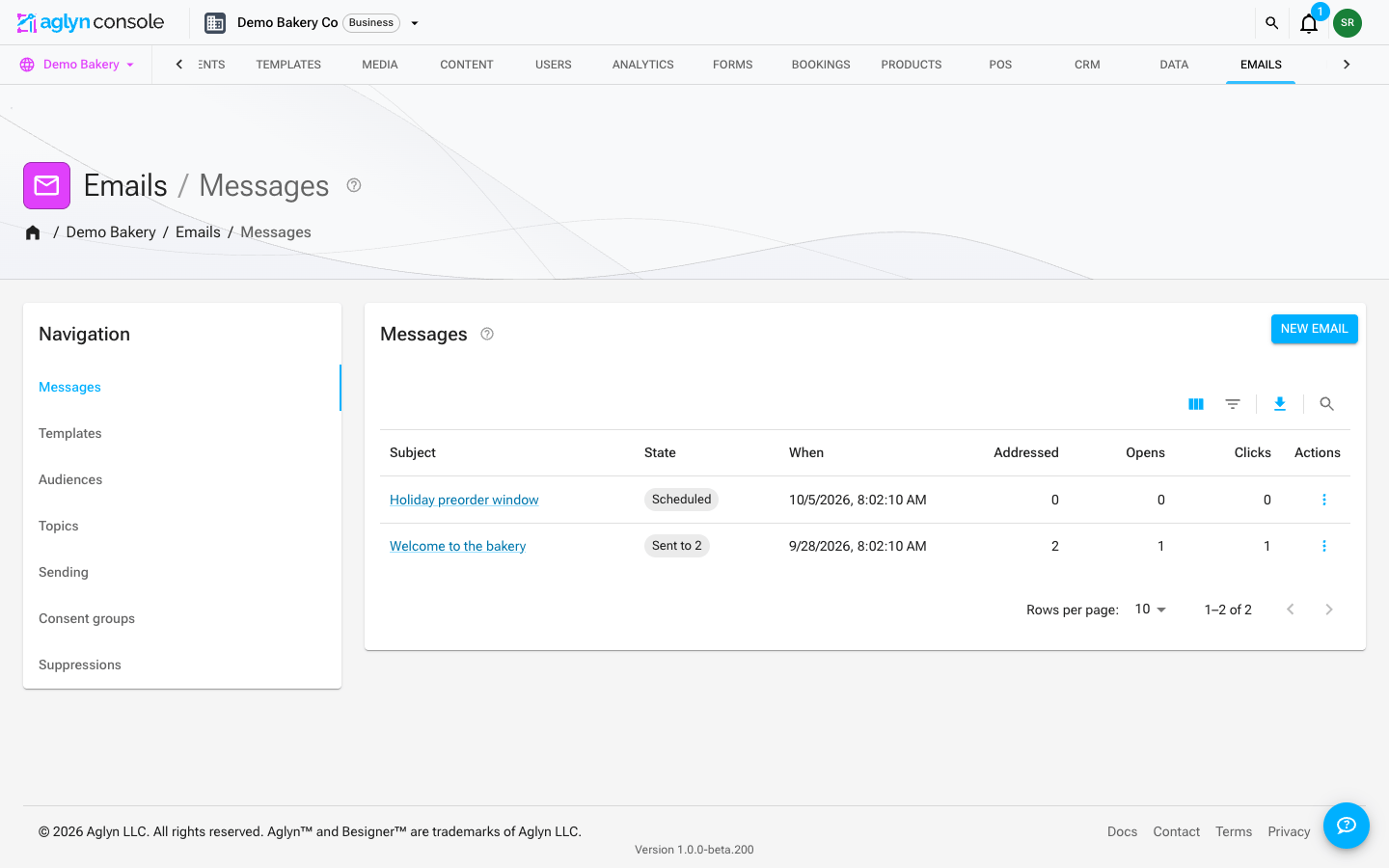
A campaign lives under Marketing because that is what it is: a window of dates, a set of lists, a topic and the revenue it earned, which happens to reach people by email. The individual messages it sent, the templates they are built from, the audiences, the topics, the sending domains, the consent groups and the suppression list are all on the Emails page, and each message links back to the campaign it belongs to.
Campaigns belong to your organization
A campaign is your organization's, like its contacts, lists and topics, so one campaign can coordinate a push across every site you run, the sequences your reps send and the leads they produce.
- Which sites it runs on. A campaign is placed on every site or on the sites you choose. It is offered in a site's pickers — on its forms, pages and automations — only where it is placed, and a collaborator invited to one site sees only the campaigns placed there. A campaign created from a site's own Marketing page starts on that site; one created from the organization's starts on every site, and you can change either later from the organization's page.
- Which site an email is sent as. Each email goes out as one site: that site's sender, its unsubscribe page and the consent people gave it. Writing an email from the organization's page asks which site first. A site's Marketing and Emails pages list the emails sent as that site; the organization's Emails page lists all of them.
- The monthly allowance was always your organization's, not a site's, and is unchanged.
Your organization's Emails page
Your organization has its own Emails page beside CRM and Marketing, with the same seven sections a site's has, each answering for every site at once:
- Messages — every site's emails in one list, each with the site it is sent as. Writing one asks which site it is sent as, unless you have one site.
- Templates — every site's templates in one table. A template is designed on one site, so each opens on its own site's page, and a new one asks which site to design it on.
- Audiences and Topics — your organization's own, the same lists and topics every site sees. On a list's page, Enroll as picks the site people are added as, and the Consent column reads what they agreed to with that site. On its edit page, Site picks whose people its filters read.
- Sending — what each site sends as right now and its default sender, and the domains your organization has proved, with the sites sending as each. Sending a site's email as a domain asks which site.
- Consent groups — the sites your organization declares one sender, where you create, change and dissolve them, and under them the switch that decides whether a group's sites wait for each other's confirmation click. A site's own Consent groups section says which group it is in and links here.
- Suppressions — each site's list counted by reason. Every site keeps its own list, so open a site's row to see who is on it, or to add or remove an address.
Where a section reads each site in turn, it reads one page of sites at a time, in order of name. Sending and Suppressions page their sites with the footer under the table, and Templates offers a Sites picker once you have more sites than one page holds. The page is for members who can see the whole organization — somebody invited to one site keeps using that site's Emails page.
A campaign holds many emails
A campaign is a container, not a single message. It carries a name, a start and end date, and the lists it is aimed at; the emails you send inside it are its contents, and the campaign's page adds their figures up.
- The campaigns list shows one row per campaign: its window, its lists, how many emails it has sent, and the totals across them.
- Opening a campaign shows the lists it is aimed at, every email inside it, the delivery and engagement figures summed across those emails, and a composer for writing the next one.
- Each email keeps its own report, reached from the campaign page. Nothing about an individual send's report or its link changed.
Campaigns you sent before this existed are still there, each listed as a campaign of one and marked Single send. Their reports open at the same address they always did, and the unsubscribe links in mail already delivered are untouched. The toggle above the campaigns list switches it between Campaigns and Single sends (the emails filed under no campaign); both show in the same table, newest first, a page at a time.
Filter the campaigns and emails lists
The campaigns list, the Emails list and a campaign's own emails each filter through their table's toolbar. Search finds a campaign by the start of any word of its name, and an email (or a single send) by the start of any word of its subject. On a site's campaigns list with Campaigns showing, Search matches the start of the campaign's whole name instead: the list says so, and while it applies the list is in name order. The Filters panel offers:
- Campaigns: Campaign (contains a word; on a site, starts with) and Created (is, after, on or after, before, on or before), and on the organization's page Lists and Sites (is any of; a site is one of your sites, or Every site). With Single sends showing, the column and its filter read Subject (contains a word), beside Created and, on the organization's page, Sites (is, is any of).
- Emails: Subject (contains a word), Status (is, is any of), Campaign (is: one of up to 50 campaigns by name, or Single send for the emails filed under none), Created and, on the organization's page, Site (is, is any of). Status is what the email has stored: an email part way through a large audience shows Sending in its State column and is stored as Scheduled between batches.
- A campaign's emails: Subject, Status and Created, as above.
A campaign's Window and an email's State are worked out from dates and counters when the row is drawn, so neither is a filter. Column headers don't sort: each list is newest first.
Every filter and the search are answered by the list's query, so a match on a later page is found, and each list pages through all of its campaigns or emails. A combination one query can't hold is named above the table as not applied rather than applied to part of the list:
- Search, Subject or Campaign contains, and — with Campaigns showing on the organization's page — Lists and Sites each match words or values of a list field, and only one of them applies at a time.
- A list holds one range. Created is one; on a site's campaigns, so are the Campaign starts-with filter and the search, so a Created filter there applies only without them.
The campaigns list adds up the figures of the campaigns on the page you're viewing, from up to 50 of their emails, and says so when there are more; a campaign's own page adds up 50 of its emails. See Filter and search a list.
What belongs to a campaign
A push is rarely only its mail. A campaign can also hold the landing pages, the forms those pages place, the contacts and leads you have filed under it, and the sequences a rep sends as part of it — so the campaign's page shows the whole coordinated push rather than a folder of emails.
You set it from the record itself, never from the campaign:
- A page — open it from Pages and pick its campaigns on the Campaigns card.
- A form — open it from Forms and pick its campaigns under Details.
- A contact — open the contact under CRM → Contacts and pick its campaigns on the Relationship card of their page.
- A lead — pick its campaigns in the New lead drawer, in a
Campaignscolumn of an imported file, or with Add to campaign over a selection of the Leads list. A lead in a campaign hands the campaign to the contact it converts into. - A sequence — pick its campaigns in the sequence's settings. Everyone enrolled from then on joins the campaign on their own record.
Each of them can be in more than one campaign, because the same landing page and the same signup form are usually re-run for the next push. Clearing every campaign takes the record out of all of them; nothing else about it changes.
The campaign's own page then lists the pages and forms assigned to it, so you can see
the association from either end. Each is its own table, a page at a time, and a deleted
page is never one of its rows. Search above each table matches the start of a
page's or form's name (spr finds Spring landing page), and while it applies the table
is in name order; the tables have no Filters panel. The search is answered by the
table's query, so a match on a later page is found. What these forms hold adds up the
counters of up to 25 of the campaign's forms and says so when it holds more; the table
beside it lists every one. See
Filter and search a list.
Under What its sequences produced, the page also counts what the sequences in it did: people enrolled, the first email sent to each, replies, meetings booked from a link in a sequence email, and enrolled leads converted into contacts. Each figure counts the people who reached that stage, so they are read across, never added. A person's own page says which sequence's campaign they came from when nothing else was credited first.
Filing decides who is counted, never who is mailed. Filing a page under a campaign
does not decide who that campaign mails. It does make the page one of the campaign's
touches: a visitor who reads it and then fills in a form, signs up or books within
seven days is credited to the campaign, with no utm_ label on the link — see
How a visit is credited to a campaign. A form's, a
contact's and a lead's campaigns are a label on the record and credit nothing on their
own; they never add anybody to a send either. Order revenue still comes from the links a
campaign's emails carried — see Revenue from a campaign. A
sequence's campaigns are the exception in one direction only: what the sequence
produces is counted on the campaign, because the sequence's emails are the campaign's
outreach.
Deleting a campaign clears it off everything assigned to it. The pages, forms, contacts, leads, sequences and their enrollments stay exactly where they are, minus that one campaign; nothing is deleted with the campaign except the campaign.
Who the email comes from
These fields sit under the audience picker. The first picks from a list the site was set up with; the rest are yours to change for this one email:
- From — which of the site's senders this email goes out as. A sender is a mailbox on the site's sending domain, with a display name and a reply address stored beside it. The picker appears when the site holds more than one; with a single sender there is nothing to choose, so the composer names it instead of asking. Add a sender… at the bottom of the list opens the same drawer the Sending page uses. See the addresses this site may send as.
- From address — which verified domain this email leaves on. It is offered only when your site has more than one verified domain to choose between. See sending domains below.
- From name — the display name in front of your sending address. Picking a sender fills this from that sender's own name, and editing it here changes this email only — the sender itself is untouched, and the helper text under the field says which of the two you are looking at. The address itself is always a verified sending identity; a from name changes what a recipient reads, never which domain the mail leaves on.
- Reply-to — where replies land, when that is not the sending address. Picking a sender fills this too, and editing it is per email in the same way.
- Preheader — the preview line an inbox shows after the subject.
Under the picker the composer states the result in one line — the name, the address the
email will leave on, and the reply address when one is set — so you are never assembling
the From: line in your head.
Left empty, the from name falls back to your workspace's branding and no reply-to or preheader is set.
There is no box to type a sending address into, and that is deliberate. A From:
address is a real mailbox: bounces come back to it, and mail clients that ignore
Reply-To: answer to it. An address invented for one campaign is an address nobody
serves. So addresses are set up once, on Emails → Sending, and a campaign picks among
them.
Which domain your mail leaves on
Emails → Sending is where you see what this site sends as, and where a workspace proves it owns a domain of its own.
Account email sends on every plan
Order receipts, password resets, booking confirmations and replies to form submissions
leave on every plan, Free included, with nothing to set up first. A site that has no
domain of its own sends them from a shared Aglyn address — notifications@shared1.mail.aglyn.app
and three siblings. Which of the four a site uses is fixed, so the address recipients see
is the same one every time.
That works, and it means the delivery reputation on that address is pooled with the other sites using it rather than being yours. Campaigns send from it too — see below for what the pooling costs you.
Campaigns on the shared address are graded more tightly
Campaigns, member posts, cart reminders and back-in-stock alerts send from the shared address too. Nothing has to be bought or published first.
What changes is how closely the sending is watched. The shared address carries every other site's receipts and password resets — mail with no alternative — so a campaign there is held to tighter limits than one on a domain of your own: spam complaints must stay under 0.10% and permanent bounces under 5%, measured over the last seven days. Cross either and this site's campaigns pause until the bad addresses are cleaned out and the week rolls off. Your receipts and account email keep sending throughout, and nobody is removed from your audience.
On a domain of this site's own the limits are the looser ones (0.30% and 10%), because there the only reputation being spent is yours.
The two ways to get a domain of this site's own
A site's mail can leave from three places, and only the first is guaranteed. The shared address above needs nothing, is there on every plan, and carries every kind of mail at any tier — it is where a site sits until one of the two below is in place, and it is where it goes back to if one is removed. The two below both need Pro or above, and what separates them is not the price:
| A domain we set up | A domain you own | |
|---|---|---|
| Looks like | hello@yoursite.mail.aglyn.app | hello@yoursite.com |
| How you get it | Ask for it on the Sending page. A request, which we may not be able to fill straight away | Add it yourself, then publish three records |
| Needs | Pro and above, and room in our provider allowance | Pro and above |
| DNS work | None — we publish the records | Three records, published in your zone |
| Reputation | This site's alone | Entirely yours |
| Recipients see | An Aglyn address | Your own name |
A domain you already own is the better of the two. Your brand in the From: line,
and a sending history that belongs to you rather than to a name inside aglyn.app. The
trade is the DNS work: the records go in your zone, and we never write to it. It is also
the one we can always say yes to — see the next section for why that is not true of the
other.
The domain we set up costs you no DNS work at all. Its name is pinned the moment it is claimed, taken from the site's address as it reads then, and renaming the site afterwards does not move it. That is deliberate: a sending domain's value is its age with the mailbox providers, and a new name starts at zero. Ask support if you want the sending name changed anyway.
Nothing stops while a domain is being set up, and the two kinds differ here. A domain we set up is our work, so while it is still coming up your mail carries on going out on the shared address as before, campaigns included. A domain you own is your instruction about what recipients will see, so until its records verify this site does not send at all rather than quietly sending as something else.
The Sending card offers both:
- Add a domain you already own —
news.yourshop.com, oryourshop.comitself. Your recipients see your name, and the reputation you build belongs to you wherever you go next. It needs three DNS records published at your registrar. - Ask us to set this site up with one — press Ask for yoursite.mail.aglyn.app and there is nothing for you to publish. It gives this site a sending reputation of its own, separate from the shared pool and graded on the looser limits. The trade is the name: recipients see an Aglyn address rather than yours.
Pick the first if you can publish DNS records. Pick the second if you cannot — an agency client whose domain somebody else administers, or a registrar you do not have access to. Neither is issued automatically, and a site with neither keeps sending on the shared address in the meantime.
A domain we set up is asked for, not included
This is the part worth reading before you plan around it.
Nothing is provisioned automatically. Creating a site does not claim a sending domain, and neither does upgrading. A site gets one only when somebody presses the button on Emails → Sending. If you upgraded and went looking for a domain you expected to find waiting, that is why it is not there: it is one press away, and it was never going to arrive on its own.
Your plan admits the request. It does not guarantee the domain. Every domain we set up takes a slot in the allowance our mail provider gives us for the whole platform, three records in our own DNS, and a permanent place in the checks we re-run against it. That allowance is bought rather than conjured, so a request made while we are at the ceiling is held rather than filled, and the domain reads Waiting for room on the Sending page until we have some. We would rather tell you that than show you a set of records that is not coming.
Being held is not stopped mail. A site waiting on a domain keeps sending on the shared address exactly as before — receipts, password resets, booking confirmations and campaigns — and nothing you have set up is lost. What is waiting is the reputation of its own, and the looser complaint and bounce limits that come with it.
If you would rather not wait, add a domain you own. A domain you publish records for
is never held this way, and it gives you the better From: line as well. It is the option
this page recommends first for both reasons.
You will not find "a dedicated sending domain" ticked on the plan comparison, and that is on purpose: a tick in a checklist reads as an inclusion, and this is a request we answer rather than something your plan hands you.
The states a domain can be in
Add a domain and you are given the exact DNS records to publish — an authorization record, a signing key and a bounce-routing record. Publish them wherever your DNS is hosted, then press Check DNS. A domain has six things it can be telling you:
| State | What it means | What to do |
|---|---|---|
| Waiting on a signing key | The domain is claimed, but no key has been issued for it yet, so there is nothing to publish. | Nothing at your registrar will help. Press Request records. |
| Waiting for room | We are at our mail provider's limit on sending domains, so this one — which is a domain we set up, inside our own namespace — has not been created yet. | Nothing, and nothing at your registrar is involved. This site keeps sending on the shared address. A domain you own instead of this one is never held this way. |
| Key request failed | The mail provider refused to issue a key. | Press Request records again; it creates no second domain. If it persists, this is ours to fix. |
| Publish the records | The records are issued and waiting for you. | Add them at your DNS host, then Check DNS. |
| Verified | Every required record is live and we can see it. | Nothing — this domain can send. |
| Records not found | We looked, and one or more records are not published. | Compare them against what is shown and check again. |
Once its records are issued, a domain's page also shows Sender readiness: SPF, DKIM and DMARC as a receiver reads them, and whether they align with the domain your mail is from. See sender readiness.
"DNS unreachable" is none of the six. It means our lookup did not complete — a resolver outage, a timeout — so nothing changed, including the domain's state. Your zone is not the problem and there is nothing to edit. Try again in a few minutes.
A domain is proved once for the whole workspace; which site sends as it is a separate choice, made with Send this site's email as this domain on the domain's own page. Removing a domain you own does not move a site sending as it onto any other address. That site stops sending altogether, receipts included, until you choose another identity — deliberately, because quietly changing the address your recipients see is not a safe way to fail. Removing the domain we set up is the gentler case: receipts go back to the shared address, where campaigns are held to the tighter complaint and bounce limits.
Adding a domain and choosing what a site sends as need the organization admin role.
The addresses this site may send as
Under the domain, the same page lists this site's senders. Each one is a mailbox on the site's sending domain with a display name and a reply address stored beside it, and every email you compose goes out as one of them.
| Column | What it is |
|---|---|
| Sends as | The part before the @. The domain after it is the site's verified sending domain and is not editable here — the From: domain has to be exactly the domain whose key signed the message. |
| Name | What a recipient reads in front of the address. A person's name, or your brand. |
| Replies to | Where a reply goes. This one may be any mailbox at all, including a personal address on a domain you have never verified. |
One sender is the default — what an email that names no other goes out as. Make default on any row moves it. The default cannot be removed until another one has taken over, because every site sends as something and picking the replacement for you would decide what your mail looks like from an ordering you never saw. A site can hold up to 25.
Send as a person, at the top of the add drawer, fills all three fields from somebody who works on this site — anyone on the workspace team who can reach it, and anyone invited to the site directly. It proposes their mailbox name for the address, their display name for the name, and their real address as the reply target. Their own address cannot be the sending address: mail we sign cannot claim to come from their mail provider's domain, and a receiving server refuses that rather than delivering it.
A site on the shared address has exactly one sender. The mailbox on a shared address is where every site using it gets its bounces back, so it is not one site's to rename, and a second sender that could not differ in the mailbox would be the same address offered twice. The name and the reply address are not restricted this way — both are honored on the shared address exactly as they are on a domain of your own. A mailbox you set before this site has its own domain is kept and takes effect the day it does, and the Sending page says as much rather than showing you a setting that is quietly doing nothing.
Adding, editing and removing senders needs the organization admin role. Picking one for a particular email does not — anyone who can write a campaign can choose among them.
Send a test
Send test proofs one copy of the email you are writing. It asks three things, and only one of them decides who receives mail:
- Fill the merge tags with — a contact, lead or site user whose stored data the
merge tags resolve against, so you see real personalization instead of the
{{firstName|there}}fallbacks. Choosing somebody here sends them nothing. - Deliver it to — the only address the test goes to. You can pick yourself or anyone with an account on the workspace. You cannot send a test to a contact: a test is exempt from the consent rules a campaign obeys, and that exemption is not something to spend on somebody who never agreed to hear from you.
- From address — the identity it leaves on, taken from the composer.
A test writes nothing. No recipient count, no report figures, and nobody is recorded as having received it, so proofing an email six times does not make its report say seven. It is not a way around the other rules either: an address that has unsubscribed, bounced or been marked as spam is still refused, and so is one with a recorded marketing opt-out.
Preview the email
Preview email renders the message as it will be mailed — the same renderer, the same merge-tag resolution, and the same HTML part that reaches the inbox — personalized for your own account so you can see what a merge tag actually resolves to. It re-renders as you type and it resolves no audience, so previewing costs nothing against your caps and sends nothing to anybody.
Send test is the other half: it delivers one real message to an inbox you can open, which is the way to check how a mail client renders it. See Send a test.
Your monthly send cap
From Pro up, a plan includes a number of campaign emails per calendar month. The count resets on the 1st; it does not roll over.
On Free and Starter that number is zero, which is a refusal rather than a formality: campaign email starts at Pro, so a campaign of any size is refused before a message leaves. Everything else on this page — audiences, topics, suppressions, the preference page — still works, and a Starter site builds the list it will mail after it upgrades.
Only campaigns count against it. Transactional mail — order confirmations, booking reminders, password resets, teammate invites, workflow notifications — is never refused by this cap on any plan, Free and Starter included. A busy month of orders cannot use up your campaign allowance, and reaching the cap never stops a receipt from reaching a buyer.
You can see where you stand in two places, without having to be refused first:
- In the composer, under the recipient count:
340/500 campaign emails this month. - On the Billing page, as the Campaign emails (this month) meter.
The cap is counted per workspace, not per site — every site in your organization draws on one shared monthly allowance. One recipient is one email: a campaign to 200 people spends 200, whichever site sent it.
Campaigns are also paced: a workspace can send a set number per hour, so a very large send is spread out rather than refused. The Billing page shows that hourly ceiling beside the monthly one. Transactional mail — receipts, invites, password resets — is not paced by it and is not counted against the monthly cap.
When a send would take you past the cap, the composer says so while you are still writing rather than after you press Send. Upgrade your plan or shrink the audience.
Personalize with merge tags
Use {{name}}, {{firstName}}, or {{email}} anywhere in the subject or body — they
resolve per recipient at send time from the audience's stored details. Add a fallback
with a pipe for recipients without a stored name: Hi {{firstName|there}}!.
See who it will reach, before you send
As soon as you pick an audience the composer counts it, and shows the count under the audience picker:
Recipients 1,240 · 12 unsubscribed or suppressed
The number is not an estimate. It is produced by running the real send path with nothing written — the same audience resolution, the same de-duplication, the same suppression lists, and the same monthly cap — and stopping immediately before the first write. Nothing is created, no counter moves, and no campaign appears in your history.
That means the count already reflects things you would otherwise only discover afterwards:
- Duplicates are removed. One person on two lists is one recipient.
- People with no marketing consent on record are removed, before anything else — see Who a campaign is allowed to reach. The second caption line breaks the audience down by basis.
- Unsubscribed and undeliverable addresses are removed, and reported separately as
· 12 unsubscribed or suppressed, so a smaller-than-expected number has a visible reason. Addresses whose domain takes no mail, and addresses behind a mail gateway that keeps refusing this sending domain, are excluded and counted on a line of their own — see deliverability checks. - A single send is capped at 500 recipients, and when your audience is larger the
readout says so:
Recipients 500 of 3,200 in this audience. The send takes the first 500, in a fixed order, so sending the same campaign again reaches the same people. - A very large audience is reported as a floor, with a
+:500 of 5,000+ in this audiencemeans there are at least 5,000 and the count stopped there. - A refusal appears here rather than at send time. An empty audience, an audience nobody in which has a consent record, an audience where everyone is unsubscribed or suppressed, or a month already at your plan's send cap all say so while you are still writing.
While it works it reads Counting recipients…. It re-counts whenever you change the
audience. It does not re-count while you write: counting resolves your whole audience,
and nothing about the subject or the body can change how many people are in it.
The confirmation dialog states the number. Pressing Send asks you to confirm a send to
342 list subscribers, or 500 of 3,200 in this audience when the audience is larger
than one send carries, and names what is not counted — the people withheld for having no
consent on record, and the ones already unsubscribed or suppressed. If the count could not
be read, the dialog says so rather than implying the send reaches everyone.
Counting an audience needs the same permission as sending to it — the size of someone else's site's audience is not public information.
Who a campaign is allowed to reach
A marketing campaign goes only to people whose consent you have a record of, or who were already in your audience before consent was required. The composer's second caption line tells you which is which:
1,240 with a recorded consent basis · 310 grandfathered (captured before consent was
required) · 44 withheld — no consent on record
- Recorded consent basis — this person ticked an opt-in box on a form, a sign-up, or a newsletter subscription, and the date they did it is stored on their record.
- Grandfathered — this person was captured before the opt-in checkbox existed, so there is no record either way. They still receive campaigns. Nothing you already had was taken away.
- Withheld — this person is not mailed. Either they explicitly declined, or they were captured after consent became required and no opt-in was recorded for them.
Consent is never assumed from an action. Submitting a form, placing an order, booking, or
creating an account are not opt-ins on their own — a person is only counted as consenting
when they ticked a box that says so. To grow the consented number, add a marketing opt-in
checkbox to your forms and sign-up, and on each form's own page pick that box as the
Marketing consent field: a tick is then recorded as consent. As a safety net, a
published form from the Forms page that names no consent field still records a ticked
one-option Checkboxes field named marketingConsent, emailOptIn, newsletterOptIn or
subscribe.
Withheld recipients cost you nothing — they are removed before your monthly send allowance is claimed.
Schedule a send
Pick a Send at time in the composer and the button becomes Schedule campaign. Scheduled campaigns appear in history with a Scheduled chip and a Cancel action until the send time; they deliver through the same caps, suppression list, and merge tags as an immediate send.
Three things about the timing are worth knowing:
- Due campaigns are picked up every 15 minutes, so a send scheduled for 09:00 goes out between 09:00 and about 09:15. Schedule to the quarter hour if the exact minute matters.
- The time is your browser's local time at the moment you set it, stored as an absolute instant. Someone in another timezone reading the history sees the same instant in theirs.
- A scheduled campaign is checked against your caps when it actually sends, not when you schedule it. A month that has since reached its send cap makes the campaign fail rather than send, and it appears in history with a Failed chip carrying the reason.
The statuses a scheduled campaign moves through are Scheduled → sending → sent, or Canceled if you cancel it in time, or Failed with the reason.
Held for review
Every email your sites send, campaigns included, is checked for signs that it impersonates another business. A link to a lookalike of a well-known brand's domain is held in any workspace. In a workspace's first two weeks, an email is also held for a sender name that uses a brand that isn't yours, or for naming a brand and asking readers to act on an account elsewhere. Receipts, booking confirmations and password resets are only ever held for a lookalike link. Published pages are checked the same way. Most emails and pages are never held.
If an email is held, nothing is sent or counted, and it shows a Held for
review chip in the Emails list and on its page. While it is held you can't
send it now, reschedule it or edit it. Our team reviews it, and it sends on its
own if it's approved, or it's canceled if it isn't. You can still cancel it
yourself. If you contact support about it, quote the HS- reference shown on
the email's page.
Duplicate an email
Any email on the Emails list — sent, scheduled or draft — has Duplicate… in its row menu. The copy is a new draft with the same subject, message, sender and design, under the name you give it. Its audience and send time are cleared, so a copy can never mail the original's recipients by accident: you choose who receives it and when, as with any new email.
Email lists
Lists are audiences shared across your organization's sites. Create them on the Marketing page and target any of them from the campaign composer. A list is one of two kinds, chosen when you create it.
The lists table filters through its toolbar: Filters narrows it by List, the list's name (contains a word, or is), or by Membership (is manual or rule), and Search matches the start of any word of a list's name. The filters and the search are asked of your organization's lists themselves, so they reach every list, a page at a time in name order. A name that contains a word and Search both match words of the name, so only one of them applies at a time, and a note above the table says which was set aside. See Filter and search a list.
Manual lists
A manual list holds the people you put in it. Grow it with the "Enroll in a list" automation step (e.g. on form completion), popup email capture, the Add to a list card in the Inbox, or by hand from the list itself. Members stay until they are removed.
See and manage who is on a list
Press Members on any list row to open it. You get the membership a page at a time — address, name, when they joined, how they got there, and what their consent record says — plus the controls to change it. Press Close to collapse it again; nothing is read until you open a list.
How tells a rule match apart from somebody who was added. A person a rule enrolled leaves when they stop matching; a person who was added stays.
The membership table filters through its toolbar by Address (the whole address)
and How (rule or added), and Search matches the start of any word of a
member's name or of any part of their address: the local part, a piece of it such as
doe in jane.doe, or the domain, with or without the @, up to the first twelve
characters typed. The filters and the search are asked of the list itself, so they
reach everyone on it, a page at a time. Consent is a column, not a filter: it is
read for the site you are on, so no one stored answer holds for every site. See
Filter and search a list. The address and name boxes above the table add people;
they are not filters.
Consent is the basis the membership carries, read for the site you are on — or, on your organization's Emails page, for the site chosen under Enroll as. The kinds are not the same fact and the column keeps them apart:
- Opted in — this person ticked a box, on the date shown. Their own decision.
- Attested by your team — somebody on your team stated they had this person's permission. That statement is the basis, and it is recorded against their account with the date.
- Opted out — a recorded refusal. Nothing makes this person mailable again except their own opt-in.
- Opted in to another site — they agreed to hear from a different site in your account, and permission given to one brand is not permission for another. Ask them yourself, or attest that you have it.
- Opted in — no site recorded — a grant from before consent named the site it was given to. It names no brand, so it grants to none.
- No basis on record — nothing either way. Not a refusal; see who a campaign is allowed to reach.
To record a basis for somebody who has none, put their address in the add box and state that you have their permission. It merges onto the membership already there — they are not added twice, and the date they joined is kept.
Rename the list from the same panel. The name is what the campaign composer's audience picker shows, so renaming it is safe at any time — the list, its members and any campaign already sent are untouched.
Add someone by hand
Type an address (or paste a whole column of them) and press Check. Every address is checked against that person's consent record and both suppression lists before anything is written, and you are told what would happen to each one:
- Somebody with a stored opt-in is added carrying that opt-in — including the original date they gave it, not today's.
- Somebody with no opt-in on record can only be added if you state that you have their permission. That statement is recorded against your account, with the date. Adding them does not create an opt-in for them, and nothing else here does either.
- Somebody who declined, or whose address is suppressed, is not added, and there is no override. This is deliberate: if asserting permission could reach past a recorded refusal, recording one would mean nothing.
Pasting many addresses works the same way. You see the counts — how many already have an opt-in, how many need your say-so, how many cannot be added at all — before you confirm, and one statement covers the batch. Addresses that are not valid are listed back to you rather than quietly dropped. Up to 100 at a time.
Import a list you already have
Import, at the top of an audience's own page, opens the import wizard on that list. Every address goes through the checks above — the same ones, not similar ones — so nothing an import brings in could not have been added by hand. On your organization's Emails page, choose the site to work the audience as first: the import enrolls as that site.
- Upload a CSV, JSON or NDJSON file — or paste the addresses, one per line. The separator and whether the first line is a header are detected and can be changed.
- Columns. Each column is matched to a field: the Email, a Name, the Opt-in source and Opt-in date your file declares, and the contact record's First name, Last name, Phone, Mobile phone, Job title, Company and Department. Exports from Mailchimp, Klaviyo and Constant Contact are recognized by their own column names. Ignore any column you do not want.
- Values and Matching show what was read differently from how it was typed, and which rows are new, which are people already on this list, and which repeat an address earlier in the file (a repeat is skipped — the same person twice is one member). A line that is not an address fails its row and is listed, never dropped.
- People already on this list — somebody already on the list stays on it exactly as they are: the import never re-adds them or rewrites their membership. Choose whether the file may update the contact details of people your workspace already holds; otherwise its contact columns fill in only a contact the import creates.
- Conflicts — how a contact detail meets the one on record (fill blanks, overwrite, keep), when you chose to update them. A blank cell never empties one.
- Permission — what the file holds, then the one question with weight. Two warnings
appear when they apply: addresses at shared mailboxes (
sales@,info@) and column names that suggest a bought or appended list. Neither refuses anything. Beside them, what the consent check says about the first 100 new addresses: how many already have an opt-in on record, how many have none, and how many can never be added. Then choose: state that you have these people's permission, or add only the people who already opted in. - Review — the dry run: what will be created, what is unchanged, what fails and why. Each kind of warning — the file's screening included — needs its own acknowledgment before Import is enabled.
- Import and Results. Large files are added in batches with a progress bar; you can close the wizard and resume where it stopped. Every row's outcome can be downloaded, and for seven days Undo takes the people the import added off the list again (a person who has since said no stays, so their refusal is kept).
What is recorded: an address with a stored opt-in keeps that opt-in and its original date; an address with none is added on your statement, which is stored against your account — the account that made the statement, even if a colleague resumes the import — together with whatever the file declared about where the address came from. It is never recorded as though the person opted in themselves. Addresses that unsubscribed, bounced, complained or declined are refused at the moment they would be added, and no file and no statement can override that.
Contact columns go to the contact record through your workspace's CRM, which keeps its own rules; an import never touches the contact record when the file has no contact column. Undo leaves contact details as they are.
Up to 50,000 rows per file. A larger list is split and imported in pieces — nothing already on the audience is affected either way.
Importing does not send a confirmation email, even on a site that requires one for signups. An import is your statement that you already have these people's permission.
Export a list
Export, beside Import, downloads the people on this audience as CSV, JSON or NDJSON. Choose the fields — the address, name, how and when each person was added, their consent as the site you are working as reads it (Consent, Consent basis — an opt-in or your team's statement — Consent recorded and Consent note), and their contact details — or start from a preset; your choice is remembered. Export the whole list or, when the members table is filtered, just the people it shows. A file exported with the Re-importable preset imports straight back in.
Removing someone is not an unsubscribe
Remove takes a person off that one list. It is not a suppression: it does not stop any other list reaching them, and it does not record that they asked you to stop. If somebody has asked to stop hearing from you, suppress the address instead — that is the record that holds across every list and every campaign.
Lists built from a rule
A dynamic list holds everyone matching a rule, re-checked about every fifteen minutes. Pick From a rule when you create the list, then say who it draws from:
- People from — contacts, leads, site members, form submissions, or any combination.
- Tagged — one or more contact tags, comma separated. Contacts only.
- Submitted form — one or more form names, comma separated. Form submissions only.
- Created after — only people whose record was created on or after that date.
- Owned by, Lifecycle stage, At company — the CRM fields on a contact's record for your site: any of the team members picked, any of the stages picked, any of the companies found by typing a name. Contacts only; a contact with no owner, stage or company on record does not match. A lead, a site member or a form submission carries none of these, so the filters are simply not applied to them.
- Field conditions — one row per custom contact field, each a field, a condition and a value: is, is not, contains, is more than, is less than, is set or is not set. Every row must hold. A number field compares numbers, a choice field offers its own options, and is not requires a value that differs — a blank does not count, so excluding one plan does not select everyone whose plan was never recorded (use is not set for that).
- Engaged with a campaign within (days) — contacts who opened or clicked one of your campaigns in the last so-many days, read from the record's Last engaged stamp. Contacts only, and a contact never stamped is left out. This is not the Email engagement filters further down the form: those count every message this workspace has sent the address, receipts included; this counts your campaigns alone, which is what a re-engagement audience — "readers who opened something of ours in the last 90 days" — is about.
So "everyone who submitted our Contact us form", "contacts tagged vip", "site
members who joined since March", "customers at Acme on the Enterprise plan", and
"readers who engaged with a campaign in the last 90 days" are each one rule. The paragraph above the filters reads the rule back in
sentences — naming people, stages and companies rather than ids — so you can
check it against what you meant.
The list row shows when the rule last ran. If it says not yet evaluated, the next sweep has not reached it — a list created a moment ago is normal; hours is not.
Four things worth knowing:
- A rule reads one site's people — the site the list was set up on. Saving the list from another site's page leaves it on that site; press Use this site on the edit page to move it. On your organization's Emails page, choose it under Site.
- People leave when they stop matching, but only the ones the rule enrolled. Anyone you added by hand stays until you remove them.
- A rule is never trimmed to fit a limit. If it matches more people than a single send allows, every one of them is still on the list and it is the send that is refused, telling you the number it found.
- Matching a rule is not consent. A dynamic list decides who is in the audience; the consent rules still decide who is mailed.
Experiments
Business plans can A/B test pages, sections, and emails from the Experiments card on the Marketing page: weighted variants, deterministic visitor assignment, a conversion goal, and per-variant exposure/conversion rates with a pick-the-winner flow.
Two ways to finish a test without watching it:
-
End date — past it, visitors get the default and stats stop accruing until you pick a winner.
-
Auto-declare winner — opt in with a minimum exposure count per variant and a confidence level (90/95/99%); once a challenger clears the bar (or every challenger confidently loses to the control), the experiment completes itself and serves the winner. Auto-completed tests carry a chip in the results dialog.
-
Pages & sections — variants pin a page version; visitors are split deterministically and the winning version serves to everyone once you pick it. Start a section test straight from the Besigner's Interactions panel.
-
Emails — variants override the campaign's subject and/or body. Attach a running email experiment in the campaign composer; each recipient deterministically receives one variant (re-sends reach the same variant), sends count as exposures, and once a winner is picked every later send uses the winning copy.
The Experiments table filters through its toolbar by Experiment (a name
that contains a word, or is exactly a name in either case), Tests (page, section or
email) and Status (draft, running, paused or done; one or several of
each). Search finds an experiment by the start of any word in its name:
cop finds Hero copy. Every filter and the search are answered by the
query, across all of the site's experiments, a page at a time and in name
order, not only over the page on screen. Experiment containing a word and
Search both match words of the name, so only one of them applies at a time, and
a notice above the table says which was set aside.
See Filter and search a list.
Start checks every experiment on the site, not only the page on screen, and refuses a second test running on the same page: the page runner serves only the first.
Across your organization's sites
Your organization's own Marketing → A/B testing lists every site's tests, grouped by site, with what each one tests, how many variants it has and its status. Results reads a test's figures when you ask for them. A test splits one site's traffic, so it is created, started, paused and decided on that site: New experiment asks which site, and Open goes to the site's own A/B testing section. Ten sites show at a time, with up to ten tests each; a site with more says so and links to its own list.
Opens & clicks
With the Resend webhook configured, campaign history shows opens and clicks per campaign, and clicks on A/B sends count as that variant's conversions — so the experiment results table fills in by itself.
The campaign report
Report, beside any campaign that has been sent, opens the full picture for that one send.
It leads with what the campaign did — what it caused, what it earned, and where it sent people — and the mail's own figures come under that: delivery, engagement, rates and the audience it was taken from. A campaign holding several emails is laid out the same way, with the list of its emails last, so the two read alike.
Every rate names the population it is taken over, right next to the number, because the same label means different things in different tools:
| Rate | Taken over |
|---|---|
| Delivery rate | Sent — what the provider accepted |
| Open rate | Delivered, and counting readers, not opens |
| Click rate | Delivered |
| Click-to-open rate | The readers who opened — a different question from the click rate, and usually three or four times larger |
| Bounce rate | Sent |
| Complaint rate | Delivered |
| Unsubscribe rate | Delivered |
Two things the report will refuse to show you, and says so on screen:
- A rate with no denominator. Delivery events are recorded by the webhook, so a campaign sent before it was connected has no delivered count. The report leaves those rates blank rather than dividing by sent, which would read higher than the same campaign measured anywhere else.
- A click rate for a send whose links were not trackable. Click tracking rewrites links in the HTML part of a message, so a send that carried none reports zero clicks whatever recipients did. The click count is still shown; no rate is computed from it.
Opens and readers who opened are both shown and are different numbers: one person opening an email four times is four opens and one reader. Rates use the reader count.
What one person did
The report answers for the campaign; the CRM answers for the person. A contact's page under CRM › Contacts lists every campaign email they were sent on their timeline, each as one line — Spring sale · sent · delivered · opened ×2 · clicked — linking back to that email's report, and the page heading says when they last engaged with anything you sent. The contacts list offers the same as an optional column, and a list built from a rule can select on it, so "everyone who opened something of ours in the last 90 days" is an audience rather than a spreadsheet.
Only campaigns from your own sites appear on a person's timeline. Another business in your workspace mailing the same person sees its own campaigns and never yours, and account mail — receipts, confirmations — is not listed at all.
An email's Recipients table lists everyone it was sent to. To see only the people who opened it, or only those who clicked something, choose Engagement in the table's Filters panel. That filter is answered by the query across the whole delivery log, one page at a time, and a new choice replaces the last. Filtered by engagement, the table lists the people who opened (or clicked) most first, then the newest; unfiltered, it lists the newest first. The table has no search box, because the delivery log can only be narrowed by engagement. See Filter and search a list.
Which links were clicked
The report breaks clicks down by destination. Links are counted by address and path — the query string is dropped — so two links to the same page that differ only in their tracking parameters count as one row.
Revenue from a campaign
If your site sells something, the report also shows what the campaign earned.
Because your store and your email live in the same product, this is a lookup rather than an estimate — there is no tracking script to install, no store to connect, and nothing is guessed from a cookie.
The rule, in one sentence: an order is credited to the last campaign whose link the buyer clicked, if they clicked it within 7 days before ordering.
Four things follow from that rule, and the report says all four on screen:
- Clicks only. An open is not treated as evidence that anybody read the email — Apple's Mail Privacy Protection opens mail on the recipient's behalf, so a large share of recorded opens have no person behind them.
- One campaign gets the whole order. If two campaigns reached the buyer, the more recent click takes the credit. Nothing is split between them.
- Refunds come back off. The report shows gross, refunded and net, and leads with net. A chargeback is treated the same way as a refund.
- It is a floor, not a total. An order from somebody who never clicked, or who checked out without giving an email address, is credited to no campaign at all. Campaigns sent before your store existed will show nothing here.
Net revenue per delivered message is the figure to compare between campaigns, and like every rate above it names what it is divided by. A campaign with no recorded delivery count shows amounts but no per-message figure.
If a campaign earned in more than one currency, each is reported on its own. Nothing converts between currencies, so there is deliberately no combined total.
How a visit is credited to a campaign
When somebody fills in a form, signs up as a member or for your newsletter, or books, the moment they say who they are is credited to one campaign, or to none. (An order's money is credited by the email click rule in Revenue from a campaign.) Three things count as a campaign touch:
- A click on one of its emails, or on a sequence email in it.
- A link carrying a
utm_campaignlabel the campaign declares — see The labels a campaign answers to. A label no campaign declares is still recorded, as the label it is, and links to nothing. - A page filed under the campaign, viewed — with no label on the link at all.
The rule, in one sentence: the visitor's latest touch within 7 days wins. One exception keeps a landing page from taking the credit away from what sent the reader there: a page viewed within 30 minutes of a click is that click's visit, and the click keeps the credit when it names a campaign. Each credit records which touch won, when, and the rule it was credited under, and the submission's Campaign block shows them.
What it needs from the visitor's browser. The page a visitor converts on, and the labels on its address, are read on the spot and need nothing stored. Carrying a touch to a later page or a later visit is remembered in the browser under the visitor's analytics consent — the same entry that has always held the labels — so a visitor who declined analytics is credited only for what they converted on. See The campaign a visitor came from.
The labels a campaign answers to
Ads and social posts are usually tagged with utm_campaign=… rather than linked from an
email. Open the campaign, choose Edit campaign, and list those values under
utm_campaign labels, separated by commas: a visitor who arrives on a link carrying
one is credited to this campaign. The campaign's page shows the labels under its
settings.
- Labels are matched without regard to case (
OneJob-AIandonejob-aiare one label), and a campaign may list up to 20. - A label two campaigns both list credits neither — it stays the label it is — so give each label to one campaign.
- Only a campaign placed on the site the visitor is on answers to its labels.
Who it reached
The campaign's page opens on What it caused: what is credited to the campaign — submissions, leads, contacts and bookings, one kind at a time and never added together — whether the touch was an email, a labeled link or a page. Under it, Who it reached counts the visitors the campaign reached on your sites:
- First visits — visitors whose first campaign touch in the last 7 days was this campaign: a page filed under it, or a link carrying one of its labels. It is counted only where the visitor's browser may remember the touch, so visitors who declined analytics are not in it and the figure is a floor.
- Page views — views of the pages filed under it, from every visitor. Counting a view stores nothing in the browser.
Both are counted across every site the campaign is placed on, from the day counting started rather than the day the campaign did, and the page says from when.
Everything the campaigns caused
Marketing → Conversions lists what a site's campaigns caused, from the conversions' end: form submissions, leads, contacts and bookings, one kind at a time. One person filling in one form is a submission, a contact and a lead, so the kinds are never shown together or added. Beside the ones credited to a campaign it counts the ones credited to none, so a list of successes is never read as everything that happened. Leads are counted over the people that site captured.
A conversion belongs to the site the visitor converted on, so your organization's Marketing → Conversions shows one site at a time: pick it under Conversions on. The first site is shown until you pick another, and your pick is remembered until you close the tab.
Compliance
- Every send includes an unsubscribe link in its footer, and by default the
header mailbox providers look for — Gmail and Yahoo's one-click
List-Unsubscribe— which is what makes a mail app show its own Unsubscribe button. See the mail-client unsubscribe button. - Clicking it opens a page; only submitting that page actually changes anything. That matters because corporate mail scanners open every link in a message before the recipient sees it, and a link that unsubscribed on open would quietly shrink your list.
- Unsubscribes are honored automatically so you stay compliant.
The mail-client unsubscribe button
Open a campaign, choose Edit campaign, and Add a mail-client unsubscribe
button is the switch for the List-Unsubscribe and List-Unsubscribe-Post
headers on every email in it. It is on for every new campaign and for every
campaign made before the switch existed. It is the same setting a
sequence
has, where it starts off because a sequence is one-to-one mail.
Turning it off is allowed, and the drawer warns you when you do. Without the header, Gmail and Yahoo can reject or spam-folder a bulk sender's mail, and more people press "report spam" when their mail app offers no unsubscribe button.
It comes back on by itself when it has to. Gmail and Yahoo treat an organization that sends 5,000 or more emails a day as a bulk sender and require the one-click header from it. So an email in a campaign with the switch off still carries the header when:
- it would take your organization to 5,000 campaign emails in 24 hours, counting what you sent today and yesterday plus everyone this email is about to reach — so a large email carries it from its first message, not from the batch that crosses the line;
- it leaves on the shared sending address, where every campaign carries it because that address's reputation belongs to every site on it; or
- your sending volume could not be read at the moment it went out.
The campaign's page then says the button was turned back on, for which email, and why. Every email records what it did, so an email sent over several runs keeps the header for the rest of its audience once it has been turned back on.
What the switch never changes:
- The unsubscribe link in the footer is in every email either way.
- Test sends follow the campaign's switch, so what lands in your inbox is what your audience gets; the volume check applies to real sends.
- Transactional mail — receipts, reminders, password resets — is not affected.
- Links in mail already delivered keep working whatever the switch says now.
Self-hosting? The 5,000 is a setting,
EMAIL_LIST_UNSUBSCRIBE_BULK_THRESHOLD,
and the header is two ordinary headers on the message, so it works with any
sending provider.
Topics
A topic is a stream of email somebody can leave on its own. Every campaign belongs to one, picked in the composer, and the link in that email offers to stop that stream rather than all of them.
Four topics come with every organization — Promotions and offers, Newsletter, Product updates, and Sales outreach. Rename them, change what recipients are told they get, or add your own under Emails ▸ Topics. Topics are shared across every site in your organization, the same way your lists are.
You cannot delete a topic, only retire it. A retired topic disappears from the composer and from the preference page, and campaigns already sent under it keep working — their unsubscribe links still name it. Restore it at any time.
To copy your topics to another workspace, export them in a package from Settings ▸ Import & export. With Include what they need on, a campaign or automation brings the topic it sends under with it. Importing a topic never signs anyone up and never changes what anyone chose: who left a topic stays with each site, and is never in a package. See Import and export.
The preference page
The link at the bottom of every campaign opens a page where the recipient sees your topics, ticks the ones they want to keep, and saves. Whatever they untick stops; everything else carries on. "Unsubscribe from everything" is on the same page, one button away, for anyone who wants it.
This is why an unsubscribe is no longer all-or-nothing: somebody who only wanted the sales mail to stop can stop it and keep your newsletter, instead of leaving your list entirely — or reaching for "report spam", which costs you far more.
One exception, and it is deliberate: the one-click unsubscribe in the mail client's own header still unsubscribes from everything. That button is pressed with no page in front of it, and a mailbox provider expects it to mean "stop". Narrowing it would be a promise the recipient did not make.
Somebody who unsubscribed can also resubscribe from the same link — except when the address was suppressed by a bounce or a spam complaint. Those protect your sending reputation rather than expressing a preference, so no link can clear them.
Where your organization has declared several sites one sender — a consent group, the name every one of their signup forms shows — the page speaks for that sender. It names the group, it shows what the person has left on any of its sites, and whatever they choose on it applies to every one of them: unsubscribing, leaving a topic, asking for less, and coming back.
Sites that send as one
Every site is its own sender until you say otherwise: someone who signs up on one site hears only from that site, and an unsubscribe applies to that site alone. That is right for an agency, whose sites belong to different businesses, and wrong for one business that runs a shop, a booking page and a blog under one name.
A consent group is how you say several sites are one sender. You declare it on your organization's Emails page under Consent groups, and it does four things:
- Signup forms name it. Under the marketing consent field, a form on any of its sites says "You'll receive marketing email from {name}, which covers {n} sites.", so the person knows who they are agreeing to hear from.
- A signup on one of those forms reaches every site in the group — a signup made after the group exists, on a form that showed its name. Nobody who signed up before is shared, and consent given anywhere that does not show the name, such as at checkout, is recorded for the one site it was given on.
- An opt-out on any of its sites stops marketing email from all of them: an unsubscribe, a topic left on the preference page, a slower pace someone asked for, or a refusal recorded on their contact.
- The CRM keeps one record per person for the whole group, which everyone who works on any of its sites sees. See what each site keeps to itself.
A site can be in only one group; a group needs at least two sites and can include up to 30. Changing groups needs both the Organization settings and Manage data permissions — by default, owners and admins — and each change is recorded in your organization's activity. A site's own Emails → Consent groups says which group it is in and links to your organization's page.
Create a group
New group, at the top of the Consent groups card, opens a dialog in two steps:
- Name and sites. Signup forms show the name, so use the one people know you by. What signup forms will say shows the sentence as you type. Tick at least two sites; one already in another group says In that group, and Moves from it once ticked — see adding or moving a site.
- Review. Before anything is written, the review counts what the change does: what signup forms will say, how many opt-outs start applying across the group, what happens to CRM records, and roughly how long it will take. Nothing changes until you press Create group.
When sites are combined:
- Opt-outs already given on any of them apply to all of them straight away.
- People who signed up before are not shared: each keeps hearing only from the sites they agreed to.
- The CRM records the sites keep about the same person become one record. Where two records disagree about one value, such as the owner or the stage, the record of the site that met the person first is kept; lists such as tags are combined, notes are kept end to end, and figures such as order totals are added together.
- With Wait for confirmation across a consent group on, a confirmation one site is waiting for holds the others' email on that topic too.
Add or move a site
Edit group, in a group's menu, opens the same dialog with its sites ticked. Adding a site works like creating a group, except that where two records disagree, the group's is kept.
A site can be in only one group, so ticking a site from another group moves it. The review says what that costs the group it leaves: the moving site and that group's other sites keep each other's opt-outs, and a group left with one site is dissolved. Moving every site of one group into another merges the two.
Remove a site or dissolve a group
Untick a site in Edit group to remove it, or choose Dissolve group from the menu to separate every site at once. A group needs at least two sites, so unticking all but one dissolves it, and the dialog says so before you review.
Separating sites never lets anyone be emailed who opted out:
- Opt-outs are copied both ways. Everyone who opted out on any of the group's sites stays opted out on the site that leaves, and everyone who opted out on the site that leaves stays opted out on the rest. That covers unsubscribes, topics left on the preference page, the pace someone asked for, and a refusal recorded on a contact. A copied unsubscribe keeps its reason and date, so the person can still lift it from the preference page like any other.
- Consent already given stays. A site that leaves can still email the people who signed up to the group while it was part of it — they agreed to hear from it by name. Its signup forms stop naming the group from then on.
- Each site keeps a copy of the CRM record for the people it met itself. The group keeps its records. Order totals move with a site only when that site is clearly where the person bought; when a group is dissolved and someone bought on more than one of its sites, those totals can't be split and are removed, and the review says for how many people.
- Pending confirmations don't follow. Someone waiting to confirm on one site stops holding the other sites' email on that topic, and the other way around.
- Who can see a record doesn't change. A site keeps seeing the people it saw, without the CRM details of people it only met through the group's other sites.
A site that is in a group, or that a change is working on, can't be deleted: remove it from the group first.
Rename a group
Change the name in Edit group. Signup forms and preference pages show the new name from then on. People who already signed up saw the old one, and their records keep it, because that is what they agreed to.
While a change runs
A change takes from a moment to a while, depending on how many contacts and opt-outs it moves. It runs in steps, and the card shows which:
- Copying opt-outs — nothing has changed yet. Opt-outs are copied first, while your groups still work as they did. Stop before it takes effect is offered only in this step; opt-outs already copied stay, which never lets anyone be emailed who couldn't be before.
- In effect — combining CRM records. Every send now follows the new groups. CRM records are being combined or copied, so some may show under their old group for a little while, and a list built from a rule that reads them waits until this step is over before it removes anybody.
- Finishing up. A last pass, a few minutes later, for anything written while the change ran.
You can leave the page: a change finishes on its own, and keeping the page open only makes it go faster. One change runs at a time, so the controls say Finishing the last change until it's done. If a change keeps failing, the card shows the error and Retry now, and the change keeps retrying on its own every 15 minutes. If somebody else changed your consent groups while you were editing, the dialog says so and shows what they saved, so you can check your change against it.
Letting someone ask for less, instead of none
The same page carries a How often choice: as they come, at most one a day, at most one a week, or at most one a month. It applies to everything the recipient is still subscribed to.
This is the option that is missing almost everywhere, and it is worth having for a plain reason: the alternative to letting somebody choose "monthly" is letting them choose "report spam", and a complaint costs you far more than a slower cadence does. Campaigns leave on a sending domain of this site's own, so that complaint lands on your reputation and nobody else's.
Nothing is canceled. A message that arrives too soon waits — the person stays on every audience they were on, and the next one due reaches them. A reminder or an alert that was held is retried once enough time has passed.
Unlike the daily limit, this one does apply to campaigns. It is a request the recipient made rather than a ceiling you did not choose, so a campaign honors it — and the recipient count you see before you send has already had these people subtracted, so the number on screen is still the number that will be reached.
Ask new subscribers to confirm
Off unless you turn it on. On a topic's own page, Confirmation has three settings: use the site setting, require a confirmation click, or never confirm this stream.
With it on, somebody who signs up gets an email asking them to confirm, and nothing else reaches them on that topic until they do. They stay on your audiences and keep every record you hold about them — what is held is the sending, not the person. The link is good for three days; after that they need to sign up again.
They can also confirm by ticking the topic on the preference page — that link arrives at the same mailbox, so acting on it says the same thing.
Somebody who unsubscribed from a topic is never sent a confirmation for it. A signup form must not become a way to email somebody who told you to stop by asking them again.
When the site asking is part of a consent group
Where your organization has declared several sites one sender — a consent group, named on every signup form — a confirmation belongs to the site whose form asked for it. Until the person clicks, that site sends them nothing on the topic, and by default the group's other sites carry on as before.
Wait for confirmation across a consent group, on your organization's Emails page under Consent groups, below the groups themselves, changes that. With it on, when one site in a group asks someone to confirm, every other site in the group waits for the click too: nothing on that topic reaches them from any of the group's sites until they confirm. That includes somebody the other sites were already mailing, so expect those messages to pause until the click.
- It is off unless you turn it on, and it applies only to declared consent groups. A site in no group has no other site to wait for, so turning it on changes nothing for it.
- A confirmation that has run past its three days still holds, on every site of the group, until the person confirms.
- On the preference page, a topic that is waiting on another site of the group shows as waiting, and ticking it there confirms it for the whole group.
- Changing it needs both the Organization settings and Manage data permissions — by default, owners and admins — and each change is recorded in your organization's activity.
No law requires a confirmation click. What the law requires is consent you can prove, and a confirmation is the proof that has so far been accepted — particularly in Germany. If you mail people in the EU or the UK, turning this on is worth considering for that reason and not because a rule forces it.
Which mail this applies to
The unsubscribe link, the suppression list and the daily limit below apply to every message your site sends its own audience, not only to campaigns:
| Message | Sent when |
|---|---|
| A campaign | You press Send, or a scheduled send comes due |
| A members post | You publish one with "Email subscribers" ticked |
| An abandoned-cart reminder | A shopper leaves a cart behind |
| A back-in-stock alert | A product a shopper asked about returns |
| A workflow email | An automation's Send email step runs |
Transactional mail is deliberately not in this list and never carries an unsubscribe link: order confirmations, booking reminders, password resets and teammate invites answer something the person just did, and somebody who unsubscribed from your newsletter still gets their receipt.
Somebody who unsubscribes, hard-bounces or reports a message as spam is skipped by all five of the message types above, from that point on.
The daily limit
One person receives at most five marketing messages from one site per 24 hours. It is the same number on every plan, because it protects your sending reputation with the mailbox providers rather than anything you buy.
In practice it cannot reach a normal week: a campaign plus a cart reminder plus a restock alert plus a members post is four. What it stops is a loop — a workflow that fires on every form submission, or a members post published repeatedly.
When the limit is reached, the message is skipped and the person is left exactly where they were. Nobody is unsubscribed, nothing is removed from an audience, and no contact is deleted. A reminder or alert that was skipped is retried on the next sweep once the window rolls; a campaign is never refused by this limit, though it does count toward it.
Suppressions
Emails ▸ Suppressions lists every address your campaigns skip, with the reason and the date:
| Reason | What happened |
|---|---|
| Unsubscribed | They clicked the unsubscribe link. |
| Bounced | The mailbox does not exist. Recorded only for a permanent bounce — a full mailbox or a temporary server problem never suppresses anybody. |
| Marked as spam | They reported a message. |
| Added by hand | You added the address yourself — see below. |
This is where the gap between a campaign's recipient count and what it actually sent comes from, and a rising Bounced count is the earliest sign a list is going stale.
The table filters through its toolbar by Address (it contains a part of the
address), Reason (one or several) and Since (the day the address was
suppressed: on, before or after a date), and Search matches the start of any part
of an address: the local part, a piece of it such as doe in jane.doe, or the
domain, with or without the @, up to the first twelve characters typed. The filters
and the search are asked of the site's list itself, so they reach every entry, newest
first, a page at a time. Address and Search both match parts of the address, so
only one of them applies at a time, and a note above the table says which was set
aside. See Filter and search a list.
Each site keeps its own list: somebody who unsubscribed from one site can still be emailed by another — unless your organization has declared the two sites one sender (a consent group, named on every signup form), in which case an address on either site's list is skipped by both. Your organization's Emails page counts every site's list by reason, and opens a site's list from its row.
When sites stop being one sender — a site leaves a group, or a group is dissolved — each copies the other's entries onto its own list, so nobody who was skipped starts getting mail. A copied entry keeps its reason and date and is marked Copied, with the site it came from on hover; remove it like any other.
An unsubscribe now records which campaign the link was in, so the campaign report can show an unsubscribe rate for that send. Links in mail sent before this keep working exactly as they did; they simply carry no campaign.
Add an address yourself
Add, at the top of the card, opens a drawer where you can type or paste addresses — one per line or separated by commas, up to 50 at a time — with an optional note recording how the request reached you.
Use it when somebody asks you to stop emailing them by reply, by phone, or in person. US law requires an opt-out received by any means to be honored, and the person who asks in words rather than by clicking has asked just as clearly.
Two things it does not do, both on purpose:
- It does not remove anybody. The person stays on every audience and keeps every record you hold about them. Only this site's marketing email stops — and that of any site your organization declared one sender with it.
- It does not stop transactional mail. Order confirmations, booking reminders and password resets still reach them, because those answer something the person just did.
An address that is already on the list is left exactly as it is, with the reason and date it already had — so adding one by hand can never overwrite the record of a bounce or a spam report.
Import and export suppressions
Import, at the top of the card, opens the import wizard on this site's list — for the unsubscribes a former email provider recorded, or a list of people who asked by phone. Map the Email column and, if you like, a Note. Exports from Mailchimp and Klaviyo are recognized by their own column names.
An import only ever adds. Each address the list does not hold is added as Added by hand, with your account and the import recorded on it. An address that is already on the list is left exactly as it is — its reason and date are the record of why — and nothing an import does, its Undo included, removes one. Remove an entry by hand, below, when it was recorded by mistake.
Export downloads the list — address, reason, date, note, and the site a copied entry came from — as CSV, JSON or NDJSON, the whole list or the entries the table's filters show.
An address Aglyn is blocking too
Some addresses are suppressed platform-wide as well as on your list — because they bounced permanently, or reported a message as spam, on a send from anywhere in Aglyn including mail we send you ourselves.
When you remove such an address, the confirmation says so: removing your entry will not start mail reaching them, because the platform entry is still there and only Aglyn can lift it. Contact support and we will look at it. This is the usual explanation for an address that keeps being skipped after you have already taken it off your own list.
Remove puts an address back on your list — use it when somebody asks to be re-added, or when a suppression was recorded by mistake. Removing a bounced address means your next campaign will try a mailbox that has already said it does not exist, which mailbox providers hold against your sending reputation, so the confirmation names the reason before you do it.
Related
- Deliverability checks
- CRM
- Forms & lead capture
- Marketing overlays (email capture popups)