Custom roles & permissions
Control what each teammate can do with roles — named permission sets — plus optional per-member overrides.
Paid.
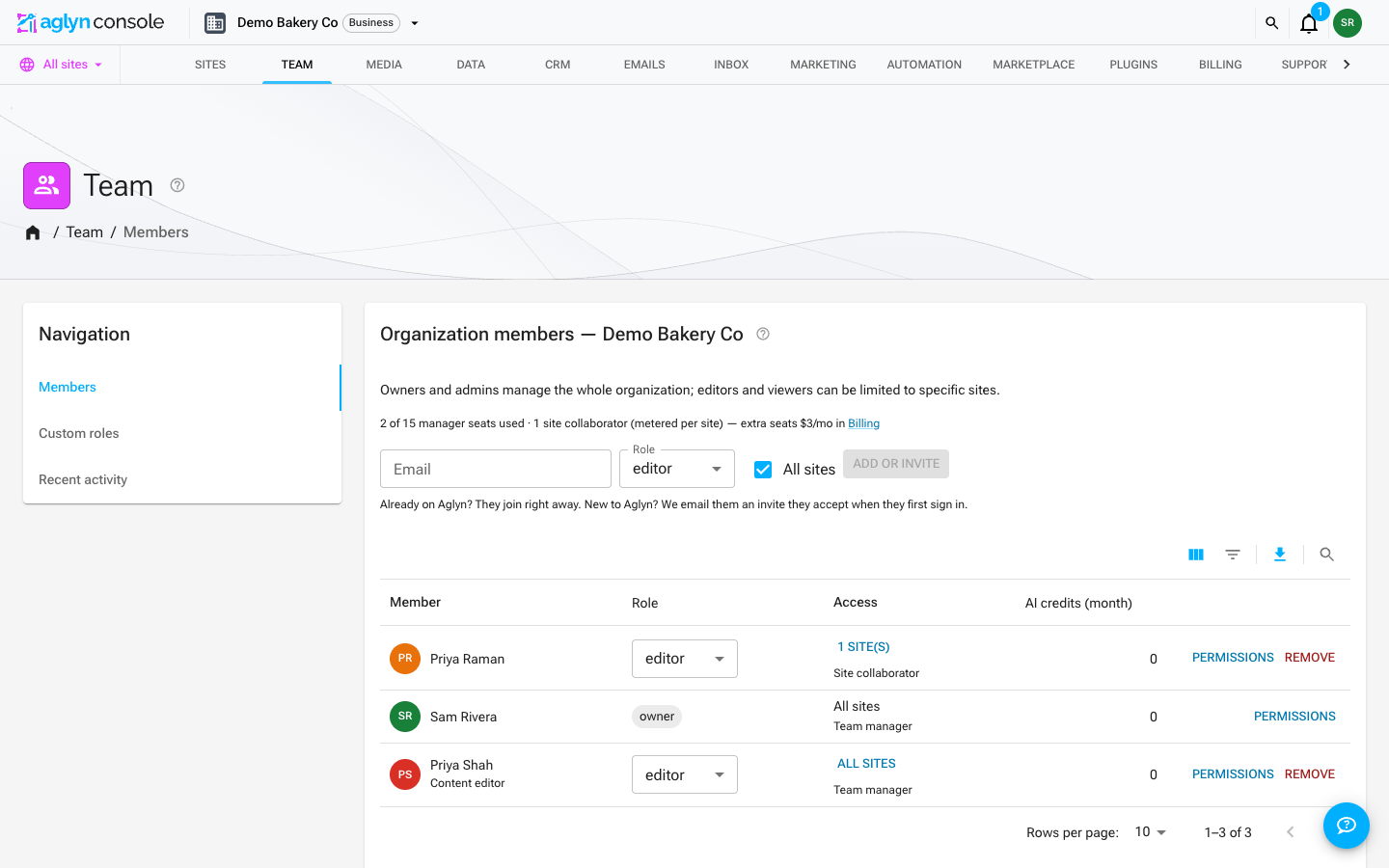
Create a custom role
- On the organization Team page, find the Custom roles card and choose New role.
- Give it a name and set each permission to granted, denied, or inherit (inherit falls back to the member's org role default).
- Save, then assign it to members from the roster's Custom role column.
The permission catalog covers organization settings, the activity log, billing (view and manage separately), member management, site creation and deletion, organization data, marketplace publishing, plugin installs, and the two AI keys.
The AI permissions
Two keys decide who may spend the workspace's AI credits:
| Permission | What it opens | Owner / Admin | Editor | Viewer |
|---|---|---|---|---|
Use AI assistance (ai.use) | The assistant, copy rewrites, and "generate a section" in the Besigner | Yes | Yes | No |
Generate with AI (ai.generate) | AI generation jobs and AI edits — pages, components, emails, campaigns, products, CRM, insights, workflows | Yes | Yes | No |
Both are ordinary catalog keys: a custom role can grant or deny either, and a per-member override wins over the role. They are enforced at the AI endpoints themselves — a member whose role lacks a key is refused with a message naming it and asking them to see an organization admin, whichever button they reached it by. A viewer may not ask the assistant even on the Free plan, so an admin can switch AI off for a read-only teammate without changing their role.
Site collaborators are not decided by these keys. Their AI access is set per site, from the site role — see AI access for collaborators.
Permissions are enforced on the server — every one of them is checked by the API that performs the action, not merely used to hide a button — so a role reliably limits what a member can do, whichever route they reach it by. Members without billing or settings permissions don't see those tabs at all either.
There is deliberately no permission for marketing surfaces (announcement bars, popups, campaigns). Those belong to a site, not to the organization, and access to them follows the member's role on that site — see Site access. An organization-level toggle would suggest a control the model does not have.
Effective permissions
Not sure what someone can actually do? Every member row has a Permissions viewer that resolves their org role defaults, custom role, and per-member overrides into the final yes/no grant list.
Per-member overrides
Need one person to have slightly more (or less) than their role? Apply a per-member override on top of the role instead of creating a whole new role for one exception.
Tips
- Model roles around jobs ("Editor", "Marketer"), not individuals.
- Use overrides sparingly — too many overrides make access hard to reason about.