Product catalog
The catalog (AGL-276) is the foundation of Aglyn commerce: every storefront block, checkout, and order line points back at these documents.
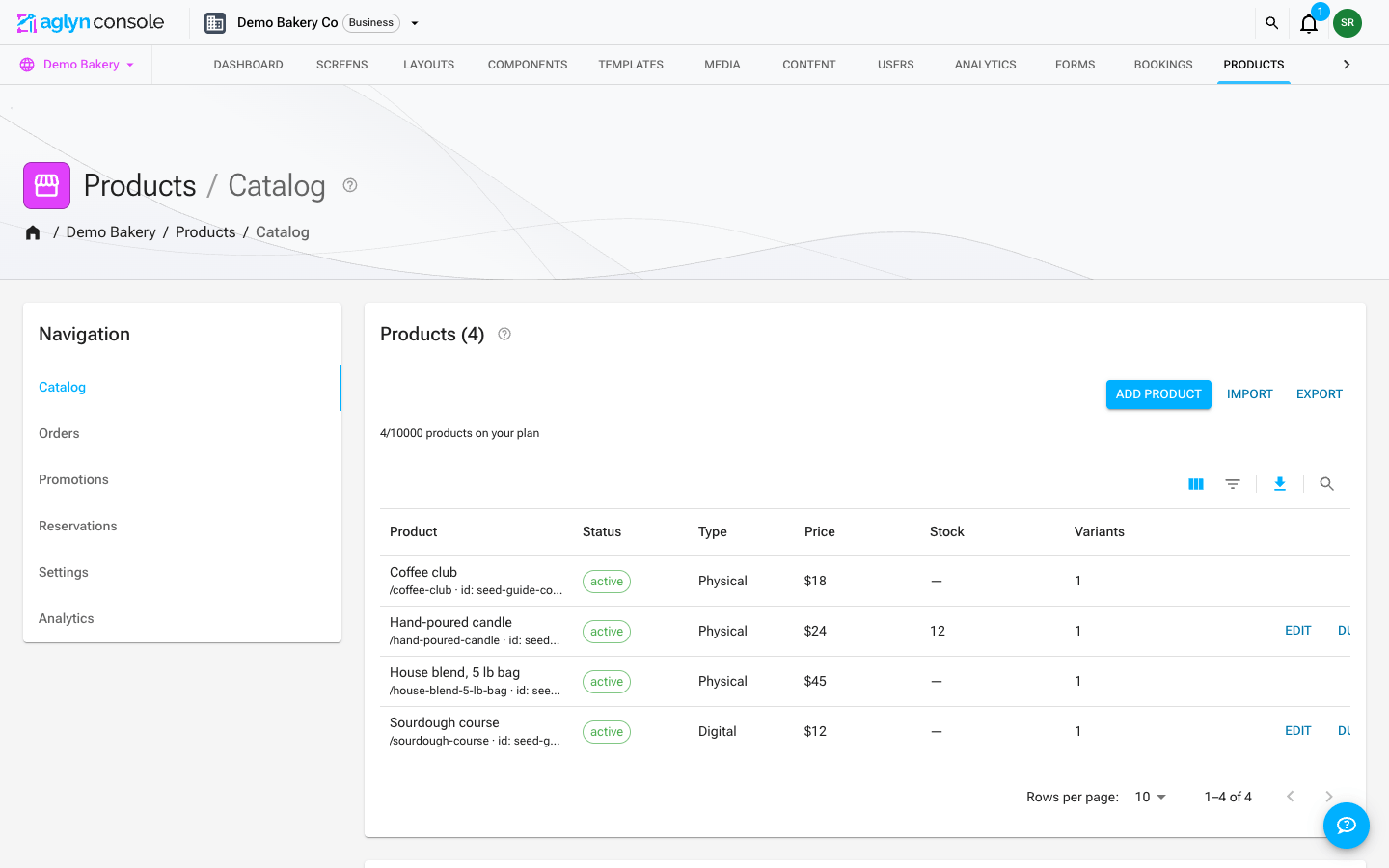
Products, options, and variants
A product is what you manage; a variant is what a customer actually buys. Products define up to 3 options (like Size or Color, each with up to 25 values), and the products hub expands them into a variants matrix — up to 100 variants per product, each with its own SKU, barcode, price, compare-at price, weight, image, and inventory count.
- Types:
physical(shippable),digital(delivered as downloads), orservice. - Status:
draft(invisible to visitors),active, orarchived. A product created for you rather than added in the editor — a proposed product, for one — starts as a draft with no photo, and its price stays empty unless one was given. It counts toward your plan's product allowance like any other product. - Pricing: a variant with a compare-at price above its price shows a sale badge on storefront blocks.
- Inventory: leave blank for untracked,
0means sold out — the same semantics the original product block used. Stock is not tracked on a digital or service subscription-only product: nothing decrements it, on the first charge or on any renewal, so the field is disabled there. A physical subscription tracks normally — every paid cycle decrements one unit per box shipped — and Both — buyer chooses keeps tracking on the one-time sales.
Products created with the earlier single-price product block are lifted into this model automatically as a single default variant — nothing breaks and no migration step is needed.
Billing modes and subscriptions
Each product's Billing setting picks how buyers pay:
- One-time purchase (default) — a normal order.
- Monthly / Yearly subscription — buyers subscribe instead of buying
once; the product page prices as
$X/moor$X/yr, the buy button reads Subscribe, and an optional free trial (in days) can precede the first charge. An active subscription is what members-only content checks. - Both — buyer chooses — the product page shows a one-time / subscribe toggle (same price either way, at the interval you pick) and defaults to one-time. The choice is validated server-side against the product: a one-time sale here is a plain order, while the subscribe choice creates a recurring subscription exactly like a subscription-only product.
Selling subscriptions (including the subscribe side of Both) requires a plan with storefront subscriptions (Business and above). Subscription billing applies to the product page's direct checkout — cart checkouts always charge one-time.
Whether a subscription moves stock follows the product's Type. A
physical subscription decrements one unit per paid cycle — the first
charge and every renewal each create an order on the Subscription
channel and take the box off the shelf, so the stock field stays live and
low-stock alerts apply. A digital or service subscription never moves
stock, and the stock field is disabled there; any number already saved is
kept and shown, but it does not cap subscribers and will not change on its
own. A saved 0 still stops new subscribers, so clear it (Clear stock
on the notice in the editor) if that is not what you want. On a Both
product the stock field stays live, because the one-time sales do
decrement it.
Write and propose with AI
Aglyn AI can write a product's description, search listing and tags from what it says and shows, write copy for many products or an import at once, propose a first catalog from a brief, and propose categories and discounts. Every proposal is reviewed before it is saved. Proposed products are created as drafts with their prices left empty, and proposed discounts are created switched off. See Products with AI.
Categories and tags
Categories are hierarchical (each may have a parent) and slugged for URLs. Tags are free-form labels. Both drive storefront filtering and smart collections.
Collections
Collections group products for landing pages and storefront blocks:
- Manual collections are an ordered, hand-picked list.
- Smart collections define rules — match by tag, category, price, name, or product type, with all or any semantics — and membership updates automatically as products change. Draft and archived products never appear. A smart collection lists every product that matches, however large the catalog. Saving or deleting one updates which products it holds right away. On a big catalog that can take a few seconds after Collection saved appears.
On a Product grid scoped to a smart collection, the grid's search box and its category and tag chips can't be combined with the collection when a rule says a product's tag or category is something, or when the rules are ones a single query cannot ask: any across two or more rules, a tag or category that is not, a name, a price above or is, or more than one tag or category. Using one of those controls shows a notice above the grid instead of narrowing it. The type, In stock and price controls still work, and a collection built only from type is or is not rules and a price below keeps every control. A price below rule is a price range, so that collection's grid is in price order — high to low if that is the sort chosen, low to high otherwise.
Slugs
Products, categories, and collections each have a host-unique slug used in
storefront URLs (/products/{slug}, /collections/{slug}). Slugs are
lowercase letters, numbers, and dashes.
Google Merchant Center feed
Your catalog is published as a product feed for Google Merchant Center, and for Meta, TikTok, Pinterest, Snapchat and Microsoft Shopping too. Each channel has its own feed address and setup steps under Products → Settings → Sales channels; see Sales channels.
Related
- Sales channels
- Commerce overview
- SEO — products emit structured data and join the sitemap automatically.