Commerce
Aglyn commerce sells from your own Stripe account: buyers pay you directly, and Aglyn collects a per-sale platform fee set by your plan (see Platform fees — the fee falls as you upgrade, to 0% on physical goods from Pro and on everything from Advanced).
Paid. Starter sells up to 100 products (2% physical / 5% digital fee). Higher plans raise the product limit and lower the fee: physical goods carry no platform fee from Pro up, while digital and service products carry 3% on Pro, 2% on Business, 1% on Scale and 0% from Advanced up.
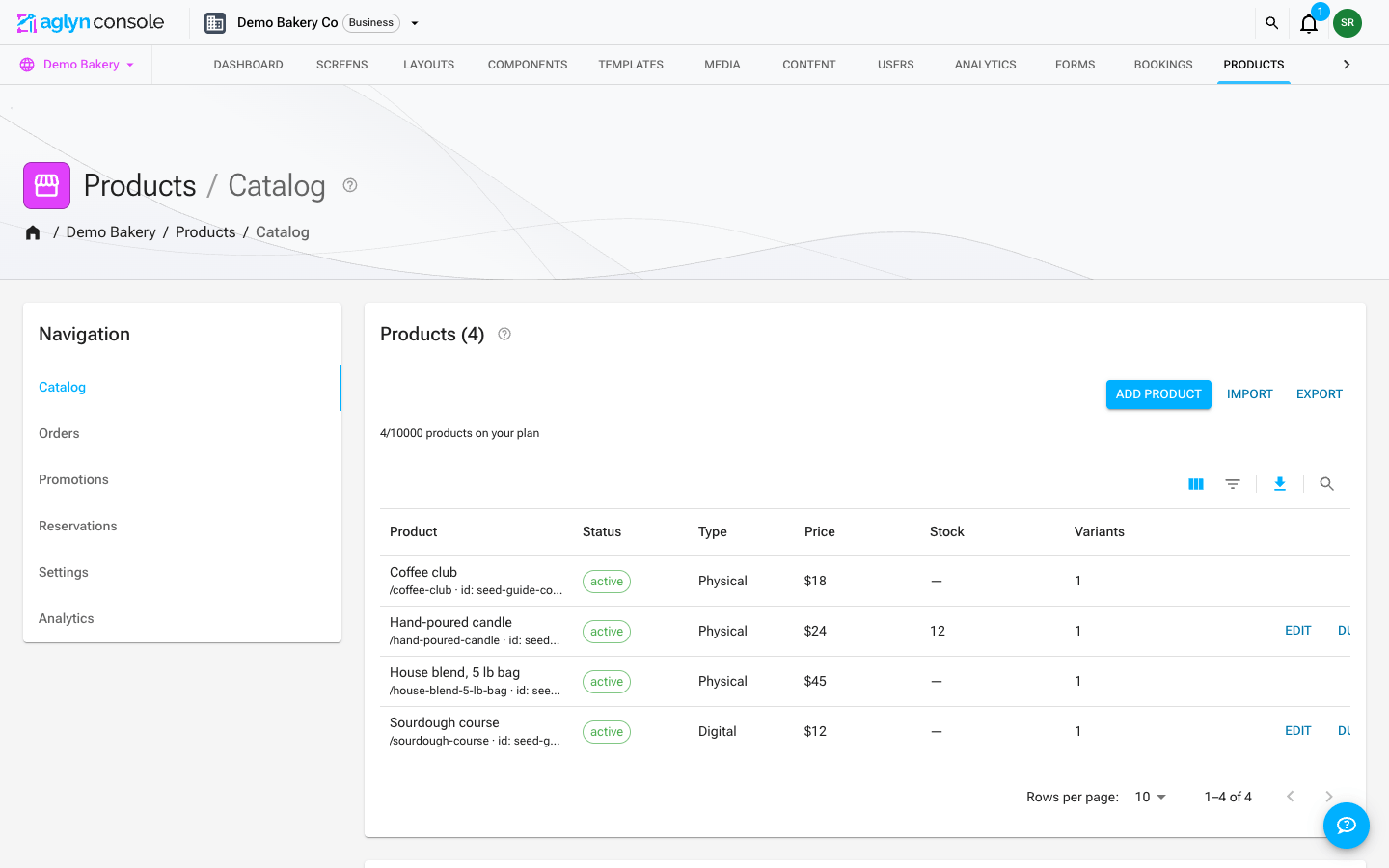
Products hub
The Products page is the catalog manager:
- Products with up to 3 options and 100 variants each — per-variant SKU, barcode, price, compare-at (sale badge), weight, and stock. See Product catalog.
- Categories & collections — a category tree plus manual and smart (rule-based) collections with a live match preview.
- Import and export: a Shopify product export uploads as it is, a product a file matches by handle or SKU is updated, and every step shows its choices and a dry run first. Gift cards move over by issuing each card. Products, categories, orders, discounts, coupons and gift cards export with the fields you pick. See Import and export store data.
- Payments — Stripe Connect onboarding status and your plan's fee ladder.
The product list filters through its own toolbar, and every filter and the search reach the whole catalog, not only the rows on screen. The list is in name order and pages through whatever matches.
- Search matches the start of a word in a product's name, using the first word you type.
- Filters offers Product (the name contains a word, is, or starts with), Status (Active, Draft, Archived), Type (Physical, Digital, Service), Slug, SKU and Barcode. A SKU or barcode is matched whole, the way you copy or scan it; is any of takes several, separated by commas.
Filters combine. The one exception: the search, a Product contains filter, and a SKU or Barcode filter each look a word or code up in a list, and only one of those lookups can apply at a time. The list says which one it set aside, above the table, rather than applying it to some products and not others. Each filter in force shows as a chip above the table; remove the chip to clear it. See Filter and search a list.
Export writes every product the filters and search match, in the same order — up to 10,000 in one file. With nothing filtered, that is the whole catalog except deleted products.
Inventory
- Per-variant stock; blank = untracked, 0 = sold out.
- Oversell policy per product: stop selling or allow backorders.
- Low-stock alerts notify managers once per threshold crossing.
- Adjustment history with reason codes (sale, restock, correction…).
- Locations split stock across warehouses/storefronts (plan-capped); adjustments and POS sales bucket per location.
- Reserved in checkout holds units for a shopper who has reached the payment page, so the last one cannot be sold twice.
Reserved stock
When a shopper reaches the payment page, the units in their basket are reserved — the next shopper is offered what is left, not the same unit. It is what stops two people paying for the last one.
Your stock count does not move when a unit is reserved. A reservation is a
promise, not a sale, and the count means what is on the shelf. The products
list names the difference instead: 3 (1 reserved) is three units on the shelf
with one of them spoken for, so two are available to buy right now.
A reservation is released when the shopper pays (the count moves then), when they abandon the checkout, or after 31 minutes, whichever comes first. A checkout page left open expires on its own, so nothing stays reserved by someone who walked away.
Two cases reserve nothing, deliberately: a variant with no stock tracking has no number to reserve against, and a product set to allow backorders is one you have told us to keep selling past zero.
Sales at the register are not affected — the till never refuses a sale, because the shelf in front of the cashier is the truth.
Stock movements
Inventory → Stock movements is the history behind every tracked count — the answer to "the shelf says four and the console says six, what happened?"
Four things write to it and they all appear in one list, newest first: a paid sale, a canceled order putting stock back, a point-of-sale sale at the register, and any hand adjustment you make from the products hub (a restock, a correction, damage or a refunded return). Each row carries when, which product (and variant, when the product has options), how much the count changed, the reason — Sale, Refund return, Restock, Correction, Damaged, Order canceled — and the source that wrote it.
The table's toolbar narrows it: Filters offers Product and Reason (is, or is any of), When (a date or a range of dates), Order by its id, and Location, picked from your locations. Each filter in force shows as a chip above the table; see Filter and search a list. There is no search box: a movement names its product by id, so you pick the product from the Product filter instead.
Every filter reaches the whole history, however far back it goes, and the pages under the table are pages of the answer. The Product filter offers the first 500 products of your catalog to pick from. A combination too large for one query — many products and many reasons at once — is not applied, and a notice above the table names the filter it left out.
A row shows two numbers when they disagree. The first is the change that was asked for; the second is what the count could actually give up. They differ when a product with backorders allowed sells past zero — three sold against a count of zero moves the count by nothing, and both numbers are shown so the discrepancy is legible rather than silently rounded away.
Gift cards & store credit
Gift cards lists every card your store has issued, what is left on each one, and what that adds up to. Business plan and above.
Cards arrive two ways:
- A shopper buys one. A gift-card purchase mints a card with a code at the moment the payment settles.
- You issue one by hand. Enter an amount and, optionally, an email address and the code is created and mailed to that person. This is the goodwill gesture and the service-recovery path — a refund you would rather keep as store credit.
- You import them. Moving from another platform, Import issues one card per row of a file, under the codes your shoppers already hold, once you have typed back the total. Owners and admins only. See Import and export store data.
Balances apply automatically at checkout; a shopper enters the code and the
card is drawn down by what the order uses. Search by code or email finds a
card anywhere in the list, not only on the page in front of you: type the start
of its code (with or without GC-) or a word of the recipient's address. Search
matches one word at a time and reads the first 12 characters of it.
The outstanding total at the top is money customers have already paid you and have not yet spent. It is store credit you owe against future orders, and it belongs on the liability side of your books — not in a sales figure. Cards are counted at zero or above, so a card that has somehow gone negative cannot flatter that total downward.
Voiding a card zeroes whatever is left on it. The holder can no longer redeem it and the action cannot be undone, so you are asked to confirm the remaining amount first.
Recovery & alerts
Two queues the storefront fills and Aglyn drains for you, both visible so you can see they are moving.
Abandoned checkouts — a shopper who reached checkout, entered their email and left. Aglyn emails them once, with a link back to the cart they had built, about fifteen minutes after that checkout has been idle for an hour. A checkout that gets completed stops reminding itself, and one that is never completed is given up on after seven days. The card shows how many are due a reminder, how many are still inside the first hour, and how many have already been reminded, with the five most recent open checkouts named. Pro plan and above.
Back-in-stock alerts — anyone who used "Notify me when it's back" on a sold-out product is emailed once its stock goes above zero. The count of shoppers waiting is a demand signal worth restocking against. Available on every plan that includes commerce.
Every figure is counted across the whole queue, however long it is, and counted again when a checkout changes. Until a count arrives its chip shows a dash rather than a zero.
Both are read-only here on purpose. Sending is the scheduled job's to do, and a "send now" button would race it for a reminder you cannot un-send.
Orders
Every paid checkout becomes an order with a sequential number, line-item snapshots, totals, and a timeline:
- Statuses: pending → paid → fulfilled (or partially) → delivered, with cancel/refund exits guarded by a status machine. The seven of them, and the labels the console shows, are in Statuses and channels.
- Fulfill with tracking, print packing slips, add internal notes.
- Refunds (full or partial) go through Stripe and reverse the platform fee. Refunding needs the admin role and organization-wide membership — a workspace owner or admin, or a member given access to every site. A collaborator invited to this one site is an admin of the site, which is enough to run the till and fulfill orders but not to send money back out of the business.
- Chargebacks are shown apart from refunds. When a shopper disputes a charge with their bank, the order gets a Chargeback open badge and the list warns you with the date Stripe needs your evidence by — answer it in the Stripe dashboard, because an unanswered dispute is decided for the shopper. If the dispute is lost the money is reversed, the order reads Charged back rather than Refunded, and the buyer loses the downloads, membership and verified-purchase review a refund would have withdrawn. A dispute you win reverses nothing. Filter the list by Disputes to find either.
- Draft orders: build an order in the console and send the buyer a payment link (Shopify parity). Requires an active plan with commerce — see the note below.
The Orders page
Open your site's Products hub and choose the Orders tab. Before your first sale the tab is an invitation rather than a table: it explains where orders come from and offers Draft order, so you can invoice a customer you already have. The table and Export orders appear once there are rows to filter.
The table filters through its own toolbar. Search matches the start of a word
in the order number (1042 or #1042), the buyer's email address (jane, acme,
acme.com) or the name of any item on the order. It reads one word at a time.
Filters offers:
| Filter | Choices |
|---|---|
| Order | The order number, or its start, typed. |
| Product | One or more products — matched against every line item, so carts, POS and draft orders are found too. The choices are your first 100 products. |
| Date | On, before or after a day — the order date. |
| Status | One or more of the seven below. |
| Channel | One or more of the four below. |
| Customer | is a whole email address, or contains part of one — acme.com finds every buyer at a company. Filled in for you when you arrive from a contact's page in the CRM. |
| Disputes | Open dispute, Charged back, Dispute won or Dispute closed. |
Each filter in force shows as a chip above the table; remove the chip to clear it. The filters and the search run across every order in the store, newest first, and the footer pages through what they match; see Filter and search a list. The search, Customer contains, Order and Product can't be combined with each other: add a second one and a notice above the table says it is not applied, rather than showing a partial answer. The same notice refuses is any of choices across Product, Status, Channel and Disputes that multiply past thirty combinations. Beside the table, Export orders writes every order the filters and the search match, however many there are, with the fields you pick (see Import and export store data), and Draft order builds an order by hand and sends the buyer a payment link.
Disputes is its own filter, not a status. An open dispute sits on an order that is still Paid, and a lost one sits on Refunded beside every ordinary refund, so folding either into Status would make that control select the wrong rows.
The table has six columns:
| Column | What the cell holds |
|---|---|
| Order | The order number, with the first line item underneath — Blue Mug +2 more when there is more than one. |
| Customer | The buyer's email, or — when there isn't one. |
| Channel | Online, POS, Draft or Subscription. |
| Total | The net amount — what you charged, less anything refunded. |
| Status | The status pill, plus a dispute chip and its evidence deadline when there is one. |
| Date | The order date, with the time underneath. |
Total is net, and this is the column to read carefully. A $100 order with a $30 refund shows $70, and a second line appears under it reading $100.00 less refunds — the gross figure, so you can see both without opening the order. An order with no refund shows one figure and no caption. Reconciling against a Stripe payout means reading the caption, not assuming the big number is what was charged.
Clicking a row opens the order's dialog. When the order carries the buyer's address,
the dialog offers View customer in CRM — the CRM's
Contacts list asked for that address, which moves straight on to the person's record.
The CRM links back: Open order on a captured entry of a contact's timeline opens
this list with that order's dialog already open (?order={id}), reading the order on
its own when it is not on a page the list has loaded, and the order count on
the contact's header opens this list filtered to their address.
Statuses and channels
Statuses render as colored pills, and the color is part of the message:
| Status | Pill | Color |
|---|---|---|
pending | Pending | Neutral gray — an unpaid order is not a problem, it is not money yet. |
paid | Paid | Green. |
partially_fulfilled | Partly fulfilled | Amber — something is still owed to the buyer. |
fulfilled | Fulfilled | Blue. |
delivered | Delivered | Blue. |
cancelled | Canceled | Neutral gray. |
refunded | Refunded | Red. |
The left column is the value in the API and the CSV; the middle one is what the
console shows. They differ in one place — partially_fulfilled displays as Partly
fulfilled — so a filter or a script written against the label will miss it.
Red and gray are reserved deliberately. Canceled and refunded are the states worth spotting in a scan of fifty rows, and coloring pending as a warning would spend that attention on orders that are merely young.
Four channels say where the sale came through:
| Channel | Label |
|---|---|
online | Online — the storefront. |
pos | POS — the in-person register. |
draft | Draft — an order you built and invoiced. |
subscription | Subscription — one order per paid cycle of a physical subscription product. |
The money tiles
Three figures sit above the table: Revenue · 30d, Orders · 30d and Avg order value. Each carries a percentage change measured against the previous 30 days — hover it for that caption.
The tiles need the commerce analytics entitlement — Pro and above. The table itself is not gated: a list of your own orders is not a paid feature, and every filter, the CSV export and draft orders work on any plan that can sell at all.
Two behaviors here look like bugs and are not:
- Pending and canceled orders are left out of the tiles. Neither is money: one has not been paid and the other never will be. So the tile count can be lower than the number of rows you are looking at. Refunds are handled differently — they are subtracted rather than dropped, so a refund inside the window pulls revenue and the delta down, which is the point of showing them.
- A tile with no prior period shows no percentage at all — not
+100%, not+0%, not a dash. A first sale has no growth rate, and every way of drawing one is a claim that isn't true. The same rule governs the traffic delta in analytics.
The tiles read the last 60 days of orders on their own, apart from the table and its filters, up to the 500 most recent — the same bound as the commerce analytics card. A store past that many orders in 60 days is reading a slice, and a line under the tiles says so. Use Export orders and your Stripe payouts to reconcile; use the tiles to see which way the last month went.
If a dispute is lost, the money comes back out of your payout
Worth knowing before it happens, because it is money leaving an account you already received it into:
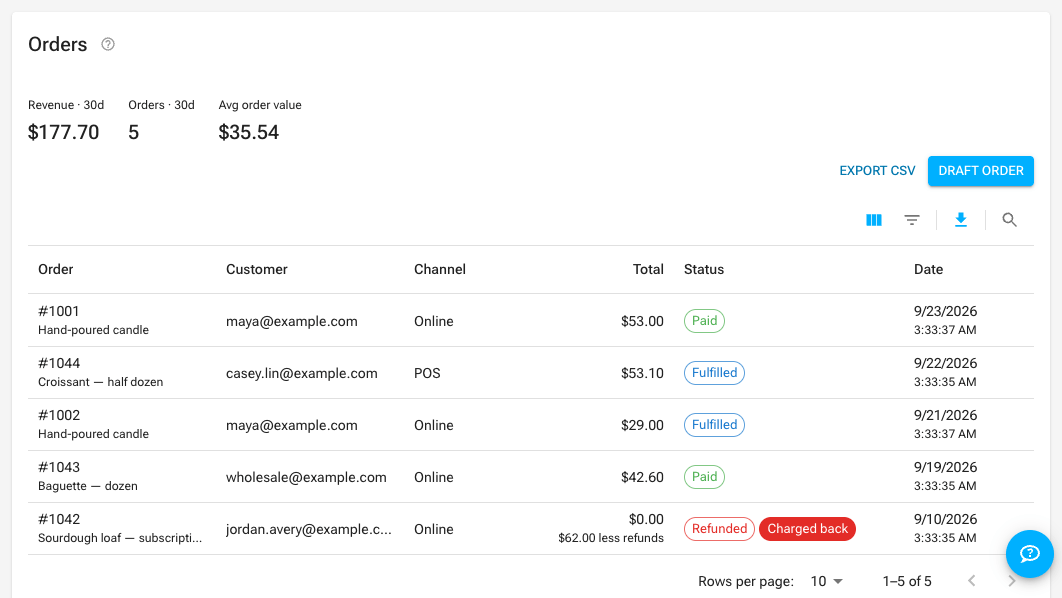
The order keeps its Refunded status and gains a Charged back badge beside it — the pair is deliberate. The money did leave, so the order is refunded; the badge is what tells you the merchant did not choose it.
- The sale was paid out to you at the time of the charge. When a dispute is lost, that payout is reversed — the amount is pulled back from your connected Stripe account, not absorbed by Aglyn.
- The full sale amount comes back, not the amount after our commission. On a $100 sale you received $95 and Aglyn kept $5; a lost dispute pulls back the whole $100, because that is what the shopper's bank took. This is the same treatment Shopify, Etsy, eBay, PayPal and Square apply to a chargeback, and it is different from a refund you issue yourself — on a refund, Aglyn's commission is returned to you.
- Aglyn pays the dispute fee. Card networks charge a fee (around $15) on every lost dispute on top of the sale amount. That one is ours, not yours, and it never appears on your order or your payout.
- You are notified when the reversal happens, so the first you hear of it is not a shortfall in a payout you were expecting.
- The reversal can push your Stripe balance negative if you have already been paid out and nothing new has come in. Stripe recovers a negative balance from your next payouts; it does not ask you for money. It does mean your next payout can be smaller than the sales behind it, which is normal and not an error.
- Answer disputes promptly. An unanswered dispute is decided for the shopper by default, so the deadline on the order row is the whole game. Evidence is submitted in the Stripe dashboard.
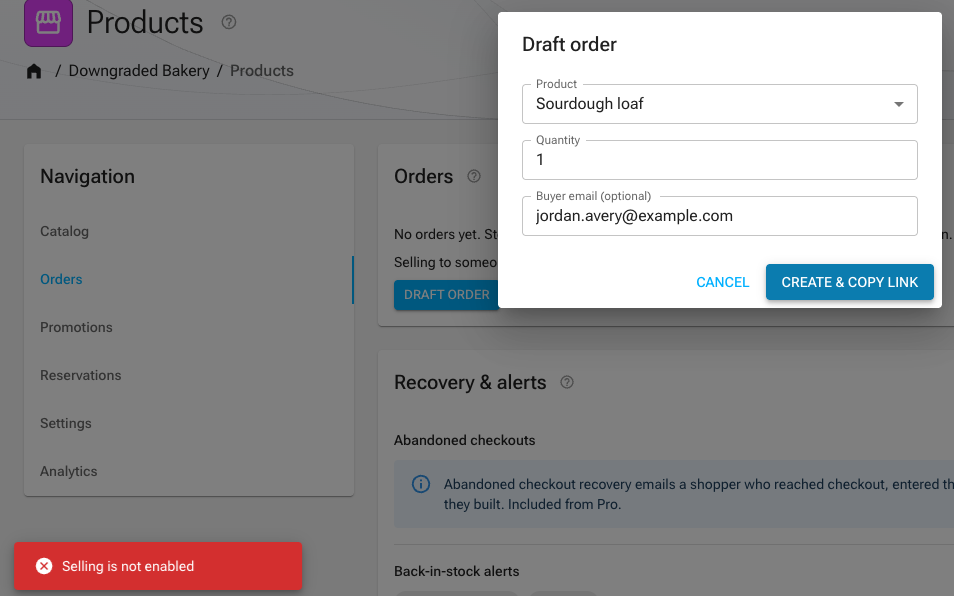
Storefront checkout, POS, draft orders, and reservation deposits all check your plan at the moment of the sale, not just when the feature was switched on. If your plan lapses or you move to one without commerce, these answer "Selling is not enabled" and stop creating payment links — even though the commerce plugin is still enabled on the site. Turning the plugin on is your switch; including commerce is your plan's. See downgrading.
Shipping & taxes
- Shipping zones own countries ('*' = rest of world); rates are flat, free-over-subtotal, or subtotal/weight tiers; optional local pickup.
- Taxes: manual per-region rates (state beats country, VAT-style inclusive pricing supported) or Stripe Tax automatic calculation; products can be tax-exempt.
Lodging tax on reservations
A stay is not goods. The sales-tax settings above configure a goods rate resolved against an address; occupancy (lodging/hotel) tax is a separate regime with its own rates, its own registration and its own return, so reservations do not use them.
Commerce → Settings → Taxes → Lodging tax is where you set your own rate for it. It is off by default — leave it blank and reservations charge no lodging tax, exactly as before.
When you set a rate, Aglyn adds it to the reservation charge as its own receipt line using the label you choose, and records the amount and the rate on the reservation. It is always your own rate: Stripe Tax cannot compute occupancy tax from a reservation session, so a store using Stripe Tax for goods still sets this one by hand.
Aglyn applies the rate you enter and records what was charged. It does not determine whether lodging tax applies to you, at what rate, or where it should be paid. Confirm your obligations with a qualified tax professional.
Deposits. A reservation usually charges a deposit rather than the whole stay, and the rate is applied to the amount actually charged — the deposit. Aglyn does not decide whether your jurisdiction wants occupancy tax on the full stay at booking, on the deposit, or at check-out. If tax is due on more than the deposit, collect the difference the way you collect the rest of the balance.
Storefront sales tax
Analytics → Storefront sales tax shows what your storefront collected in a period. Until this existed, the number was recorded on every taxed sale and shown to you nowhere — you could open one order at a time and read its Tax line, and that was all.
The report groups the figures by how each was calculated, and never adds them together:
- Tax Stripe calculated against Aglyn's registrations — automatic tax was on, Stripe computed the rate against registrations on Aglyn's platform account, and Aglyn holds what was collected.
- Tax your store calculated at your own rate — automatic tax was off, and the rate came from the tax settings you configured, applied to your own declared origin.
- Tax Stripe calculated against your connected account — automatic tax was on and Stripe named your connected account as the liable party.
Each group breaks down by jurisdiction, with the sales, the taxable base Stripe stated, and the tax.
For storefront sales Aglyn acts as a marketplace facilitator, and where applicable law gives Aglyn a collection obligation it calculates, collects and remits that tax itself — added on top at checkout, held by Aglyn, and never transferred to your connected payment account. That is the first group above. Tax your store calculated at your own rate, and tax Stripe named your connected account liable for, stay yours.
Aglyn still does not print a per-jurisdiction verdict for your business: Terms of Service §10.7 binds Aglyn only where it actually has an obligation for the transaction in question, which is a per-sale test rather than a fact about a merchant. Confirm your obligations with a qualified tax professional.
Two things the figures do not yet include, both stated on the card itself:
- Refunds are not reflected. A refunded sale keeps its full tax, so the figures over-state whenever you have refunded in the period.
- A sale whose taxable base Stripe did not state is counted in the tax total but not in the taxable base, and the card says how many.
Destination coverage
Checkout collects a shipping address for six countries — United States, Canada, United Kingdom, Australia, Germany and France — and charges the rate that destination resolves to. It will not charge a rate belonging to another zone, so the zones you save decide what checkout can do:
- A destination no rate reaches is refused. The shopper is told the store does not ship there, rather than being posted a parcel you priced nothing for. The Coverage line under Shipping settings names those countries as you edit, and offers to add a rest-of-world zone.
- Rates that differ by destination make checkout ask. The cart and product page reveal a "Ship to" selector before they can price one. A single zone, or a single rest-of-world zone, asks the shopper nothing.
- No rates at all is a valid setup, not a gap: the store charges no shipping and refuses nobody.
- Payment links price a parcel too. A draft order you invoice a customer for charges the same rates, collects the same address, and asks you the same "Ships to" question in the draft dialog when your rates differ by destination.
- In-person sales charge no shipping. A register has no destination to price against — cash, card and room-folio sales all settle at the counter — so a POS sale is items and tax. Raise a draft order for anything you post.
A zone that names a country hides the rest-of-world zone for it — so a
"Europe" zone with no rates on it refuses Europe even when a * zone exists.
Cover a destination by pricing a rate on the zone that claims it.
Dropshipping
Assign a supplier to a product and paid orders route automatically — by email and/or HMAC-signed webhook — with a token link the supplier uses to post tracking back, which fulfills the order. Pro plan and above.