Actions builder
When you just need "when X happens, do Y", the actions builder is faster than a full workflow. It maps one event to one action.
Basic interactions are on every plan (including Free): menu and drawer open/close, show/hide an element, toggle a CSS class, sticky nav, navigation, and site alerts — pure in-page effects with no server cost and no metering.
The automations engine — server-side steps, custom JS, analytics events, and Marketing overlays — is Pro+, with metered runs. You build both in the same place; steps that need a higher plan are labeled in the editor.
Create an action
- Open the actions builder from Automation → Actions.
- Choose the event (the trigger).
- Choose the steps to run in response.
- Save.
That's it — no multi-step logic to manage. Reach for a workflow when you need several steps, branching, or composition.
Start from a recipe
Beside Add action, the Recipes menu lists four ready-to-edit CRM automations: Welcome a new lead, Follow up a won deal, Re-engage a stale lead and Tag by form. Choosing one opens the same editor already filled in — trigger, conditions and steps — with a line saying which recipe it started from; change anything, then save. Nothing is saved until you do. Tag by form asks for one of this site's forms first, because the trigger is keyed on it. What each recipe builds, step by step, is in Automations for the CRM → Recipes. An organization with several sites can also install a recipe on any of them, without the editor, from the organization's CRM → Settings → Recipes.
Create with AI
Beside Recipes, Create with AI drafts an automation from a sentence, using only the triggers and steps your plan includes. The draft arrives in the list switched off, with anything your site is missing left in square brackets for you to fill in. A saved automation's editor also has Explain it, a saved action's has Change with AI and Fix with AI — each drafts a changed copy, switched off, and leaves the action as it is — and a failed run has Why did this fail?. See Automations with AI to draft, change, fix or explain one.
Triggers
Beyond server events (form submissions, page views, sign-ins, leads, bookings), actions can fire on visitor behavior in the page:
- Scroll depth — the visitor scrolls past a percentage.
- Scroll to / element visible — a CSS-selected element enters the viewport.
- Element click — a CSS-selected element is clicked.
- Exit intent — the pointer leaves toward the top of the window.
- Time on page — a dwell-time threshold passes.
- Page visit — the page loads.
Page triggers can be limited to certain paths (/pricing, /blog/*), and a
Frequency setting controls re-fires: every matching pageview, once per session,
once per visitor, or with a cooldown (a minimum number of minutes between fires
for the same browser).
Every switched-on automation listening for an event runs when it fires, however many the site has — a site with an auto-reply for each of a dozen forms runs every one whose conditions match.
CRM events
Six server events come from the CRM —
two about contacts, three about deals and one about tasks — and a seventh, New lead,
from its leads. Pick one and the Filter field's helper text lists the keys below, so
a condition such as lifecycleStage equals customer or source equals booking
can be written without leaving the editor.
| Event | Fires when | Keys in scope for filters and conditions |
|---|---|---|
Contact created (contactCreated) | A capture on your site makes a new contact: a form submission, a member sign-up, a newsletter subscription, an order or a booking from an address your workspace did not already hold. A repeat visit by somebody already on the list is recorded as an interaction and does not fire it. | contactId · email · name (empty when the capture had none) · source (form, member, newsletter, order or booking) · hostId · lifecycleStage (the stage the capture set — lead, subscriber or customer; empty when it set none) · campaignIds (comma-joined; present only when the capture came through a campaign) · formId (present only when the capture came through a form — the key Tag by form conditions on) |
New lead (lead) | A capture files a new lead: a form with lead routing on, or a booking request, from an address the workspace holds as neither a lead nor a contact. Such a form makes a lead and no contact, so Contact created does not fire for it. | leadId · email · name (empty when the capture had none) · source (form: and the form's id, or the door's word) · hostId · formId (present only when a form filed the lead) · campaignIds (comma-joined; present only when the form is filed under a campaign) |
Contact changed stage (contactStageChanged) | A contact's lifecycle stage is moved — from the contact's page or with Set stage on the contacts table in the console, or by a Set the contact's lifecycle stage step in another automation. Setting the stage a contact already has fires nothing. | contactId · email · lifecycleStage (the new stage) · previousStage (empty when the contact had none) |
Deal moved (dealStageChanged) | A deal moves between open stages, or is reopened — from the board, the deal's page or the REST API. | dealId · title · amountCents · currency · stageId · previousStageId · ownerUid · contactId · companyId |
Deal won (dealWon) | A deal is marked won. | The same keys as Deal moved. |
Deal lost (dealLost) | A deal is marked lost. | The same keys as Deal moved, plus lostReason. |
CRM task completed (taskCompleted) | A task is ticked done — from the Tasks list, a record's Tasks card or the dashboard card. Reopening fires nothing. | taskId · title · kind · priority · dueAtMs · completedAtMs · completedByUid · assigneeUid · createdByUid · contactId · companyId · dealId · taskHostId |
An event fires because the server path that performed the write announced it; nothing watches the database for changes. Every capture door on your site, the console's stage control, a deal's stage moves and a task's completion all go through the server, so in ordinary use every one of these is announced. Contacts added by hand in the console, imported, or created through the REST API are written without an announcement and fire nothing.
Funnel events
| Event | Fires when | Keys in scope for filters and conditions |
|---|---|---|
Left a funnel (funnelLeft) | A person who submitted a form on your site reached a funnel step that an automation follows up on, and had not reached the next step after the wait. Once per person, funnel, step and wait; never for an anonymous visitor. Act on this drop-off on the Funnels card drafts an automation on it, switched off. | funnelId · funnelName · step (the step reached, from 1) · stepLabel · nextStepLabel · afterHours (the wait) · email |
Only run when a field matches
Every action can carry a condition over the event's payload — for form submissions, that's the submitted field values. Pick an operator in the "Only run when" select:
- A field is not empty — e.g. the
subscribecheckbox was ticked. - A field equals… — an exact match (trimmed, case-insensitive), e.g.
planequalsPro. - A field contains… — a partial match, handy for checkbox groups that submit
all ticked options joined with
,(e.g.topicscontainsPricing). - Form is… — on an event that names the form (Form submitted, Contact
created, New lead), pick one of the site's forms. It is stored by the form's id
(
formId), so renaming the form never stops it matching, where a condition onformNamewould. An automation whose Form is names a different form from the one just submitted is passed over quietly — a site with one auto-reply per form gets one run row per submission, not one per form.
When the condition isn't met the action is skipped, and the skip is recorded: the
run history gets a Skipped row naming the field or fields whose
condition stopped it — "Condition on marketingConsent, plan not met". That row is the answer
to "why didn't my automation fire?", and it sits in the same place as the runs that did
fire. A skip still doesn't count as a metered run: nothing executed, so nothing is
charged.
Conditions are the no-code sibling of the free-text Filter expression (both must
pass when both are set). A filter runs the automation when it is truthy: a field name
such as subscribe runs it when that field is filled in, and arithmetic such as
total - 100 when the result is not zero. A filter can't compare values — it has no
==, !=, <, >, && or || — so a comparison belongs in a condition:
source equals form, not source == "form". The editor refuses to save a filter it
can't run, and says why. A filter saved before that check, which no event can ever
satisfy, writes a Skipped row with the same reason on every event it would have run on.
A filter that is merely false — subscribe on a submission that left the box empty —
records nothing, so prefer a condition when you want every skip on the record.
Example — grow an email list from a signup form: add the Marketing consent field
to your form — a Checkboxes field named marketingConsent, labeled Marketing emails,
with a single option Email me news and offers — and pick it as the
Marketing consent field on the form's own page. If you reword the option, keep it free
of commas: the Options setting starts a new box at every comma. Then create an action on formSubmission with the condition
"A field is not empty" → marketingConsent and one step: Enroll in a list, picking
your audience. Visitors who tick the box join the list; everyone else just submits the form.
Chain multiple conditions (AND/OR)
One condition rarely tells the whole story, so a condition can be a chain: click Add condition to append another row (up to five), and remove a row with its × button. With two or more rows a Match select appears:
- All conditions match (AND) — the default; the action runs only when every row
passes. E.g.
marketingConsentis not empty andplanequalsPro. - Any condition matches (OR) — the action runs when at least one row passes.
E.g.
topicscontainsPricingortopicscontainsBilling.
Each row keeps the single-condition operators and semantics unchanged (trimmed, case-insensitive matching). Existing automations with a single condition keep working exactly as before — editing one simply shows it as a one-row chain.
Each automation row offers a Runs log — its recent executions, including the skipped ones, described under Run history below — and, for page triggers, a Test button that exercises the server-side steps immediately.
Steps
Steps run in order and mix in-page effects with server-side work:
- Basic in-page effects (all plans): open/close/toggle a menu or drawer, show/hide or toggle an element, add/remove/toggle a CSS class, set or remove an ARIA or data attribute, scroll to an element, play a video, make the navigation sticky, redirect, show a site alert. These are pure DOM choreography — they run everywhere and are never metered.
- Advanced in-page effects (Pro+): show a popup or bar from your Marketing overlays, show custom HTML, track an analytics event, and run custom JS (Business).
- On the server (Pro+): run a workflow, write to or update a dataset, send a webhook (Business), send an email, notify site admins, enroll the contact in a list, assign a campaign, fire a custom event to chain more actions. A dataset step holds its record to the dataset's model like every other write: each value is stored as its field's type, and a value that doesn't fit fails the step, naming the field, with nothing written. An update checks only the fields it sends.
- In the CRM (Pro+): set the contact's lifecycle stage, tag the contact, assign the contact an owner, create a CRM task, log a CRM activity. See CRM steps.
- Flow steps (Pro+): Wait, Wait for something to happen, and End the flow here. See Sequences below.
On plans without the automations entitlement, an automation that mixes tiers still runs its basic in-page steps — the Pro+ steps are simply skipped until you upgrade.
Everything above that runs on the server — the server-side, CRM and flow steps — is also a step you can add to a workflow, beside its function calls. The in-page effects are not, because a workflow runs on a server event with no page open.
CRM steps
Five server steps act on the CRM.
None of them asks which contact: each acts on the person the triggering event names —
by contactId when the event carries one (every CRM event does), otherwise
by the email in the event's data, which is what a form submission, a sign-up, a booking
or a lead carries. When the workspace holds the person as a lead and not yet a
contact — what a form with lead routing on files — the step acts on the lead instead:
the owner, the tag, the task and the activity land on the lead and follow it when it is
converted. A lead has no lifecycle stage, so Set the contact's lifecycle stage on a
lead fails and says so. When the event names nobody this site can see, the step writes
nothing and the run is recorded as Failed with the reason ("no contact or lead this
site can see for …"), in the same run history every other step reports
to.
| Step | Fields | What it writes |
|---|---|---|
| Set the contact's lifecycle stage | Stage | The stage on this site's view of the contact. A stage the contact already has is left alone and announces nothing; a real change announces Contact changed stage, so an automation listening for it runs — under the same nesting limit a custom event has. |
| Tag the contact | Tag (up to 60 characters) | Adds the tag to this site's tags on the contact; a tag already there is not duplicated. |
| Assign the contact an owner | Assign to (A team member, or Round robin), Owner (email address or member id) | Sets the owner to the team member named, matched against your workspace's roster when the automation runs — by the address on their member record, or by their member id for a teammate whose account carries no address; somebody the roster does not have is a failed step, not a stored string — or, in round robin, to the next member of the pool under CRM → Settings, moving the rotation on; an empty pool is a failed step. Either way the contact is reassigned if it had an owner, the site's lead follows, and the new owner is notified. |
| Create a CRM task | Title, Type (Call, Email, Meeting, To-do), Priority (High, Normal, Low), Due in (0–365 days), Assignee (email address or member id, optional) | A new open task on the CRM's Tasks list, linked to the contact (and to the contact's company when it has one), due that many days from the run. Its type, priority and status carry your organization's picklist labels for what the step names. The assignee is matched the way the owner is; leave it blank to give the task to the contact's owner. |
| Log a CRM activity | Kind (Call, Email, Meeting, Note, Other), Direction (a call's Outbound, Inbound or Internal; an email's Outbound or Inbound), What happened | An activity on the contact's timeline, stamped as made by the automation rather than by a person. |
Tasks and activities an automation creates are visible to exactly the sites a record a person made on this site would be — the same per-site visibility the contacts themselves follow.
Only run this step
Every step has its own Only if condition, under the step. It reads the same fields the trigger's conditions read, and when it is not met that one step is skipped and the automation carries on with the next.
The trigger's conditions decide whether the automation runs at all. A step's condition decides whether that step runs — which is what lets one automation say "wait three days, then, only if they have not ordered, send the reminder."
Sequences
A Wait step splits an automation in two. Everything before it runs immediately, and everything after it runs later, on its own — so a welcome series, a win-back, or a "three days after they sign up, ask how it's going" is one automation rather than several.
- Wait holds for anything from a minute to 90 days.
- Wait for something to happen continues as soon as the event you pick happens for
that person, or when the time you set runs out — whichever comes first. Put an
Only if condition of
_waitTimedOutis not empty on the next step to make it the "they never did it" path. - End the flow here stops the rest. With an Only if condition it is the exit — "stop if they have ordered."
A few things worth knowing before you build one:
- A waiting automation needs to know who it is waiting for. The trigger's information has to include an email address; a wait step reports an error without one.
- One at a time per person. Somebody already partway through an automation is not enrolled in it a second time until they finish.
- Editing an automation does not change it for people already waiting inside it. They finish the version they started. Your edit applies to everybody who enters afterwards.
- Turning an automation off, or deleting it, stops it for everyone — including people mid-wait.
- In-page steps after a wait do not run. By the time the wait ends the visitor's browser has long since moved on, so put popups, alerts and element effects before the first wait.
Emails sent from a step after a wait are treated as marketing: they carry an unsubscribe link and header, skip anyone who has unsubscribed or bounced, respect the topic the step is set to, count toward how much mail one person receives from your site in a day, and go only to people with a marketing consent record.
Transactional replies
An email that answers what the person just did — the auto-reply to a form they filled in, the confirmation of a booking they made, the welcome on a sign-up or a new lead — is a transactional reply: it goes out with no unsubscribe link and no unsubscribe header, the way a reply you send from the Inbox does. The email step's Transactional reply (no unsubscribe) switch shows which kind each step sends. It is on by default for a step that qualifies, which is every step that:
- is on Form submitted, New booking, Member signed up or New lead;
- runs before any wait;
- names no email topic; and
- goes to the address the event carries, not to another field.
A step that doesn't qualify shows the switch off and says why, and is sent as a mailing whatever it says. Switch a qualifying step off to send it as a mailing anyway. A transactional reply still skips anybody who bounced, complained, or unsubscribed from your site.
Merge tags in an email
An email step's subject and body fill the same merge tags a campaign does — {{name}},
{{firstName}}, {{email}} — and the CRM's, such as {{contact.firstName}},
{{lead.company}} and {{site.name}}, from the contact or lead the event is about, else
from the name and address the event carried. Text after a | is used when there is no
value: Hi {{firstName|there}} greets somebody who gave no name as Hi there. A tag
that can't be filled is left out, never sent as braces.
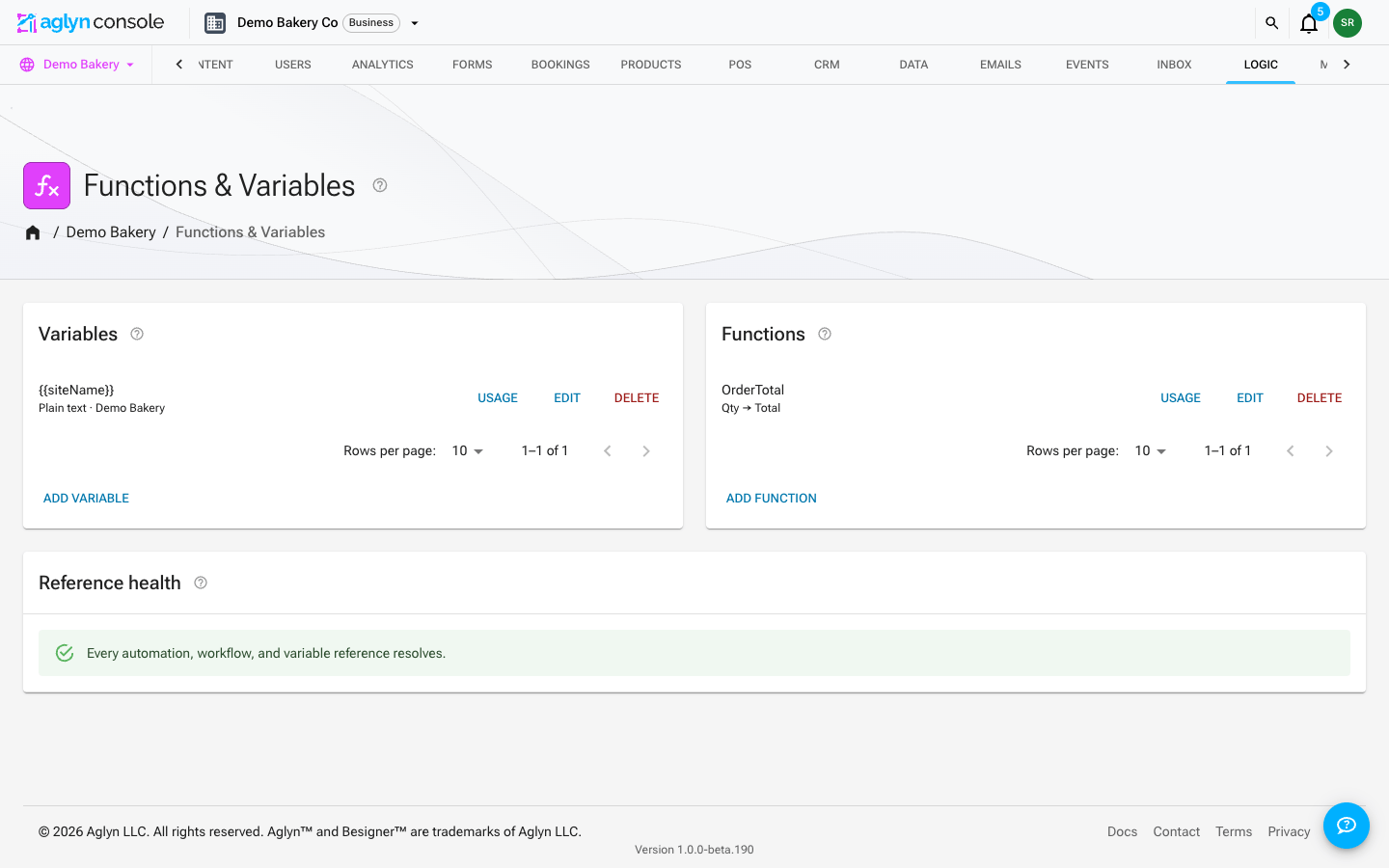
Every reference (workflow, dataset, webhook, overlay, list, campaign) is picked from a list and stored by id — renaming things never breaks an automation. Deleting can, though, so the Logic page's Reference health card audits every automation, workflow, and computed-variable reference and lists any that point at something that no longer exists.
Run history
Every automation row has a Runs button. It opens Runs — your automation with a Recent runs table of that one automation's executions, in five columns:
| Column | What's in it |
|---|---|
| Time | The clock time of the run; hover it for the full date and time. |
| Trigger | The event, in words — formSubmission shows as Form submitted. A custom event keeps the name you gave it. |
| Who | Who set the run off: a teammate's address, API key and the key's name, Site visitor (with the address they gave, when they gave one), or Inbound webhook and the hook's name. A purchase, booking or sign-up credits the customer who made it. A chained run — one an earlier automation's step caused — names whoever caused the first. Runs from before this column existed, and a run that resumes after a wait, say Not recorded. |
| Result | Succeeded, Failed, or Skipped. |
| What happened | For a run, what each step did, joined with ·. For a failure, the errors. For a skip, which condition stopped it. |
The table's toolbar narrows it. Filters offers Trigger and Result as picked values (is or is any of) and Time by day (is, after, on or after, before, on or before); Search finds a word at the start of any word in What happened. Every filter and the search are asked of the whole history, however far back it goes, and the table pages through the matches newest first, so a run from months ago is found as readily as one from this morning. Each filter in force shows as a chip above the table. Search and filters combine; a combination the history can't answer at once is named above the table and not applied, rather than applied to some runs and not others. See Filter and search a list.
Skipped is a result, not an absence — see Only run when a field matches. A run that fired but whose steps errored is Failed, and the errors are in the last column rather than in a log you have to go and find.
At the top of the Actions tab — and again on the Workflows tab, counting workflow
runs — a line reads 1,284 action runs this month · 50,000 included: how many metered
runs your workspace has used this calendar month, against the number your plan includes.
The allowance belongs to the whole workspace, not to each site: every site's runs count
against it, so the figure is the same on every site, and the organization's
Automation page shows it too. The
billing usage meters
show the same two figures. Watch it: once the workspace's runs reach the month's limit,
triggered automations stop running on every site rather than queueing or billing on. The
line renders nothing at all while the counter or the plan is still loading —
0 runs this month on a workspace that has run thousands is the one reading that would
make you stop debugging.
What is and isn't recorded
Reference detail. Runs and skips are recorded on different rules, and the gaps are deliberate:
- A skip on
pageViewis never logged. Page-view actions run on every visit to every published page, so a record per visitor per non-matching action would be a write storm, not a run history. ApageViewrun that does execute is logged like any other. Page-view conditions are tuned by watching the site, not by reading this table. - A skip is only recorded for server events — form submissions, sign-ups, bookings, leads. An action dispatched from an in-page trigger (scroll depth, element click, exit intent, time on page) logs its runs, but a condition that stops one of those writes nothing.
- A
Filterthat is merely false writes nothing, as above. A filter no event can satisfy — a comparison, or text the evaluator can't read — writes aSkippedrow with the reason. - Another form's automation writes nothing. An automation whose Form is names a
different form from the one just submitted is passed over without a row; a condition
on a typed
formNamestill writes one, since a typo would otherwise go unnoticed. - The table is a recent sample, not a guaranteed tail. It reads a bounded window of the site's activity records — which also carry publishes, media saves and member changes — keeps this automation's runs from that window, sorts them newest-first and shows up to 25. On a quiet site that is your last 25 runs. On a busy one the window can fill with other activity, and the newest runs are not guaranteed to be in it. There's no paging in the dialog.
- Nothing prunes run records on a schedule, so an automation's history keeps accumulating in the site's activity log even though this dialog only ever shows a window of it. Admin → Activity is the full log, ordered newest-first and paginated — go there when the Runs dialog doesn't show the run you're looking for.
Interactions from the Besigner
Select any element in the Besigner and use the Interactions section of the attributes panel to attach a when clicked, when hovered, or when scrolled into view trigger to that exact element — no CSS selectors to write. Pairing a when hovered trigger with an open menu or open drawer step is how you build hover-to-reveal navigation, and — like all basic in-page effects — it works on every plan. The interaction is saved and enabled on the element itself — it belongs to the document it is on, not to this section. The same panel lists the element's existing interactions with an enable switch and a remove button — so you can pause or retire one without leaving the canvas — and offers "A/B test this section", which creates a draft section experiment for the element.
When to use which
Both builders run the same steps — everything listed under Steps that runs on the server is offered in a workflow too, with the same fields, conditions and plan tiers. What differs is what starts the automation and whether there is a page in front of it:
| Use the actions builder | Use a workflow |
|---|---|
| Something a visitor does — a click, a hover, exit intent, a scroll depth | Something that happened on the server — a submission, a booking, a CRM event |
| Anything that changes the page: menus, drawers, class toggles, overlays, redirects | Server-side work only; the in-page effects are not offered |
| Fastest to set up | Composes your functions and variables, and binds each result for the steps after it |