The contact record
Every person in your CRM has a record: the email that identifies them, the profile your team keeps on them, where they came from, what they are filed under, and what the site recorded about them. You can add a person by hand, and edit every part of that profile from their own page.
Adding a contact by hand
Open CRM → Contacts and choose New contact. A drawer opens over the list — the list itself stays exactly where it was.
| Field | Notes |
|---|---|
| Required. It is the one thing every site shares about a person and what makes two captures one record. | |
| Name | Optional. Your own name for the person; the record also keeps the name they gave on a form. |
| Phone | Entered with its country code, like +1 512 555 0107. Stored in E.164 so the same number typed two ways is one number. |
| Job title | Free text. |
| Company | A picker over the companies your site may see. Type to search by name or domain; a name nobody has filed yet gets a Create row that makes the company and selects it. Once the email is typed, a company whose domain matches it is suggested beneath the field — offered, never applied. Leave it empty for no company. |
| Lifecycle stage | Where the person sits in your funnel; see Lifecycle stages. |
| Owner | The team member responsible for the relationship, picked from your workspace roster. |
| Tags | Comma-separated. Tags are lower-cased and deduplicated, so VIP and vip are one tag. |
| Address | Street, city, state or region, postal code and a two-letter country code. |
| Opted in to marketing email | Tick it only if the person actually agreed. Adding a contact is never itself consent, and the checkbox says so. |
If the email already belongs to a contact, nothing is duplicated: what you typed merges into the existing record and the page tells you so. On the Free plan, a full audience band refuses the new record with the same wording the list shows; upgrade in Billing to keep adding.
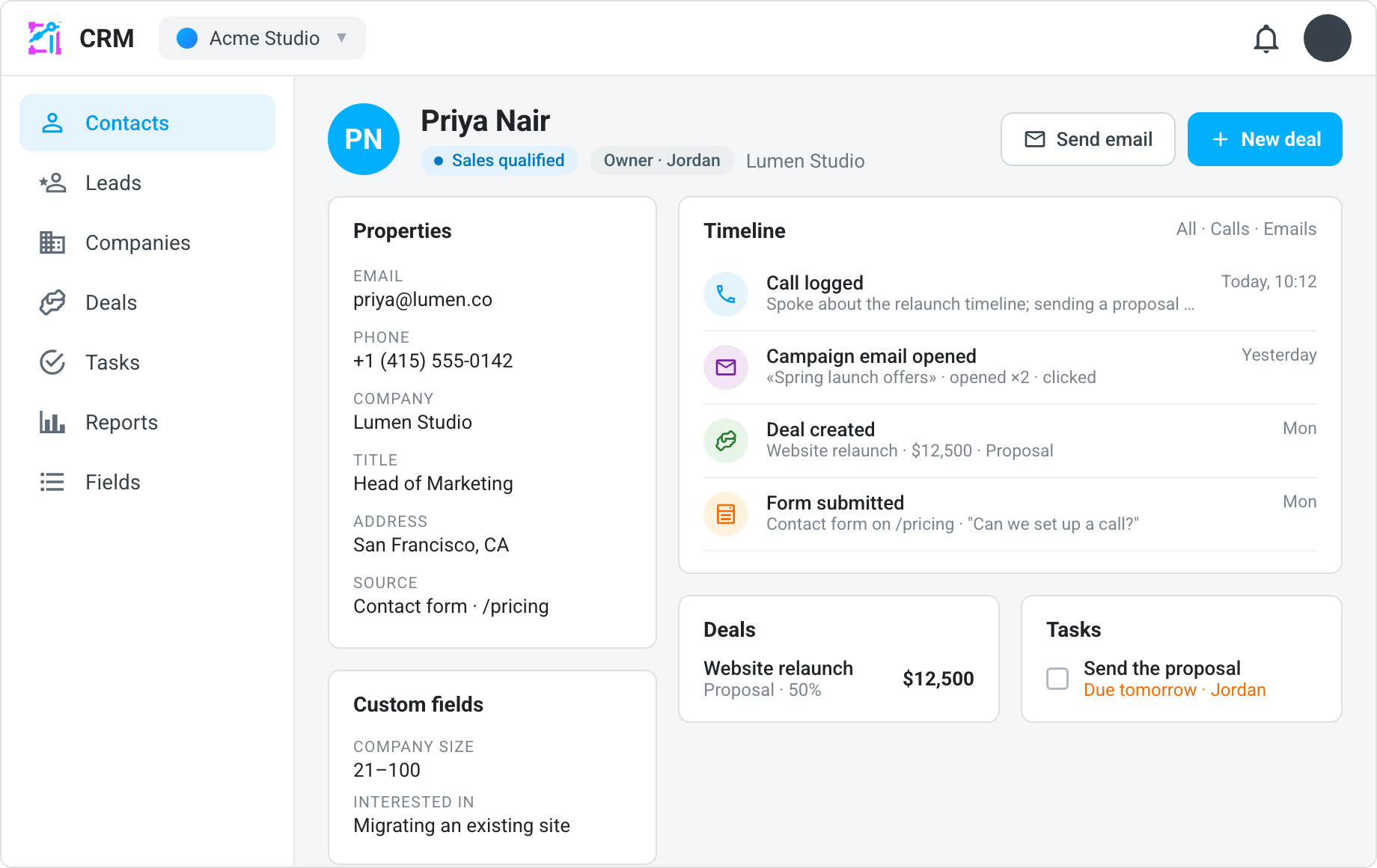
The record page
Clicking a row in the list opens the person's own page at
…/crm/contacts/{id} — an address you can paste and that every other CRM
record links to. The page opens with the person's name, their lifecycle stage,
their owner, when they last engaged with one of your
campaigns, and — for a buyer — how many orders they have placed and what they
have spent; the order count is a link to the site's orders list narrowed to the
person's address. Under it, one card per aspect of the record:
- Properties — the editable profile: name, phone, job title, company, lifecycle stage, owner, tags, address and an About box for your team's notes. One Save writes everything at once. The email is shown but cannot be edited here, because it is the shared identity. The Company field is the same picker the New contact drawer has: search the companies your site may see, create one by typing its name, or clear the field to unlink the person. A record that carries a company name with no link — an import, or a save from before the picker — shows the name as a note beneath the field, with one click to link the company of that name or create it. Changing the company here moves the count on the companies list with it.
- Relationship — the sources that created the record (a form, a checkout, a booking, an import, or by hand), the campaign attribution recorded from the link the person followed, the marketing email basis this site holds (opted in, opted out, or no record — the last is not a refusal), and the campaigns your team has filed the person under. Filing is your own bookkeeping; it never adds anyone to a send.
- Custom fields — one control per field your organization has defined; see Custom fields.
- Timeline — what the site recorded about the person, what your team has logged, and the campaigns they were sent, newest first: the forms they submitted, the orders they placed, the bookings they made, the calls, emails, meetings and notes filed against them, and every campaign email with whether it was delivered, opened or clicked, with Log activity to add one. A captured entry links to the record it names — Open submission, Open order, and the Bookings and Users pages for a booking and a sign-up — see Activities & the timeline.
- Deals — the deals the person is named on, with a New deal shortcut that starts one already linked to them — see Deals pipeline.
- Tasks — the open tasks about this person, each with a checkbox to complete it, and a New task shortcut — see Tasks & follow-ups.
- Likely duplicates — other records that may be the same person, found when you ask; see Merging two records.
The overflow menu (⋮) on the page carries Merge into… — see Merging two records — and two ways of removing a person, which are not the same act — see Deleting and erasing.
Deleting and erasing
Delete contact removes the person from this site's CRM — its notes, tags and timeline. Other sites in your workspace that captured the same person keep their own records, and the person's form submissions, orders, bookings and membership records are separate and are deleted from their own pages. It is a housekeeping act, and it is not a privacy erasure.
Erase this person is the privacy erasure — what you use when someone asks to be forgotten under GDPR, the CCPA or any similar law. It removes the person from every site in the workspace, whoever captured them, and it cannot be undone. Only a workspace admin or owner can do it; for everyone else the item is present but disabled, and its tooltip says who can. It is offered on a site's hub and on the organization's alike.
Choosing it opens a dialog that lists exactly what will happen, and asks you to type the person's email address back before it files anything:
| Removed across the workspace | The contact record on every site — profile, notes, tags, timeline and custom fields; every lead for the address on every site; the tasks and logged activities filed against the person; the person on any email audience list; the campaign delivery log for the address, with its opens and clicks. |
| Kept, with the person taken off | Orders and bookings stay as financial and appointment records with the name, email, phone and addresses removed. Deals stay on the pipeline, unlinked from the person. Companies stay, with their contact count reduced. |
| Not reached — finish these by hand | Form submissions, which keep the address inside the answers under whatever the form called the field — delete them from the Inbox. A site member account, which is the person's own login — close it from the site's Members page. |
Two things follow the click at once, before anything is deleted. The address is closed to capture on every site in the workspace: a later form fill, order or import cannot quietly recreate the record (a hand-added contact or an import row for the address is refused with the reason), and no campaign is sent to it. And the record shows an Erasure pending banner — on the contact's page and on each site's lead — saying when it was requested.
The erasure itself runs with the platform's nightly erasure job, the same job that executes a workspace's own erasure. Until it runs, the record is kept only so the request can be seen; nothing new should be added to it. When the job has run, the record and everything listed above are gone, and the request is complete. If the person asks what was removed, the workspace's audit trail records counts of what the sweep touched — never the address.
Asking twice does no harm: a request already waiting is answered, not filed again.
What each site keeps to itself
A contact document is shared by every site in your workspace — one human who touched two of your sites is one row. Almost nothing on it is shared: the notes, tags, timeline, phone, title, company, address, owner and stage are one site's knowledge of the person and are never shown to another site's console. The email and the name the person gave are the only shared identity.
Merging two records
A contact is one record per email address, so the same person cannot be captured twice under one address — but one human with a work address and a personal one is two records, with tags, deals, tasks and a timeline split between them. Merge into…, in the overflow menu on either record, folds the two into one.
The dialog first finds the other record — type an email address for an exact match, or a name to search among the contacts your site may see — and then shows the two side by side, field by field, with the value the kept record will carry. Pick which record to keep; the other is merged into it and deleted. At the organization level the search spans every site and a record no site captured merges too. The rule is the same for every field:
| What | After the merge |
|---|---|
| Name, phone, job title, company, stage, owner, address, custom fields | The kept record's value where it has one; an empty field fills from the other record. Nothing the kept record holds is overwritten. |
| Tags, campaign filings | Combined. |
| Timeline | Combined and ordered, newest first. The other record's calls, notes and logged activities move across too. |
| Notes | The other record's notes are added below the kept record's. |
| Orders and lifetime value | Added together — two records of one person's purchases are one person's purchases. |
| Deals, tasks, activities, and a converted lead | Repointed at the kept record. |
| Companies | The kept record is filed under every company either record named. |
| Marketing email | A site's opt-in on either record stands on the kept one. A recorded opt-out on either record stands too: the merge says these are one person, and that person said no. |
| Email address | The kept record's address stays the identity. The other record's address is recorded as an alternate, shown after the address in the page header as also …. |
An alternate address is what makes the merge stick: a later capture on it — a
form the person fills in from the personal account, an order placed with it —
lands on the kept record rather than creating the second record again. Every
place that finds a person by address reads the same way: an automation step
that sets a stage or files someone under a campaign, a flow email's consent
check, the engagement stamp a delivery webhook writes, the Inbox's add-to-list
check, a refund, a proof's consent read, and the REST API's lookup and
duplicate refusal all resolve the alternate to the kept record. The
REST API performs the same merge, and reads
the alternates back as alternateEmails.
What the merge does not rewrite is anything keyed by the address itself. A list membership, a suppression, and the delivery log of past sends each belong to the address they were recorded against, so the personal address's list memberships stay under the personal address and the work address's under the work address. The kept record shows both addresses in its header, which is where to look when a person's mail history seems split.
Merging is available to members whose data permission covers the whole workspace, because a contact is shared by every site that captured the person and the merge touches each site's records of them. Every site's own profile of the person is combined under the same rule; no site's notes reach another site's view.
Likely duplicates
The Likely duplicates card on the record page looks for other records with the same name and the same phone number, or the same name and the same company, among the contacts your site may see. It looks only when you press Find likely duplicates — never on its own — and lists what it finds with why, and a Merge into this record button that opens the merge dialog with this record as the one kept. Two records with different names can still be one person; merge those from the overflow menu.
Owner
The Owner is the team member responsible for the relationship. The contacts list has an Owner column and an Assigned to me toggle that narrows the list to the people assigned to you; the record page shows the owner beside the heading and lets you reassign.
Last engaged
Last engaged is when the person last opened or clicked a campaign email
sent by this site, or by a site declared to be one sender with it. The record
page shows it beside the heading; the contacts list carries it as an optional
Last engaged column, off until you turn it on from the column menu, and the
CSV export always includes it as lastEngaged.
It is set by the delivery webhook on the first open and the first click of each campaign email, so a reader opening one newsletter six times moves it once, and it only ever moves forward. Account mail — a receipt, a booking confirmation — never moves it, and neither does a campaign another business in your workspace sent the same person: it is your relationship's pulse. Campaign mail opened before the stamp existed did not set it, so a long-standing reader can show no value until their next open.
A list built from a rule can select on it — Engaged with a campaign within (days) — which is how a re-engagement audience is built.
Lifecycle stages
The Stage says where a person is in your funnel. The list has a Stage column and a Stage filter; the record page lets you set it.
Every capture on your site sets the earliest stage that describes what happened, and never moves anyone back: a form submission makes a Lead, a newsletter opt-in or a member sign-up makes a Subscriber, a booking makes a Lead — a Customer once it is paid — an order makes a Customer, and so does a deal marked won with the person on it. A subscriber who then submits a form becomes a lead; a customer who submits one stays a customer. A contact you add by hand, import, or create over the API gets the stage you give it, or none, and a contact captured before this rule carries the stage its earlier captures imply.
| Stage | Meaning |
|---|---|
| Subscriber | Signed up to hear from you and nothing more yet. Set by a newsletter opt-in or a member sign-up. |
| Lead | Showed interest — filled in a form, asked a question. Set by a form submission or a booking request. |
| Marketing qualified | Engaged enough for marketing to hand over. |
| Sales qualified | A real prospect somebody is working. |
| Opportunity | There is a deal on the table. |
| Customer | Has bought. A purchase on your site, or a deal with them marked won, sets this automatically for anyone at an earlier stage, and never moves anyone back. |
| Evangelist | A customer who sends others your way. |
| Other | A step of your own that none of the names fit. A sale never overwrites it. |
Where the person's lead is
The Relationship card shows Lead on this site when this site holds a lead for the address — a sign-up, a booking, or a submission to a form with lead routing on. It opens the lead. A contact that came in through an order, an import or a form without lead routing has no lead, and the link is simply not there.
Finding a contact
The list's search and column filters reach every contact in the workspace by name and email. The console's search (the magnifying glass in the top bar) finds contacts too — by name, email, phone number or company name — and opens the person's page. Contacts appear in that search only for members who can manage data on the site, and only while the CRM is available to them.
The phone number and company name are kept on the record itself for that lookup, as this site last saved them; the values you see on a person's page are always your own site's.
Related
- CRM overview
- Import contacts from CSV and Bulk actions — many records at once
- Companies — the account a person works for
- Activities & the timeline — the history on the record page
- Email campaigns
- REST API — contacts — the same record, with its per-site profile, over the API