Deals pipeline
Deals is the sales pipeline inside the CRM: one card per
opportunity, moving through the stages your business sells in. Open it at
…/hosts/{site}/crm/deals; a single deal has its own page at
…/crm/deals/{id}.
Deals are part of the CRM suite, included from Starter; on Free the section is shown locked. A deal is a CRM record, counted with contacts and companies against your plan's records band — see CRM records.
Pipelines
Every workspace starts with one pipeline, Sales, and a default set of stages: Qualified, Contact made, Proposal sent, Negotiation, then Won and Lost. The pipeline is created the first time somebody opens the Deals section, so there is nothing to set up before the first deal.
A business that sells more than one way — new accounts and renewals, retail and wholesale — can run more than one pipeline, each with its own stages and its own board. Open Pipelines on the Deals section to:
- Create a pipeline. Give it a name; it starts with the default stages, which you can then edit. Names are unique among the active pipelines.
- Rename a pipeline.
- Set as default. New deals land in the default pipeline unless the New deal drawer picks another; there is always exactly one default.
- Archive a pipeline that holds no open deal. The default pipeline and the last active one cannot be archived; close or move the open deals first. An archived pipeline is never deleted — the deals it closed still show their stages — and can be restored later.
- Edit stages of a pipeline (below).
When there is more than one active pipeline, a pipeline switcher appears in the section header. The board, the table, the three figures above them and the New deal drawer all follow it.
Stages
Each stage carries a probability — the chance a deal in that stage closes — which is what the weighted forecast multiplies by. Won is always 100%, Lost is always 0%, and the stages in between are yours to set.
Edit stages on a pipeline lets you:
- Rename a stage or change its probability.
- Reorder the open stages with the up and down arrows.
- Add a stage. New stages are open stages; every pipeline keeps exactly one Won and one Lost.
- Remove a stage that no deal is in. A stage with deals in it cannot be removed — move the deals first, so nothing is left pointing at a stage that no longer exists.
The board and the table
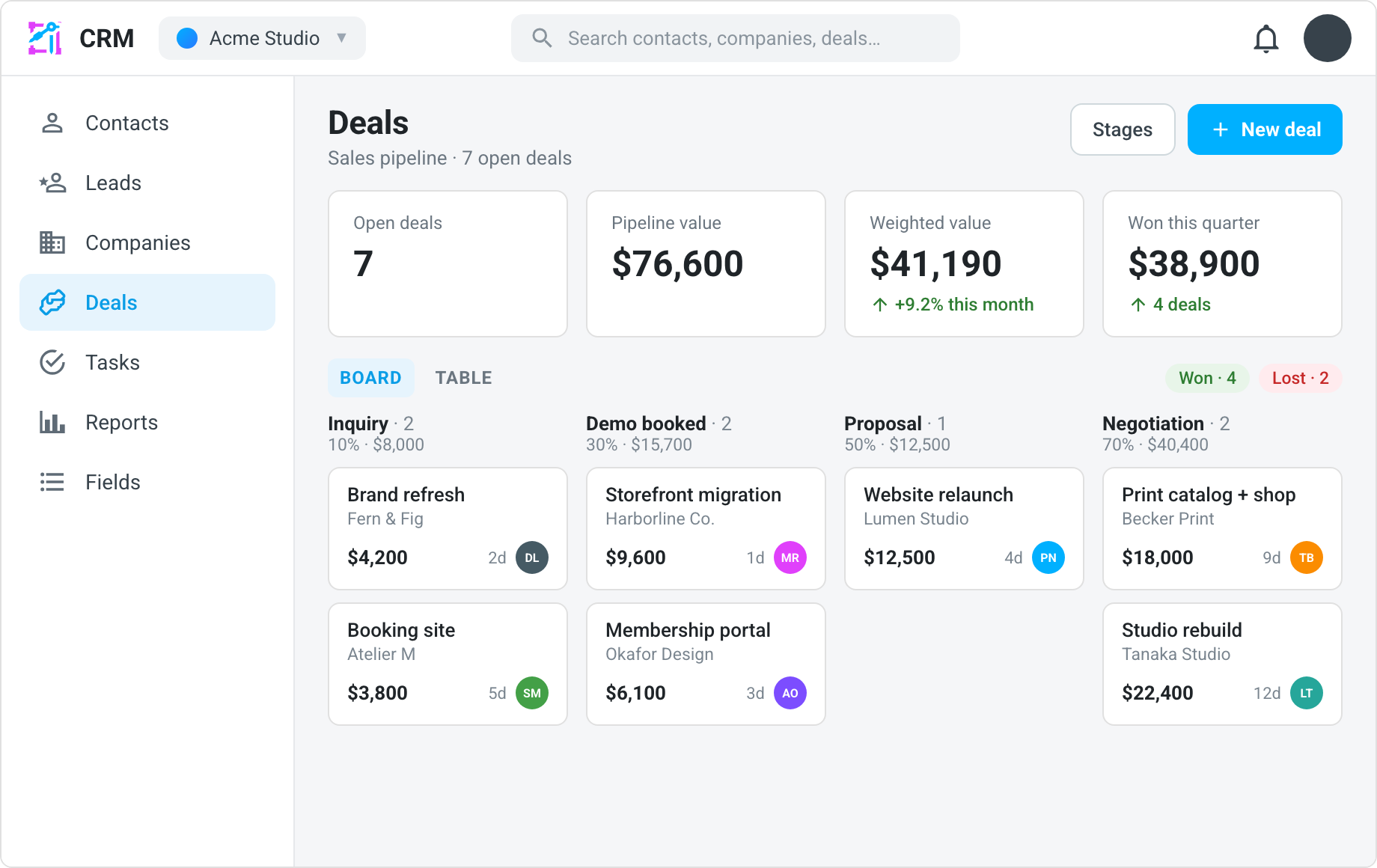
The section opens as a board of the chosen pipeline: one column per open stage, with Won and Lost folded away at the end until you expand them. Each card shows the deal's title, amount, the contact and company it is with, its owner, and how many days it has sat in its current stage. Drag a card between columns to move it, or use the card's menu to move it, mark it won, or mark it lost from the keyboard.
Above the board, three figures summarize what is open: the open count, the pipeline value (every open deal's amount, per currency) and the weighted value (each amount multiplied by its stage's probability).
Switch to the table for a paged list with the title, stage, amount, owner, expected close date and status of every deal in the pipeline, including the closed ones.
The table's rows have checkboxes: tick some and a bulk bar
appears above it to set their stage, set their owner, mark them lost with one
reason, export them or delete them. Export CSV beside the status filter
downloads the deals on screen as deals.csv — title, pipeline and stage by
name, the amount in major units beside its currency, the owner by email
address, the expected close date, status, the contact and the company, when
it closed, the lost reason and notes; the bar's Export CSV writes the same
file over the selection.
Creating a deal
New deal opens a drawer. A deal needs only a title; everything else is optional:
| Field | What it is |
|---|---|
| Pipeline and stage | Where the deal starts. The pipeline list holds every active pipeline and opens on the one the board is showing; the stage defaults to its first open stage. |
| Amount and currency | What the deal is worth. Currency defaults to US dollars; the amount is stored in minor units, so 1,250.00 is exact. On a deal with line items the amount is their sum and is read-only here. |
| Expected close | The date you expect to close it — what a forecast by month reads. |
| Owner | The teammate responsible. Picked from your workspace's members. |
| Contact | The person the deal is with, searched by name or email from your contacts. |
| Company | The organization, searched by name from your companies. |
| Notes | Anything the card cannot carry. |
A deal is visible to the same sites as a contact captured on this site would be, so a site that cannot see the person cannot see the deal.
Line items
A deal's amount can be a number you type, or the sum of the products behind it. The Products card on a deal's page lists its line items — each a name, a quantity and a unit amount in the deal's currency — and Add line opens a dialog with two doors:
- From the catalog searches this site's active products by name and offers each variant at its catalog price. Catalog prices are in US dollars; on a deal in another currency the dialog says so, and the unit amount can be edited before the line is added.
- By hand takes a name and a price with no product behind them. A plan without commerce has no catalog to search, so this is the only door it shows.
Once a deal has a line item, its amount is the lines' sum: the Amount field in the Edit drawer turns read-only with a caption saying so, and every change to the lines — a quantity edited in place, a line removed — writes the new sum with it. Remove the last line and the amount is yours to type again, starting from the last sum. A deal carries at most fifty lines, all in the deal's currency.
Line items travel over the REST API as lineItems,
with the same rules.
Moving, winning and losing
Stage changes go through the server rather than being written directly, so that automations can hear them. Three events fire, and each can trigger a workflow or action — see Automations for the CRM:
| Event | When |
|---|---|
dealStageChanged | A deal moves between open stages, or is reopened. |
dealWon | A deal is marked won. |
dealLost | A deal is marked lost. Marking a deal lost asks for a reason, which is kept on the deal. |
Every event carries the deal's id, title, amount and currency, its new and previous stage, and the owner, contact and company ids, so a workflow can notify the owner, file a task, or act on the person.
A won deal makes its contact a customer
Marking a deal won sets the linked contact's lifecycle stage to Customer — the same rule an order applies: a person with no stage or an earlier one becomes a customer, and nobody is ever moved back, so an Evangelist who closes another deal stays an evangelist and a stage of Other is never overwritten. It happens on the move into the won stage itself, whichever way the deal got there — the board, a card's menu, the deal's page, the bulk bar, the organization-level board, or the REST API — and there is nothing to switch on: a won deal is a customer by definition. The stage is written for the site the deal was made on, so a sibling site that also knows the person keeps its own reading of them.
When the stage did move, a Contact changed stage event follows the Deal won event, so an automation that starts when somebody becomes a customer hears it; the organization's activity feed line for the win says contact now a customer. An automation on Deal won is for what happens next — the Follow up a won deal recipe books a check-in call and sets no stage, because the win already did.
A deal's page
Opening a deal shows:
- The header — the deal's title in the page heading and the trail, the pipeline and stage under its kind, its status, amount and owner as chips, Back to deals, Edit, and a menu (⋮) carrying Delete deal.
- Stage — a stepper across the open stages, with Won and Lost buttons and, on a closed deal, the way to reopen it.
- Properties — the amount and its weighted value, the expected close, the owner, links to the contact and the company, and the notes.
- Products — the line items behind the amount, with the door to add one from the catalog or by hand.
- Tasks and Activity — what is owed on this deal and what has happened on it.
A deal also appears on the pages of the contact and the company it names, each with a New deal shortcut that starts a deal already linked to them.
Related
- CRM overview
- Companies and the contact record — the two records a deal is with
- Tasks & follow-ups and Activities & the timeline — what is owed on a deal and what has happened on it
- Bulk actions — stage, owner, loss, export and delete over a selection
- Reports — the open pipeline, its weighted forecast, and won against lost
- Automations for the CRM — the three deal events, and what a won deal does on its own
- Workflows & actions
- REST API — deals and pipelines