Maintenance mode
Need to pause your live site while you make changes? Maintenance mode serves your designed 503 page to visitors until you switch it back.
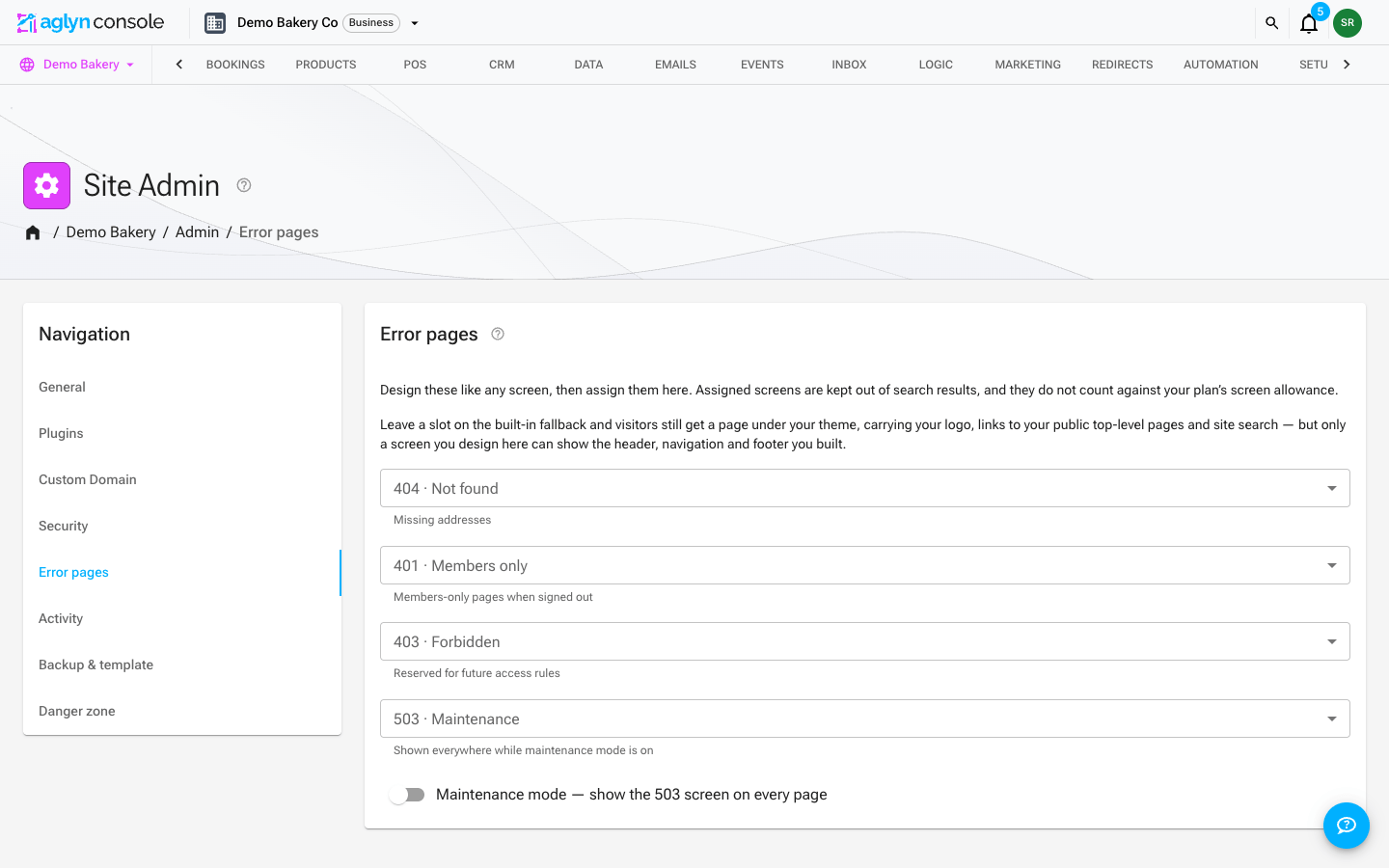
Turn it on
- Open Admin → Error pages for the site — the same card that assigns your error pages. The switch takes every page of the site offline for every visitor, so the Admin area is limited to site admins.
- Switch on Maintenance mode — show the 503 page at every address. It confirms with "Maintenance mode on — visitors see the 503 page".
- Visitors now see your 503 error page on every path.
- When you're done, switch it back off and the site returns.
If you haven't assigned a 503 · Maintenance page, maintenance mode still works — but visitors get Aglyn's plain built-in notice ("This site is undergoing maintenance. Please check back shortly.") rather than anything on-brand. Design and assign the 503 first.
Tips
- Design the 503 page first (see custom error pages) so maintenance mode shows something on-brand.
- Tell visitors when you'll be back — a simple line on the 503 goes a long way.