Make your site private
Want to keep your site to yourself while you build it, share it with a client before launch, or keep it to a few people for good? Aglyn doesn't have a single "private" switch that puts every page behind one password. Instead, pick the setting that matches who should still get in:
| Who should see the site | Use | Where | Plan |
|---|---|---|---|
| Only you and your team, while you finish it | Preview | Admin → Error pages (also offered when you create a site) | Every plan |
| Your team only, while a live site is paused. Not visitors, not search engines, not someone with the link | Maintenance mode | Admin → Error pages | Every plan |
| Anyone with the link, but keep it off Google | Discourage search engines | Setup → SEO → Search engines | Every plan |
| Only people you give a password to | Password protected, page by page | The page's Page Access card | Every plan |
| Only people signed in to your site | Members only, page by page | The page's Page Access card | Pro and up |
Hiding a page from search doesn't stop people opening it. Only preview, maintenance mode, a page password, and members-only actually keep visitors out.
Keep it to your team with Preview
Preview keeps the whole site to the people building it. Visitors see your 503 page, or a plain Coming soon notice if you haven't designed one, at every address. You and your team see the whole site: every page, your header and footer, collections and working forms, with a bar across the top that says only your team can see it. When you're ready, you flip one switch and the site is public to everyone.
- Open Admin → Error pages for the site. Opening the Admin area takes the Manage site settings permission, which a site's admins hold by default.
- Switch on Preview — only you and your team can see the site. It confirms with "Your site is in preview — only you and your team can see it".
- Keep building. A banner, "This site is in preview", follows you around the site's console pages so it isn't forgotten at launch, and the site's card in Sites reads In preview.
- On launch day, switch Preview off. Make it public on the banner takes you straight to the switch. Your pages are public within about a minute.
Who sees what
- Visitors see your 503 · Maintenance page if you've assigned one (see custom error pages), or a Coming soon notice with your site's name. Design the 503 page first if you want visitors to see your brand.
- Your team sees the whole site. That is anyone who can open the site in the console: workspace owners and admins, members who look after every site, and anyone with a role on this site. Someone who is only on other sites of your workspace doesn't see it.
- Aglyn support can see it too, so they can help you with it before it's public.
- People who signed up on your site (its member accounts) are visitors, not your team, so they see the 503 page.
Open your site while it's in preview
Choose Visit site on the site's dashboard, or Visit on its card in Sites. While the site is in preview these buttons sign you in to the site itself, so the same click works on its Aglyn address and on your own domain. That sign-in lasts 12 hours; after that, choose Visit site again.
If you open the address some other way, such as from a bookmark, on your own domain, you'll see what visitors see until you come in through Visit site once.
Search engines stay away
While the site is in preview, search engines are asked to stay away from every page, every address tells them the site is temporarily unavailable, the site lists no pages for them, and its feeds are switched off. Nothing about the unfinished site gets indexed. When you make it public, your pages are offered to search engines again as usual, unless you've also switched on Discourage search engines.
Start a site in preview
When you create a site, the Start in preview switch decides whether it starts this way. It's on when you bring in your current site, so nothing of it is public before you've looked at it, and off when you start from the starter site or with Aglyn AI. Change it before you create the site, either way.
Keep one page to your team
To keep a single page to your team while the rest of the site is public, open the page in Pages and switch on Preview — only your team can see this page in its Page Access card. Once the page is published, visitors get your 404 page at its address and your team sees the page. Switch it off to make the page public. When you create a page, the Start in preview switch in Create new page does the same from the start.
Choosing who sees a page is part of publishing, so it needs a role that can publish.
Both show visitors your 503 page and keep the whole site working for your team. Without a 503 page, Preview tells visitors the site is Coming soon, and Maintenance mode tells them it's undergoing maintenance. If both are on, visitors get the maintenance answer.
Hide the whole site until launch
Maintenance mode is the way to make the whole site private in one step. Every address on the site shows your 503 page to every visitor, including anyone who already has a link, and pages you add later are covered too. You and your team still see the whole site.
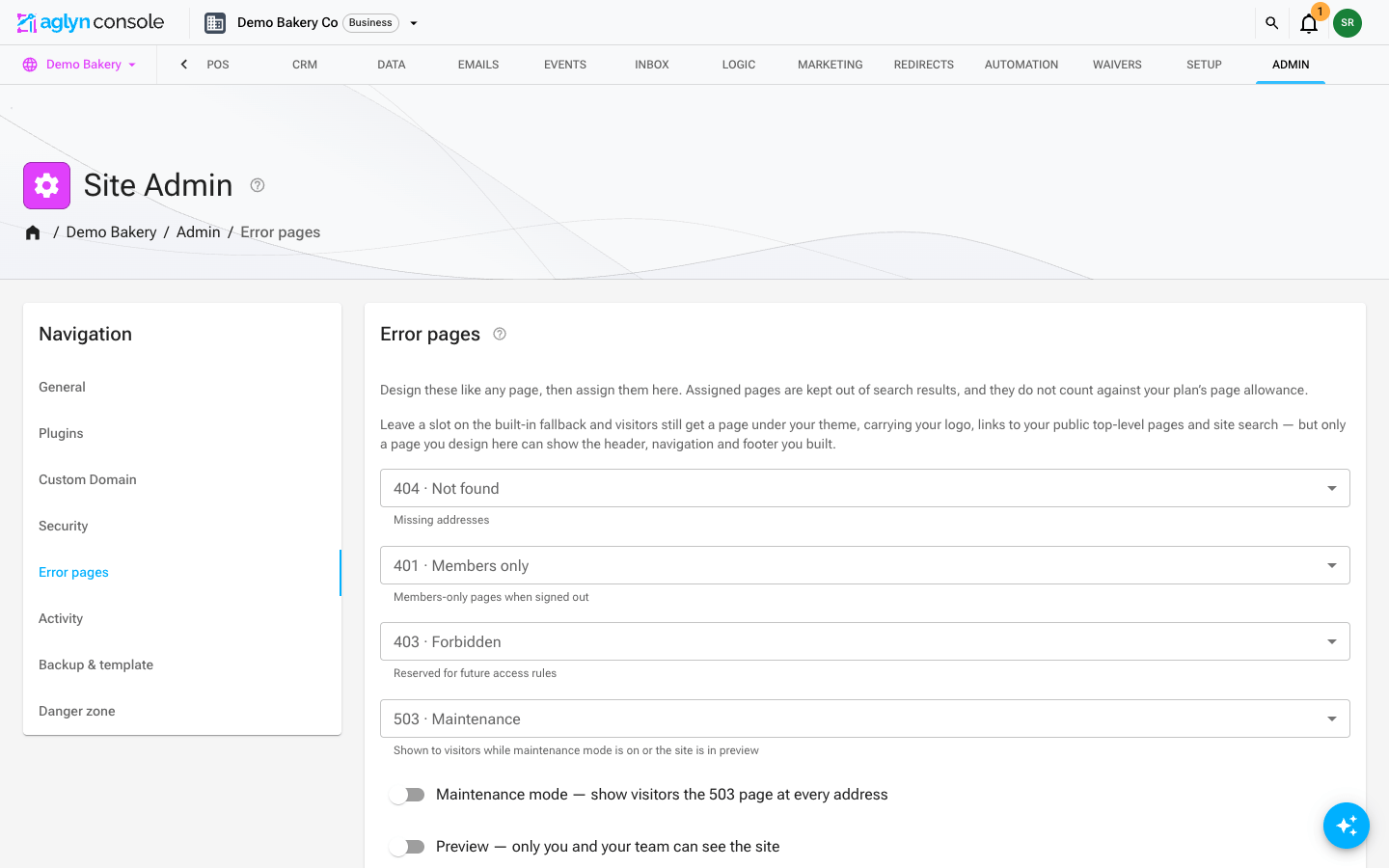
- (Optional) Design a 503 · Maintenance page in the Besigner, such as a short "Coming soon" with your logo, and assign it in Admin → Error pages. See custom error pages. Without one, visitors see Aglyn's plain built-in notice.
- In the same Admin → Error pages card, switch on Maintenance mode — show the 503 page at every address. Opening the Admin area takes the Manage site settings permission, which a site's admins hold by default.
- Keep building. You and your team still edit pages, layouts and content in the console and the Besigner as usual. Maintenance mode only changes what the published site shows.
- On launch day, switch maintenance mode off. Your pages are live again within about a minute.
Search engines are told the site is temporarily unavailable, and the 503 page is never offered to them, so nothing about the unfinished site gets indexed while maintenance mode is on. For visitors, the site's search page and its collection feeds pause too. See Search engines and feeds.
If you'd rather keep a "coming soon" page open to collect email sign-ups while the rest of the site stays out of search, follow Launch a coming-soon page.
Keep it out of search only
If anyone with the link may look but you don't want the site on Google yet, open Setup → SEO → Search engines and switch on Discourage search engines from indexing this site. Search engines are asked to stay away from every page, including pages you add later, and a warning banner follows you around the console while it's on so you don't forget it at launch.
This doesn't make the site private. Anyone with the address can still open every page. To hide a single page from search instead of the whole site, set that page's visibility to Unlisted. Details are in Search engine visibility.
Share it behind a password
To let only people you've given a password to see a page, such as a client reviewing a draft, set that page's visibility to Password protected:
- Open Pages and click the page.
- In the Page Access card, set Visibility to Password protected.
- Type a Page password and click Save, then publish.

Passwords are set per page, so repeat this on each page you want locked. You can use the same password on all of them. Visitors type the password on each protected page they open, so this works best for a few pages rather than a whole site. To lock everything at once, use maintenance mode. Step-by-step details, including the guess limit, are in Password-protect a page.
Only signed-in members
On Pro and up, set a page's Visibility to Members only in the same Page Access card. Visitors must sign in to your site to view it, and stay signed in as they move between members-only pages. You'll need the site's sign-in and sign-up pages turned on first. See Members-only areas.
Keep in mind:
- Like passwords, this is set page by page. New pages start as Public, so set each new page as you add it.
- Anyone who reaches your sign-up page can create a member account. Members-only keeps out people who aren't signed in; it doesn't hand-pick who joins. To remove someone, suspend them from the site's Users page.
Ask Aglyn AI
You can ask Assist to make these changes for you, such as make my site private until launch, hide the site from Google, make the pricing page members only or put the site back online. Assist shows the change on a plan card, and nothing changes until you confirm it. It's then saved to your live site straight away, just as if you'd used the switch yourself, and it uses no AI credits.
- Maintenance mode needs the Manage site settings permission to turn on or off, as in the Admin area. A site's admins hold it by default. Without it, Assist makes the rest of your request and says it left maintenance mode alone.
- Members only is set only on the Pro plan and up. On other plans, Assist says why it left the page as it was.
- Passwords are never set by Assist, so a password never goes into the chat. Set it in the page's Page Access card, as in Share it behind a password.
Asking how, such as how do I make my site private?, gets you the steps on this page instead. Building from the chat needs AI generation on your plan; see Build from Assist chat.
Check what's still public
Before you share a link or announce a launch:
- If the site was in Preview, check the banner is gone and the site's card in Sites no longer reads In preview.
- Open the site in a private (incognito) browser window, where you aren't signed in, and click through it as a visitor would.
- In Pages, open any page you added recently and check its Page Access visibility. New pages start as Public.
- Run the SEO check. It reports whether search engines are being asked to stay away from the site.