Site starters
Site starters from the marketplace are a release-flagged feature that is not yet available on aglyn.com-hosted workspaces. Until it is switched on for your workspace, Create site asks you to choose a style instead, as Create a site describes.
A site starter is a ready-made website you create a new site from: its pages, the shared header and footer every page sits in, and its theme. You pick one in Create site, before the site exists, and the site is born with all of it, published.
Choose your starter
- Choose Create site on the All Sites page, or in the site switcher in the app bar.
- Name your site and choose its address.
- When you can use Aglyn AI, Start your site opens first: choose Start from a starter site. Otherwise Create site opens on Choose your starter straight away.
- Pick a starter card. Type in Search starters to find one by name, or choose a kind of site (Restaurant & café, Photography, Online store and the rest) to see only those; Every kind shows them all again.
- Choose Create site.
Nothing is chosen for you. No card is selected when the window opens, and Create site stays unavailable until you pick one you can create from. Closing the window creates nothing, and Back returns to Start your site as you left it.
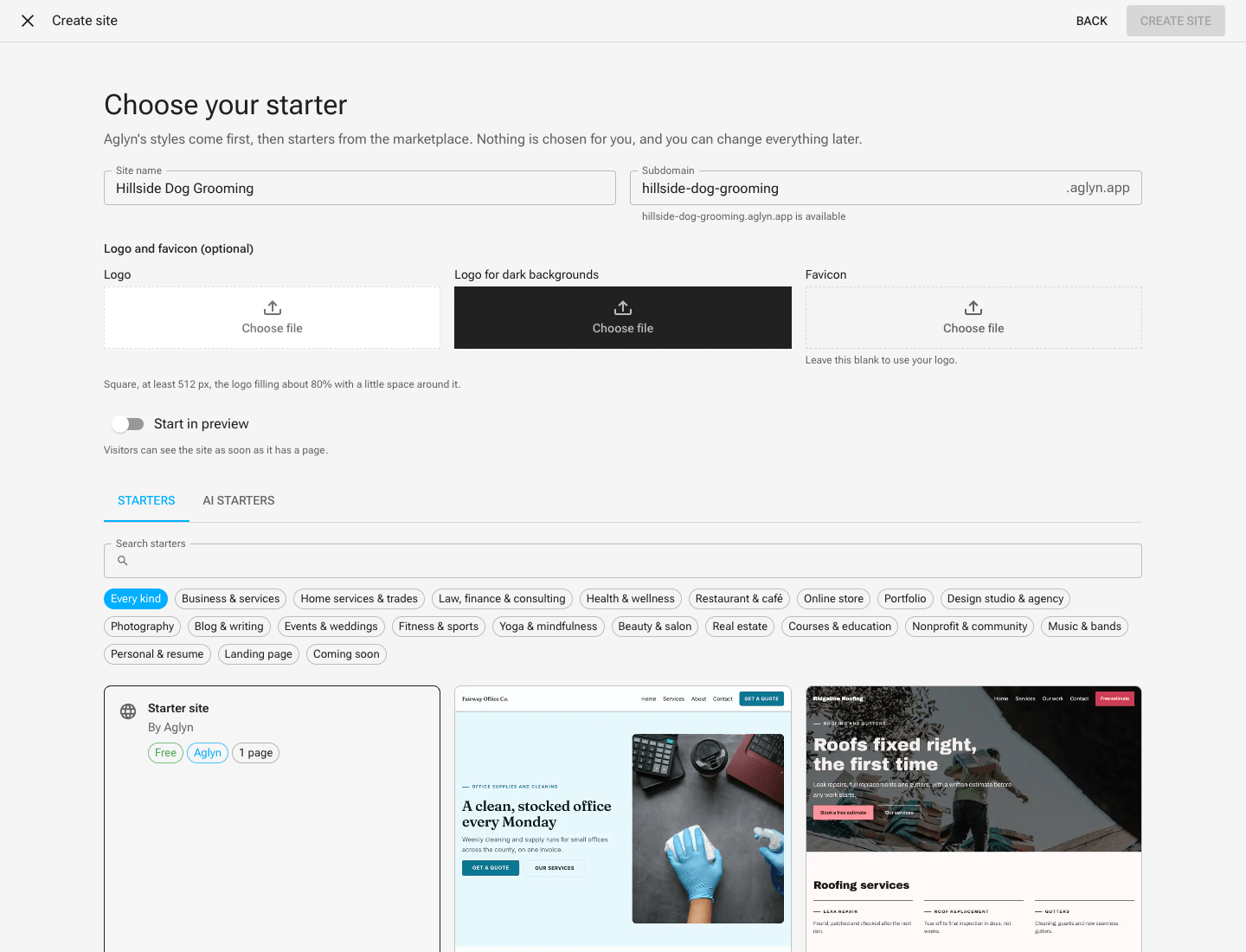
What a card shows
Each card shows a picture of the starter's home page, its name and who made it, and:
- its price: Free, or the price you pay for it once;
- Aglyn on Aglyn's own starters;
- AI on an AI starter;
- the kind of site it is made for;
- how many pages it creates.
Where starters come from
- Aglyn's styles come first: one starter for each of the 21 styles Create site offers, with the same pictures. Picking one gives your site the starter pages in that style's look.
- Then starters from the marketplace, made by publishers. A publisher's starter is reviewed by Aglyn before anyone else can see it.
Starters and AI starters
Where Start your site is offered, Choose your starter has two tabs:
- Starters are copied into your new site as they are: their pages, their header and footer, and their theme.
- AI starters are a starting point for Aglyn AI's start, which writes the pages for your business. Pick one and choose Continue: the start's questions open filled in from it, its style and, where it has one, its brand color chosen, for you to change, and Plan my site creates the site. See Start from an AI starter.
A starter with a price
A card with a price says so when you pick it, with Buy and continue. You pay right there, in Create site:
- Choose Buy and continue. The price, the sales tax, the total and the card that will be charged open under the cards. Nothing is charged yet.
- Choose Pay. Your workspace's card on file is charged, and You own this starter appears beneath the cards. If your bank wants to confirm the payment, its own step opens first.
- Choose Create site.
An AI starter with a price works the same way, with Continue in place of Create site: its answers are shown only once it is yours.
If your workspace has no card on file, the form to add one opens in the same place, and then one for a billing address if there is none: sales tax is calculated from it. Both stay on file for the workspace under Organization → Billing, where you can change them. If the card is declined, nothing is charged: the step says why, with a link to Billing to change the card.
Paying charges your workspace's card, so it takes the Manage billing permission as well as Create sites. Without it you still see the price, the sales tax and the total, but there is no Pay, and the step says someone who manages billing can buy it. Once they have, anyone who can create sites can use the starter.
The starter belongs to your workspace once it is paid for, so creating another site from it later asks for nothing more. Cancel charges nothing, and Buy and continue is there again. A starter you already own says You own this starter as soon as you pick it.
The receipt is the invoice under Organization → Billing → Invoices. To ask for a refund, contact support, as for any marketplace purchase.
What your site gets
- Its pages, published as soon as the site is created. The console says Your site is live and names the starter it was made from, with View your site and Edit your pages. Turn on Start in preview before you create it to keep the site to your team until you make it public.
- The shared header and footer every page you add renders inside.
- Its theme: a built-in theme with the starter's brand color and fonts, or the starter's own theme, which is added to your site's themes named after the starter.
A starter with more pages than your plan includes cannot be used. Create site says how many pages it has and how many your plan includes, and you can pick another.
Make it your own
Everything a starter creates is yours to change. Edit its pages under Pages, and pick another theme or change the colors and fonts under Setup → Theme. Changing them never changes the starter, and later changes to the starter never change your site.
Who can use them
Choosing a starter takes the Create sites permission, the same one creating any site does. Without it, Create site tells you so before anything is asked. Paying for one also takes Manage billing, as A starter with a price says.
Publishing your own
Any workspace whose plan includes selling on the marketplace can publish one of its sites as a starter, free or with a price: Admin → Backup & template → Publish as a starter. You choose whether it carries your site's built-in theme with its brand colors, or your site's full theme. A new starter is reviewed before anyone else can see it. Publish as a starter walks through it.
In the Aglyn app
Create site in the Aglyn app on iPhone, iPad, Mac and Android lists the same starters, and nothing is chosen for you there either. A free starter, or one your workspace owns, creates your site at once.
The app doesn't take payment for a starter and doesn't ask an AI starter's questions. A starter with a price shows it with Buy on the web, and an AI starter shows Continue on the web. Either one opens Create site in the console on that starter, where you finish. You may be asked to sign in there first.
You can also publish from the app: Site settings → Backup & template → Publish as a starter, or A site starter on its Publish to the marketplace page.
Related
- Create a site
- Your templates library, for the starter templates every site can use to add pages
- Start a new site with AI
- Publish as a starter