Interactions & custom HTML
Fluent interactions
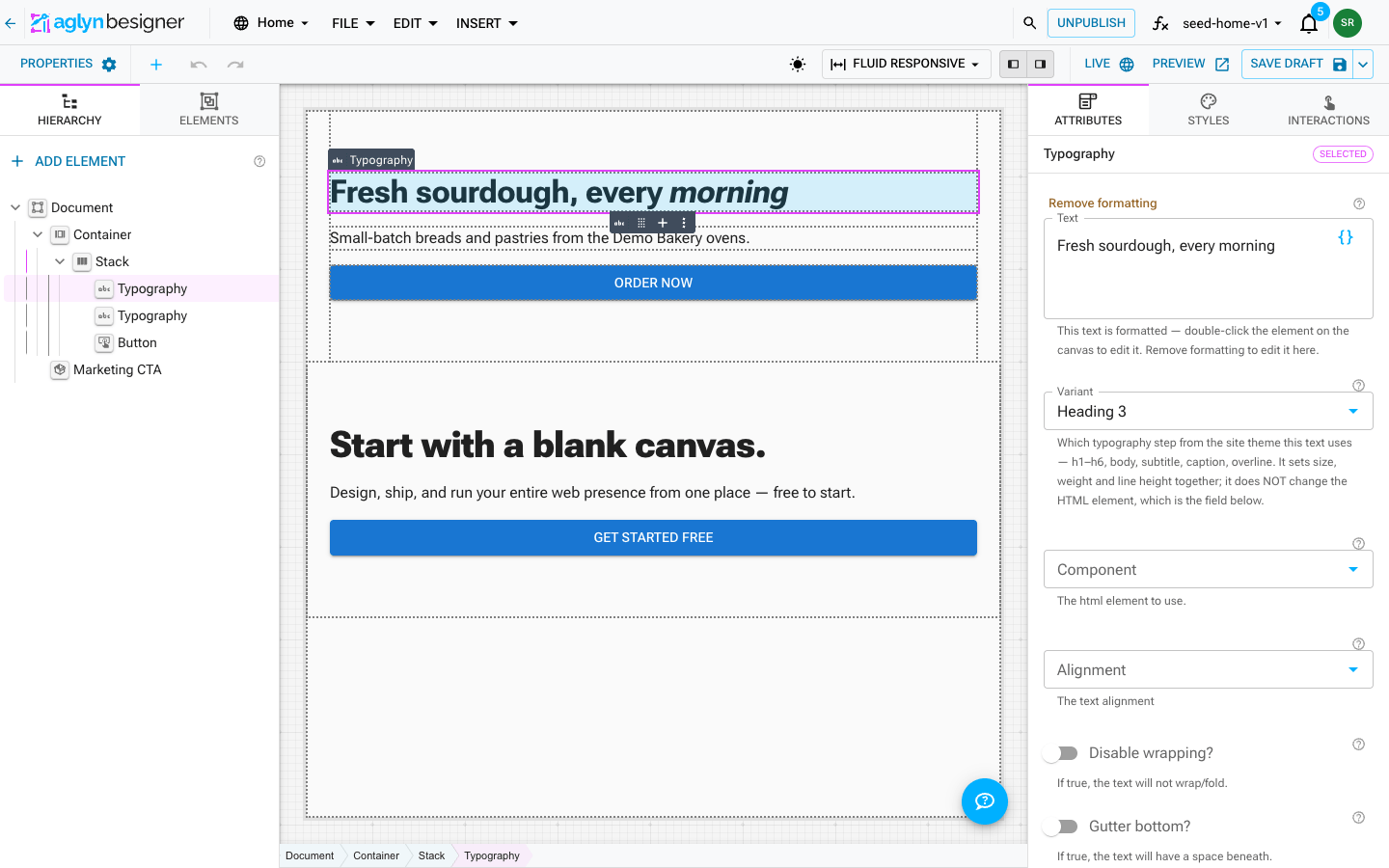
Select any element, open the Interactions tab in the right-hand panel — beside Attributes and Styles — and use Add interaction. Everything configures in one dialog without leaving the besigner:
- Trigger: when the element is clicked, hovered, the hover ends, or it scrolls into view.
- Frequency: every time (the default — repeatable, for menu and drawer toggles), once per page view, once per session, once per visitor, or with a cooldown.
- Actions (stack as many as you need). The basic actions below are
pure in-page choreography — available on every plan (see
Plan availability):
- Show / hide / show-hide an element — pick any other canvas element from a list; no selectors or classes needed. Use the target's ⋮ → Start hidden until an interaction shows it to make it start hidden on the live site and on the canvas; selecting it opens it again while you design. (Not the eye on the Hierarchy row — that hides an element outright, and nothing reveals it.) Each of these takes an optional Delay (a later show/hide on the same target cancels a pending one — the classic hover grace period) and, for steps that can show, Close on Esc / Close on outside click so a revealed panel dismisses itself like a real menu.
- Open / close / open-close a menu — drives a Dropdown or Mega Menu element. The target defaults to the element itself when it is a menu; leave it empty to address the page's first menu. A menu opened by When hovered closes itself when the pointer leaves the nav item and its panel.
- Open / close / open-close a drawer — drives a Drawer element; leave the target empty to address the page's first drawer.
- Toggle / append / remove a class — targets this element by default, or any CSS selector. Pair with your theme's utility classes for menus, reveals, and state changes.
- Scroll to element — moves the page to any element you pick, with an offset for a sticky header. See Scroll to element.
- Play a video — presses a Video element's poster from anywhere on the page. See Play a video.
- Make the nav sticky, go to a URL / page, or show a site alert — navigation and lightweight feedback, no server involved.
- The remaining actions are the automations engine (Pro+, metered —
see Plan availability):
- Open an overlay, show custom HTML, or track an analytics event in the page.
- Run custom JavaScript (Business tier).
- Server steps — run a workflow, send an email, notify admins, enroll a contact in a list, update a dataset, or assign a campaign. Workflows, overlays, lists, and datasets are picked from lists — never typed by name — so renames can't break them.
- Test runs class and show/hide actions against the canvas immediately and explains what the other actions will do on the live site.
Saved interactions are enabled immediately and appear on the element's Interactions list with edit (✎), enable/disable, and remove controls.
Interactions belong to the page they are on
An interaction is stored on the element, inside the page, layout, component or template that holds it. That is what makes the obvious things true:
- it publishes and rolls back with the page — restoring an earlier version restores the interactions that version had;
- it travels with the element — duplicate a section, copy a component to another site, or package a template, and the choreography arrives with it, bound to the copy rather than the original;
- it is removed with the element — deleting a button takes its click behavior with it, leaving nothing pointing at something that is gone;
- it is unsaved work until you save, like any other edit, rather than going live the moment the dialog closes.
Automation → Actions is a different list. Actions are things the site does — an order was placed, a form was submitted — so they are site-wide and live outside any one page. Interactions are things an element does, and they are edited only here, on the element.
Interactions created before this change are still listed on their element and still run. They are being moved onto their elements; nothing you need to do.
Plan availability
Interactions come in two tiers, and the field editor labels the steps that need a higher plan:
- Basic interactions — every plan, including Free. Opening and closing menus and drawers, showing and hiding elements, toggling classes, scrolling to an element, playing a video, sticky nav, navigation, and site alerts are pure client-side DOM behavior with no server cost. They run everywhere and are never metered — a hover-to-open menu is not a paid feature.
- The automations engine — Pro+, metered. Steps that reach the server
or a data pipeline — overlays, analytics events, custom JS (Business),
and the server steps (workflows, email, datasets, campaigns) — require
the
actionsentitlement and count against your monthly action runs.
On a plan without the automations entitlement, an interaction that mixes tiers still runs its basic steps live; the Pro+ steps are simply skipped until you upgrade. See workflows & actions for the full step catalog and metering.
Pick the target by clicking
Any action that points at an element — open a menu, show / hide, open
a drawer, scroll to element, play a video — lets you choose the target
visually: click Pick element,
click the element on the canvas, and confirm. No CSS selectors to write,
and the picker resolves the stable data-aglyn id under the hood so the
target survives edits. A custom selector field is there as a secondary
option for advanced cases (a class or attribute selector you maintain
yourself).
Interaction cookbook
- Hamburger menu: on any button, When clicked → Open/close a drawer. (The Menu Button element does this without any interaction at all.)
- Hover menu: on a Dropdown or Mega Menu element, When hovered → Open a menu at frequency every time. Clicking already toggles every menu with zero configuration; this adds the hover-open, and the menu closes itself when the pointer leaves.
- Hover reveal: When hovered → Show an element plus When hover ends → Hide an element, both at frequency every time.
- Mega menu from scratch (no Mega Menu element): wrap a trigger button and a panel in one Stack (wrapper: position relative; panel: ⋮ → Start hidden until an interaction shows it, position absolute below the trigger). On the wrapper: When hovered → Show the panel, When hover ends → Hide it with a small Delay (say 250ms) so the pointer can travel; add Close on Esc to the show step for keyboard dismissal. The Dropdown Panel preset (Navigation group) inserts exactly this pattern with both interactions pre-wired — see menus & navigation.
- Scroll reveal: on a section, When scrolled into view → Append class
visiblewith a CSS transition, frequency once per visitor. - Announcement click-through: When clicked → Track analytics event plus Go to a URL.
- "Watch the demo" button: When clicked → Scroll to element and Play a video, both picking the film.
- Section nav: on each nav item, When clicked → Scroll to element with the Offset set to your sticky header's height.
Scroll to element
When clicked → Scroll to element brings the element you pick to the top of the window — no id to invent, and it keeps working when the page around it changes.
| Option | What it does |
|---|---|
| Scroll | Smoothly (the default) or Instantly. A visitor whose device asks for reduced motion is always scrolled instantly. |
| Offset (px) | Room left above the element, 0–1000, so a sticky header does not cover it. |
Keyboard focus moves to the element too, so a keyboard or screen-reader visitor carries on from there. If the element is hidden or has been deleted, the step does nothing and the interaction's other actions still run.
A Button or Link whose External URL is only a fragment, such as #watch,
goes nowhere on the published page, because the elements you place carry no id
for it to find. The field warns while it holds one: clear it and use this
action instead.
Play a video
When clicked → Play a video does exactly what pressing a Video element's poster does, from a button anywhere on the page. Pick the Video as the target.
- With Open in a lightbox on, the lightbox opens and the film plays.
- With it off, the film plays in place of the poster.
Nothing is loaded from the video's host until the action runs, and a Wistia video follows the same consent rules as a press on its poster. To be sure the film is in view as it starts, put Scroll to element, picking the same Video, before it.
Track an analytics event
When clicked → Track an analytics event sends an event of your own naming to your site's Google Analytics property, alongside the events Aglyn already sends. It is a Pro+ step, and it is the only way to measure something the built-in events do not already cover — a click on one particular button, a tab someone opened, a video they started.
The step takes an event name and up to 10 parameters, each a name and a value. See Google Analytics events for everything your property receives without you doing anything.
Naming the event
Type a readable name; Aglyn normalizes it into the shape GA4 accepts. CTA Click! is stored and sent as cta_click — lowercased, anything that is not a
letter, digit or underscore becomes an underscore, runs of underscores collapse,
a trailing one is dropped, and the result is cut to 40 characters.
Two names are refused outright rather than rewritten, with the reason shown as you save:
- A name GA4 reserves for itself, or one starting
firebase_,google_orga_. GA4 would silently discard the event. - A name Aglyn already uses, such as
purchaseorgenerate_lead. Reusing one would mix your events into a report built on a different shape.
A name that does not start with a letter is refused too.
Parameters
| Limit | Value |
|---|---|
| Parameters per event | 10 |
| Parameter name length | 40 characters — GA4 drops anything longer |
| Parameter value length | 100 characters — longer values are truncated |
Every parameter needs both a name and a value; a row with either half blank is not saved.
A parameter must not carry anything about the person — no email address, name, phone number, postal address or IP. Those parameter names are refused, and so is any value that looks like an email address. A URL you pass is reduced to its origin and path, so a query string cannot smuggle one in.
This is checked when you save, not silently at run time: if a parameter would be stripped on delivery, the step refuses to save and names the parameter, because an event that runs, reports success and arrives missing the dimension it was created for is worse than one that will not save.
The practical rule is that a parameter should be a fixed label you chose —
plan: pro, location: footer — and never a form field's contents.
Where it goes, and when it does not
The event reaches your own Google Analytics property, not Aglyn's. It is subject to the same consent gate as everything else: with no analytics grant there is no tag on the page, and the event is dropped where it is raised rather than held and sent later. Nothing about the interaction otherwise changes — the rest of its steps still run.
Custom HTML block
The Custom HTML block accepts markup and CSS with a strict safety model:
- Sanitized by default — scripts, iframes, objects, forms, and inline
event handlers (
onclicketc.) are stripped on every render. What you paste can style and structure, never execute. - Embed mode for third-party widgets: the raw snippet runs inside a sandboxed iframe with scripts allowed but no access to your site, cookies, or visitor data. Set the iframe height to fit the widget.
- A
url(...)still reaches out, and that is on you. Sanitizing stops your CSS from executing; it does not stop it from fetching. Onlyhttps:,data:andblob:addresses are accepted — anything else,http:included, is rewritten tourl(about:invalid), which loads nothing and leaves the rest of the rule intact. Whichhttpshost you name is your choice, and we do not proxy it: your visitor's browser contacts that host directly, so it learns their IP address, user-agent and the page they are on. The same rule covers astyleattribute inside your markup and the Styles panel's Custom CSS. Hosts you reference this way are yours to name in your own privacy notice — see Trust & security.
Prefer first-party blocks where one exists — embeds can't participate in theming or interactions.