Inline & rich text editing
Text is edited where it lives. Double-click a heading on the canvas and you are typing into that heading — the real one, at its real size, weight, color and position. Nothing pops open, nothing moves, and the page reflows around you as you type, exactly as visitors will see it.
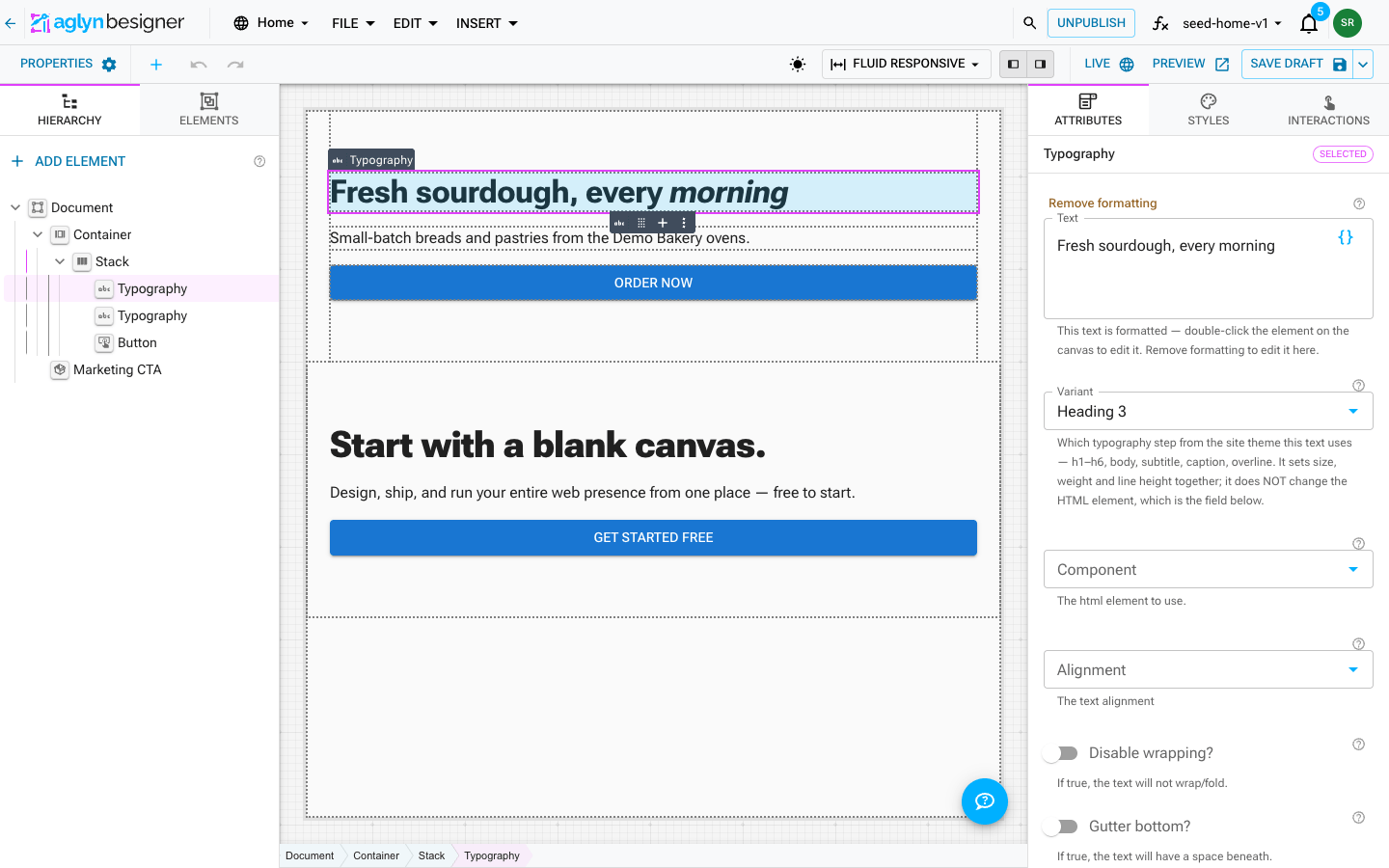
Edit on the canvas
- Double-click the text. A single click just selects the element.
- The cursor lands at the end of the existing text — never selected-all, so a stray keystroke cannot wipe a heading you meant to add a word to.
- Type. The surrounding layout moves in real time: a heading that grows to two lines pushes the paragraph below it down as it happens.
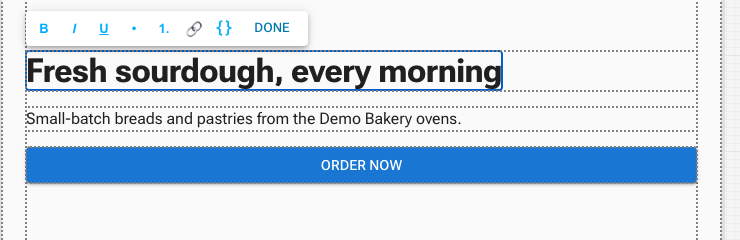
- The selection outline and its shading step aside while you type, so you are looking at your text on the page rather than at editor chrome. It comes back when you finish.
A Markdown element is different — double-clicking one opens the full document editor instead. See Long documents in markdown.
Finishing, and changing your mind
| You press | Plain text element | Rich text element |
|---|---|---|
| Enter | Commits the edit | Starts a new line |
| Shift + Enter | Inserts a line break, keeps editing | Starts a new line |
| Cmd/Ctrl + Enter | Commits the edit | Commits the edit |
| Escape | Cancels — everything you typed is discarded | Cancels |
| Click anywhere else | Commits, and selects whatever you clicked | Commits |
| Done on the toolbar | Commits | Commits |
Two things worth knowing:
- One edit is one undo step. Undo puts back the previous text, and for formatted text the previous formatting with it.
- Opening and closing without typing is not an edit. No undo step is recorded and nothing is sent to anyone editing alongside you.
While you are editing text, Cmd/Ctrl + C, V and A act on the text — not on canvas elements.
The toolbar
A small toolbar floats above the text you are editing: Bold, Italic,
Underline, Bulleted list, Numbered list, Insert link, the {}
Insert data button, and Done. Insert link asks for the address
(https://…).
Rich text
Rich text is opt-in per element — today that means Typography. Everywhere else, text is plain, which is deliberate: a button label or a link caption has no business carrying paragraphs.
Where it is available you can use bold, italic, underline, links, and bulleted or numbered lists. That is the whole list, and it is enforced rather than merely suggested: anything else — styling pasted in from another app, stray attributes, scripts — is stripped when the edit is committed. Links keep their address and nothing else.
Rich text says a word is emphasized; it does not say what emphasis looks like. Color, size, weight and spacing come from your theme and the Styles panel, which is what keeps a site looking like one site. If you find yourself wanting to color a single word, that is the JSS (sx) tab, not this.
If you strip all the formatting back out on the canvas, the element quietly becomes a plain-text element again — there is no leftover empty markup to trip over later.
The Text attribute
The Text field in the right-hand panel and double-clicking on the canvas edit the same value. Use whichever suits: the panel is often quicker for a short label you are setting alongside other attributes.
When the Text field is read-only
Once an element carries formatted text, the Text field goes read-only and says so:
This text is formatted — double-click the element on the canvas to edit it. Remove formatting to edit it here.

This is not the field being awkward. A plain text box can only show you the words, so anything you typed into it would have to throw the bold, the links and the lists away silently to save. Rather than do that behind your back, the field shows you the text, stays out of the way, and points you at the two things you can actually do.
Remove formatting
Above the field is a small Remove formatting button. It does exactly what it says and nothing more:
- Kept — every word, and every line break.
- Lost — bold, italic, underline, links, and list structure.
The element goes on saying the same thing in the same shape, and the Text field becomes editable again. It is one undo step, so if you press it by mistake, undo brings the formatting straight back.
Line breaks
Shift + Enter puts a real line break in plain text; on a rich text element, Enter does. Breaks survive into the Text field, which is a multi-line box that shows them as breaks.
Text wrapping because a container is narrow is not a line break, and correctly does not appear in the Text field — it is a fact about the width, not about the text, and it changes on a phone.
Line breaks only started being carried into the Text field recently, and nothing was rewritten retroactively. An older element may show its text in the panel without the breaks until the next time you edit it on the canvas — after which it will look right there too.
Bindings in text
Text props accept bindings — {{variable}},
{{fn:name(args)}}, and dataset fields.
On the canvas, a binding normally shows you its resolved value. The moment you
start editing, it turns into a single named pill instead. That is on purpose: a
binding is one thing, and if it were spelled out as ordinary letters, a backspace in
the middle of it would quietly destroy it. As a pill it can only be kept or removed
whole — click it to Replace or Remove it, and use {} on the toolbar to
insert a new one where the cursor is. The pill label is only ever a display; what
gets saved is the {{…}} you wrote.
Where you cannot edit in place
- Elements that do not declare text. In-place editing is offered by the components built for it — Typography, inline text, buttons, page links, accordion summaries and the email text blocks. Elsewhere, use the attribute panel.
- Locked elements, such as the layout chrome shown around a page. Double-click does nothing; edit it in the layout itself.
- While the interaction builder is choosing a target — there, two clicks are two choices, not an edit.
- Inside a reusable component instance, you can only edit a piece of text the component exposed as a prop. Text the component owns stays as the component defines it, which is the point of a component. Clearing an override you have set returns that text to the component's own copy.
Multi-line elements and the selection outline
An inline run of text that wraps onto several lines is outlined line by line, with a single name label — the same way a browser highlights text you select with the mouse. It is one element, drawn as the several line boxes it genuinely occupies, rather than one big rectangle that would cover the empty space beside a short last line and the neighboring text beside the first.
Blocks are unaffected: one element, one box, as before.