Add a WhatsApp button
A WhatsApp button opens a chat with your business number in WhatsApp, on the
visitor's phone or computer. In Aglyn it is an ordinary Button that links to
WhatsApp's chat address, wa.me, with the WhatsApp icon in front of its label.
You set all of it with the Button's own fields.
Before you start
You need the number your business uses on WhatsApp, written the way WhatsApp's
chat address wants it: the country code and then the number, digits only. Leave
out the +, spaces, dashes and brackets. In many countries you dial a 0 before
a number at home; leave that out too. For example, +1 (555) 555-0123 becomes
15555550123.
1. Add the button
Open the page in the Besigner and add a Button. It is in the Input group of
the Elements tab, or type button in Search elements. Place it where
visitors look for a way to reach you: the header, beside your contact details, or the
footer.
2. Fill in its fields
Select the button and open its Attributes tab:
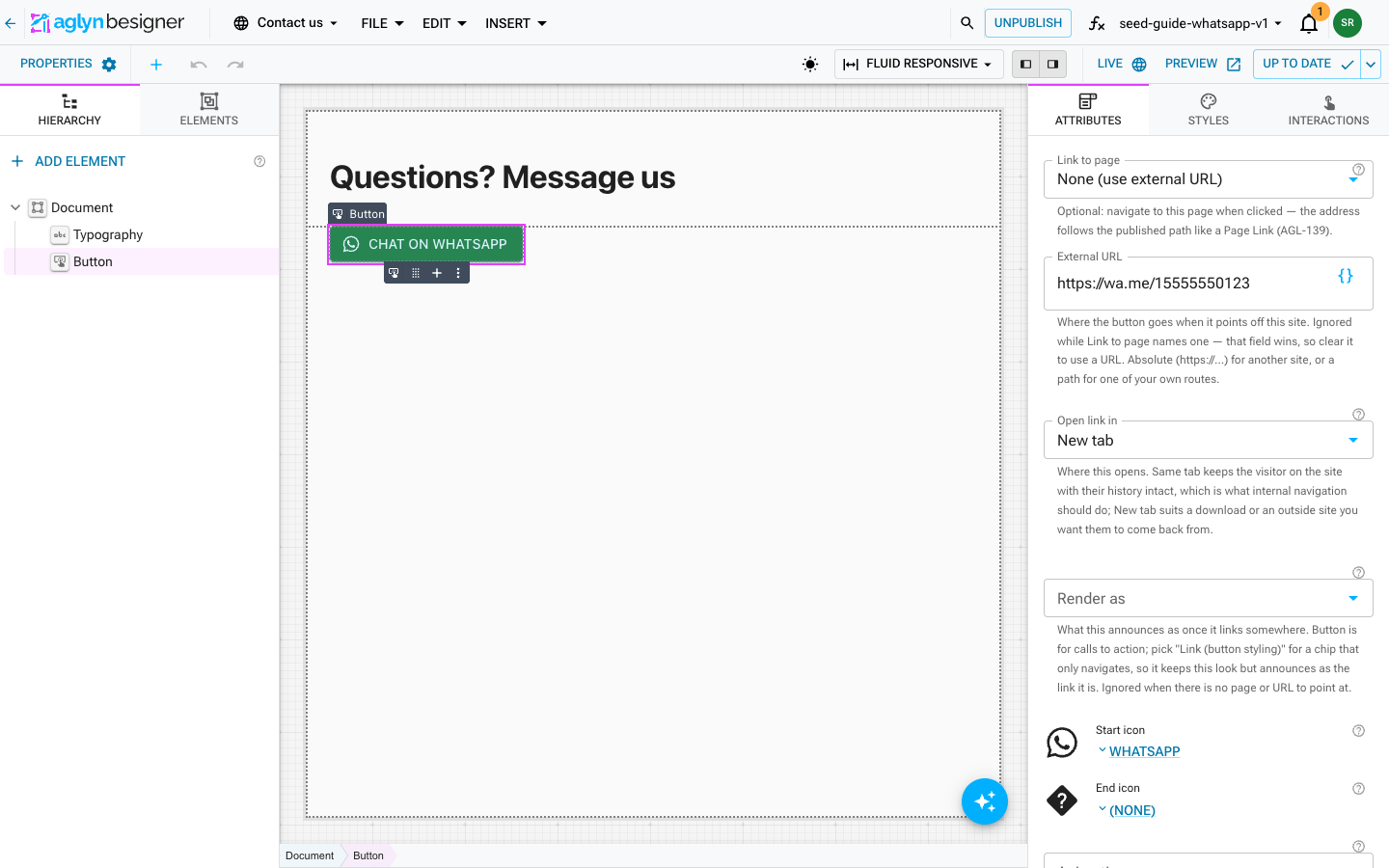
| Field | What to enter |
|---|---|
| Text | The label, such as Chat on WhatsApp. You can also type it on the canvas. |
| Variant | Contained for a filled button that stands out. |
| Theme color | Any of your theme's colors. |
| External URL | https://wa.me/ and then your number, such as https://wa.me/15555550123. Leave Link to page at None (use external URL): a page picked there wins over this address. |
| Open link in | New tab, so your site stays open while the visitor chats. |
| Start icon | The WhatsApp icon. See Pick the WhatsApp icon. |
Pick the WhatsApp icon
Under Start icon, click the icon to open the picker. Type whatsapp in
Search icons..., click the WhatsApp icon, and press Choose. The icon now
shows before the label. To put it after the label instead, use End icon.
Start the chat with a message
To have a message already typed when the chat opens, add ?text= and the message
to the end of the address, with %20 for each space:
https://wa.me/15555550123?text=Hello%20from%20your%20website
WhatsApp puts the message in the chat box, and the visitor sends it.
Announce it as a link
The button only opens a chat, so you can set Render as to Link (button styling). It looks the same, and screen readers announce it as the link it is.
3. Publish and try it
A button doesn't follow its link in the Besigner or in preview, so clicking it there does nothing. Publish the page, open it on your site and click the button: WhatsApp opens a chat with your number.
For a Free workspace's first 14 days, links to other websites go through a short "You're leaving" page first, and the WhatsApp link does too. See Links on a new Free site.
Related
- Where a link opens: the Open link in choices
- Live chat: a chat window on every page, from your Tidio or LiveChat account